How To Connect Wired Headphones To Macbook: Easy Guide
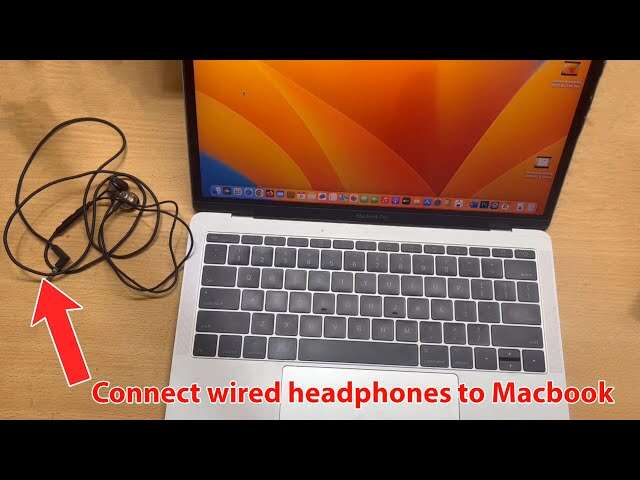
Use the headphone jack or a USB-C/Thunderbolt adapter to plug wired headphones into your MacBook.
I’ve worked with Macs and audio gear for years, and I’ll guide you step by step on how to connect wired headphones to macbook. This article covers every port type, the adapters you may need, settings to check, common problems, and practical tips from real troubleshooting. You’ll finish knowing exactly which cable or adapter to use and how to get audio working cleanly and reliably on your MacBook.

why wired headphones still matter and compatibility overview
Wired headphones give reliable audio and no latency. Many pro users prefer wired headphones for editing, streaming, and clear calls. Newer MacBook models dropped the 3.5 mm jack. That change affects how to connect wired headphones to macbook.
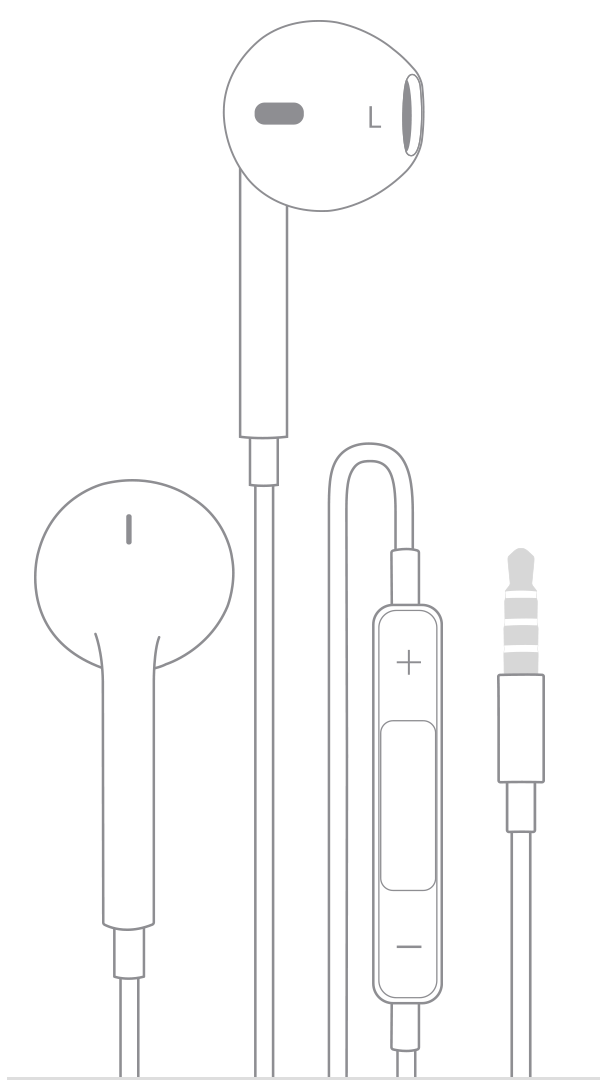
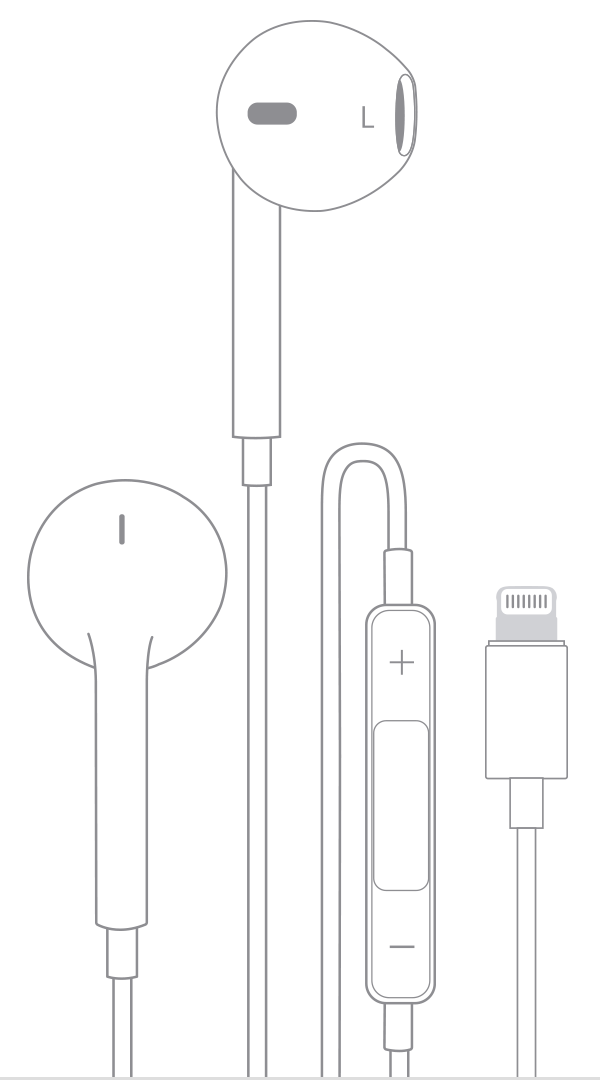
Compatibility depends on the MacBook model and headphone plug. Headphones with a 3.5 mm TRS plug behave differently than those with a built-in microphone (TRRS). USB-C and Lightning wired headphones use digital audio and need the right adapter or driver.

identify your MacBook model and ports
Find your MacBook model from About This Mac. Older MacBooks often have a 3.5 mm headphone jack. Recent MacBook Air and MacBook Pro models may only have USB-C/Thunderbolt ports.
Look at the port shape and icon. If you see a small circle with headphones or a headphone icon, you have a 3.5 mm jack. If you see oval ports labeled USB-C or Thunderbolt, you’ll need an adapter for 3.5 mm headphones. Knowing the ports makes connecting wired headphones to macbook simple and fast.
how to connect wired headphones to macbook — step-by-step
- Check the plug type
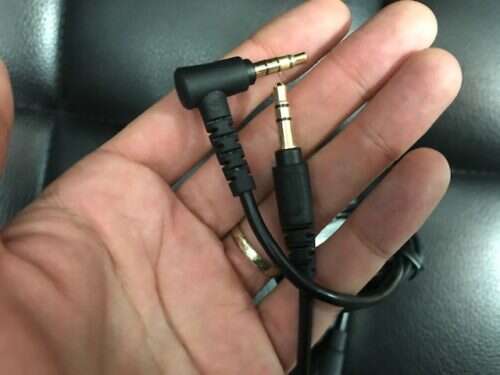
- 3.5 mm single-ring or two-ring is for stereo only.
- 3.5 mm with three rings (TRRS) supports mic and controls.
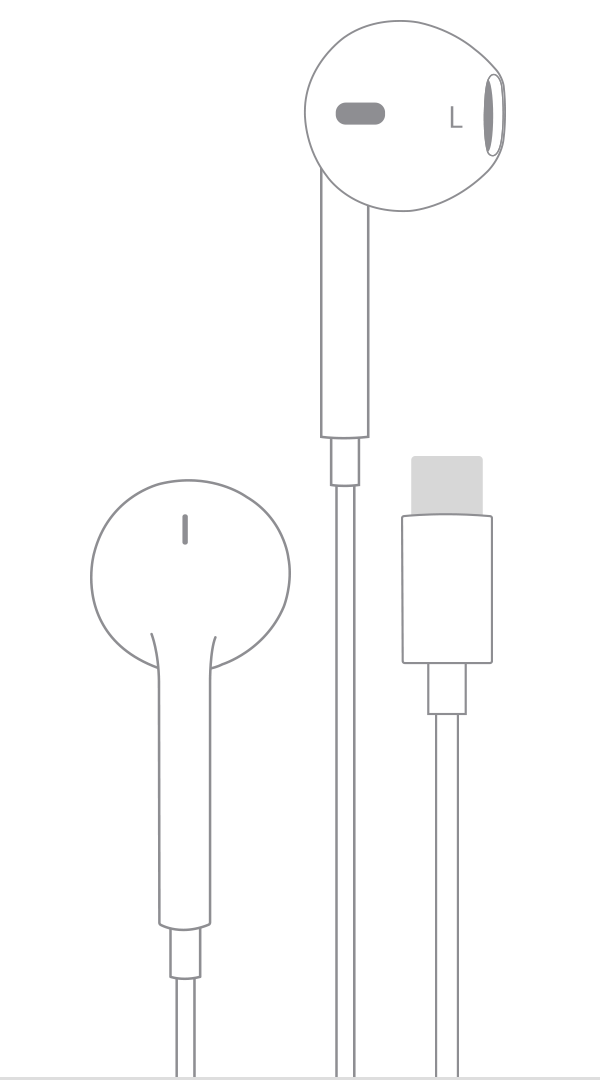
- USB-C or Lightning plugs are digital and need the right port.
- If you have a 3.5 mm jack on the MacBook
- Plug the headphone connector firmly into the jack.
- Open System Settings > Sound and select Headphones as output.
- Test sound with music or a video.
- If your MacBook only has USB-C
- Use an Apple or high-quality USB-C to 3.5 mm adapter.
- Plug the adapter into USB-C, then plug the headphones into the adapter.
- Select the adapter as the output in System Settings > Sound.
- If you have USB headphones
- Plug the USB headphones into a USB-C hub or adapter if needed.
- Mac will usually recognize USB audio automatically.
- Choose the device in Sound settings.
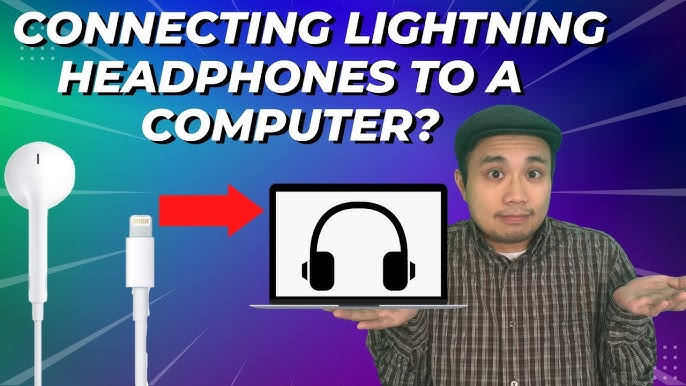
- If you have Lightning headphones (rare on Macs)
- Use a Lightning-to-USB-C adapter if required.
- Check for firmware prompts or driver requirements.
- Final audio check
- Play audio and adjust volume on the Mac or inline controls.
- For microphone use, confirm Input device in System Settings > Sound.
Repeat these steps when you switch headphones or ports. Clear steps make how to connect wired headphones to macbook routine.
troubleshooting common issues and quick fixes
Check volume and mute first. Small settings often cause no sound.
If macbook does not detect headphones
- Try reinserting the plug a few times.
- Restart your Mac and test again.
- Try another pair of headphones to isolate the problem.
If sound is low or distorted
- Inspect the cable and jack for dirt or damage.
- Clean the port gently with compressed air.
- Use a different adapter or a direct connection.
If microphone does not work
- Ensure the correct input device is selected in Sound settings.
- TRRS wiring can differ; consider a TRRS breakout adapter.
- USB headsets usually need no extra settings but check permissions for apps.
If adapters fail
- Use a certified adapter. Cheap ones can be unreliable.
- Firmware or OS updates occasionally change compatibility.
PAA-style questions
- Can I use any 3.5 mm headphones with a MacBook? Yes. Most 3.5 mm stereo headphones work, but mic and control functions depend on TRRS wiring and Mac support.
- Does a USB-C adapter affect sound quality? Good adapters handle digital-to-analog conversion well. Low-quality adapters can reduce audio fidelity.
Source: apple.com
tips, best practices, and personal experience
I once tried three different dongles before finding one that kept audio stable during screen sharing. Lesson learned: buy a reliable brand. Keep an adapter in your bag if your MacBook lacks a headphone jack.
Practical tips
- Choose adapters from reputable makers for better DAC quality.
- Keep macOS up to date to avoid compatibility bugs.
- Label or color-code adapters to prevent mix-ups.
Maintenance tips
- Store headphones in a case to avoid cable strains.
- Clean ports gently. Avoid liquids and sharp objects.
- Replace damaged cables quickly to avoid intermittent audio.
These tips make how to connect wired headphones to macbook quick and headache-free.

alternatives and adapters explained
Common adapter types
- USB-C to 3.5 mm analog adapter: converts digital audio to analog with a built-in DAC.
- USB-A to 3.5 mm: for older USB ports and USB headphones.
- TRRS splitters: separate mic and headphone lines for older headsets.
- USB audio interfaces: for pro-grade sound or multi-channel needs.
When to use each
- Use a simple USB-C to 3.5 mm adapter for everyday listening.
- Use a USB audio interface for recording or mixing.
- Consider Bluetooth if wired convenience is an issue, though that changes latency.
Limitations
- Some adapters don’t support in-line controls.
- Low-cost dongles may have noisy DACs.
- Digital headphones (USB-C) can be less flexible with older hardware.
Understanding these options helps you choose the right gear when you learn how to connect wired headphones to macbook.
frequently asked questions of how to connect wired headphones to macbook
How do I know if my MacBook has a headphone jack?
Check About This Mac or look at the side ports. If you see a small circular port, that’s a 3.5 mm jack.
Do I need an adapter for wired headphones?
If your MacBook lacks a 3.5 mm jack, you need a USB-C to 3.5 mm adapter or compatible USB/Lightning connector.
Will any USB-C adapter work with MacBook?
Most certified adapters work, but quality varies. Use a reputable adapter for stable sound and better DAC performance.
Why can I hear sound in only one ear?
This can be a damaged cable, dirty jack, or bad adapter. Try another headphone or adapter to isolate the fault.
Can I use a microphone on wired headphones with a MacBook?
Yes, if the headset uses TRRS wiring or a compatible USB interface. You may need a TRRS adapter or select the correct input in Sound settings.
Why does my Mac show headphones but no audio plays?
Check app sound settings and system output selection. Restart the app or Mac and test with different audio sources.
Are wired headphones better than Bluetooth for Mac users?
Wired headphones offer lower latency and no pairing hassle. Bluetooth gives convenience but can add compression and latency.
How do I change the input or output device on MacBook?
Open System Settings > Sound, then pick your preferred Input or Output device from the list.
Is there a difference between Apple and third-party adapters?
Quality and DAC design differ. Apple adapters generally work well, but many third-party options offer equal or better sound at lower cost.
Can adapters damage my MacBook?
A faulty adapter can cause poor audio but rarely damages ports if used properly. Avoid forcing connectors and keep ports clean.
conclusion
You now know how to connect wired headphones to macbook across older and newer models. Follow the step-by-step process, use quality adapters, and check sound settings to fix most issues quickly. Try the recommended checks and keep a trusted adapter on hand for travel or work. If this guide helped, share your experience below or subscribe for more practical Mac tips.