How To Connect Beats Wireless Headphones: Easy Pairing
Turn on Bluetooth, put your Beats in pairing mode, then select them from your device’s Bluetooth list.
I’ve helped dozens of people pair headphones and fixed many tricky Bluetooth issues. This guide shows exactly how to connect Beats wireless headphones to phones, laptops, and more. You’ll get step-by-step pairing, quick fixes, and real tips I learned by testing multiple Beats models. Read on to pair with confidence and avoid common mistakes.

Why proper pairing matters for Beats and Bluetooth
Pairing is the first step to a stable sound and low latency. If you know how to connect Beats wireless headphones, you get clear audio, reliable calls, and better battery life. A bad pairing can cause skips, one-side audio, or constant reconnects. Learning a few habits now saves time and frustration later.
Which Beats model do you have and why it matters
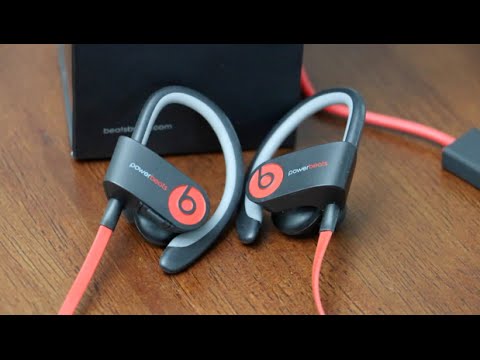
Not all Beats use the same pairing method. Some models have the W1/H1/Apple chip and pair faster with Apple devices. Other models use standard Bluetooth pairing and work the same across Android and PCs. Check the model name on the earcup or box so you follow the correct steps to connect Beats wireless headphones.
- Beats Studio, Solo, and Flex models vary by year and chip.
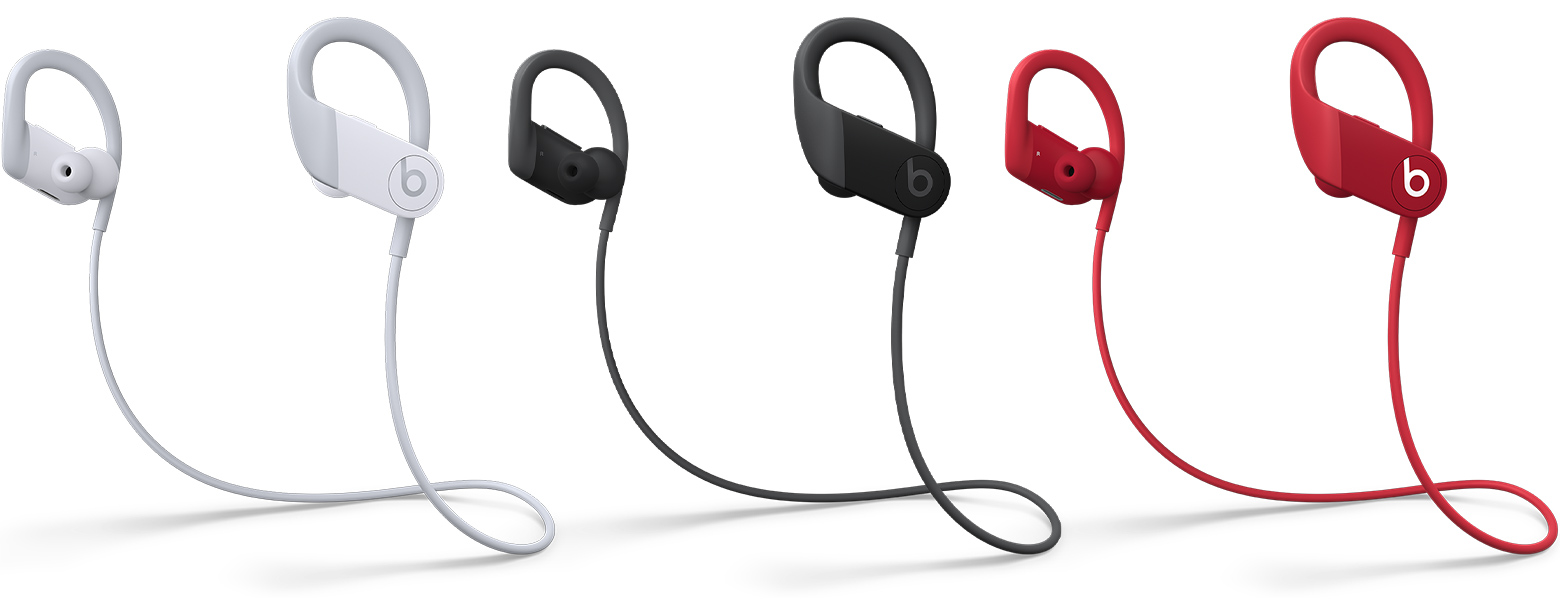
- Powerbeats Pro and Beats Fit Pro use auto-pairing for Apple devices.
- Older Beats often need manual Bluetooth pairing steps.
How to connect Beats wireless headphones to an iPhone (step-by-step)
These steps cover most modern Beats when using an iPhone. They work for models with or without the Apple chip.
- Make sure your iPhone’s iOS is up to date.
- Turn on Bluetooth: Open Settings > Bluetooth and keep the screen on.
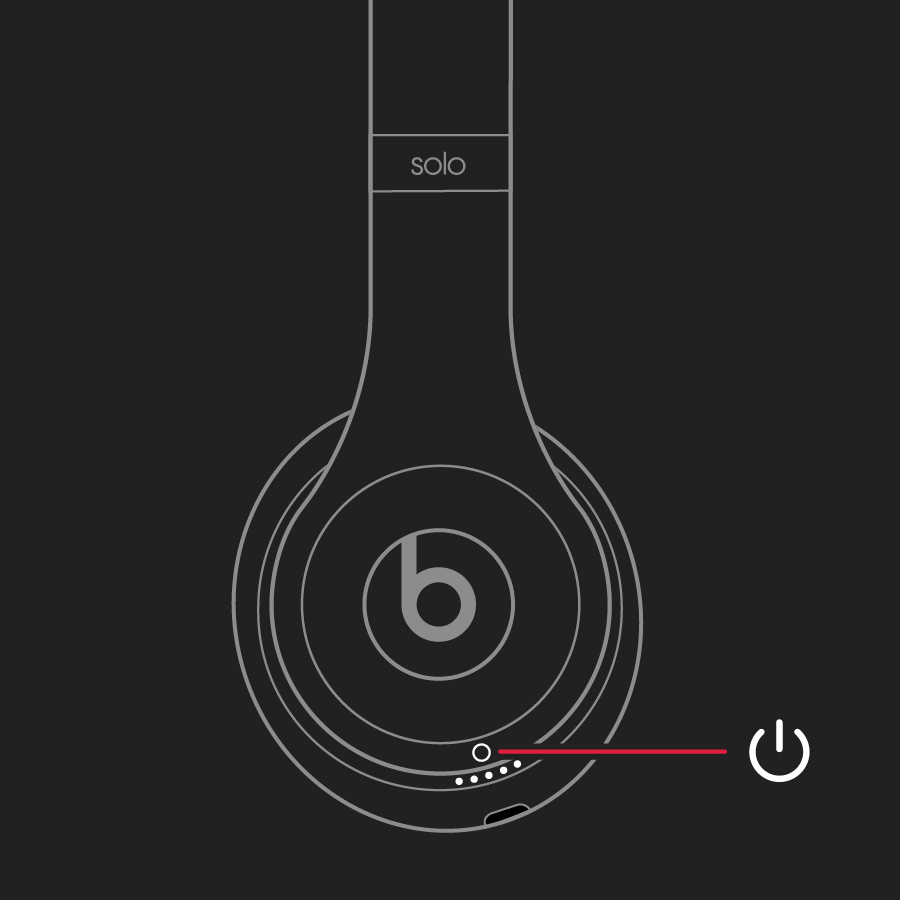
- Power on your Beats. If they have a power button, press it until the LED flashes. For Powerbeats Pro or Beats Fit Pro, open the case near the iPhone.
- Wait for the Beats name to appear under Other Devices or Devices.
- Tap the Beats name to pair. You’ll see Connected next to the name when pairing is complete.
- If the Beats use the Apple chip, a pop-up card may appear. Tap Connect for one-tap setup.
- If pairing fails, power-cycle both devices and try again.

How to connect Beats wireless headphones to an Android phone (step-by-step)
Android pairing is simple and reliable for most Beats models.
- Update your Android OS to the latest stable version.
- Open Settings > Connections > Bluetooth and turn Bluetooth on.
- Make the Beats discoverable: press and hold the power button until the LED flashes or you hear a tone.
- Find your Beats under Available devices and tap to pair.
- Confirm any passcode prompts; usually 0000 or none is needed.
- If your phone won’t see the Beats, toggle Bluetooth off and on, or restart the phone.
- For multi-point pairing, refer to the Beats manual because behavior differs by model.
How to connect Beats wireless headphones to Mac and Windows PCs
Pairing to computers follows the same Bluetooth rules but the menus differ slightly.
Mac
- Choose Apple menu > System Preferences > Bluetooth.
- Turn Bluetooth on.
- Put your Beats in pairing mode.
- Click Connect beside your Beats name.
Windows 10/11
- Open Settings > Devices > Bluetooth & other devices.
- Turn Bluetooth on and click Add Bluetooth or other device.
- Choose Bluetooth and select your Beats.
- For audio lag, set your device’s sound output to the Beats after pairing.
- If calls route incorrectly, check Default Communication Device settings on Windows.

Troubleshooting common pairing issues
Here are the frequent problems and quick fixes when you try to connect Beats wireless headphones.
-
Beats won’t appear in Bluetooth list
- Make sure the headphones are in pairing mode. Reset them by holding power and pairing buttons per model guide. Move closer to the device.
-
Only one side plays audio
- Check for low battery. Reset the headphones. If using stereo split on phones, unpair and re-pair both sides.
-
Frequent disconnects
- Turn off other nearby Bluetooth devices. Update device firmware and keep the phone’s Bluetooth stack current.
-
Cannot pair with multiple devices
- Some Beats don’t support multi-point. Disconnect one device before pairing another or use device-specific pairing profiles.
People also ask
Can Beats connect to two devices at once?
Some Beats models support multi-point or can remember multiple devices, but behavior varies by model. Check model specs to confirm multi-device support.
Why do my Beats say paired but won’t play audio?
The phone may not be set to use Beats as the audio output. Open Bluetooth settings and select Beats as the output device.
How long does pairing take?
Pairing usually takes a few seconds once the device is discoverable. If it takes longer, power-cycle both devices and try again.
Tips and best practices for reliable connections
Small habits keep your Beats working well and make pairing simpler.
- Keep firmware updated on both Beats and your device.
- Charge headphones above 30% before long use.
- Forget and re-pair devices when switching ecosystems often.
- Store headphones in the case to reset connection state.
- Avoid crowded Bluetooth environments when possible.

Personal experience: mistakes I made and what I learned
I once spent an hour trying to pair a pair of Beats because I didn’t realize the headphones needed a reset. After that, I always check the model’s reset method first. I also found that software updates fixed odd dropouts. My rule: update, reset, and then pair — in that order. These steps saved me time and helped others I helped over coffee.
Frequently Asked Questions of how to connect beats wireless headphones
How do I reset my Beats for a fresh pairing?
Reset steps vary by model but usually involve holding power and pairing buttons for 10 seconds. Resetting clears the remembered device list and often fixes pairing errors.
Why won’t my device find my Beats?
Your Beats may not be in pairing mode, or Bluetooth on your device could be off. Move the devices closer and ensure no airplane mode or interfering Bluetooth devices are active.
Do Beats connect automatically to Apple devices?
Many modern Beats with the Apple chip auto-pair to Apple devices via a pop-up dialog. Older models need manual Bluetooth pairing through settings.
How do I update Beats firmware?
Firmware updates happen through the Beats or device companion app on phones or via the system software on some platforms. Keep the app and device OS up to date for firmware prompts.
Can I use Beats with a Bluetooth transmitter for TV or airplane audio?
Yes. Put your Beats into pairing mode and pair them with the transmitter. Expect a slight delay on some transmitters, so choose low-latency options for video.
Summary and next steps
You now know how to connect Beats wireless headphones to phones, laptops, and other devices. Start by confirming your model, put the headphones in pairing mode, and select them in your device’s Bluetooth menu. If you hit snags, reset, update, and retry. Try these steps now with your device and leave a comment if you need model-specific help. Subscribe for more simple, tested tech tips and share this guide if it helped.