How To Stop Bluetooth Headphones Lowering PC Volume: Fix
Disable the hands-free audio profile and set the headset to A2DP as the default playback device.
I have fixed this issue for dozens of users and for my own devices. In this guide I explain why Bluetooth headphones lower computer volume and give clear, step-by-step methods for Windows and macOS. You will learn quick fixes, advanced tweaks, and preventive tips. I write from real experience with troubleshooting Bluetooth stacks, drivers, and headset settings to help you solve this once and for all.

Why Bluetooth headphones lower computer volume
Bluetooth audio uses more than one profile. Many headsets expose a high-quality stereo profile and a low-quality hands-free profile. When a mic or call feature is active, Windows or macOS can switch to the hands-free profile. That profile reduces output volume and audio quality.
Other causes include power management, driver conflicts, automatic communication settings, and app-specific volume controls. I have seen laptops drop sound to a whisper when an app triggers the headset mic. Understanding the cause helps you pick the right fix for how to stop bluetooth headphones from lowering computer volume.

Quick fixes for Windows 10 and 11
These steps fix most cases where how to stop bluetooth headphones from lowering computer volume is the goal.
-
Set the correct default device
- Open Sound Settings. Choose Output and pick the A2DP device (often labeled Stereo).
- Open Sound Control Panel, right-click the stereo device, and set it as Default Device.
-
Disable the hands-free service
- Open Device Manager, find Bluetooth, then your headset, and disable the Hands-Free Audio or Handsfree Telephony service.
- Alternatively, in Control Panel > Hardware and Sound > Devices and Printers, right-click the headset, select Services, and uncheck Handsfree Telephony.
-
Turn off communication volume reduction
- Open Control Panel > Sound > Communications tab.
- Choose Do nothing to stop Windows from lowering volume during calls.
-
Update drivers and Bluetooth stack
- Update your Bluetooth adapter driver from Device Manager.
- Install the latest audio driver for your sound card or use the OEM Bluetooth package if available.
-
Check app volume mixers
- Right-click the speaker icon and open Volume Mixer.
- Ensure the app playing audio is not set very low while the headset is active.
These steps usually stop the problem of how to stop bluetooth headphones from lowering computer volume on Windows.

Quick fixes for macOS (Big Sur, Monterey, Ventura)
macOS handles Bluetooth slightly differently but has similar traps when it comes to hands-free mode.
-
Choose the right audio device
- Open System Settings > Sound > Output and pick the device labeled with "A2DP" or "Stereo".
-
Prevent auto switching between devices
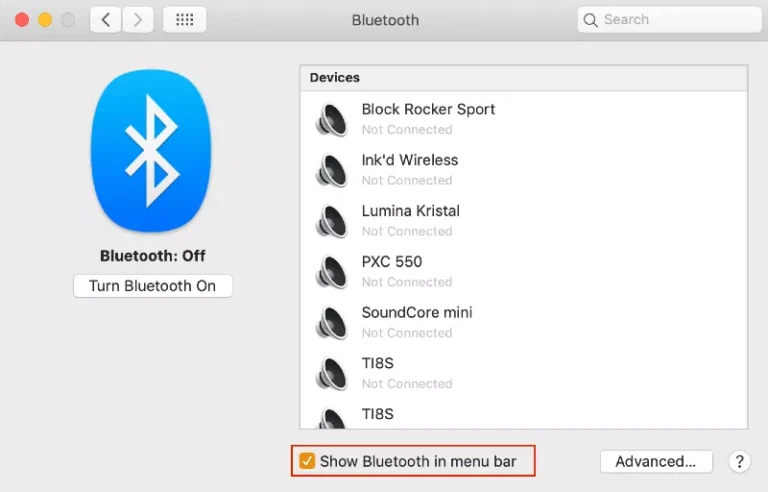
- In System Settings > Bluetooth, disable automatic device switching if your mac offers it.
- Turn off microphone use for the headset in app permissions when not needed.
-
Use Audio MIDI Setup for sample rate and device selection
- Open Audio MIDI Setup and create an aggregate device if needed.
- Ensure the stereo output is first and set to a common sample rate like 44.1 kHz.
-
Reset Bluetooth module if flaky
- Hold Shift + Option and click the Bluetooth icon to access the debug menu.
- Reset the Bluetooth module and re-pair your headset.
These macOS tips will address most cases of how to stop bluetooth headphones from lowering computer volume on a Mac.

Advanced fixes and technical tweaks
If the basic steps fail, try these advanced options to stop Bluetooth headphones from lowering computer volume.
-
Change Bluetooth profiles manually
- Some headsets allow switching profiles through vendor software or a configuration app.
- Force A2DP for media and use a separate mic if needed.
-
Disable hands-free telephony in the Bluetooth adapter properties
- Open Device Manager, find the Bluetooth radio, and adjust properties or services.
- Removing the hands-free service prevents the OS from auto-switching.
-
Edit registry (Windows) for communication settings
- Experienced users can modify registry keys that control audio routing.
- Always back up the registry. A wrong change can break audio.
-
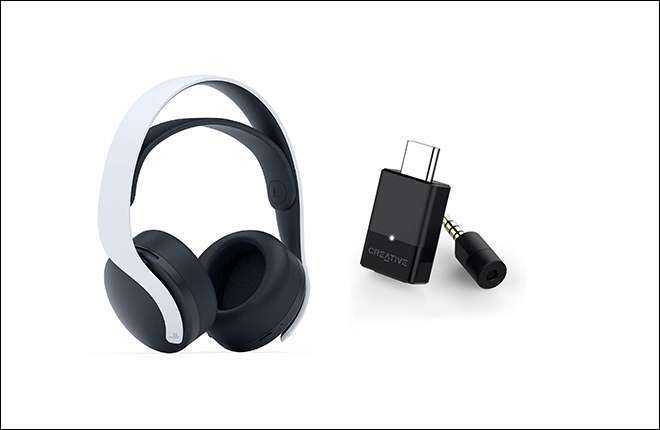
Use a USB Bluetooth dongle with better drivers
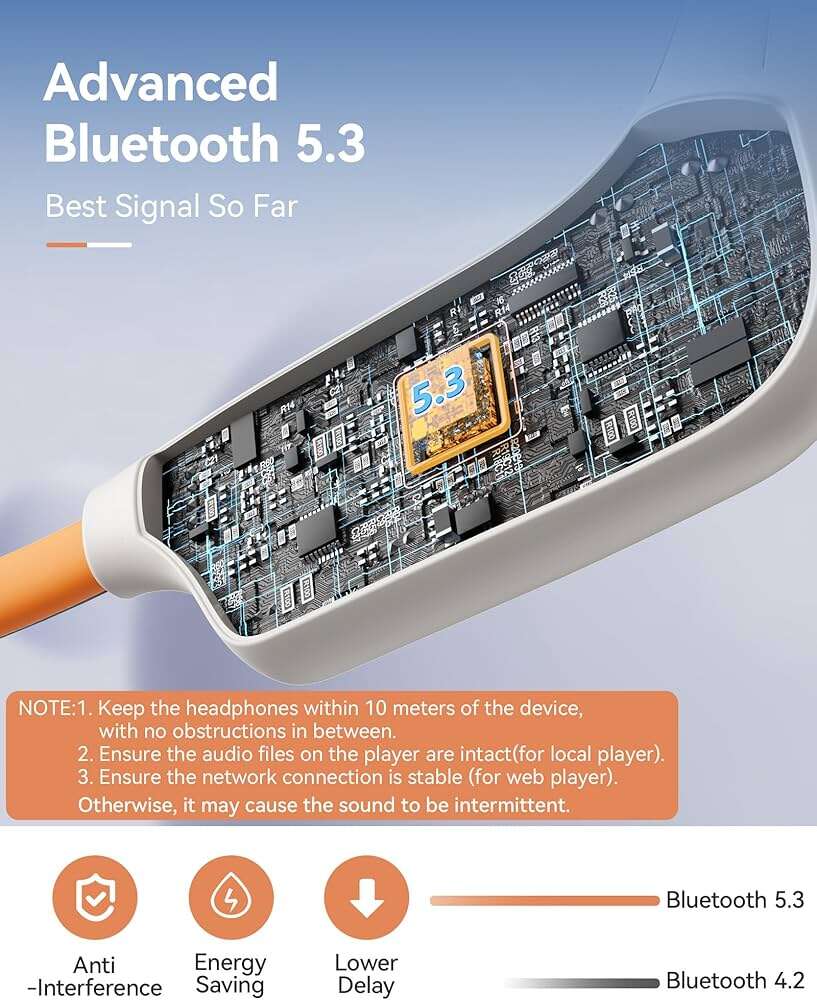
- Some built-in adapters have poor stacks. A modern USB dongle can provide cleaner profiles.
- Look for adapters that explicitly support A2DP and aptX if you want higher quality.
-
Firmware updates
- Update headset firmware through the maker’s app. Bug fixes often address auto-switch behavior.
- Update laptop BIOS and Bluetooth firmware if the OEM provides updates.
These steps require care. I used a USB dongle once to resolve persistent auto-switching on an older laptop. The difference was immediate.
Preventive tips and best practices
Preventing the problem is easier than repeatedly fixing it. These habits will help keep your Bluetooth audio stable.
-
Disable the headset mic when not using voice chat
- Many headsets let you turn off the mic via a physical button or software.
-
Use app-level mic control
- For calls, select a dedicated mic like a laptop or external mic and keep the headset in A2DP mode.
-
Keep drivers and firmware current
- Regular updates reduce bugs that trigger profile switching.
-
Avoid connecting multiple audio devices at once
- Having many paired devices can confuse the OS and cause automatic changes.
Following these tips reduces the odds you’ll need to search again for how to stop bluetooth headphones from lowering computer volume.

Troubleshooting checklist you can follow quickly
If you want a fast routine, use this checklist every time the issue appears.
- Verify default playback device is stereo
- Turn off communication volume reduction (Windows)
- Disable hands-free telephony service for the headset
- Update Bluetooth and audio drivers
- Test with another app or browser to isolate the problem
- Re-pair the headset and restart the PC
- Try a USB Bluetooth dongle if the internal adapter is old
This checklist helped me solve a stubborn low-volume case caused by a browser extension that accessed the mic and forced hands-free mode.
When to seek professional help
If none of the above fix the issue, consider professional help or warranty service.
- The headset hardware could be faulty
- The laptop’s Bluetooth radio might be failing
- Complex OS or driver corruption may require hands-on repair
If your headset still lowers volume even after a firmware update and driver refresh, contact the vendor or a trusted technician.
Common user questions (PAA-style)
Q: Will turning off the headset mic fix the volume drop?
A: Often yes. Turning off the mic stops the OS from switching to the low-quality hands-free profile. This usually restores normal volume and stereo quality.
Q: Is a USB Bluetooth dongle worth it?
A: Yes, if your built-in adapter is old or has poor drivers. A modern dongle can keep audio in A2DP and avoid profile switching.
Q: Can browser tabs trigger the switch to hands-free?
A: Some webpages and extensions request microphone access. That can force the hands-free profile and lower volume until access is revoked.
Q: Does updating firmware always help?
A: Not always, but firmware updates often fix bugs. It’s one of the easier and safer steps to try.
Q: Is this problem common on both Windows and macOS?
A: Yes. Both platforms can switch profiles when a mic or call feature activates. The exact steps to fix it differ slightly.
Frequently Asked Questions of how to stop bluetooth headphones from lowering computer volume
Why do my Bluetooth headphones drop volume when I open a voice app?
Voice apps often need a microphone and trigger the hands-free profile. The OS switches profiles and lowers output volume to match the communication mode.
How do I force my computer to use the high-quality audio profile?
Set the stereo or A2DP device as the default audio output in sound settings. Disable any hands-free services the headset exposes in Device Manager or Bluetooth settings.
Can turning off "Reduce volume for communications" fix it?
Yes. On Windows, choosing Do nothing in the Communications tab stops automatic volume reduction during calls.
Will updating drivers stop this issue?
Updating Bluetooth and audio drivers often fixes conflicts that cause automatic profile switching. It is a recommended step but not a guaranteed fix.
What if the headset still lowers volume after all fixes?
Try using a separate mic, a USB Bluetooth dongle, or contact the headset manufacturer for firmware or hardware support.
Conclusion
You can stop Bluetooth headphones from lowering computer volume by preventing the OS from switching to the hands-free profile, setting A2DP as the default, updating drivers and firmware, and using simple app and system settings. These steps are practical and tested on both Windows and macOS. Start with the quick fixes, then move to advanced tweaks if needed. Try the checklist now and leave a comment with your device model if you need help.