How To Connect Headphones To Mac: Quick Setup Guide
Connect headphones to a Mac via Bluetooth, the 3.5mm jack, or a USB-C adapter in System Settings.
Connecting headphones to a Mac is simple when you know the steps and where to look. I’ve helped dozens of friends and clients solve Mac audio issues, and I’ll walk you through clear, tested methods for wired and wireless headphones. This guide covers step-by-step pairing, selecting sound output, troubleshooting, and pro tips so you can get reliable audio fast. Read on to learn exactly how to connect headphones to Mac, fix common problems, and get the best sound for work, music, or calls.
Types of headphones and ports to know
Knowing what you own is the first step in how to connect headphones to Mac. Pick the right method based on the type of headphones.
- Wired 3.5mm headphones
- Use the classic headphone jack on older Macs.
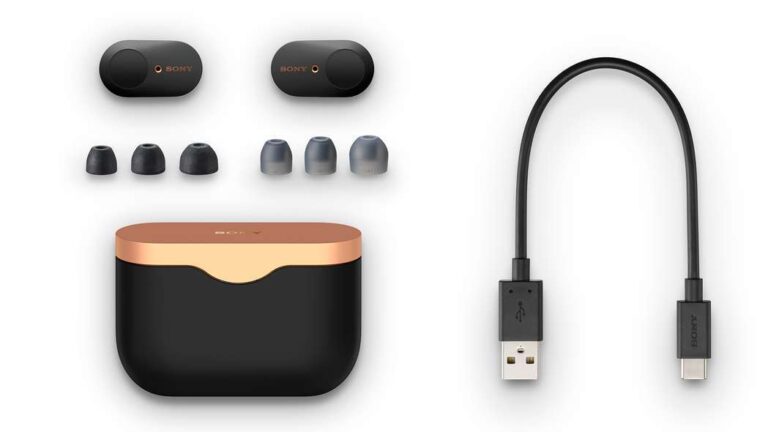
- USB-C or USB-A headphones
- Plug directly or use a dongle on newer Macs.
- Lightning headphones
- Usually for iPhone; need a Lightning-to-USB-C adapter for newer Macs.
- Bluetooth headphones (AirPods, wireless cans)
- Pair wirelessly via Bluetooth in System Settings.
- USB audio interfaces and dongles
- Offer higher quality or multiple ports for pro use.
Understanding the type helps pick the right connection method. This saves time and avoids needless troubleshooting.

How to connect wired headphones to a Mac
Wired connections are simple and depend on your Mac model. Here’s how to do it.
- Check the port
- Look at your Mac’s side or back to see if it has a 3.5mm jack or only USB-C ports.
- Plug in
- Insert the 3.5mm plug fully until it clicks. For USB-C headphones, plug into a USB-C port.
- Select output (if sound doesn’t switch automatically)
- Open System Settings (or System Preferences on older macOS).
- Go to Sound > Output and choose your headphones.
- Use an adapter if needed
- 3.5mm to USB-C or USB-A adapters work. Use a powered adapter for advanced USB audio.
- Test audio
- Play music or a test tone. Adjust volume on the Mac and the headphones.
Troubleshooting tips for wired headphones
- If no sound, try a different pair to rule out the headphones.
- Inspect the plug and port for dust or lint.
- Try restarting your Mac if the device isn’t recognized.
- For USB headphones, check if the device needs drivers (rare on modern macOS).
Knowing these steps makes how to connect headphones to Mac quick and reliable.
How to connect Bluetooth headphones to a Mac
Bluetooth gives freedom from cables. Follow these steps to pair and use Bluetooth headphones.
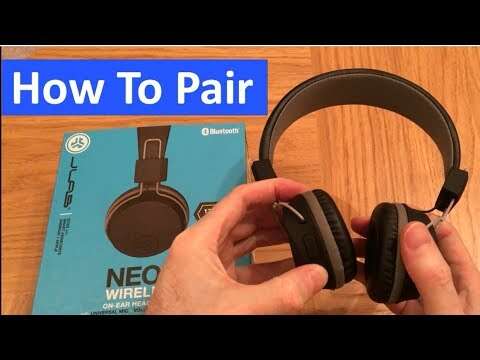
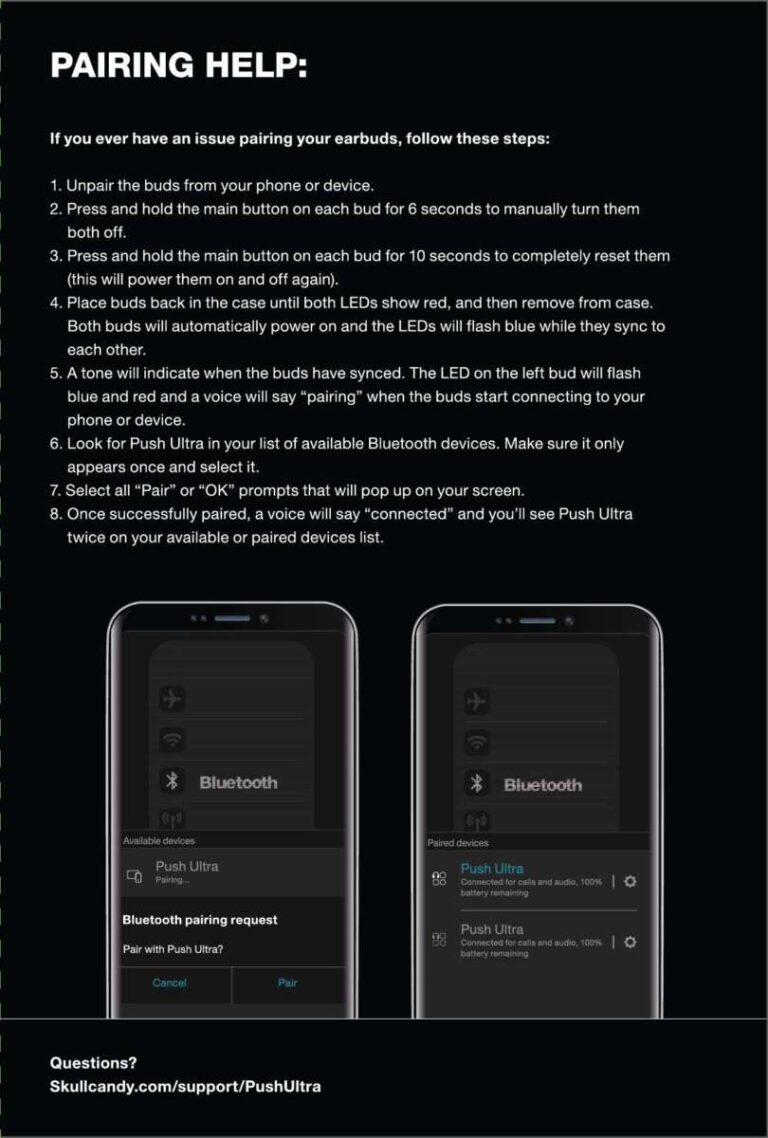
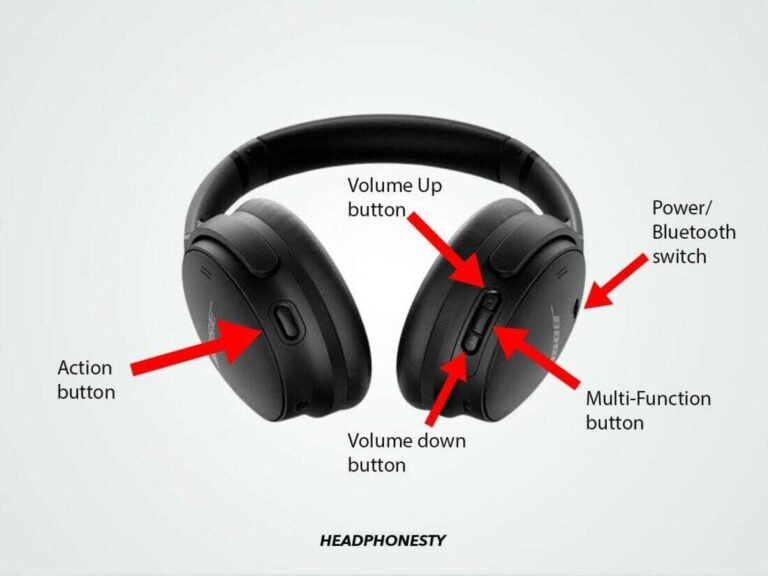
- Put headphones into pairing mode
- Follow the maker’s instructions. Usually hold a button until a light flashes.
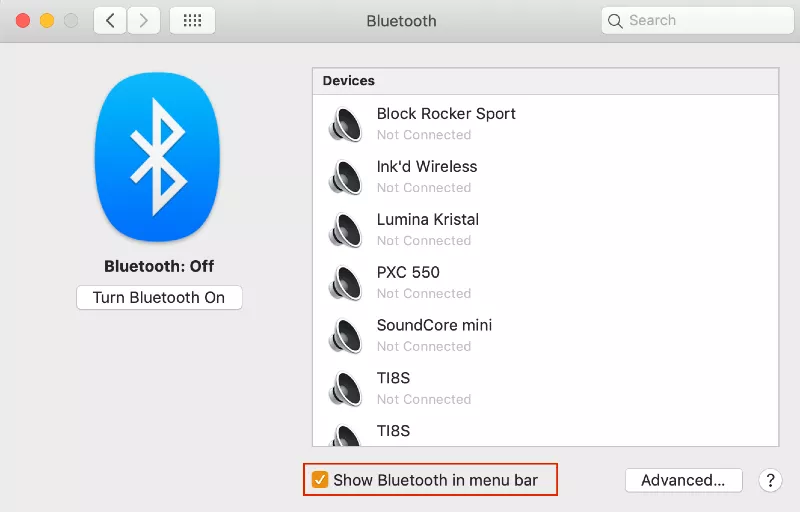
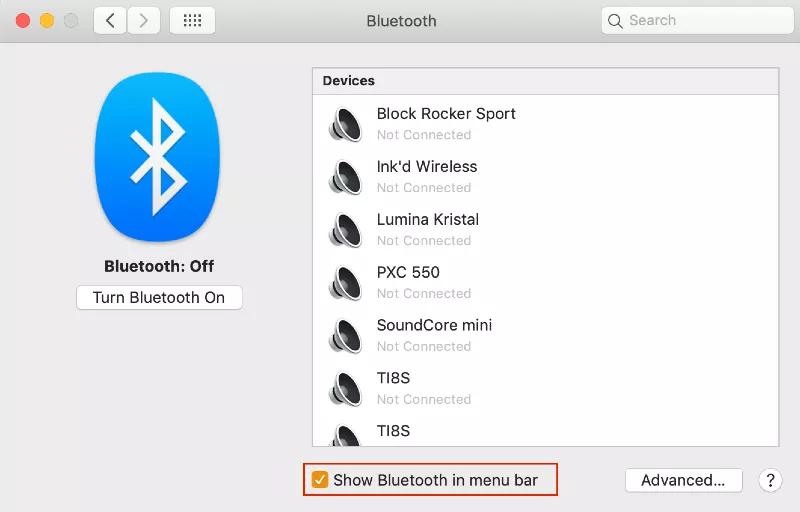
- Open Bluetooth on your Mac
- Go to System Settings > Bluetooth (or System Preferences > Bluetooth).
- Turn Bluetooth on if it’s off.
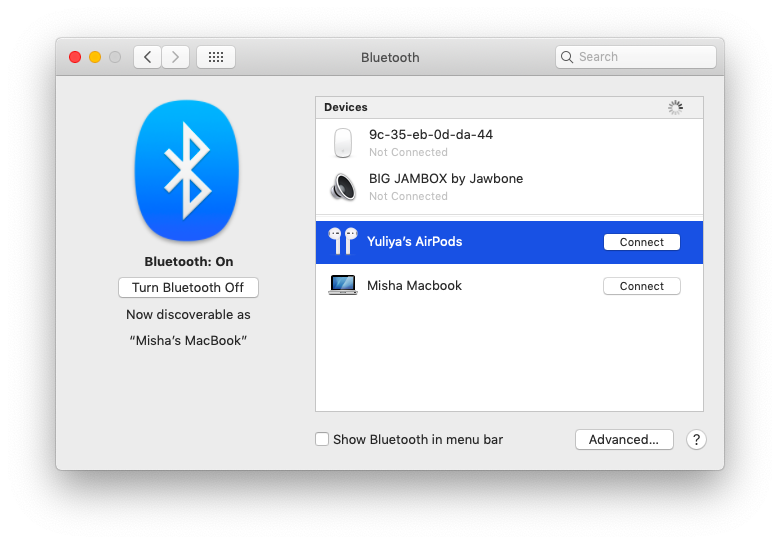
- Pair the device
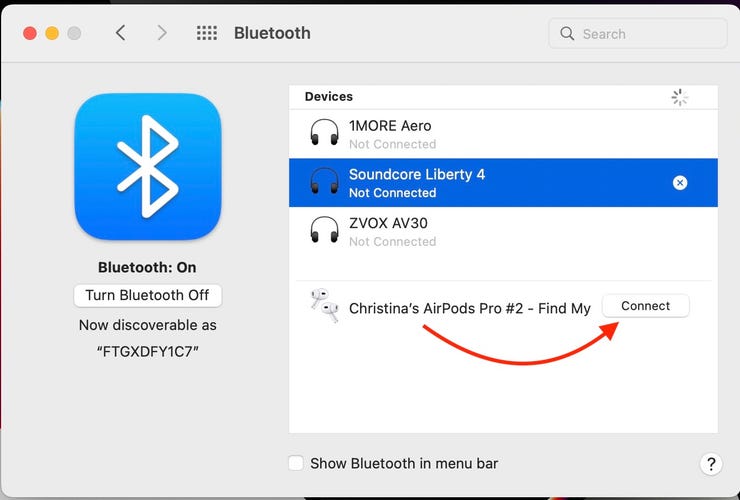
- Wait for the headphones to appear in the device list.
- Click Connect or Pair.
- Select audio output
- Go to System Settings > Sound > Output and choose your Bluetooth headphones.
- Use AirPods features (if applicable)
- With AirPods, click the Bluetooth menu or the volume icon to switch modes or enable Spatial Audio.
Common Bluetooth fixes
- If pairing fails, remove (forget) the device and try again.
- Restart Bluetooth by toggling it off and on.
- Move closer to the Mac and remove interfering devices.
- Update macOS and headphone firmware for best compatibility.
Pairing correctly is the core of how to connect headphones to Mac wirelessly.

Manage audio settings and troubleshoot common issues
Once connected, you may need to fine-tune settings or fix glitches. These steps help.
Select the right output and input
- System Settings > Sound > Output to choose the headphones.
- System Settings > Sound > Input to choose the mic (if headphones include a mic).
Fix low volume or no sound
- Raise Mac volume and headphone volume.
- Check app-specific volume controls (music app, Zoom, etc.).
- Disconnect and reconnect the headphones.
Reset Bluetooth and audio
- Turn Bluetooth off and on.
- Remove the device from Bluetooth list and re-pair.
- For persistent issues, restart the Mac.
Advanced resets
- Reset NVRAM/PRAM on Intel Macs if audio acts unusual.
- Reset SMC on older Intel Macs for power-related audio issues.
Codec and quality notes
- macOS commonly supports AAC and SBC for Bluetooth.
- Low-latency codecs like aptX are not always supported on all Macs.
- For best audio in pro projects, use wired or a USB audio interface.
These steps address most problems you’ll face when learning how to connect headphones to Mac.
Advanced tips: multiple devices, low latency, and pro audio
If you need more than basic sound, try these advanced options.
Use Audio MIDI Setup
- Open Audio MIDI Setup (Applications > Utilities).
- Create aggregate devices or change sample rate and bit depth.
- Use this for multi-output or pro audio routing.
Play audio on two outputs at once
- Create a multi-output device in Audio MIDI Setup.
- Choose which devices to include and set sample rates to match.
Reduce Bluetooth latency
- Use headphones with low-latency support.
- For gaming or live monitoring, prefer wired connections.
Use a USB-C DAC or audio interface
- Provides better sound quality and low-latency monitoring.
- Ideal for recording, mixing, or critical listening.
These steps expand how to connect headphones to Mac in creative or pro workflows.
Personal experience and real-world tips
I’ve tested many headphones on Macs at home and in client setups. Here’s what I learned.
- Keep firmware updated on wireless headphones to avoid pairing bugs.
- Carry a small USB-C to 3.5mm adapter. It saved me during a flight when my Mac had only USB-C ports.
- If a headset mutes in video calls, check both app settings and Mac input/output settings.
- Clean headphone jacks gently with compressed air or a toothpick; lint often kills the connection.
- For long work sessions, split audio: Mac sound for music and a phone for calls using AirPods.
Mistakes to avoid
- Don’t force a plug if it resists; you might damage the port.
- Don’t assume a Bluetooth pairing light means full connection—always check System Settings.
- Avoid cheap adapters for pro audio work; they can add hiss or latency.
These tips come from repeated, real-world use, and they make how to connect headphones to Mac easier and more reliable.
:max_bytes(150000):strip_icc()/how-to-connect-bluetooth-headphones-to-a-mac-51792753-cdeb96fd2639439481cc736b55ae3ae4.jpg)
Frequently Asked Questions of how to connect headphones to mac
How do I connect Bluetooth headphones to my Mac?
Turn on pairing mode on the headphones, open System Settings > Bluetooth on your Mac, and select the device from the list. Then choose your headphones under Sound > Output to route audio to them.
Why won’t my wired headphones work on my Mac?
Either the headphone plug or the port may be dirty, the output isn’t selected in Sound settings, or the headphones are faulty. Try another pair, check Output settings, and clean the port gently.
Can I use two sets of headphones at once on a Mac?
Yes. Use Audio MIDI Setup to create a Multi-Output Device and select both headphones. Note that latency and quality may vary between devices.
How do I fix Bluetooth audio lag on my Mac?
For lower latency, use wired headphones or a USB audio interface. Also try updating firmware, reducing Bluetooth interference, and moving closer to the Mac.
Do AirPods work differently than other Bluetooth headphones with a Mac?
AirPods offer tighter macOS integration, like auto-switching and Spatial Audio, when signed into the same Apple ID. Other Bluetooth headphones pair normally but may lack these extra features.
Conclusion
You now have clear, tested steps for how to connect headphones to Mac—whether wired, USB, or Bluetooth. Follow the pairing and output-selection steps, use Audio MIDI Setup for advanced needs, and apply the troubleshooting tips to solve common issues. Try the quick fixes first, then move to resets or hardware checks if needed. If this guide helped, try connecting a second device or exploring Audio MIDI Setup to expand your audio setup—and please share your experience or questions in the comments below.