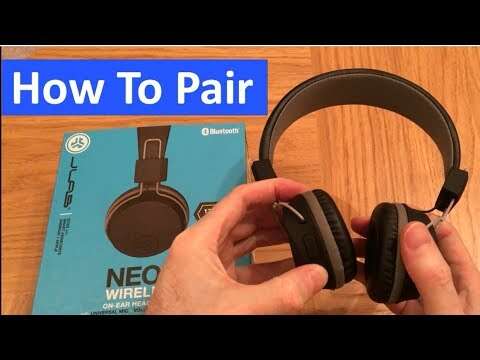
How To Sync Jlab Headphones: Quick Pairing Guide
To sync JLab headphones, put them in pairing mode and select "JLab" from your device's Bluetooth list.
I’ve spent years testing earbuds and headsets, and I use JLab gear often. This guide shows clear, step-by-step ways to sync JLab headphones across phones, tablets, and computers. You’ll get practical tips, troubleshooting fixes, and real-world lessons I learned while pairing JLab earbuds and headphones. Read on to master how to sync JLab headphones quickly and reliably.

What you need before you start
Before you try to sync JLab headphones, check a few basics.
Make sure the headphones have charge. Low battery can block pairing.
Confirm your device supports Bluetooth and that Bluetooth is turned on.
Know your JLab model: true wireless earbuds, wired Bluetooth, or over-ear—steps vary by model.
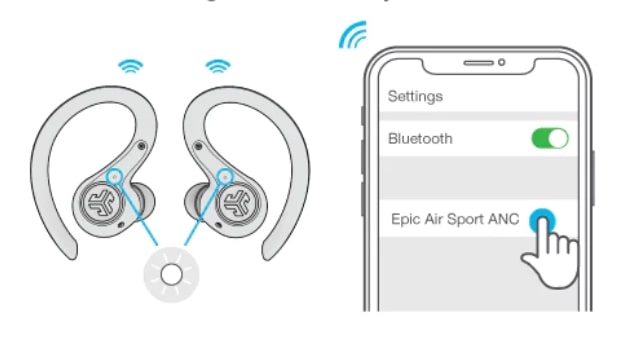
Step-by-step: How to sync JLab headphones (simple pairing)
These steps work for most JLab true wireless and Bluetooth models. Follow them slowly and check each step before moving on.
- Charge and turn on
- Charge both earbuds or the headset for at least 15 minutes.
- Turn the device on using the power button or by removing earbuds from the case (model dependent).
- Enter pairing mode
- True wireless earbuds typically enter pairing mode when removed from the case the first time or when you press and hold the touch area for 3–5 seconds.
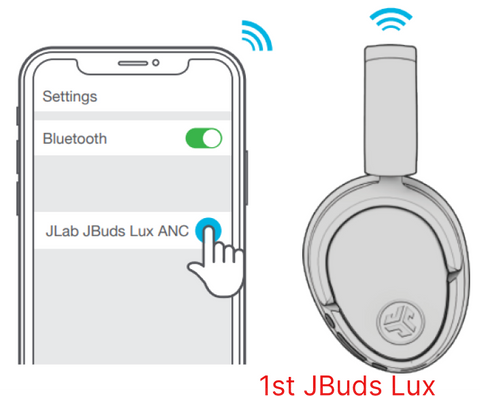
- Over-ear or on-ear Bluetooth models usually enter pairing by pressing and holding the power button until a light flashes.
- Open your device Bluetooth settings
- On iPhone: Settings > Bluetooth, toggle on.
- On Android: Settings > Connected devices > Bluetooth, toggle on.
- On Windows: Settings > Devices > Bluetooth & other devices.
- Select the JLab name
- Look for names like “JLab JBuds,” “JLab Studio,” or similar.
- Tap or click the name to pair. Wait for confirmation sound or on-screen “Connected” message.
- Confirm audio and mic
- Play audio to check sound.
- Test the mic in a voice memo or call app to ensure it works.
Tips for different scenarios
- Pairing a single earbud: Put the one you want to use in pairing mode by holding its button for a few seconds.
- Re-pairing: If a device remembers the headphones, use “Forget this device” and start fresh.

Quick PAA-style questions
How long do I hold the button to pair?
Usually 3–5 seconds. Hold until LEDs flash or you hear a tone.
Why won’t my JLab appear in Bluetooth?
Power-cycle the headset and your device. Make sure other paired devices are off.
Can I use one earbud only?
Yes. Many JLab earbuds support mono mode. Activate the single bud and pair normally.
Troubleshooting: Common problems and fixes
If you can’t sync JLab headphones, try these proven fixes. I’ve used them when pairing multiple devices and in noisy offices.
Problem: Headphones won’t enter pairing mode
- Fix: Fully power off, then press and hold the power or pairing button for 10 seconds. Try charging case reset if true wireless.
Problem: Device sees headphones but won’t connect
- Fix: On the device, choose “Forget” or remove the device from Bluetooth list. Turn Bluetooth off and on, then try again.
Problem: One bud not connecting (true wireless)
- Fix: Place both earbuds in the case and close it for 10 seconds. Take them out and re-pair both as a pair.
Problem: Audio stutters or lags
- Fix: Move closer to the device, remove obstructions, and turn off nearby Bluetooth devices. Update app or firmware if available.
Factory reset steps (model differences exist)
- General: Power off, then press and hold both earbuds’ buttons for 10–15 seconds.
- Headset: Hold power and volume up for 10 seconds until LED blinks.
- After reset, repeat pairing steps.
I once had a pair refuse to pair after an OS update. A full reset and re-pair solved it. Patience and resets are often the answer.

Tips to improve Bluetooth stability and sound
Good habits keep connections steady and sound clear. Try these simple moves.
- Keep firmware and device OS up to date.
- Charge earbuds regularly to avoid low-battery issues.
- Limit distance: stay within 30 feet with clear line of sight.
- Reduce Wi-Fi congestion and microwave use near your ears.
- Disable battery saver modes that may limit Bluetooth.
Codec and device settings
- Some phones let you choose SBC, AAC, or aptX. Try different codecs for lower latency or better quality.
- For calls, set the headset as the default audio device on Windows or Mac.
Personal tip: I turn off nearby Bluetooth gadgets during initial pairing. It clears conflicts and speeds setup.

Advanced features and app integration
Some JLab models work with the JLab app for firmware, EQ, and controls. Use the app to unlock features and fix odd pairing behavior.
What the app offers
- Firmware updates to fix bugs and improve pairing.
- EQ presets and custom sound profiles.
- Button customization for play, pause, and voice assistant.
Multipoint and device switching
- Check if your JLab supports multipoint. If so, follow the manual to pair to two devices.
- If switching is slow, disconnect one device first, then connect the other.
Security and privacy
- Always remove old or lost devices from your Bluetooth list.
- Use “forget” to prevent automatic reconnect from unauthorized devices.

Frequently Asked Questions of how to sync jlab headphones
How do I put JLab earbuds in pairing mode?
Press and hold the touch pad or power button for 3–5 seconds until the LED flashes and you hear a tone. If they came in a case, removing them often starts pairing automatically.
Why won’t my phone find JLab headphones?
Often Bluetooth on the phone needs a restart or the earbuds need a reset. Turn Bluetooth off and on, restart both devices, and try again.
How do I reset my JLab headphones?
Hold down the power or pairing button for 10–15 seconds until LEDs blink or a voice prompt confirms reset. Then re-pair as a new device.
Can I pair JLab headphones to multiple devices?
Some JLab models support multipoint pairing. If yours does, pair to each device following the multipoint instructions in the manual.
What if one earbud won’t connect after pairing?
Place both earbuds back in the case, close it for 10 seconds, then take them out to force a re-sync. If that fails, do a factory reset and re-pair.
Conclusion
Syncing JLab headphones is usually quick if you follow pairing mode steps, keep devices charged, and reset when needed. Start by charging your gear, entering pairing mode, and choosing the JLab name in Bluetooth settings. If problems pop up, try simple resets, forget-and-repair, and app-based firmware updates. Put these tips into practice, and you’ll get reliable connections every time. Try the steps now, leave a comment with your model if you need help, or subscribe for more hands-on audio guides.