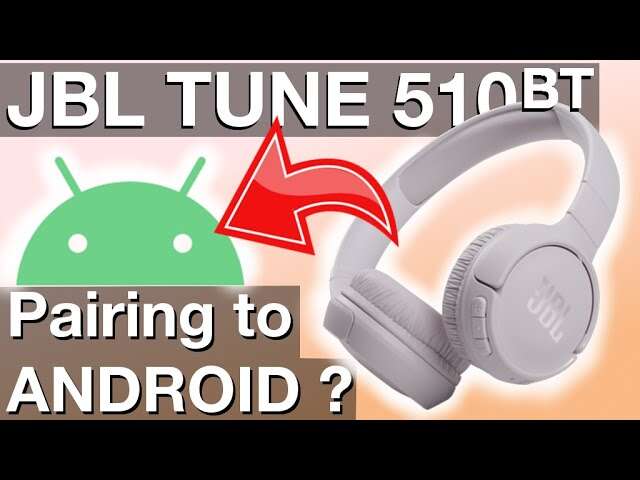
How To Pair JBL Wireless Headphones: Quick Setup Guide
Pair your JBL headphones by entering Bluetooth pairing mode, then select them in your device’s Bluetooth list.
I’ve paired dozens of JBL headphones in noisy rooms and quiet offices. This guide shows exactly how to pair JBL wireless headphones step by step, covers earbuds and over-ear models, and fixes the common problems that block pairing. Read on for simple steps, pro tips, and real-world examples that make pairing fast and reliable.

Why pairing matters and how Bluetooth works
Pairing builds a trusted link between your device and your headphones. It lets audio stream securely and remembers the headset for future use. Knowing how to pair JBL wireless headphones saves time and stops awkward reconnection issues.
Bluetooth radios must be on and nearby. Interference, low battery, or outdated firmware often breaks pairing. JBL uses standard Bluetooth profiles, so most phones, tablets, and laptops connect easily. Still, small differences in models and operating systems change the exact steps.

What you need before you pair JBL wireless headphones
Follow these checks to avoid delays when you learn how to pair JBL wireless headphones.
- Make sure the headphones are charged. Low power can block pairing.
- Turn on Bluetooth on your phone, tablet, or computer.
- Close apps that use Bluetooth audio, like music players or other headsets.
- Know the model name printed in the case or on the box. Model specifics can change the pairing method.
- Update device software when possible. New firmware fixes Bluetooth bugs.
I once tried pairing while traveling with a nearly dead battery. The headphones blinked but would not stay connected. A quick charge solved it.

Step-by-step: how to pair JBL wireless headphones (universal method)
These steps work for most JBL wireless headphones and earbuds. Use them first, then try the model-specific notes below.
- Turn the headphones off.
- Press and hold the power button for 3–7 seconds until the LED flashes blue and red or the voice prompt says “pairing.” This is Bluetooth pairing mode.
- Open Bluetooth settings on your phone, tablet, or computer.
- Scan for new devices. The JBL model name appears in the list.
- Tap the JBL name to connect. Wait for confirmation — tone, voice prompt, or “connected” on the screen.
- Play audio to confirm sound comes through the headphones.
If you’re pairing with a Windows PC, select the headphones under Bluetooth & devices and click Connect. On macOS, choose the headset from the Bluetooth menu.
How to pair JBL wireless headphones — model notes
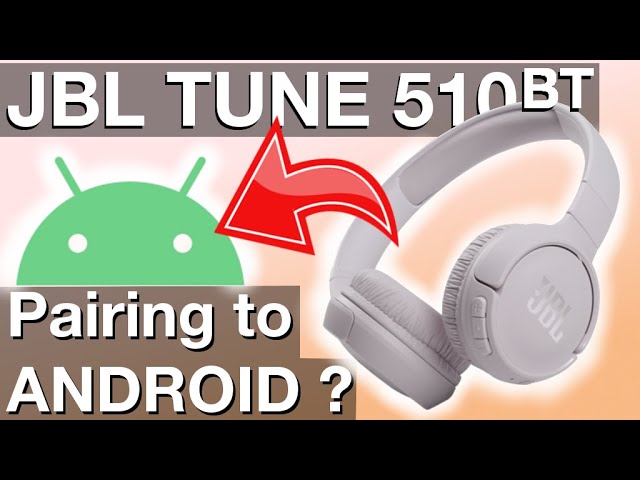
- JBL Tune and Live series: Press and hold the power button until the LED flashes and the voice prompt says “pairing.” Some Tune models automatically enter pairing on first power-up.
- JBL Club and Everest series: Use the dedicated Bluetooth button for pairing on some models. Check the quick start guide for the exact button.
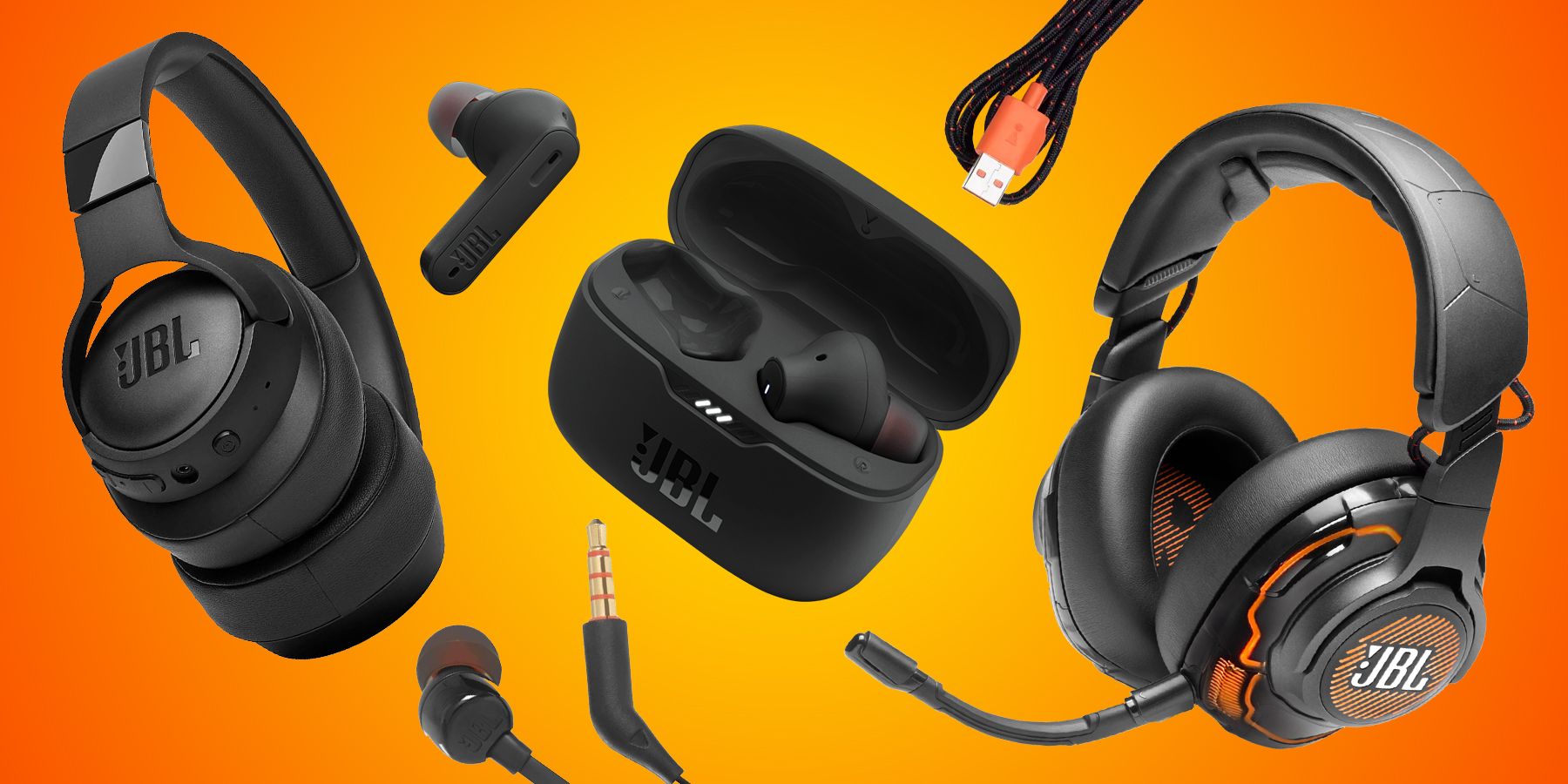
- JBL True wireless earbuds (Free/XT/Reflect): Open the case with earbuds inside or hold the power touch area for 4–5 seconds until LEDs flash. For first-time pairing, leave both earbuds in the case until pairing mode activates.
- JBL On-ear wireless: Usually follow the universal method. If not, hold power + volume up together for pairing.
I prefer to power off other Bluetooth devices during the first pairing. It speeds detection and prevents accidental connections.

Troubleshooting common pairing problems
If you can’t pair JBL headphones, run these checks in order.
- Headphones won’t enter pairing mode
- Charge the battery fully and try again.
- Press and hold the power or Bluetooth button longer. Some models need more time.
- Headphones appear but won’t connect
- Forget or remove the JBL device from your phone’s Bluetooth list and re-scan.
- Restart your phone and headphones.
- Paired but no audio
- Make sure the headset is selected as the audio output on your device.
- Check app-level audio settings and volume.
- Intermittent drops or stuttering
- Move closer to the device and limit obstacles.
- Turn off other nearby Bluetooth devices to reduce interference.
- Headphones paired to another device
- Turn off Bluetooth on other devices. Then reconnect to the one you want.
I once fixed a persistent drop by updating the headphone firmware through the JBL app. After the update, the connection stayed stable for hours.
Advanced pairing tips and features
These tips help when you need extra control or want to use features beyond the basic pairing.
- Multi-point pairing
- Some JBL models support multi-point. Pair with device A first. Then pair with device B while A remains in range.
- Pairing two JBL headphones to one device
- Only certain JBL models (or using specific devices and apps) let you share audio with two headphones. Check the manual and the JBL app for “PartyBoost” or “Dual Audio” features.
- Using the JBL Headphones app
- The app can update firmware, customize equalizer settings, and sometimes simplify pairing.
- Factory reset
- Use reset when pairing fails. Steps vary by model. Often it’s holding power and volume buttons together for 10 seconds.
- Pairing to a TV or game console
- TVs and consoles use different Bluetooth profiles. Use a Bluetooth transmitter if the console doesn’t support A2DP. For TV, check audio output settings and choose the JBL device.
A note from experience: the JBL Headphones app is handy. It solved a weird reconnection issue after an update. Apps are an extra tool, not a must.
Keeping Bluetooth reliable: care and maintenance
Simple habits keep pairing fast and stable.
- Keep firmware up to date via the JBL Headphones app when possible.
- Fully charge your headphones before long use.
- Store earbuds in their case to preserve battery and pairing data.
- Avoid USB chargers that also cause wireless interference when using the headphones near them.
- Remove old devices from your phone’s Bluetooth list to tidy the connections.
I recommend checking updates monthly. Small firmware fixes often improve battery life and Bluetooth stability.
Frequently Asked Questions of how to pair jbl wireless headphones
How long does the JBL pairing mode stay active?
Most JBL headphones stay in pairing mode for about 2–5 minutes. If you don’t connect in time, power off and re-enter pairing mode.
Can I pair JBL wireless headphones with multiple devices?
Some JBL models support multi-point pairing, allowing two devices at once. For others, you must disconnect from one device before pairing with another.
Why won’t my device find my JBL headphones?
Common causes include low battery, interference, or the headphones not being in pairing mode. Try charging, restarting both devices, and re-entering pairing mode.
How do I reset my JBL headphones if pairing fails?
Reset steps vary by model but usually involve holding power plus volume buttons for 8–15 seconds. Check the quick start guide for model-specific instructions.
Do JBL earbuds pair differently than over-ear headphones?
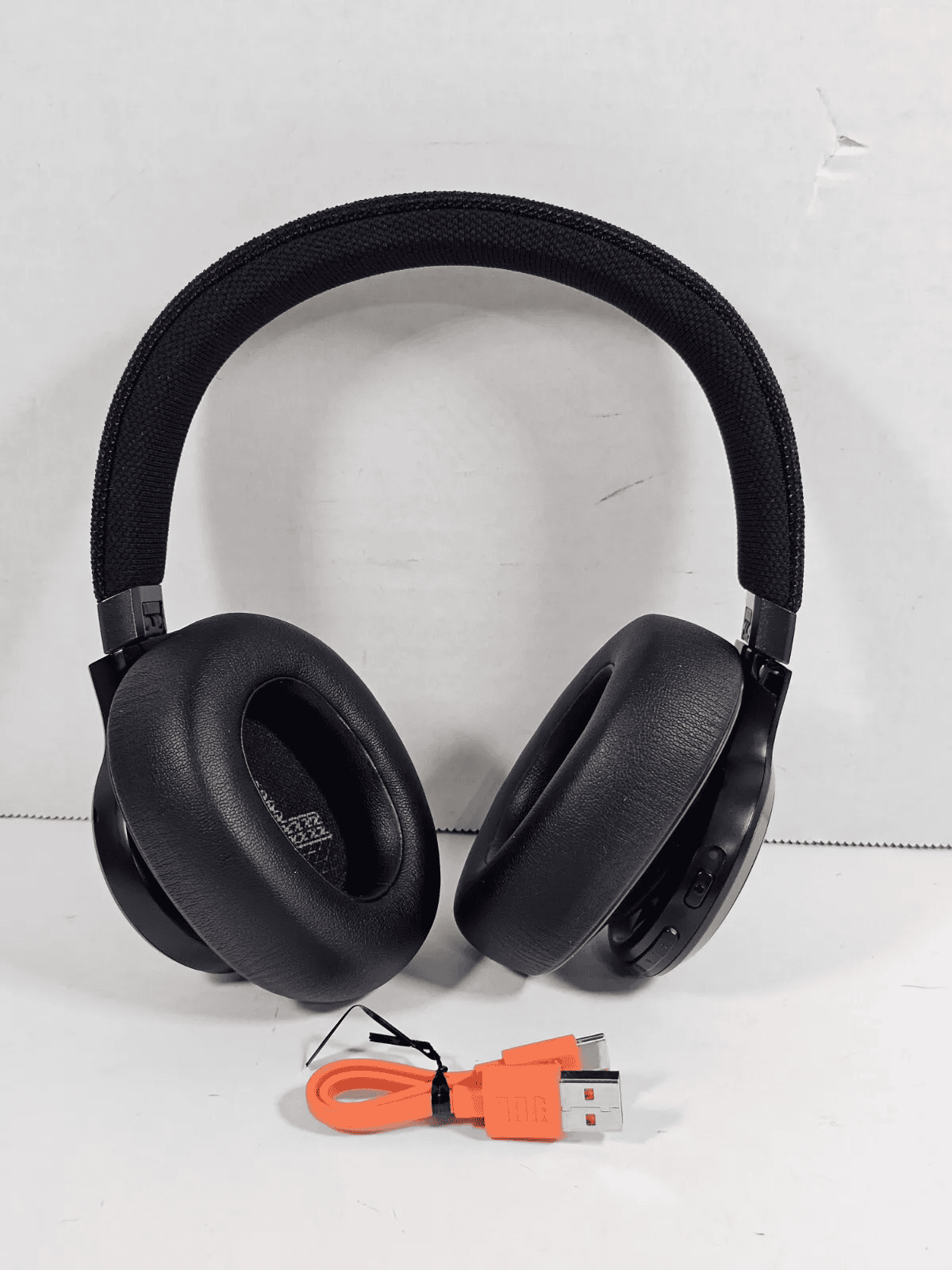
Yes. True wireless earbuds often enter pairing when you open the case or long-press the touch area. Over-ear models use the power or Bluetooth button to enter pairing mode.
Conclusion
You now have a clear path for how to pair JBL wireless headphones, with steps for earbuds and over-ear models, fixes for common problems, and advanced tips for multi-point and firmware updates. Try the basic steps first, use the JBL app when needed, and keep batteries and firmware current to avoid pairing pain. If one approach fails, reset and retry calmly — most issues resolve in a few minutes.
Take action now: charge your JBL headphones, follow the pairing steps above, and leave a comment about your model if you need help.