How To Connect Headphones To Xbox: Quick Setup Guide
Plug headphones into your Xbox controller or use an Xbox Wireless or USB headset for game and chat audio.
I’ve helped dozens of friends and clients set up headsets on Xbox consoles, and I’ll walk you through every method step by step. This guide on how to connect headphones to Xbox covers wired 3.5mm setups, USB headsets, Xbox Wireless devices, and key audio settings. Expect practical tips, real troubleshooting, and clear examples so you can start gaming with crisp sound and chat right away.
Which headphones work with Xbox (quick overview)
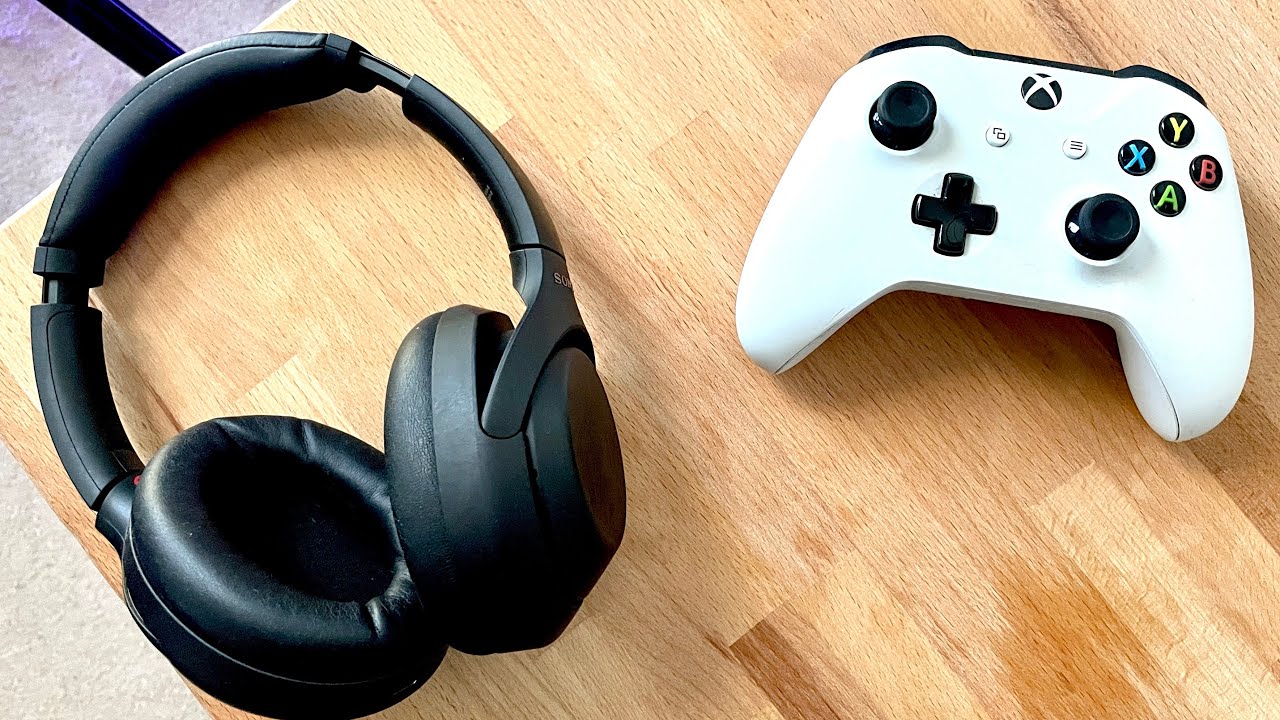
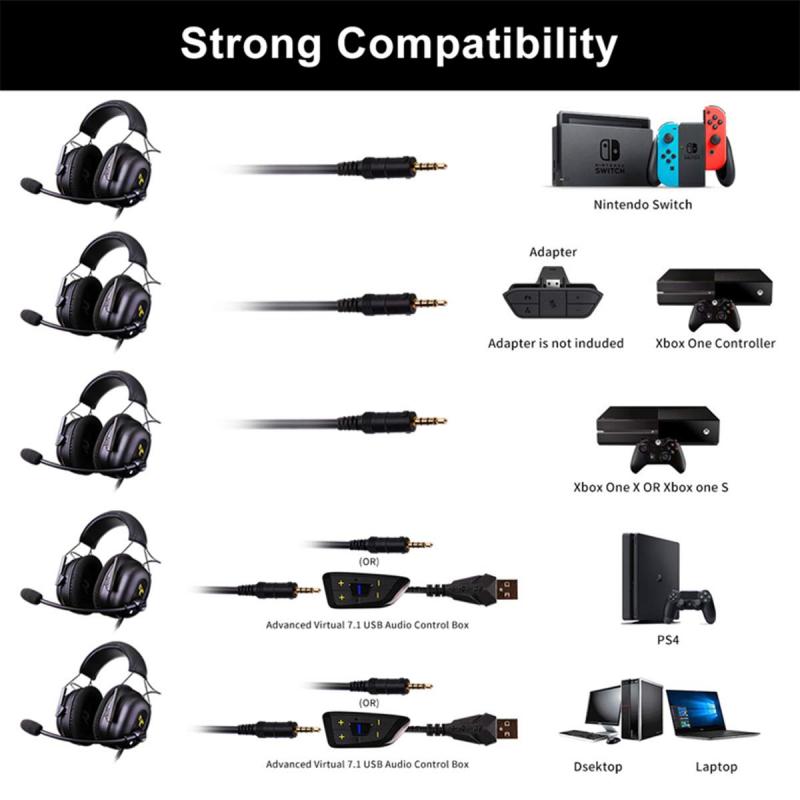
Most headphones that use a 3.5mm jack, USB, or Xbox Wireless will work with Xbox consoles. Older headsets that need special drivers may not work with the console. Knowing which connector your headphones use is the first step in how to connect headphones to Xbox.
Common compatible types:
- 3.5mm wired headsets that plug into the Xbox controller.
- USB headsets that the console recognizes.
- Xbox Wireless headsets designed for Xbox One, Series X, and Series S.
- Headsets using a separate wireless transmitter (some work via USB dongle).
From my experience, a simple 3.5mm wired headset is the easiest to set up for most players. If you want wireless chat and game audio without a dongle, choose an Xbox Wireless headset. This cuts setup time and keeps the connection stable.
:max_bytes(150000):strip_icc()/PXL_20201108_004746486-e6e2c998b9704a258f0fa4878556501e.jpg)
How to connect headphones to Xbox using a wired 3.5mm jack
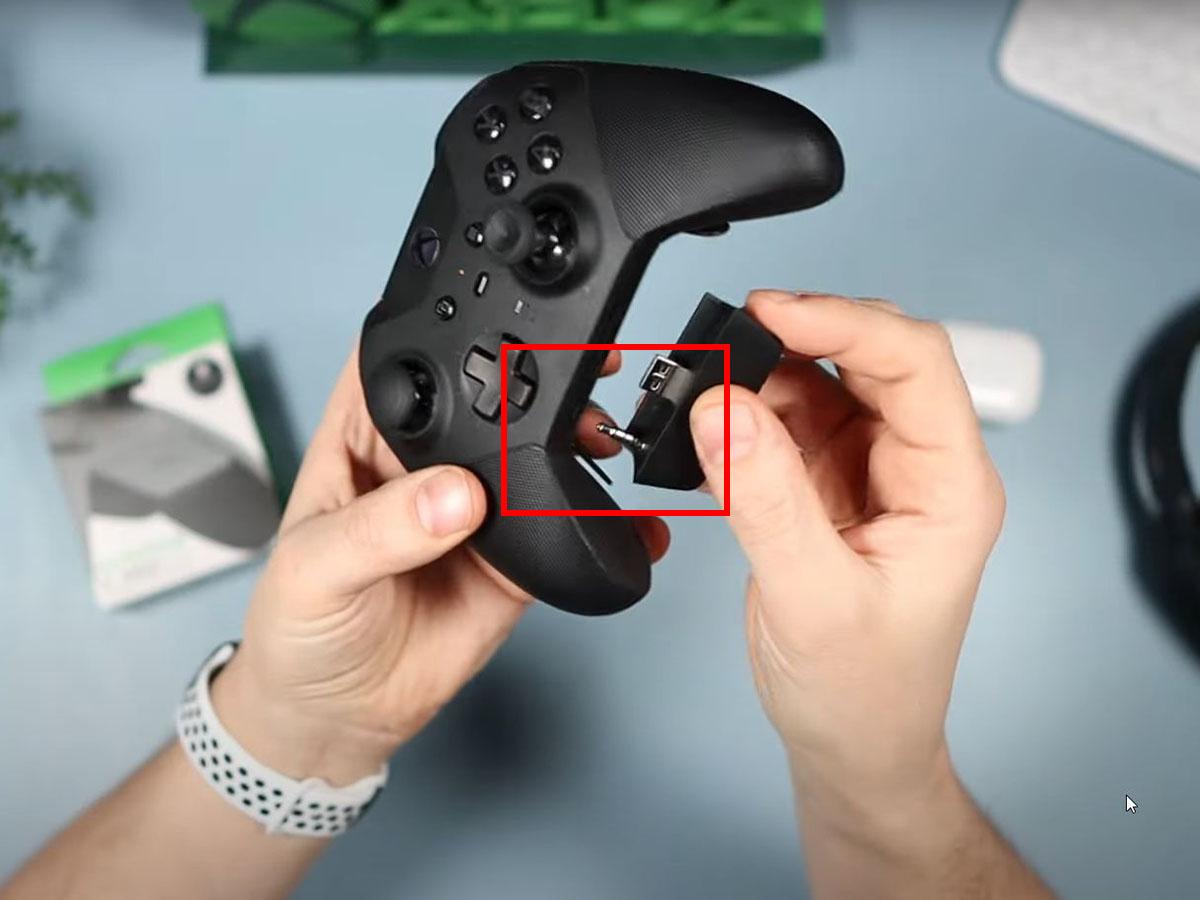
This is the most common method for how to connect headphones to Xbox. Most Xbox controllers have a 3.5mm jack. Here’s how to do it.
Step-by-step:
- Make sure your controller is powered on and paired to the console.
- Plug the headphone 3.5mm plug into the bottom of the controller.
- Press the Xbox button to open the guide, then go to Profile & system > Settings > General > Volume & audio output.
- Adjust Headset volume and Headset chat mixer as needed.
If your controller lacks a built-in jack, use a Microsoft Xbox Stereo Headset Adapter or buy an updated controller. I once spent a morning swapping settings for a friend. The fix was always simple: plug in and check the headset volume in settings.

How to connect headphones to Xbox with a USB headset
USB headsets can be plug-and-play on Xbox consoles, but compatibility varies. This method is common for PC-style gaming headsets that also support consoles.
How to set up:
- Plug the headset into a front or back USB port on the console.
- The console may install the headset automatically and route audio to it.
- Open Settings > General > Volume & audio output to confirm audio output and chat mixer settings.
If the headset isn’t recognized, try:
- Using a different USB port.
- Checking the headset’s compatibility with Xbox (some PC drivers don’t work).
- Updating console system software.
I tested multiple USB headsets over time. USB headsets that list Xbox support work almost every time. Cheaper PC-only headsets can be hit or miss.
How to connect headphones to Xbox using Xbox Wireless and wireless dongles
Xbox Wireless offers native low-latency wireless audio and chat. This is the best option for seamless voice and game audio without extra adapters.
Connecting Xbox Wireless headsets:
- Turn on the headset and press the pairing button.
- Press the pairing button on the Xbox console (on the front or side depending on model).
- Wait for the headset light to confirm pairing. The console should show the headset as connected.
Using third-party wireless dongles:
- Plug the dongle into a USB port.
- Turn on and pair the headset per the manufacturer’s steps.
Note: Standard Bluetooth audio phones do not pair with Xbox for game audio. Xbox does not support general Bluetooth headsets for in-game audio, so this is key to understand when considering how to connect headphones to Xbox.

Adjusting Xbox audio settings after connecting headphones
Once your headset is connected, tweak these settings for the best sound and chat mix.
Important settings:
- Headset volume: Raise or lower the total volume.
- Headset chat mixer: Balance game audio and chat audio.
- Mic monitoring: Set how much of your voice you hear in the headset.
- Voice chat output: Choose whether chat goes to headset or speakers.
To access: Press Xbox button > Profile & system > Settings > General > Volume & audio output. I always test a quick party chat to check levels. It saves awkward silences in multiplayer games.
Troubleshooting common issues when connecting headphones to Xbox
If you follow the steps and still have trouble, try these checks. I’ve used these fixes many times and they usually work.
Quick fixes:
- Reconnect the headset: Unplug and replug the cable or restart the headset.
- Check controller firmware: Update your controller via Accessories app on Xbox.
- Test another headset: Confirms whether the issue is the headset or console.
- Confirm mute and chat settings: Make sure mute is off on controller and headset.
PAA-style questions (short answers)
Why won’t my wired headset work on Xbox?
Make sure the headset is fully plugged into a supported controller with chat enabled. Update the controller firmware and test another headset to isolate the issue.
Can I use Bluetooth headphones with Xbox?
No. Xbox consoles do not support standard Bluetooth audio for game sound. Use Xbox Wireless, a USB headset, or a wired 3.5mm connection.
Why can’t I hear party chat but can hear game audio?
Open audio settings and check voice chat output and the chat mixer. Make sure the party chat is routed to the headset, not speakers.

Tips, best practices, and accessories
Small changes make a big difference for comfort and sound quality. These tips reflect things I learned the hard way.
Practical tips:
- Use an inline volume control for quick adjustments mid-game.
- Keep controller firmware updated for better headset support.
- Consider a chat mixer or DAC for high-end audio control.
- Clean the 3.5mm jack and headset plug to avoid poor connections.
Recommended accessories:
- Xbox Stereo Headset Adapter if your controller lacks a jack.
- Replacement cables for headsets that wear out.
- A charging dock for wireless headsets to avoid mid-game drops.

Frequently Asked Questions of how to connect headphones to xbox
How do I connect a wired headset to Xbox Series X?
Plug the 3.5mm cable into the Xbox controller, sign into your profile, and adjust volume in Settings > Volume & audio output.
Will a USB-C headset work with Xbox?
Only if the headset is recognized by the console via a USB-C to USB-A adapter or if the headset specifically lists Xbox support. Test in a USB port to confirm.
How do I pair an Xbox Wireless headset?
Turn on the headset, press its pairing button, then press the pair button on the Xbox console until the lights sync. The console will show the device as connected.
Can I chat and stream with the same headset on Xbox?
Yes. Use headset chat mixer settings to balance game sound and chat, and enable streaming options in the console or capture card setup.
Why is my headset mic not working on Xbox?
Check headset mute switches, controller mic monitoring, and Privacy & online safety voice settings. Try another controller or headset to isolate the issue.
Conclusion
You now have clear, practical steps for how to connect headphones to Xbox using wired 3.5mm, USB, Xbox Wireless, or dongles. Test your headset, adjust the audio settings, and use the troubleshooting tips if sound or chat issues pop up. Try one method, make small adjustments, and you’ll be gaming with great audio in minutes.
Take action: plug in a headset, run a quick party test, and leave a note below about what worked for you. If you want more help, subscribe or ask for a step-by-step walkthrough for your exact headset model.