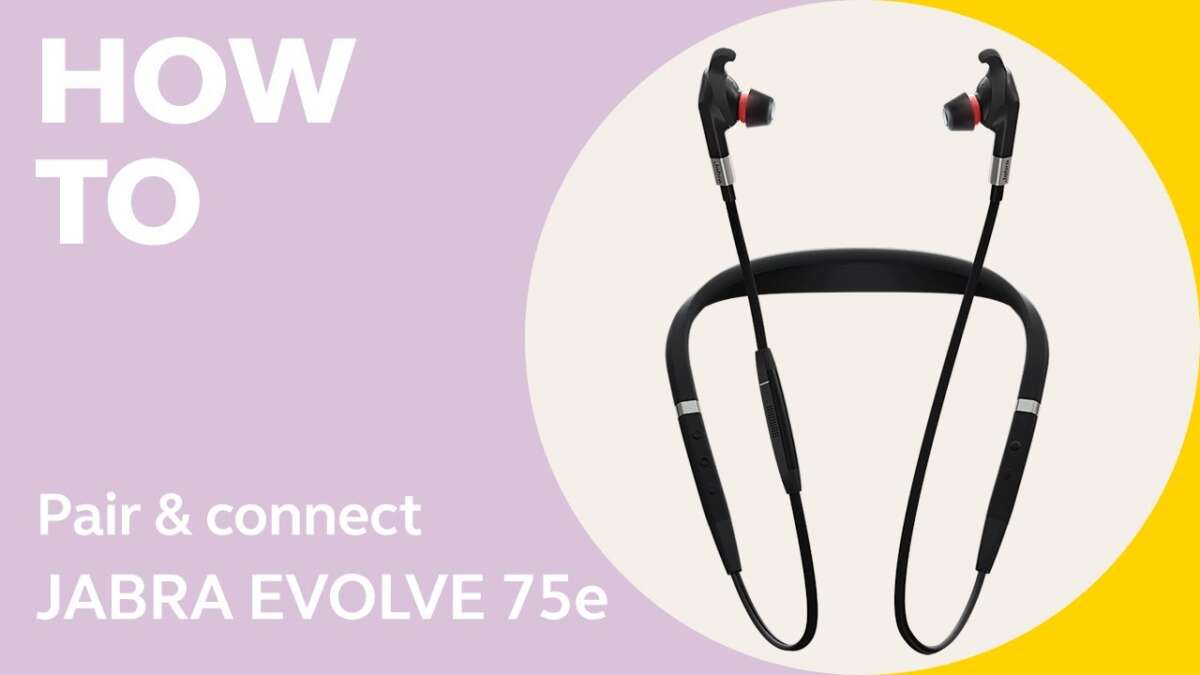
How To Connect Jabra Headphones: Fast Setup Guide
Put your Jabra in pairing mode, enable Bluetooth on your device, then select the Jabra name to connect.
I’ve guided hundreds of people through audio setups, and this guide shows exactly how to connect Jabra headphones step‑by‑step. You’ll get clear Bluetooth pairing instructions, NFC and wired options, app setup, troubleshooting, and real tips from hands‑on experience to make connecting fast and painless. Read on to master how to connect Jabra headphones no matter the model or device.
Prepare before you connect: what to check first
Before you try to pair, take a quick checklist. Confirm your Jabra has charge. Turn off any other active Bluetooth audio on nearby devices to avoid interference. Make sure the device you want to pair has Bluetooth turned on and is not already connected to another headset.
- Check battery: Fully charge or top up the Jabra battery.
- Turn on Bluetooth: Enable Bluetooth on phone, tablet, or laptop.
- Close apps: Stop music apps that auto-play sound during pairing.
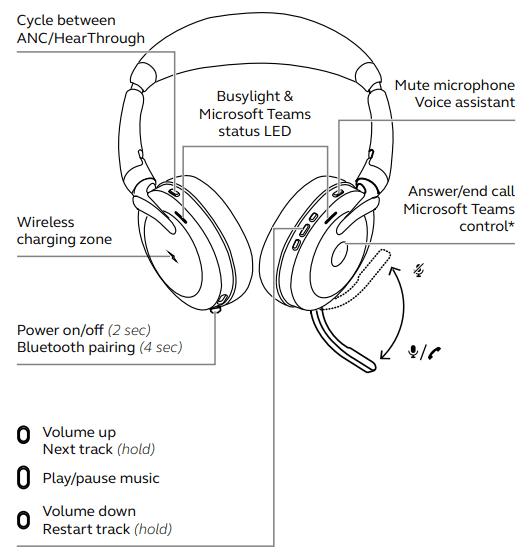
- Know your model: Find your Jabra model name on the box or earcup to follow model‑specific steps.
Knowing these basics speeds up how to connect Jabra headphones and reduces common hiccups.
Pairing Jabra headphones via Bluetooth (step-by-step)
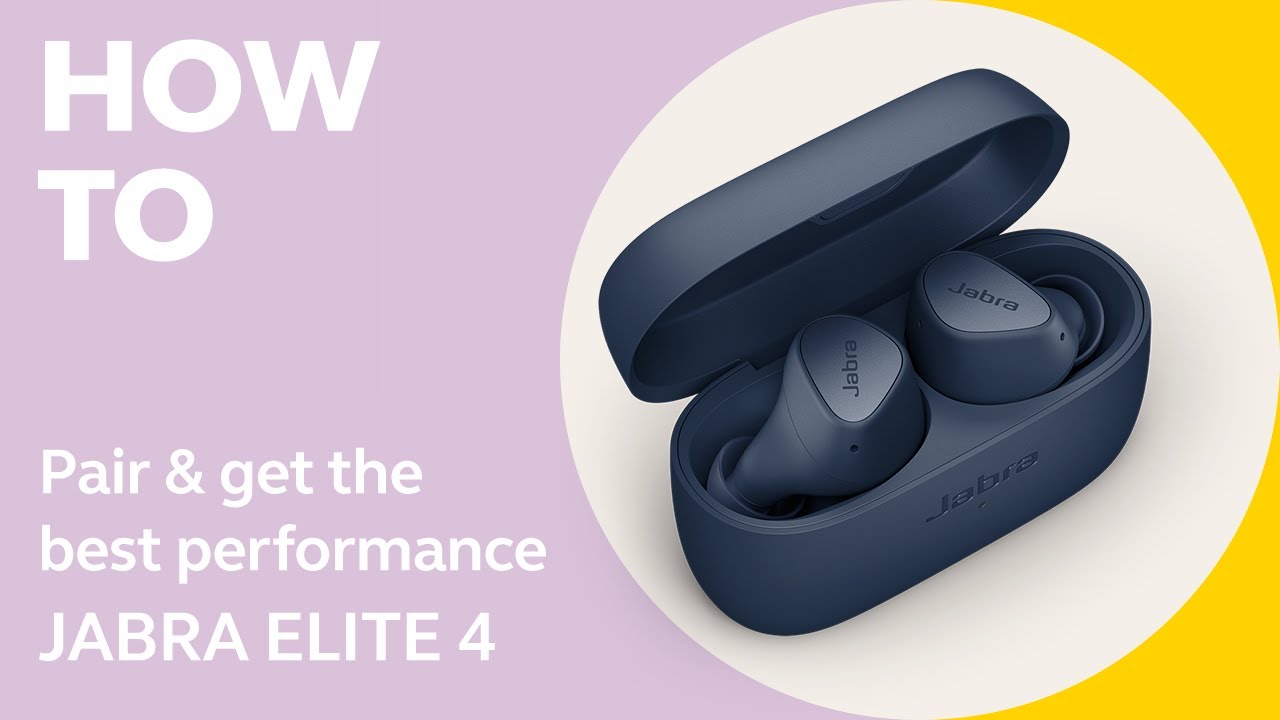
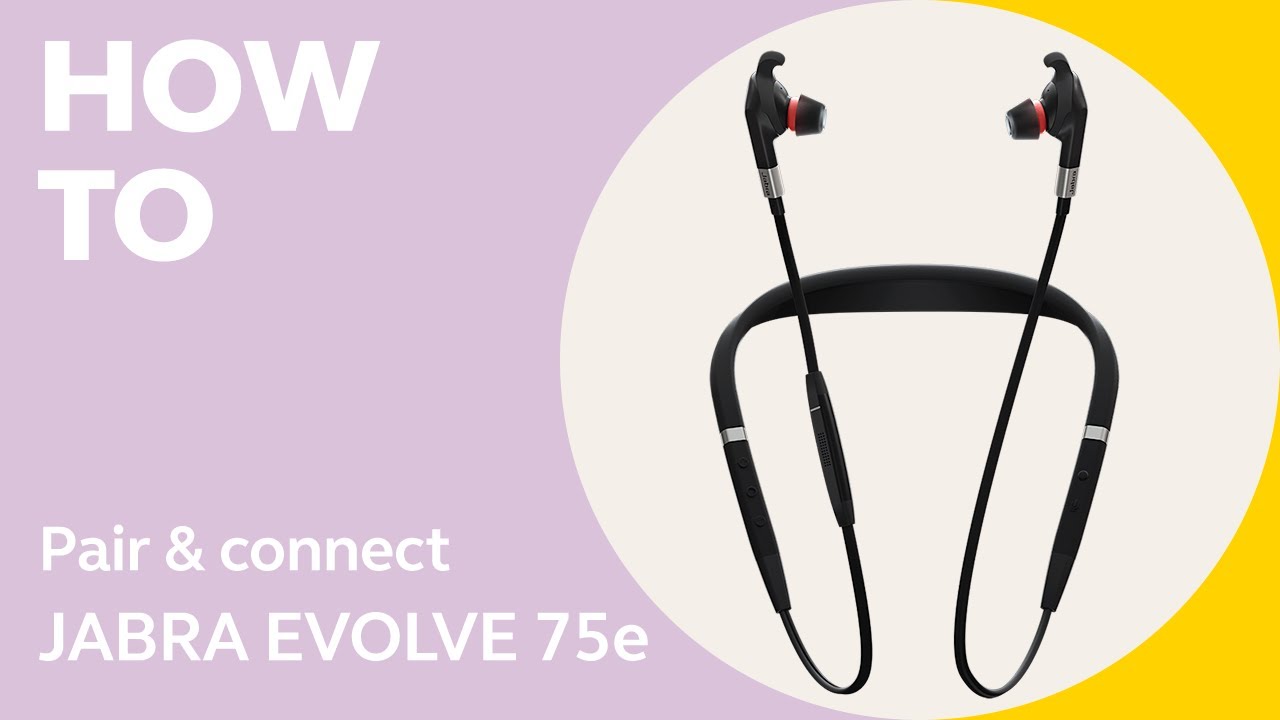
Most users pair Jabra via Bluetooth. These steps work for Jabra Elite, Jabra Move, Jabra Evolve, and similar models.
- Power on the headphones.
- Enter pairing mode:
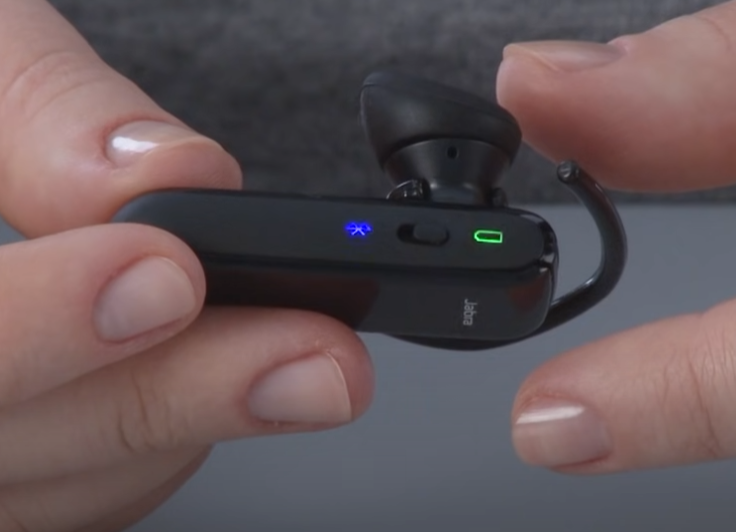
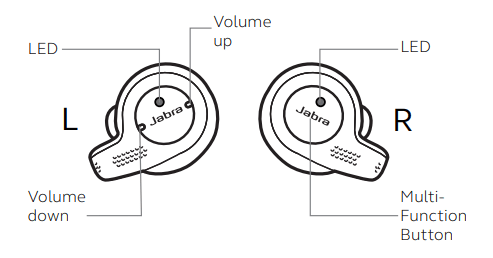
- For most models, press and hold the power button until the LED flashes blue or the voice prompt says “pairing.”
- For some earbud models, hold the multi-function button for 3–5 seconds.
- On your phone or computer, open Settings > Bluetooth.
- Look for the Jabra device name in the list (example: Jabra Elite 75t).
- Tap the Jabra name to pair and connect.
- Wait for a confirmation tone or message that the device is connected.
If your device asks for a PIN, use 0000 or 1234. These steps explain how to connect Jabra headphones simply and should work across most Bluetooth devices.

Using NFC to connect Jabra headphones
Some Jabra models include NFC for one‑tap pairing. NFC is faster but less common.
- Turn on NFC on your phone (usually in Settings > Connections).
- Power on the Jabra headset.
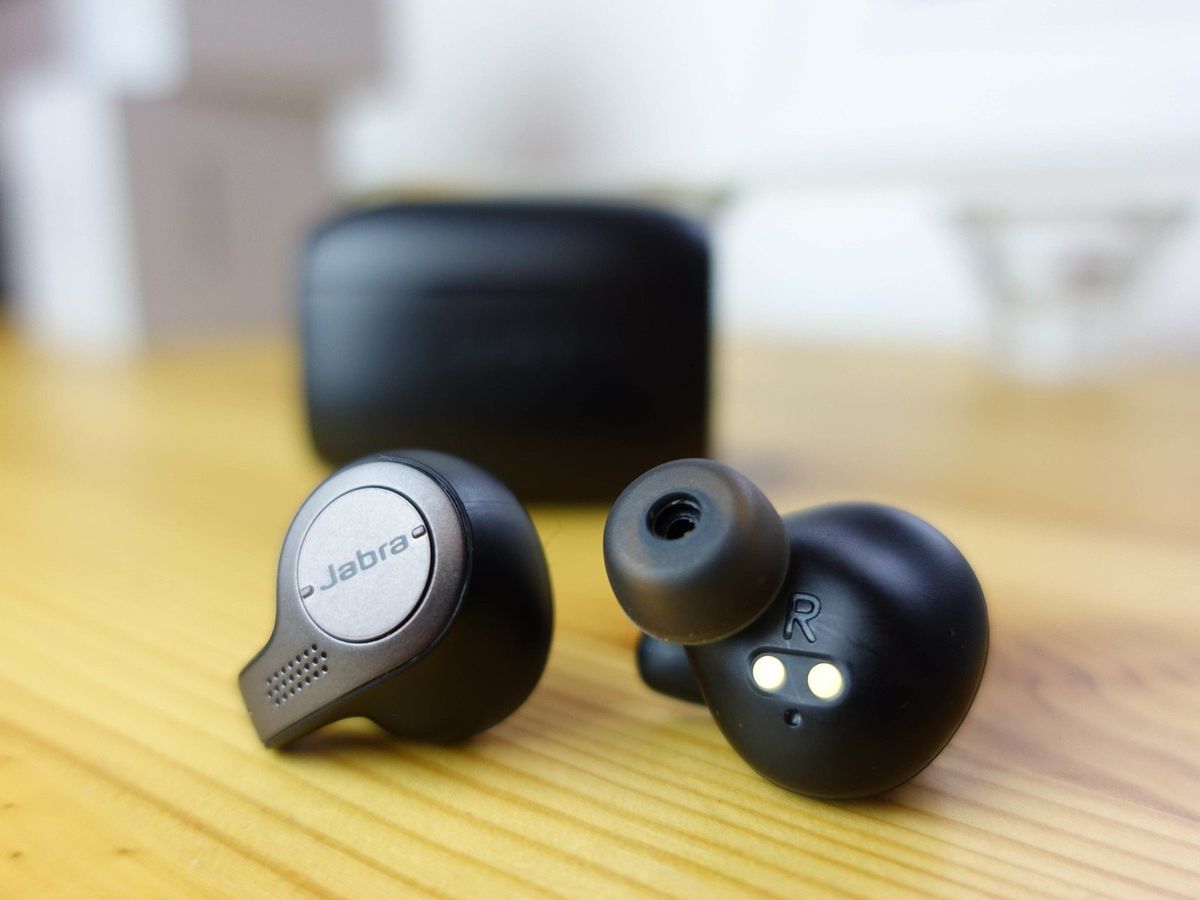
- Tap the phone’s NFC area to the Jabra NFC spot (often on the earcup or case).
- Follow any prompts to complete pairing.
NFC only starts the Bluetooth pairing. If Bluetooth is off, NFC will prompt to enable it. NFC is a tidy shortcut when available and a fast way to connect Jabra headphones.
Connecting with a cable (wired mode)
Many Jabra models support wired audio or come with a 3.5mm cable or USB cable.
- Find the right cable in the box or buy an approved replacement.
- Plug the cable into the headphone jack or USB port on the headphones.
- Connect the other end to your device’s headphone jack or USB port.
- Some models auto‑switch to wired mode; others need to be powered on.
Wired mode is great when Bluetooth drains battery or when you need low‑latency audio for calls or gaming. It’s a reliable fallback when learning how to connect Jabra headphones.

Using the Jabra Sound+ app and firmware updates
The Jabra Sound+ app improves setup and keeps firmware current. Firmware updates fix bugs and boost Bluetooth stability.
- Download and open the Jabra Sound+ app on iOS or Android.
- Follow on‑screen steps to add a new device.
- Allow permissions for Bluetooth and location if prompted.
- Check for firmware updates in the app and install them when available.
Updating firmware often fixes connection problems and improves sound quality. Regular app use helps you manage multipoint pairing and advanced settings when connecting Jabra headphones.
Multipoint pairing and device switching
Multipoint lets Jabra connect to two devices at once, such as a phone and laptop. This is useful for calls and media.
- Pair the headset with device A using the standard Bluetooth steps.
- Put the headset back into pairing mode and pair with device B.
- Use your device Bluetooth menus to select which device plays audio if auto‑switching doesn’t work.
Note that not all Jabra models support multipoint. Check your model’s specs. Multipoint makes it easier to manage calls and music while keeping how to connect Jabra headphones flexible.
Troubleshooting common connection problems
If pairing fails, try these fixes:
- Restart both the Jabra headset and your device.
- Forget the Jabra device in Bluetooth settings and pair again.
- Reset the headset to factory defaults (model‑specific; typically hold power and function buttons).
- Move closer to the device and away from Wi‑Fi routers or microwaves.
- Check battery level; low battery can prevent pairing.
If problems persist, check for firmware updates in the Jabra Sound+ app. These steps solve most issues when trying to connect Jabra headphones.
PAA-style questions (quick answers)
Here are short answers to common search questions about pairing and connection.
How long does pairing take for Jabra headphones?
Pairing usually takes 10–30 seconds once both devices are in pairing mode. Firmware updates or device prompts can add time.
Why won’t my device find my Jabra headphones?
Ensure the headset is in pairing mode, Bluetooth is on, and the headset is not already connected to another device. Restart both devices and try again.
Can I connect Jabra to multiple devices at once?
Many Jabra models support multipoint to connect two devices. Check your model specs and pair both devices using standard pairing steps.
Best practices, personal experience, and tips
I’ve paired dozens of Jabra models across phones, tablets, and laptops. Here are quick tips I learned:
- Always fully charge before the first pairing. Low power causes odd behavior.
- Use the app: firmware updates fixed Bluetooth dropouts I saw on two work headsets.
- Keep one device’s Bluetooth turned off if you want to force a specific connection.
- Label devices in your Bluetooth list if multiple Jabra units are nearby to avoid confusion.
Mistakes to avoid:
- Don’t assume the headset is in pairing mode. Many users skip the long press.
- Don’t pair while playing media. Stop audio to avoid auto‑connect conflicts.
These real tips make how to connect Jabra headphones faster and more reliable.
Compatibility and limitations
Jabra headphones work with most modern Bluetooth devices. Limitations include:
- Older devices may use outdated Bluetooth versions and lack support.
- Some models do not support multipoint.
- NFC is model‑specific and not universal.
- Software updates can change behavior; always read release notes.
Be transparent: if your device is over 6–7 years old, expect more compatibility hurdles. Understanding these limits helps set realistic expectations for how to connect Jabra headphones.
Frequently Asked Questions of how to connect jabra headphones
How do I put my Jabra headphones into pairing mode?
Press and hold the power or Bluetooth button until the LED flashes blue or you hear a voice prompt saying “pairing.” Timing varies by model.
What do I do if my Jabra won’t pair after reset?
Forget the device on your phone, restart both devices, then reinitiate pairing. If that fails, install firmware updates via the Jabra Sound+ app.
Can I use Jabra headphones with a work laptop and a phone at the same time?
If your Jabra model supports multipoint, yes. Pair with both devices and switch audio in the device Bluetooth menus if needed.
Does Jabra support aptX or AAC for better sound?
Some Jabra models support advanced codecs like AAC, but support varies by model and device. Check your headset specifications for codec details.
How do I update Jabra firmware?
Open the Jabra Sound+ app, connect your headset, and follow prompts to check and install firmware updates. Keep the headset charged during updates.
Conclusion
You now have clear, practical steps to master how to connect Jabra headphones via Bluetooth, NFC, or cable. Use the app to keep firmware up to date, try multipoint when you need two‑device connections, and follow simple troubleshooting steps if pairing fails. Take one action today: charge your headset, open Bluetooth, and pair it using the step‑by‑step guide above. Share your experience or ask a question below to get specific help, or subscribe for more hands‑on audio tips.