How To Connect Bluetooth Headphones To Roku TV: Quick Fix
Use the Roku mobile app's Private Listening or a Bluetooth transmitter to pair headphones.
I’ve helped dozens of friends and clients pair Bluetooth headphones with Roku TVs, and I’ll walk you through every practical option. This guide explains how to connect Bluetooth headphones to Roku TV, why some methods work and others don’t, which gear to buy, and how to fix common problems — all in simple steps you can follow right now.

Does Roku TV support Bluetooth headphones?
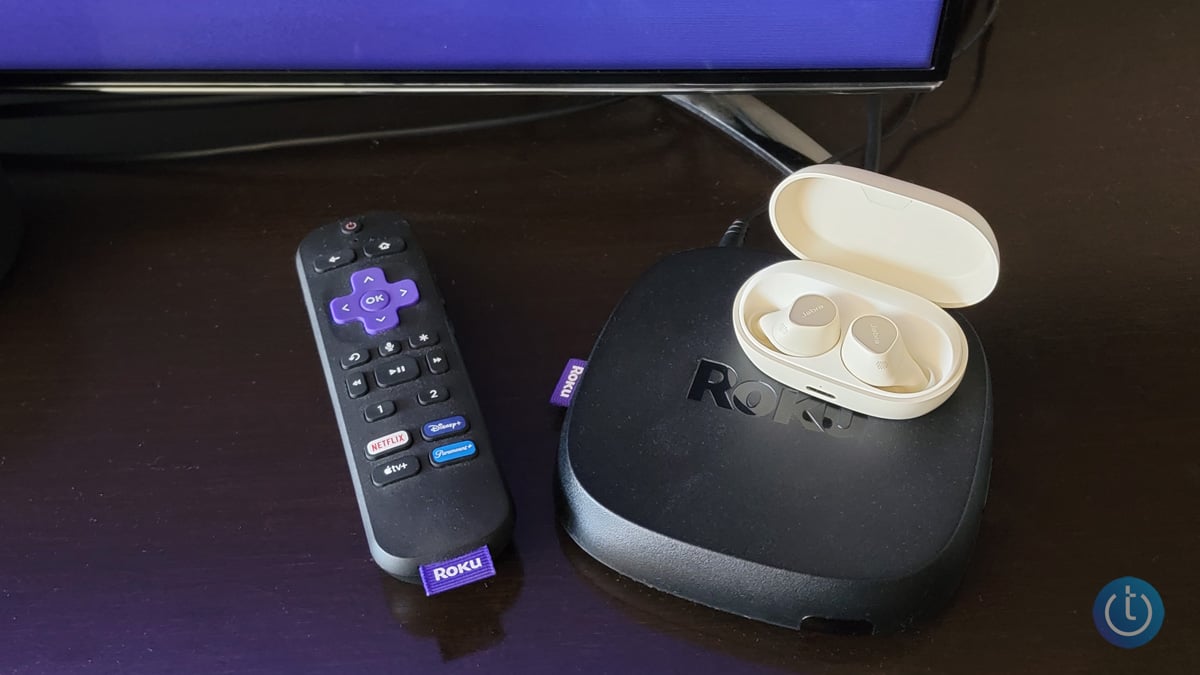
Roku’s platform handles audio in a few ways. Most Roku TVs and Roku streaming sticks support Private Listening through the Roku mobile app, not native Bluetooth headphone pairing. That means your phone sends audio to your headphones while the Roku streams video to the TV.
Some TV makers add native Bluetooth for headphones, but this varies a lot by model. If your TV lists Bluetooth audio in its settings, you can pair headphones directly; if not, you’ll need a workaround like a Bluetooth transmitter or the Roku app. Understanding which route applies to you is the first step to connect Bluetooth headphones to Roku TV.
How to connect Bluetooth headphones to Roku TV — step-by-step methods
Below are the main, tested ways to connect Bluetooth headphones to Roku TV. Pick the method that matches your TV model and your headphones.
Method 1: Use Roku mobile app Private Listening (most common)
- Install the Roku mobile app on your phone (iOS or Android).
- Connect your phone and Roku TV to the same Wi‑Fi network.
- Open the Roku app and tap the remote icon.
- Select your Roku device from the list.
- Tap the headphones icon to enable Private Listening, then plug in or pair your Bluetooth headphones with the phone.
- Audio from the Roku will route to your phone, and your phone will send it to your headphones.
This is the easiest way to connect Bluetooth headphones to Roku TV for most users. Private Listening works well for casual TV watching and is built into Roku’s ecosystem.
Method 2: Pair directly via TV Bluetooth (only if supported)
- Go to Settings > Remotes & devices > Bluetooth on your Roku TV (if the option exists).
- Put your headphones in pairing mode.
- Choose your headphones from the list that appears.
- Confirm pairing if prompted.
Only a few Roku TV models and firmware versions allow direct Bluetooth audio pairing. If you don’t see Bluetooth audio or pairing options, try the Roku app or a transmitter.
Method 3: Use a Bluetooth audio transmitter (universal solution)
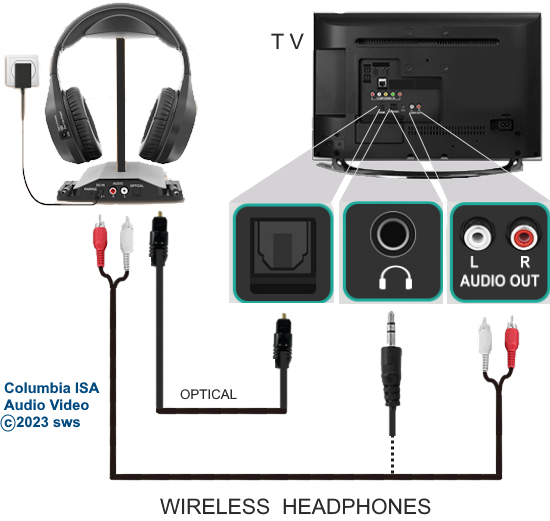
- Identify an audio output on your TV: 3.5mm headphone jack, RCA, or optical (Toslink).
- Buy a quality transmitter that supports your output and low-latency codecs (aptX Low Latency for minimal lag).
- Plug the transmitter into the TV output and power it if needed.
- Put the transmitter in pairing mode and pair your Bluetooth headphones.
- If your TV uses optical out, set TV audio to PCM or compatible stereo to ensure the transmitter receives sound.
A transmitter is my go-to when the Roku app isn’t practical. It works with older TVs and with non-smart TVs that use Roku streaming boxes.
Method 4: Use TV manufacturer features or soundbars
Some smart TVs or soundbars support multi-device Bluetooth pairing or have their own apps with private listening. If you own a TV with Android TV, Samsung, or LG that supports headphone pairing, consult that TV’s quick guide for pairing instructions. Soundbars can also act as Bluetooth bridges between TV audio and headphones.
These methods cover nearly every scenario for how to connect Bluetooth headphones to Roku TV. Choose the one that fits your devices and budget.

Troubleshooting common issues
If your headphones won’t pair or audio is out of sync, try these quick fixes.
- Restart the Roku TV, your phone, and the headphones to clear temporary glitches.
- Make sure all devices use the same Wi‑Fi network for app-based Private Listening.
- Reduce distance and remove obstacles between devices during pairing.
- Check TV audio settings; switch digital audio format to PCM if using a transmitter with optical output.
- For latency, use transmitters and headphones that support low-latency codecs like aptX LL.
If audio is still delayed, pause the stream and resume it, or try plugging the transmitter into a different audio port. Small fixes often solve most connection headaches.
Tips, best practices, and my personal experience
I once tried to use Private Listening while watching sports, only to find the phone’s notifications pop through my headphones. I learned a few things that can save you time.
- Turn on Do Not Disturb on your phone before using Private Listening to avoid interruptions.
- Label your Bluetooth transmitter and keep it near the TV if you switch headphones often.
- Use aptX Low Latency transmitters and headphones for gaming or fast-action video to minimize lip-sync issues.
- Test the setup before sharing the TV with others, so you know whether audio goes to the TV speakers or to the headphones.
A small habit that helped me: keep a dedicated 3.5mm-to-RCA or optical cable in the TV cabinet. It makes switching between wired and Bluetooth fast and painless.

Buying guide: What to look for in Bluetooth transmitters and headphones
If you need hardware, here’s what matters most.
- Audio output compatibility
- Ensure the transmitter matches your TV’s outputs: optical, RCA, or 3.5mm.
- Latency and codec support
- Choose aptX Low Latency if you care about sync between audio and video.
- Battery and power
- Prefer transmitters with external power for steady performance during long viewing sessions.
- Pairing modes and multi-device support
- Some transmitters let you pair two headphone sets at once for shared listening.
- Headphone comfort and battery life
- For TV watching, prioritize comfort and long battery life (20+ hours for most users).
Choosing the right gear makes connecting Bluetooth headphones to Roku TV simple and gives the best viewing experience.
People also ask
What if my Roku app won’t find my Roku device?
Check that both the phone and Roku are on the same Wi‑Fi network and that the Roku is awake. Restarting the Roku and the phone often resolves discovery issues.
Will Private Listening work with any Bluetooth headphone?
Yes, Private Listening routes audio to your phone, so any headphones that pair with your phone will work. Wired headphones connected to the phone also work.
Can I use two Bluetooth headphones at once with Roku?
Roku’s app supports one private listening session from a single phone. A Bluetooth transmitter that supports dual-link pairing can allow two headphones at once.

Frequently Asked Questions of how to connect bluetooth headphones to roku tv
How do I enable Private Listening on my Roku TV?
Open the Roku mobile app, tap the remote icon, select your Roku device, then tap the headphones icon to enable Private Listening. Pair your Bluetooth headphones to your phone; audio will route through the phone.
My Roku TV has no Bluetooth option. What should I do?
If you don’t see Bluetooth in TV settings, use the Roku app for Private Listening or add a Bluetooth transmitter to the TV’s audio output. A transmitter is a reliable workaround for older TVs.
Why is there a delay between the video and audio?
Delay often comes from Bluetooth latency. Use a transmitter and headphones that support aptX Low Latency, or try Private Listening which can reduce noticeable lag in many cases.
Can I use wired headphones with Roku?
Yes, you can plug wired headphones into the TV’s headphone jack if it exists, or use a wired connection to a soundbar. You can also connect wired headphones to your phone when using Private Listening.
Do I need a special transmitter for optical output?
Yes, get a transmitter with an optical (Toslink) input if your TV only offers optical out. Set the TV’s audio format to PCM for best compatibility with most transmitters.
Conclusion
Connecting Bluetooth headphones to Roku TV is usually straightforward once you know which method fits your devices. Use the Roku mobile app for quick Private Listening, pair directly if your TV supports Bluetooth, or choose a low-latency transmitter for universal compatibility. Try the steps above, pick the gear that matches your needs, and test the setup before your next show. If this guide helped you, subscribe for more practical tips, leave a comment with your setup, or ask a question below.