How To Pair Beats Headphones To Laptop: Quick Guide
Turn on Beats, enable Bluetooth on your laptop, then add and connect from Bluetooth settings.
I’ve paired dozens of headsets for clients and friends, and I’ll walk you step-by-step through how to pair Beats headphones to laptop on both Windows and macOS. This guide covers preparation, clear instructions, troubleshooting, advanced tips, and real-world lessons so you can pair quickly and keep your audio reliable.
Why pairing Beats headphones to laptop matters
Pairing Beats headphones to laptop gives you wireless audio for calls, music, and video without tangled cables. Proper pairing ensures low latency, stable audio, and access to features like battery reporting and controls. Knowing how to pair Beats headphones to laptop also helps you switch between devices without repeating frustrating steps.
Common reasons to pair include:
- Listening to music and streaming video.
- Making conference calls with clearer audio.
- Using noise isolation or ANC on supported Beats models.
Understanding Bluetooth basics helps. Bluetooth creates a secure link between devices so audio flows from laptop to headphones. Different Beats models support different Bluetooth codecs and features, so pairing correctly maximizes sound and battery performance.
Prepare your Beats and laptop before pairing
Small prep saves time. Follow these checks before attempting how to pair Beats headphones to laptop.
Essential prep steps:
- Charge both devices to at least 30 percent to avoid interruptions.
- Update your laptop’s Bluetooth drivers or macOS to the latest stable version.
- Confirm your Beats have the latest firmware if available through the Beats or companion app.
- Turn off other nearby Bluetooth audio devices to prevent accidental connections.
Quick device checks:
- Make sure Beats are fully powered on or in pairing mode.
- On laptops, open Bluetooth settings to confirm the Bluetooth radio is active.
- If you use a USB Bluetooth adapter, verify it’s recognized by the OS.
These steps reduce common connection problems and make pairing smooth when you learn how to pair Beats headphones to laptop.
How to pair Beats headphones to laptop on Windows 10 and Windows 11
Windows pairing is fast when you follow clear steps. This section shows the exact sequence to pair Beats headphones to laptop running Windows.
Step-by-step for Windows:
- Turn on your Beats. If they are new to the laptop, put them in pairing mode by holding the power or pairing button until the LED flashes.
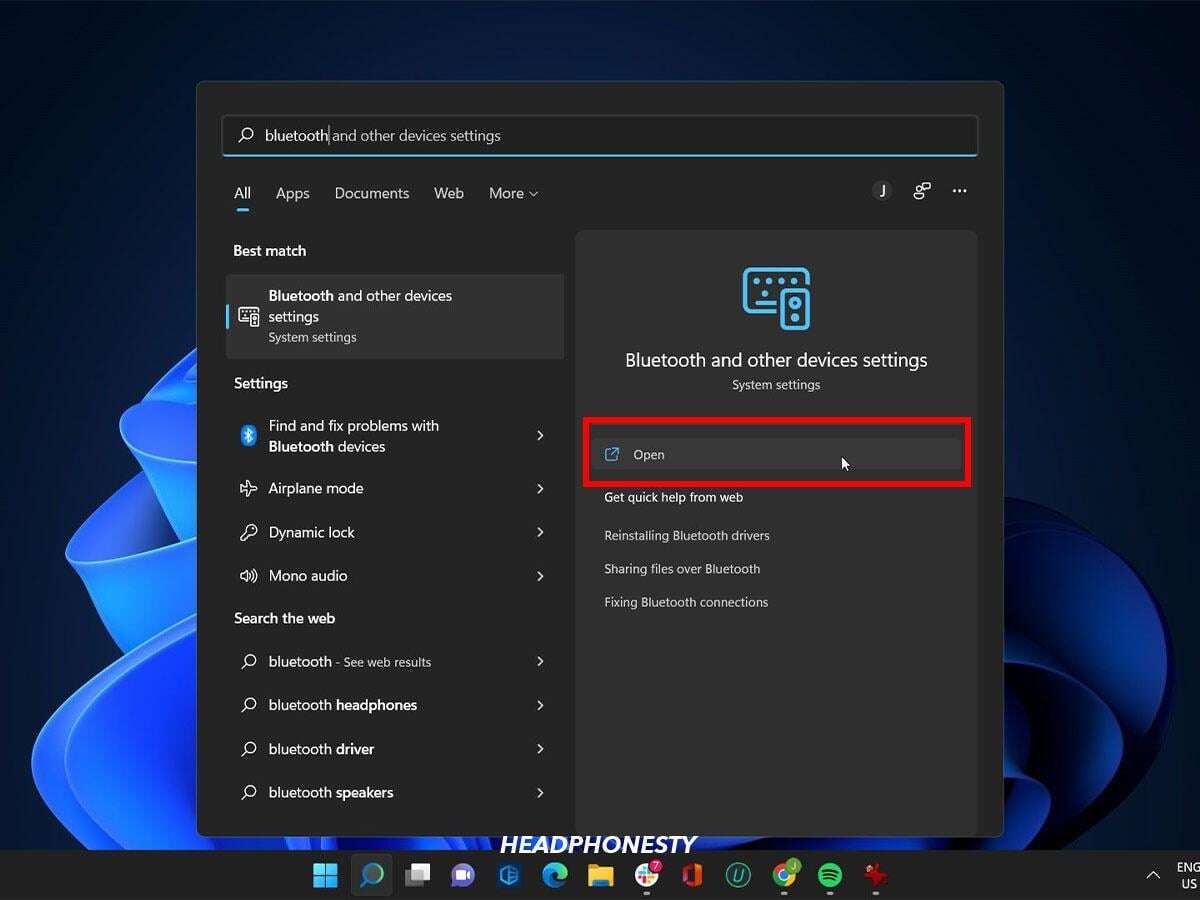
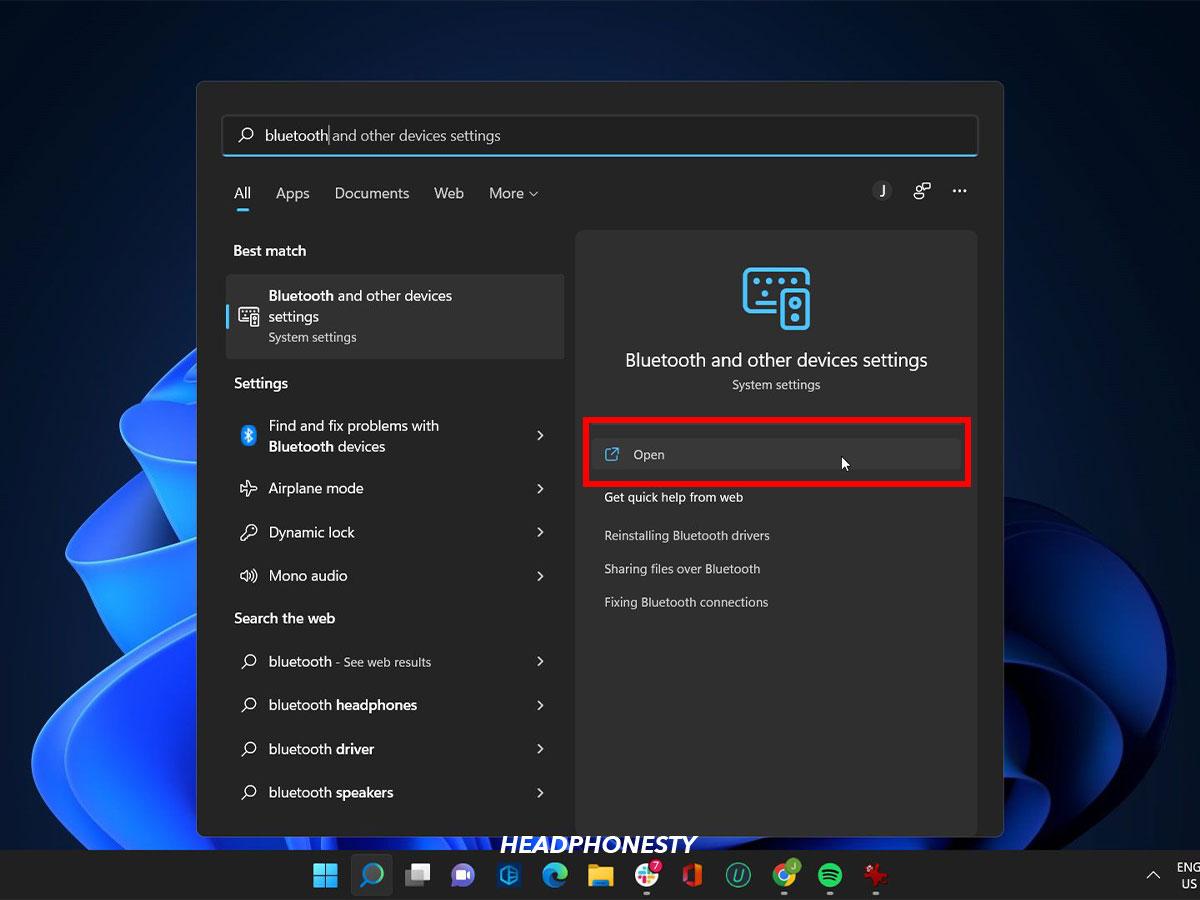
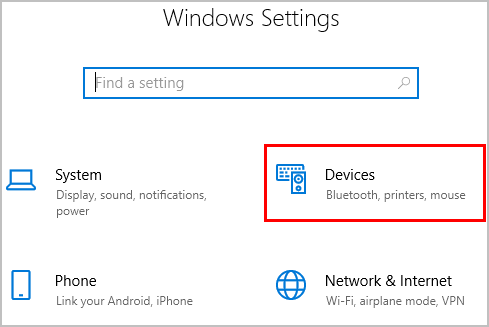
- Open Settings. Go to Start > Settings > Devices > Bluetooth & other devices.
- Enable Bluetooth. Toggle Bluetooth to On.
- Add a device. Click Add Bluetooth or other device, select Bluetooth, and wait for your Beats to appear in the list.
- Select your Beats. Click the name that matches your Beats model and wait for “Connected” status.
- Test audio. Play a short audio file or a video to confirm sound and microphone functionality.
If Windows shows “Paired but not connected,” open Sound Settings > Output and choose your Beats as the default device. If the microphone is required, set Beats as input under Sound Settings.

How to pair Beats headphones to laptop on macOS
macOS handles Bluetooth pairing in a few clicks. These steps explain how to pair Beats headphones to laptop on a Mac.
Step-by-step for macOS:
- Turn on Beats and enter pairing mode.
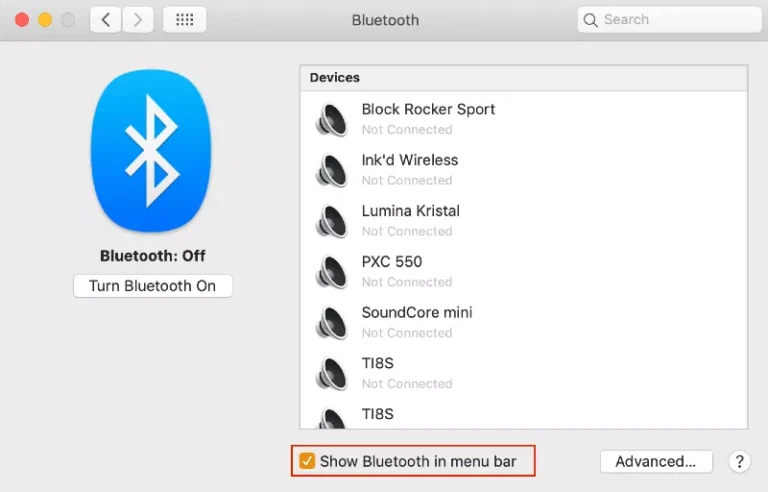
- Open System Settings. Click the Apple menu > System Settings (or System Preferences) > Bluetooth.
- Turn Bluetooth on. Wait for the Beats to appear.
- Click Connect. Choose your Beats model from the device list and click Connect.
- Set audio routes. Use the volume menu or Sound settings to select Beats for output and input if needed.
For older macOS versions, use System Preferences > Sound to adjust input and output. If you plan to use features like automatic device switching, ensure you’re signed into the same account that supports device handoff and that your Beats model supports that Apple feature.
Troubleshooting common pairing issues
Even with simple steps, problems happen. Here are common issues and quick fixes when learning how to pair Beats headphones to laptop.
Problem: Beats won’t appear in Bluetooth list
- Fix: Reset the headphones by holding the power/pairing button for 10–15 seconds until the LED resets. Turn Bluetooth off and on on the laptop, then retry pairing.
Problem: Audio connects but mic doesn’t work
- Fix: Set Beats as the input device in the laptop’s Sound settings. Some Bluetooth profiles limit audio quality in headset mode; use a wired connection for best microphone fidelity.
Problem: Frequent disconnects or lag
- Fix: Move closer to the laptop and remove interfering USB 3.0 devices. Update Bluetooth drivers or firmware. If using an external adapter, try a different USB port.
Problem: Paired to another device
- Fix: Disconnect or forget the Beats from the other device. Some Beats automatically reconnect to the most recent source.
People-Also-Ask style quick answers:
- Will all Beats models pair the same way? Most do, but button steps vary by model; always check the LED behavior for pairing mode.
- Does wired connection bypass pairing issues? Yes. A 3.5mm cable works when Bluetooth is problematic.
:max_bytes(150000):strip_icc()/002-how-to-connect-beats-wireless-headphones-4176291-1a138aed83a947a1b5851699ee0bf27e.jpg)
Advanced tips, compatibility, and limitations
This section helps you optimize how to pair Beats headphones to laptop beyond basic steps. Learn what to expect and how to get the most from your setup.
Audio quality and codecs:
- Beats generally use standard Bluetooth audio codecs. Laptop support for codecs like aptX or AAC affects sound and latency.
- For lower latency in games or video, a wired connection or a low-latency Bluetooth adapter is best.
Multi-device switching:
- Some Beats models support seamless switching. If yours supports it, sign into the same ecosystem account and enable device switching features.
- If automatic switching fails, manually disconnect from one device before pairing to another.
Use with work apps:
- For Zoom or Teams, select Beats in app audio settings to ensure the microphone and speakers are used correctly.
- Test before live calls to avoid last-minute audio issues.
Limitations to know:
- Bluetooth range typically 30 feet; walls reduce range.
- Simultaneous high-quality audio and microphone use can reduce fidelity due to Bluetooth profile constraints.
These tips will deepen your understanding of how to pair Beats headphones to laptop and when to choose alternative setups.
Personal experience: lessons from real-world pairing
I’ve paired Beats headphones to dozens of laptops for friends and small clients. Here are lessons I learned that save time and frustration.
What worked best:
- Always check for firmware updates before pairing. Updated firmware fixed unexpected disconnects in several cases.
- Resetting the Beats cleared stubborn pairing lists and resolved conflicts.
Common mistakes to avoid:
- Trying to pair while the phone is connected. Always disconnect other devices first.
- Ignoring Bluetooth driver updates. Outdated drivers caused one client’s microphone to fail.
Practical tip:
- Keep a small USB Bluetooth dongle handy. It fixed pairing on an older laptop with flaky built-in Bluetooth.
These real examples show how small steps make pairing Beats headphones to laptop predictable and reliable.

Frequently Asked Questions of how to pair beats headphones to laptop
How do I put my Beats into pairing mode?
Press and hold the power or pairing button until the LED flashes. The exact light pattern varies by model but typically shows alternating or blinking indicators.
Why won’t my laptop find my Beats?
Make sure Beats are in pairing mode, Bluetooth is enabled on the laptop, and other Bluetooth devices are disconnected. Resetting the headphones and toggling laptop Bluetooth often resolves discovery issues.
Can I use Beats with laptop microphone for calls?
Yes. After pairing, set Beats as the input device in Sound settings. Note that Bluetooth headset profile may lower audio quality for the mic.
Do I need drivers to use Beats with Windows?
Windows usually uses built-in Bluetooth drivers. For best results, update the laptop’s Bluetooth/wireless drivers from the manufacturer if you experience problems.
What if my Beats only connect via cable?
If Bluetooth pairing fails consistently, use a wired 3.5mm connection. This bypasses Bluetooth and often resolves audio and microphone issues.
Will resetting Beats delete paired devices?
Yes. Resetting typically clears the internal pairing list so you must re-pair with each device. This is useful when Beats won’t connect to a new laptop.
Conclusion
You now have a clear, step-by-step path to how to pair Beats headphones to laptop across Windows and macOS, plus practical troubleshooting and advanced tips. Start with the prep steps, follow the OS-specific pairing instructions, and use the troubleshooting checklist if problems appear. Try these steps now to get connected fast, and leave a comment to share your experience or ask a question — I’ll help you diagnose any pairing issue.