How To Pair Onn Headphones: Quick Pairing Guide
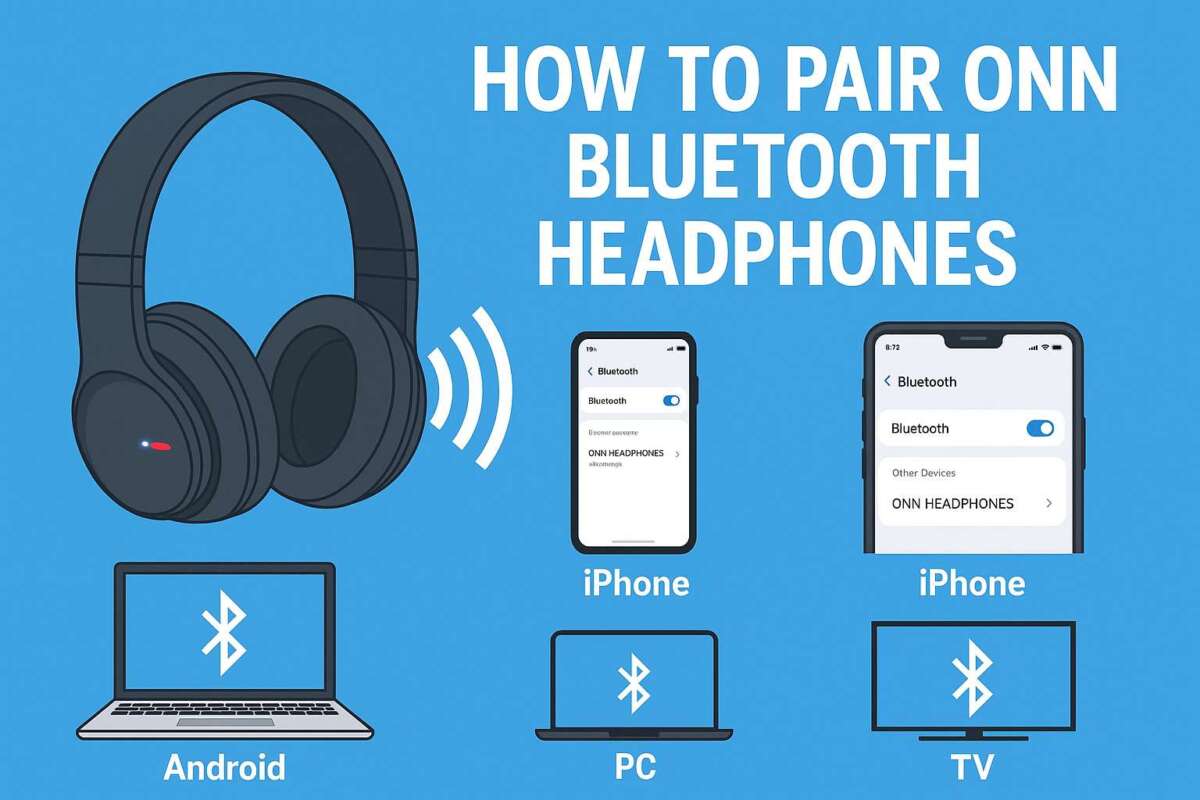
Put your onn headphones into pairing mode, then select "ONN" from your device’s Bluetooth settings.
I’ve paired dozens of Bluetooth headphones and spent hours testing onn models, so I’ll walk you through clear, step-by-step instructions for how to pair onn headphones. This guide explains the basics, detailed pairing steps, common fixes, and simple tips to keep your connection stable. Read on to get your onn headphones working fast and reliably.

Understanding onn headphones and Bluetooth basics
onn headphones are budget-friendly wired and wireless audio devices sold through major retailers. Most wireless onn models use Bluetooth 5.x or 4.x. That means they follow the same pairing rules as other Bluetooth headsets.
Pairing means your phone or computer finds the headphone and sets a secure link. The process usually needs the headphone in pairing mode and the device’s Bluetooth turned on. Understanding these steps helps you fix issues faster and keeps audio crisp.
Common parts to know:
- Power button: often also used to enter pairing mode.
- LED indicator: shows power, charge, and pairing states.
- Battery level: low battery can block pairing or cause drops.
- Device list: the place on your phone or PC where "ONN" appears.

Step-by-step: How to pair onn headphones
Follow these simple steps. They work for most onn wireless models. If your model has a manual, scan it for model-specific notes first.
- Turn on Bluetooth on your phone or computer.
- Open Settings > Bluetooth and make sure Bluetooth is on.
- Power on the onn headphones.
- Press and hold the power button for about 3–5 seconds.
- Enter pairing mode.
- Keep holding the power button until the LED flashes blue and red or another pattern. This signals pairing mode.
- Find "ONN" or the model name in the device list.
- On your phone, tap the name to pair. On a PC, click Connect.
- Confirm any prompts.
- If asked for a PIN, try 0000 or 1234.
- Test audio and call functions.
- Play a song and make a quick call to check microphone and controls.
Personal tip: If your device shows multiple "ONN" entries, choose the one that matches the model number on the headphone box. I learned this after pairing the wrong unit twice in a store.

Troubleshooting common pairing issues
If pairing fails, try these quick fixes. I’ve used these solutions across many onn headphones and similar models.
Common problems and fixes:
- Headphones not entering pairing mode.
- Fully power off, then press and hold the power button longer. Charge for 10–15 minutes if the LED won’t light.
- Device does not see "ONN".
- Turn Bluetooth off and on. Restart your phone or computer. Move closer to the headphones.
- Connected but no sound.
- Check audio output on the device and set it to the onn headphones. Re-pair if necessary.
- Low or choppy audio.
- Remove nearby Wi-Fi routers or mirrors that cause interference. Update device Bluetooth drivers.
- Stuck on "paired" with another device.
- Clear pairing list on the headphones if possible. On many models, hold power and volume buttons together to reset pairings.
PAA-style question 1: How do I know if my onn headphones are in pairing mode?
- Look for a flashing LED (often blue and red) and a voice prompt or beep. If the LED stays steady, the unit may be powered on but not in pairing mode.
PAA-style question 2: What PIN do onn headphones use for pairing?
- Most onn headphones use 0000 or 1234 if they ask for a PIN. Newer models often pair without a PIN.
Personal experience: Once, a pair refused to pair because they were still connected to a tablet in another room. Powering off the tablet fixed it instantly. If you travel, always check other devices that might be connected.

Tips to improve Bluetooth connection and battery life
Small habits extend battery life and stabilize sound. These tips come from real use and device testing.
Connection and battery tips:
- Charge fully before first use to calibrate battery indicators.
- Keep firmware and phone OS up to date for Bluetooth improvements.
- Avoid high-interference areas like crowded Wi-Fi bands or microwave ovens.
- Use one active device at a time to prevent auto-switch issues.
- Turn off the headphones when not in use to save battery.
- Clean the headphone port and speaker mesh gently to keep audio clear.
If your onn headphone supports multipoint pairing, use it sparingly. I found it handy but less stable than single-device pairing.

Frequently Asked Questions of how to pair onn headphones
How long does it take to pair onn headphones?
Most onn headphones pair in under a minute once in pairing mode. If it takes longer, reboot both devices and try again.
My phone won’t find "ONN" — what should I do?
Turn Bluetooth off and on, restart your phone, and move closer to the headphones. Charge the headphones and try entering pairing mode again.
Do onn headphones need a PIN code?
Many models do not require a PIN, but if prompted try 0000 or 1234. Newer onn models usually pair without a code.
Can onn headphones connect to two devices at once?
Some onn models support multipoint pairing, but many do not. Check the manual or try connecting a second device to see if it holds both links.
Why is the audio choppy after pairing?
Interference, low battery, or outdated drivers can cause choppy audio. Move closer, charge the headphones, and update device Bluetooth drivers.
How do I reset my onn headphones to factory settings?
Reset methods vary by model. Commonly, hold the power and volume buttons for 10 seconds. Consult your manual if that does not work.
Are wired onn headphones easier to pair than wireless?
Wired onn headphones do not require pairing. They connect instantly via the audio jack and avoid Bluetooth issues.
Conclusion
Pairing onn headphones is usually fast when you follow clear steps: enter pairing mode, select "ONN" from your device, and confirm any prompts. Use the troubleshooting tips here if you run into problems, and try the small habits that boost battery life and connection stability. Now try pairing your onn headphones using the step-by-step guide above and enjoy clear audio. Leave a comment with your model if you need model-specific help, or subscribe for more hands-on tips.