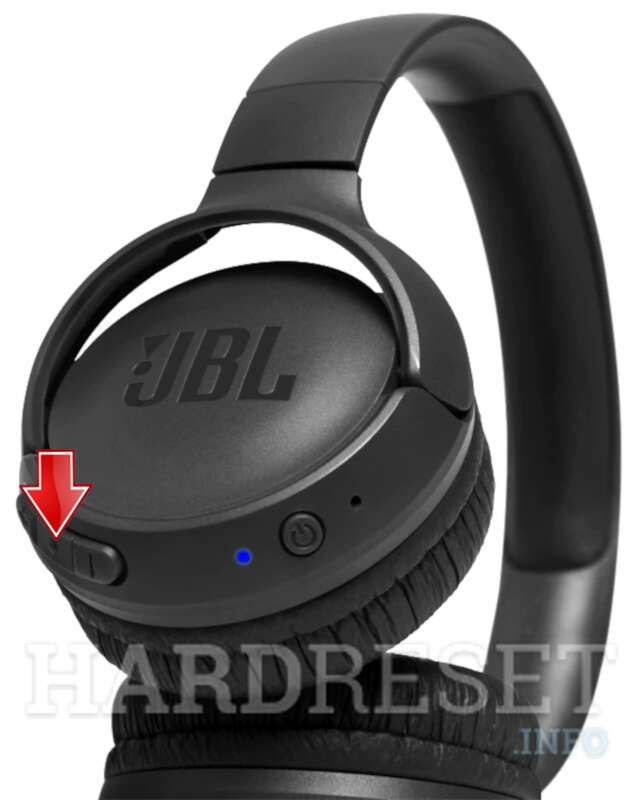
How To Connect Jbl Bluetooth Headphones: Fast Pairing
Turn on the headphones, enter pairing mode, and select them from your device’s Bluetooth list.
I’ve helped dozens of people connect and troubleshoot wireless headsets, and I’ll walk you through how to connect JBL Bluetooth headphones step-by-step, explain common problems, and share practical tips from real-world testing. This guide covers basic pairing, model-specific notes, resets, multi-device pairing, firmware updates, and quick fixes so you can get reliable audio fast.

Understanding Bluetooth basics and JBL headphone features
Bluetooth is a short-range wireless protocol that links audio devices to phones, tablets, and computers. Knowing the essentials makes pairing easier: devices must be discoverable, in pairing mode, and within range (typically 30 feet). This also helps when you learn how to connect JBL Bluetooth headphones.
JBL headphone lines include on-ear, over-ear, and true wireless earbuds. Each family has small differences in buttons and LED indicators, but the pairing concepts are the same. Features to note:
- Multipoint support may let you connect two devices at once for seamless switching.
- Noise-canceling and low-latency modes can be adjusted via the JBL Headphones app for supported models.
- Firmware updates sometimes fix pairing bugs, so checking for updates can solve issues.
Experience note: I’ve paired JBL over-ear and true wireless models with iPhones, Android phones, and Windows laptops; the pattern repeats—power on, activate pairing, choose the device. When a device fails to appear, a quick reset or clearing the phone’s Bluetooth list usually resolves the issue.

How to connect JBL Bluetooth headphones: Step-by-step guide
Follow these clear steps to learn how to connect JBL Bluetooth headphones to most devices.
- Charge your headphones
- Make sure the headphones or earbuds have enough battery. Low battery can block pairing or cause disconnects.
- Turn on the headphones
- Press the power button until you see an LED or hear a voice prompt. Many JBL models say “Power on.”
- Enter pairing mode
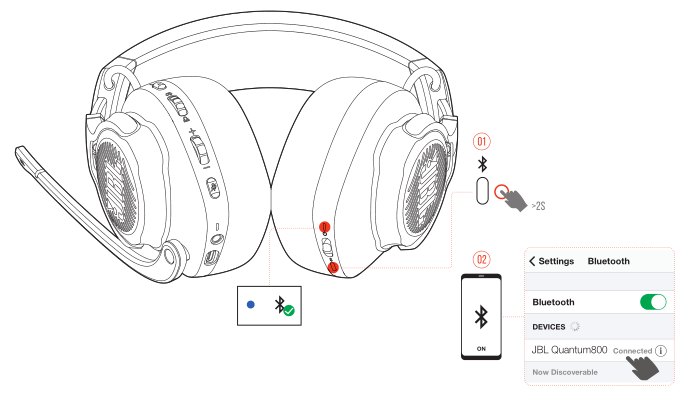
- Most JBL models enter pairing automatically the first time you turn them on. To manually enter pairing mode, press and hold the power button for 3–5 seconds until the LED flashes blue and red or you hear “Pairing.”
- Open Bluetooth settings on your source device
- On iPhone: Settings > Bluetooth and make sure Bluetooth is On. On Android: Settings > Connections > Bluetooth. On Windows: Settings > Bluetooth & devices.
- Find and select your JBL device
- Look for a name like JBL Tune, JBL Live, or the model number, then tap to pair. You may hear a confirmation voice or see a solid LED after pairing.
- Test audio and controls
- Play audio to confirm sound. Test volume, pause/play, and any microphone functionality.
If the device prompts for a PIN, enter 0000 or 1234—though this is rare with modern JBL devices.

Model-specific pairing tips
Some JBL models use slightly different button combinations. Here are common examples:
- JBL Tune and Live on-ear/over-ear: Press and hold power until LED flashes to enter pairing.
- JBL Free and Tune true wireless earbuds: Remove from the case to power on; long-press the earbud button (or follow the voice prompt) to enter pairing mode.
- JBL Reflect and Endurance sport models: Use the dedicated Bluetooth/power button to initiate pairing.
If pairing fails, check the user manual for your model’s exact sequence. I keep a quick note of each model’s method—saving time when helping friends.
Troubleshooting common pairing problems
When learning how to connect JBL Bluetooth headphones, you’ll face a few repeatable problems. Here are causes and quick fixes.
Problem: Headphones don’t appear in Bluetooth list
- Fix: Turn Bluetooth off and on on your device, restart the headphones, move them closer, or power-cycle your device. Clearing old pairings in the phone’s Bluetooth settings also helps.
Problem: Paired but no audio
- Fix: Check the audio output device on your phone or computer. On Windows, open Sound settings and select the JBL device as output. On phones, tap the Bluetooth device name in quick settings to switch output.
Problem: Keeps disconnecting
- Fix: Ensure there’s no wireless interference (Wi‑Fi routers, microwave), check battery level, and update headphone firmware via the JBL Headphones app.
Problem: Can’t pair with multiple devices
- Fix: Verify your model supports multipoint. If not, disconnect one device before pairing a new one. If it does support multipoint, reset both connections and pair again following the manufacturer’s order.
Common reset approach (model-dependent)
- Most JBL headphones can be reset by powering off, then pressing and holding a combination of buttons for several seconds until LEDs flash. If unsure, consult the manual or the JBL Headphones app for model-specific reset instructions.
Personal tip: When I bumped into a persistent pairing loop, deleting the JBL device from my phone’s Bluetooth list, turning off Bluetooth, and re-pairing fixed the issue every time.

Pairing multiple devices and using multipoint
Many people ask how to connect JBL Bluetooth headphones to two devices simultaneously. Multipoint makes this possible on some models. Here’s how it works and what to expect.
How multipoint works
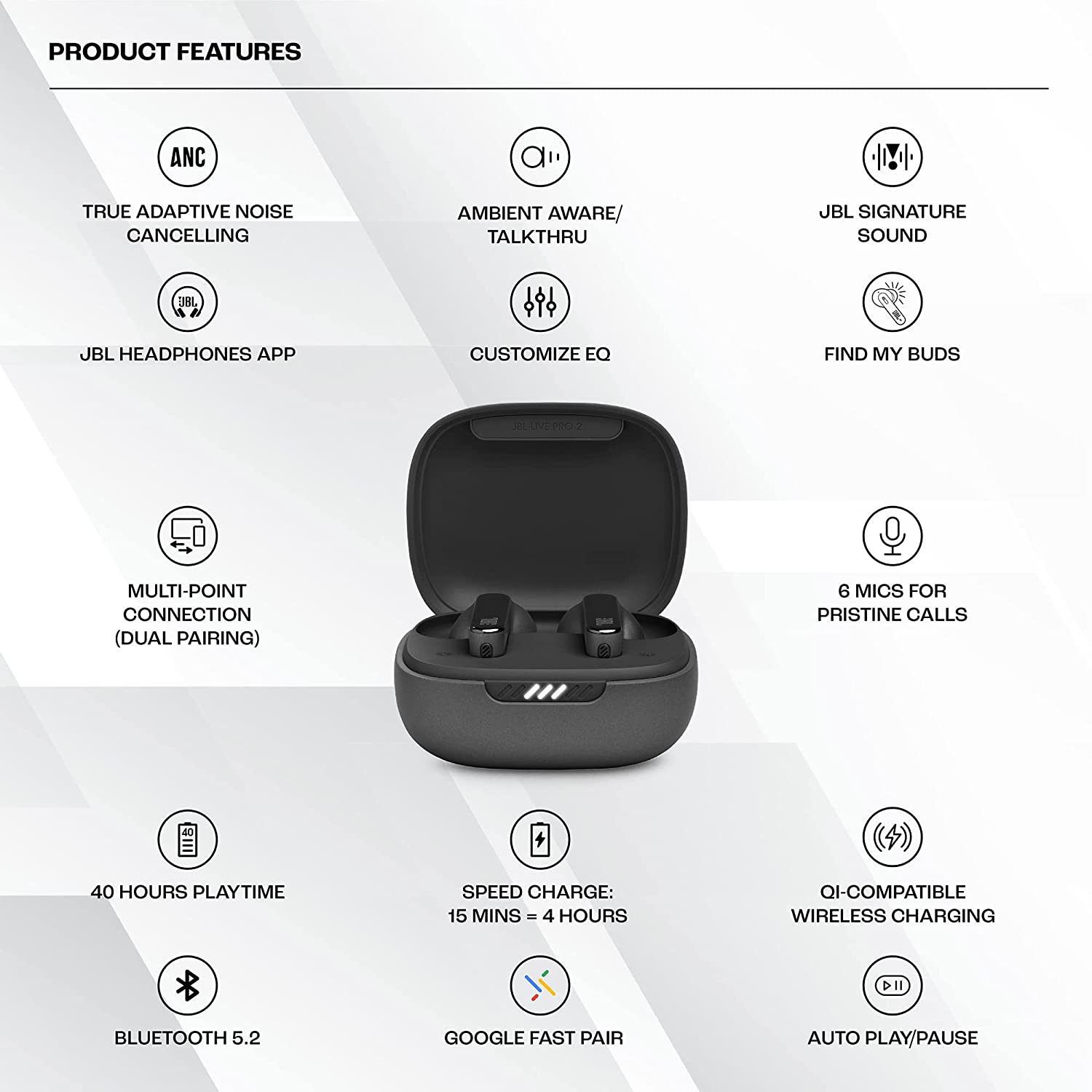
- Multipoint keeps two active Bluetooth connections (usually two phones or a phone and a laptop) so calls and audio switch automatically based on which device is active.
- Not all JBL models support multipoint, so check the specs or the JBL app.
How to set up multipoint
- Pair the headphones with the first device normally.
- Turn off Bluetooth on the first device temporarily, then pair with the second device.
- Re-enable Bluetooth on the first device. If supported, the headphones will reconnect to both devices.
Limitations and tips
- Some models only support audio on one device at a time for media; calls often take priority.
- Multipoint can drain battery faster. Disable it if you need extended listening time.
Experience note: On a JBL model that supported multipoint, my phone and laptop switched seamlessly for calls. On a model without multipoint, I had to manually switch the active Bluetooth device each time.
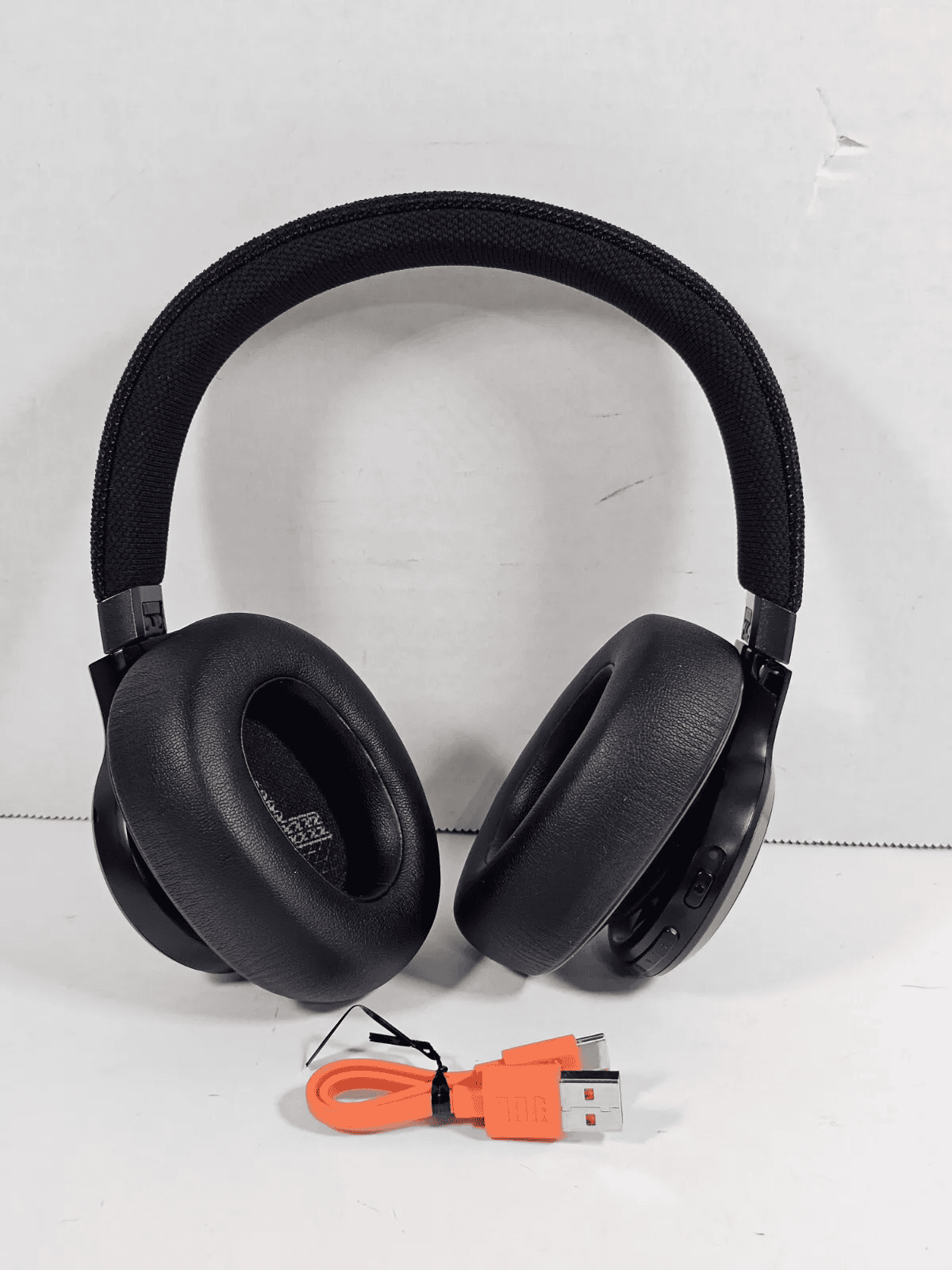
Firmware, app use, and advanced settings
Using the JBL Headphones app can simplify pairing and add features. Firmware updates often fix bugs and improve connectivity.
What the app offers
- Firmware updates to improve stability and add features.
- EQ presets and ANC/ambient sound controls on supported models.
- Battery level indicators and quick access to pairing instructions.
How to update firmware
- Install the JBL Headphones app, connect the headphones, and follow the in-app update prompts. Keep both devices charged during updates to avoid bricking.
Advanced settings to check
- Bluetooth codec selection (on some devices): AAC, aptX, or SBC can affect audio quality and latency.
- ANC and ambient modes: These can change connection behavior or battery life.
I always check for updates when I see odd Bluetooth behavior; a recent firmware update resolved a stubborn drop-out issue on a set of JBL over-ear headphones.
Battery care and maintenance for reliable Bluetooth connections
Battery health and physical maintenance affect pairing success and audio reliability. Take these easy steps to maintain your JBL headphones.
Simple battery tips
- Fully charge new headphones before first use.
- Avoid letting the battery drain to zero often; regular partial charges are better.
- Store headphones in a case at room temperature to protect battery life.
Cleaning and storage
- Clean ear tips and the charging contacts on true wireless earbuds regularly to prevent poor charging or connection faults.
- Avoid extreme temperatures and humidity.
If a headphone won’t charge, try different cables and chargers before assuming the battery is dead. I once blamed a headset for pairing issues only to find a flaky USB-C cable was the real culprit.

People also ask (PAA-style) — quick answers
Q: How long does pairing take?
A: Pairing usually takes 5–30 seconds after you enter pairing mode and select the device. If it takes longer, try restarting both devices.
Q: Do JBL headphones work with any Bluetooth device?
A: Yes, JBL headphones use standard Bluetooth profiles and will pair with most smartphones, tablets, and computers, though features like multipoint or app controls may be device-specific.
Q: What if my JBL headphones won’t connect to my laptop?
A: Turn Bluetooth off and on, remove the device from the laptop’s paired list, and re-pair. Confirm the laptop’s Bluetooth drivers are up to date.
Q: Can I connect JBL headphones to two phones?
A: Only if your JBL model supports multipoint pairing. Otherwise you must disconnect one device before connecting another.
Q: Will firmware updates fix pairing issues?
A: Often they can, because updates address bugs and connectivity improvements. Check the JBL Headphones app for available updates.
Frequently Asked Questions of how to connect jbl bluetooth headphones
How do I enter pairing mode on JBL headphones?
Press and hold the power button for about 3–5 seconds until the LED flashes or you hear the pairing voice prompt. Some models enter pairing automatically the first time they power on.
What if my device asks for a PIN when pairing?
Enter 0000 or 1234 if prompted, although most modern JBL devices do not require a PIN. If the prompt persists, delete the device from your Bluetooth list and try pairing again.
How do I reset my JBL headphones to factory settings?
Reset methods vary by model; a common approach is powering on and holding specific buttons until LEDs flash. Check your manual or the JBL Headphones app for model-specific reset instructions.
How do I update JBL headphone firmware?
Install the JBL Headphones app, connect your headphones, and follow the in-app firmware update prompts. Keep both devices powered during the process to avoid interruptions.
Why does my JBL headphone connect but no sound plays?
Ensure the JBL device is selected as the audio output in the source device’s sound settings. Also check app-level volume and streaming source permissions.
Conclusion
You now know how to connect JBL Bluetooth headphones, troubleshoot common problems, manage multipoint connections, and use firmware updates and app features for the best experience. Try the step-by-step pairing process outlined here, and remember simple fixes—restart devices, clear old pairings, and keep firmware current—solve most issues.
Take action: pair your headphones now, check the JBL Headphones app for updates, and leave a comment sharing your model and any issues—I’ll help you troubleshoot.