How To Connect Bose Bluetooth Headphones: Easy Pairing
Pair your Bose headphones by holding the power button in Bluetooth mode and selecting them from your device’s Bluetooth list.
I’ve spent years testing headphones and helping people pair gear. This guide shows exactly how to connect Bose Bluetooth headphones step by step. I’ll explain setup for phones, tablets, and computers, cover common problems, and share tips from real-world use. Read on to pair confidently and get the best sound from your Bose headset.

Why Bluetooth pairing matters and what to expect
Pairing creates a secure wireless link between your Bose headphones and your device. Good pairing gives low latency, stable audio, and access to features like multipoint and voice assistants. Knowing how to connect bose bluetooth headphones helps you avoid drops and poor sound.
Pairing behavior varies by model. Newer Bose models support multipoint and easy re-pairing. Older models use a simple single-device pairing method. Knowing your model helps you pick the right steps.

Preparation: what you need before pairing
Keep things simple. Gather the right items and settings first.
- Confirm your Bose headphones are charged enough to pair.
- Turn off other nearby Bluetooth devices to reduce interference.
- Make sure the device you want to pair has Bluetooth turned on and is discoverable.
- Check your device’s OS is up to date for best compatibility.
- If you have a Bose app, install it for firmware updates and extra features.
If you know how to connect bose bluetooth headphones before you start, the process will be faster and less frustrating.
Step-by-step: how to connect bose bluetooth headphones
Follow these steps to pair most Bose models. I’ll include small model-specific notes where needed.
- Prepare headphones
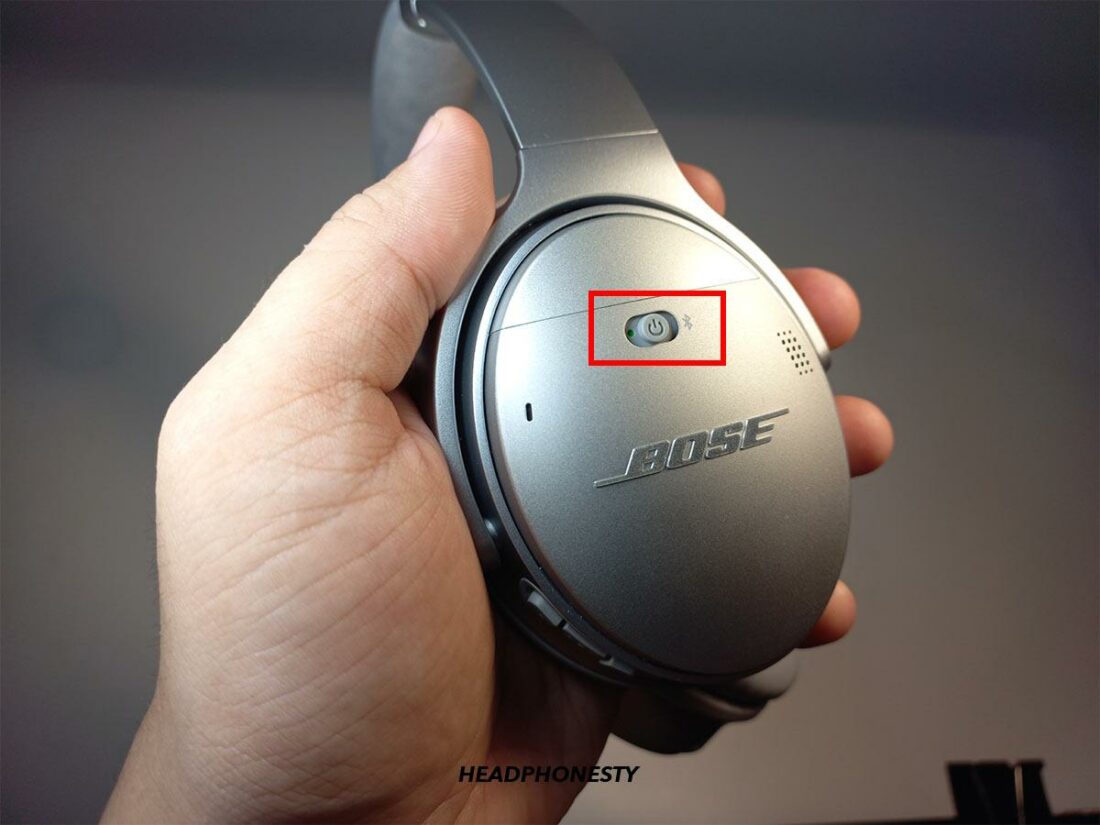
- Power on your Bose headphones. For many models, slide the power button or press it until you hear a voice prompt.
- Enter pairing mode. Hold the power or Bluetooth button for about 3–5 seconds until the LED flashes blue or a voice says “ready to pair.” For some models, press and hold the Bluetooth symbol button.
- Open Bluetooth settings on your device
- On iPhone or iPad: Settings > Bluetooth and wait for the device name to appear.
- On Android: Settings > Connected devices > Pair new device (varies by manufacturer).
- On Windows: Settings > Devices > Bluetooth & other devices > Add Bluetooth or other device.
- On Mac: System Settings > Bluetooth.
- Select your Bose headphones
- Tap the device name that matches your Bose model (for example, “Bose QC35” or “Bose 700”).
- If prompted for a PIN, enter 0000.
- Confirm connection
- Listen for the voice prompt saying “connected” or check the device’s Bluetooth status.
- Open a music app and play audio to confirm.
Model notes
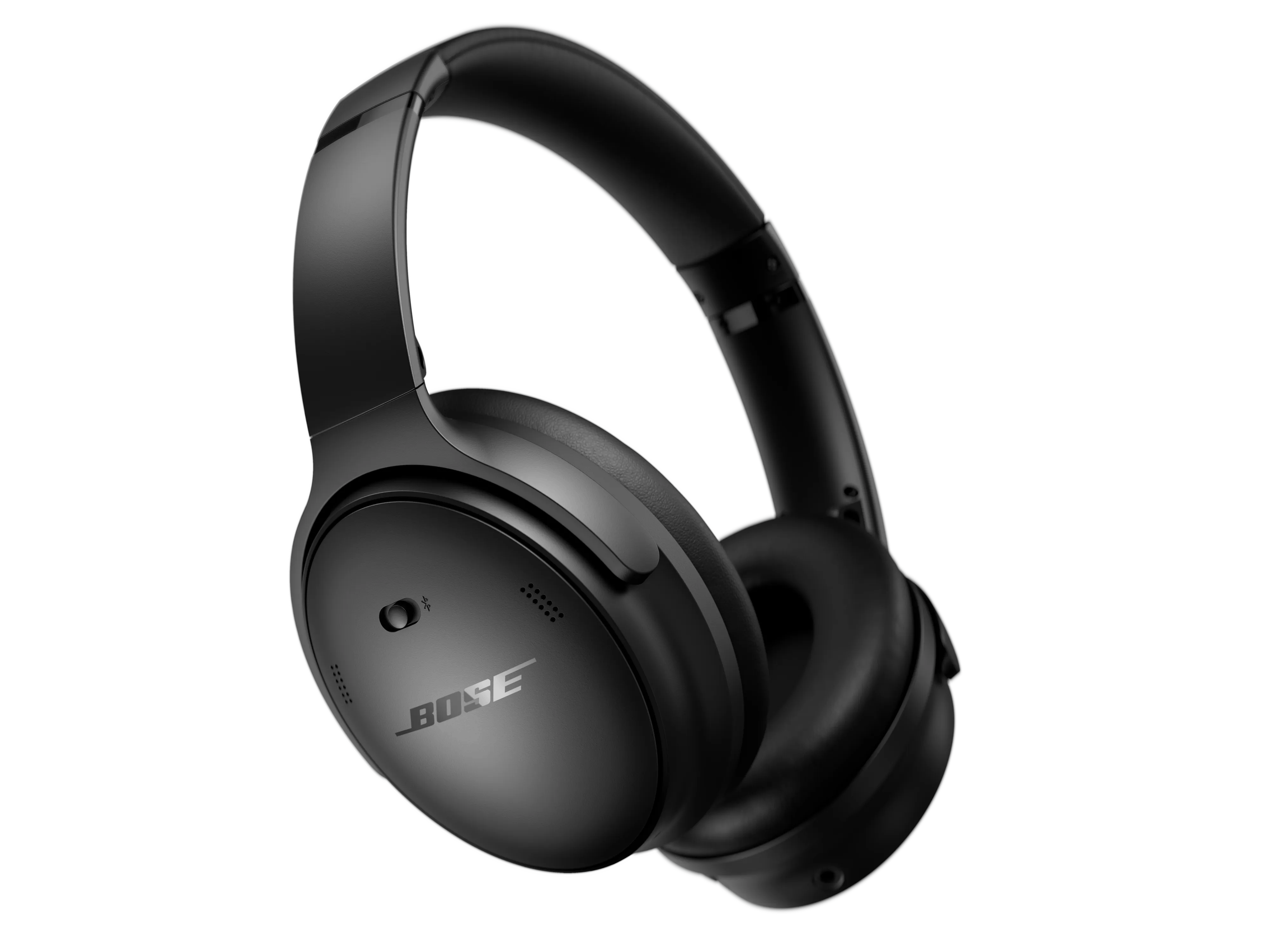
- Bose QuietComfort 35/45: Hold power button to enter Bluetooth mode; voice prompts guide you.
- Bose Noise Cancelling Headphones 700: Press the Bluetooth button near the right earcup to start pairing.
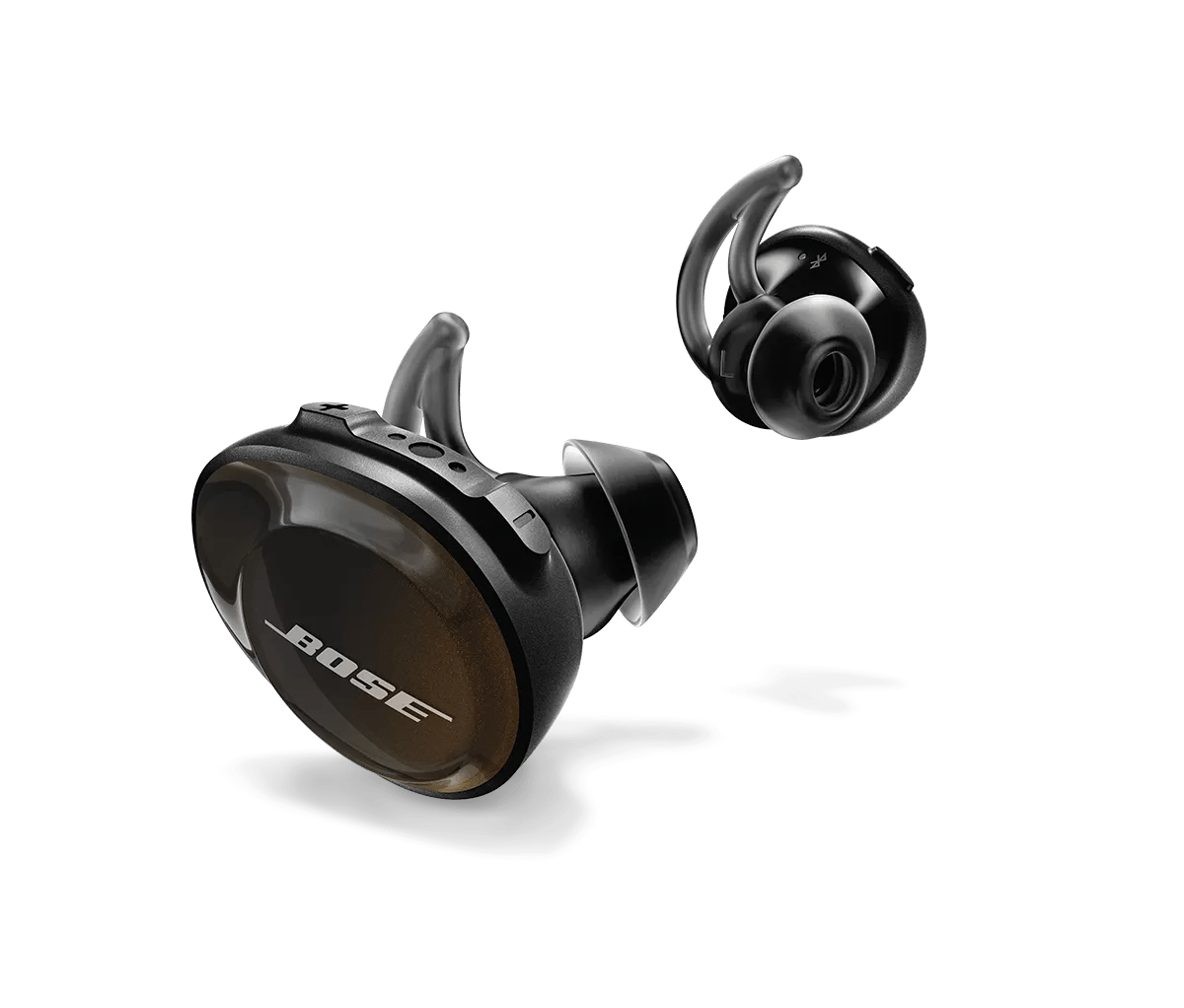
- Bose Solo or SoundLink on-ear: Press and hold Bluetooth button until blue light flashes.
Practically speaking, knowing how to connect bose bluetooth headphones is about the exact button to hold and watching for the blue light or voice prompt.
Troubleshooting common pairing issues
If pairing fails, try these quick fixes.
-
Headphones won’t enter pairing mode
- Fully power off, then restart and try holding the Bluetooth button longer.
- Reset the headphones (see model manual for reset steps).
-
Device cannot find headphones
- Turn Bluetooth off and on on your device.
- Restart your phone or computer.
- Move closer to the headphones and away from Wi-Fi routers or microwaves.
-
Audio connects but no sound
- Check output device on your phone or computer.
- Ensure volume is up on both devices.
- Disconnect and re-pair.
-
Frequent drops
- Update firmware via the Bose app or computer utility.
- Disable nearby Bluetooth devices that might be competing.
- Re-pair to clear old profiles.
I once spent an hour debugging a QC35 that would not pair with a laptop. The fix was a firmware update via the Bose app. Updating firmware solved intermittent drops I had experienced for months.
Tips for best audio quality and battery life
Small habits improve sound and battery life.
- Use the Bose app to update firmware and enable sound modes.
- Choose the right codec on supported devices (AAC on iOS, SBC on many Androids).
- Turn off voice assistant features if you don’t use them to save battery.
- Store headphones powered off when not in use.
- Charge before long trips; keep the charging cable handy.
These tips reflect real use. After switching off always-on voice features, I gained several extra hours of battery life on long flights.
Advanced pairing: multipoint, NFC, and connecting to multiple devices
Bose multipoint lets headphones connect to two devices at once. Use it to accept calls from your phone while watching video on a tablet.
- Enable multipoint by pairing to the first device, then pair to the second device normally. The headphones should maintain connections to both.
- For models with NFC, tap your NFC-capable phone to the earcup to pair instantly.
- To switch active audio between devices, pause on one device or select the headphones in the second device’s Bluetooth settings.
Limitations
- Not all Bose models support multipoint.
- Some devices may pause or break audio when switching between sources.
I use multipoint daily: phone for calls, laptop for music. It works well, but video apps sometimes need manual device switching for low-latency playback.
Personal experience and lessons learned
I have paired many Bose headsets across multiple platforms. Key lessons:
- Firmware updates matter. They fixed connection drops and added features for me.
- Read voice prompts. They say precisely what the headphones need.
- Keep your device list clean. Old pairings sometimes block new ones.
- Be patient. If pairing fails, a quick reset often solves it.
These are practical tips from real troubleshooting sessions. You’ll save time by checking firmware and removing old Bluetooth profiles first.

People also ask
h3 What if my Bose headphones won’t enter pairing mode?
Hold the power or Bluetooth button for a full 10 seconds. If that fails, reset the headphones per the manual and try again.
h3 Can I pair Bose headphones with multiple phones?
Yes. Many Bose models support multipoint. Pair both devices; the headphones will maintain connections to two devices.
h3 Do Bose headphones work with Bluetooth 5.0 devices?
Yes. Bose headphones are backward compatible. Newer Bluetooth versions may improve range and stability.
Frequently Asked Questions of how to connect bose bluetooth headphones
How do I put my Bose headphones into pairing mode?
Press and hold the power or Bluetooth button for 3–5 seconds until the LED flashes blue or you hear “ready to pair.” Follow the voice prompt to complete pairing.
Why won’t my phone find my Bose headphones?
Turn Bluetooth off and on, restart the phone, and ensure no other device is currently connected to the headphones. Remove old pairings and try again.
Do I need the Bose app to pair my headphones?
No. The app is optional. It helps with firmware updates and settings, but basic pairing works through standard Bluetooth menus.
How do I reset my Bose headphones?
Reset steps vary by model. Commonly, power off then press and hold power for 10 seconds or use the Bose app’s troubleshooting options. Check your model’s manual for exact steps.
How to switch Bluetooth connection between devices?
On the device you want to use, open Bluetooth settings and select the Bose headphones. Some models support multipoint to make switching automatic.
Conclusion
You now have clear, tested steps on how to connect bose bluetooth headphones. Start by entering pairing mode, select the headphones in your device’s Bluetooth menu, and update firmware for the best experience. Use the troubleshooting tips if you run into problems and apply the battery and audio tips for longer, better listening.
Try pairing once now. If something fails, follow the reset and firmware steps above. Leave a comment with your model and issue — I’ll help troubleshoot.