How To Use Both Headphone Jacks On Pc: Split Audio Guide
Use Windows settings or an external splitter/DAC to play audio from both jacks at once.
I’ve spent years building and testing PC audio setups for work and home. In this guide I’ll explain how to use both headphone jacks on PC. You’ll learn why PCs have two jacks, the difference between front and rear ports, simple software tweaks, and reliable hardware fixes. Read on for step-by-step methods, real-life tips, and quick troubleshooting so you can use both headphone jacks on pc with confidence.

Why some PCs have two headphone jacks
Many desktops and some laptops ship with two audio jacks. One jack often lives on the front panel for quick access. The other sits on the rear I/O for permanent devices. Manufacturers do this for ease and flexibility.
Reasons for dual jacks:
- Easy access for casual listeners and front-panel devices.
- Permanent connection for speakers or larger headsets.
- Separate jacks that can be configured for different audio streams.
Understanding this layout helps when you try to use both headphone jacks on pc at once. Some systems treat one jack as line-out and the other as headphone out. That affects how you can route sound.

Common scenarios where you want to use both headphone jacks on pc
You may want to use both jacks for several reasons. Knowing the scenario guides the best method.
Typical uses:
- Two people want to listen to the same audio from one PC.
- One user needs private audio while another uses speakers.
- Recording or streaming with separate monitoring headphones.
- Connecting a headset mic on front jack while rear jack feeds speakers.
Each need can change whether you use software or hardware to split audio. I’ll show options for both.

Software methods: configure Windows and apps
You can often use software to output audio to two devices. This is useful when both jacks appear as separate devices.
Steps to try in Windows:
- Open Sound Settings and check Output devices.
- If both jacks show separately, set one as Default and use an app that supports multiple outputs.
- Use Windows Stereo Mix (if available) to duplicate audio to a second device. Enable it in Recording devices, set as "Listen to this device," and choose the second output.
- Use third-party audio tools when built-in options fail. Some apps let you route audio to multiple outputs.
Notes:
- Not all PCs expose each jack as a separate device. Many share the same sound chip.
- Stereo Mix may be disabled on modern systems or by driver makers.
These software tricks are handy. But they can be finicky. If you need reliable, low-latency split audio, hardware is better.
Hardware options: splitters, mixers, and external DACs
Hardware gives a stable solution for using both headphone jacks on pc. Here are the main choices.
Passive splitters:
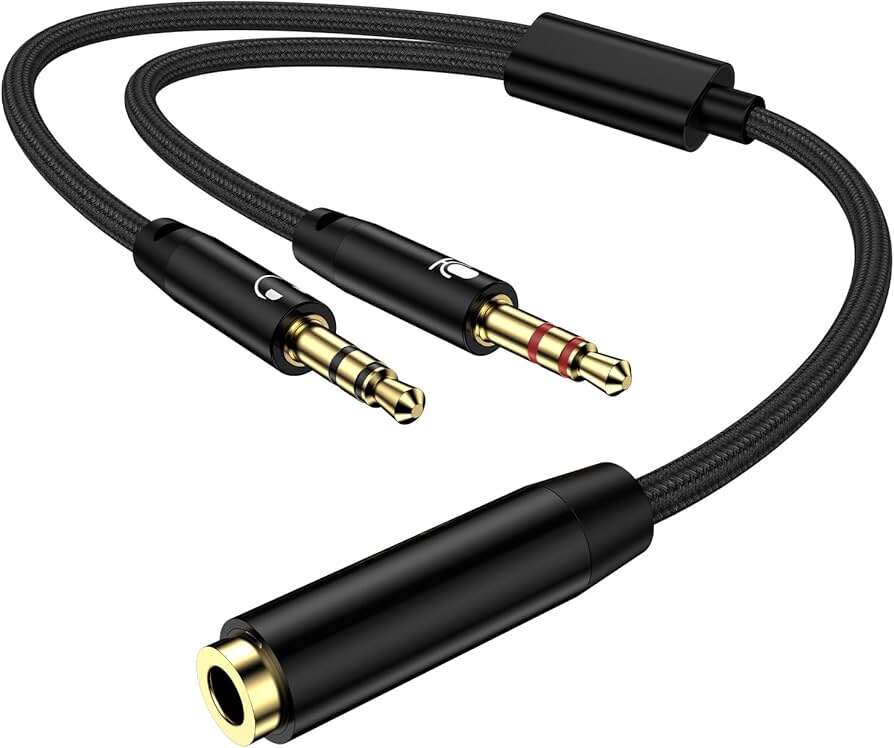
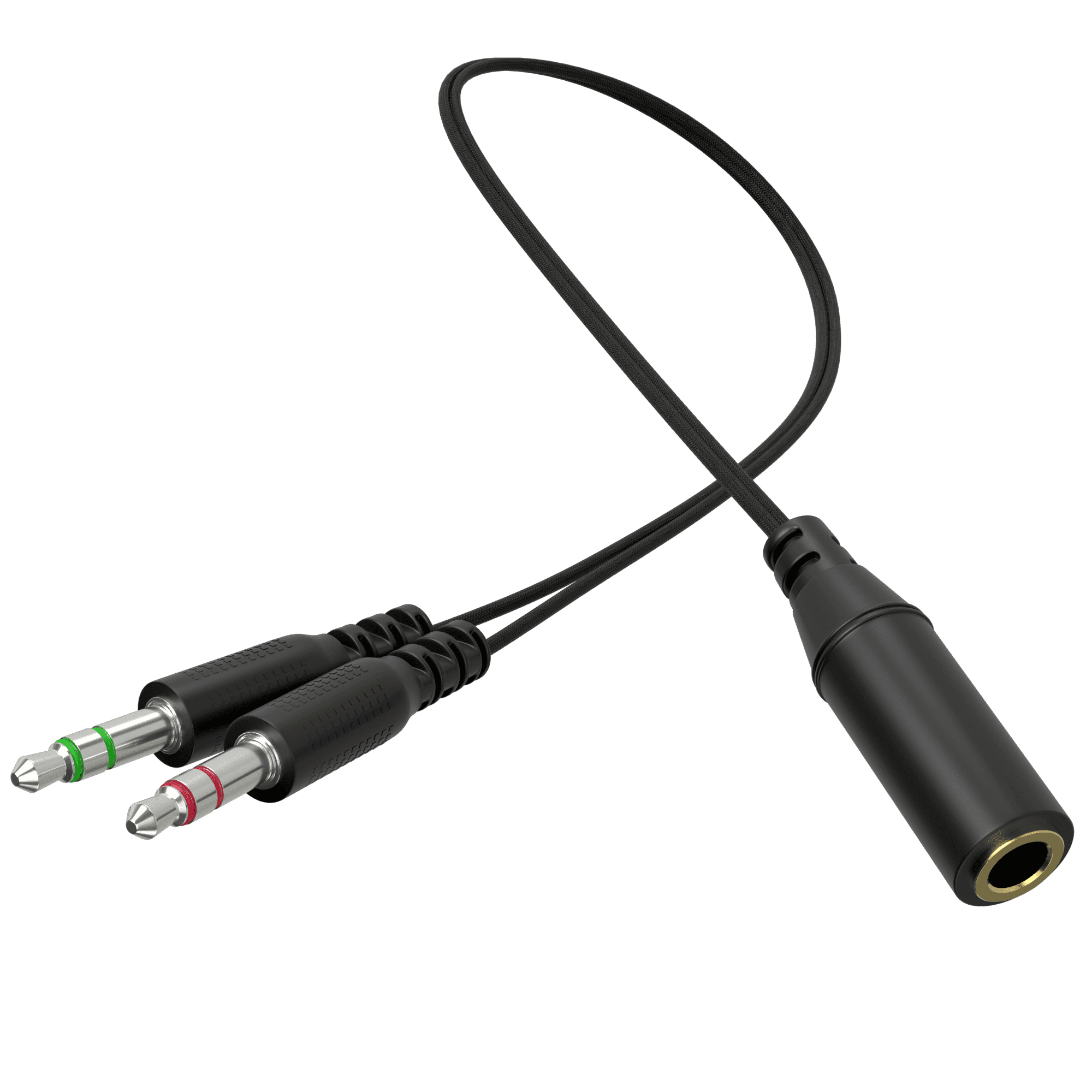
- 3.5mm Y-splitter. Cheap and simple. Splits one stereo output into two identical outputs.
- Best when both listeners use similar impedance headphones.
Active splitters and amplifiers:
- Headphone splitter with buffer amp. Keeps volume and quality steady for both outputs.
- Good if headphones have different impedances or if you need higher volume.
USB sound cards and DACs:
- Plug a USB DAC into the PC and use the built-in jack plus the USB DAC jack. This creates two independent outputs.
- Great for multi-person use or when you want higher fidelity.
Mixers:
- Small analog mixers let you route and mix multiple inputs and outputs.
- Ideal for streaming, recording, or work where you need separate mixes for each listener.
Hardware is the most reliable way to use both headphone jacks on pc. It avoids driver limits and keeps sound quality high.

Step-by-step: use a 3.5mm splitter safely
A 3.5mm splitter is the fastest path. Here’s how to do it without harming equipment.
Steps:
- Turn down PC volume before connecting anything.
- Plug the splitter into the headphone jack you want to share.
- Insert both headphones into the splitter.
- Power on and slowly raise volume to test both ears.
Tips:
- Use a splitter that supports stereo output. Avoid mono adapters.
- If audio is weak, consider an amplified splitter or a USB DAC.
This simple method is cheap and effective for casual listening when you want to use both headphone jacks on pc.

Step-by-step: use a USB sound card for two outputs
A USB sound card is my go-to when I need reliable dual outputs.
Steps:
- Plug the USB sound card into an available port.
- Install drivers if required.
- Open Sound Settings and set one device as Default and the USB device as Secondary.
- Use app-level audio output settings to send audio to the USB device while system sound remains on the rear jack.
Benefits:
- Cleaner audio.
- Independent volume control.
- Works even when the onboard jacks are the same device.
This approach solves many driver and routing problems when you want to use both headphone jacks on pc.
Troubleshooting common problems
You may hit a few bumps. Here’s how to fix the usual ones.
No sound from one jack:
- Check device shows up in Sound Settings.
- Try different headphones to rule out impedance or broken plugs.
Low volume or imbalance:
- Use an amplified splitter.
- Check volume mixer for app-level settings.
Only one jack is active:
- Many boards disable the front jack when rear jack detects a plug. Use audio manager software to change jack behavior.
- Update Realtek or chipset audio drivers.
Audio delay or echo with software duplication:
- Use hardware if you need low-latency playback.
- Reduce buffer size in audio apps when possible.
These fixes cover most problems when you try to use both headphone jacks on pc.

Practical tips and mistakes to avoid (from experience)
I’ve tested many setups. Here are tips I learned the hard way.
Helpful tips:
- Always test with simple tracks first. You’ll find balance and latency fast.
- Keep volume low when switching hardware. This protects ears and gear.
- Label jacks or devices if you switch them often.
Common mistakes:
- Buying cheap mono splitters. They can kill stereo imaging.
- Assuming front and rear jacks are independent. Many share the same output path.
- Forgetting driver updates. Old drivers can mask jack options.
These small lessons save time and keep audio clean when you use both headphone jacks on pc.

When to choose hardware over software
Choose hardware when you need reliability and quality. Choose software when you want a quick, low-cost fix.
Hardware is best if:
- You need low latency.
- You want true independent outputs.
- You are connecting mismatched headphones.
Software fits when:
- You only occasionally need a second output.
- You’re okay with potential delay or glitches.
Weigh your needs and pick the method that matches your priorities. For steady, repeatable results, hardware usually wins for using both headphone jacks on pc.
Related concepts and bonus ideas
You may also find these ideas useful when working with PC audio.
Related topics:
- Virtual audio cables for advanced routing in streaming and production.
- Bluetooth transmitters to add a wireless headphone to your setup.
- Dedicated headphone amps for audiophile listening.
Experimenting with one of these can expand how you use both headphone jacks on pc in creative ways.
Frequently Asked Questions of how to use both headphone jacks on pc
Can I use both headphone jacks at the same time?
Yes. You can use both jacks by splitting the output with a hardware adapter or using a USB sound device while configuring Windows sound settings.
Will a cheap splitter damage my PC or headphones?
No, a good passive splitter won’t damage devices. Avoid very cheap mono adapters and keep volume low to prevent speaker or ear damage.
Why does the front jack stop working when I plug into the rear?
Many motherboards auto-disable the front jack when an external device is detected at the rear. Adjust jack settings in your audio control app or use separate devices.
Can I get different audio streams from each jack?
Only if your PC exposes each jack as a separate audio device or you use multiple sound cards. Otherwise both jacks mirror the same output.
Is a USB DAC better than using both onboard jacks?
A USB DAC often provides cleaner sound and independent output. It’s usually better for quality and reliability when trying to use both headphone jacks on pc.
Conclusion
You now have clear, practical ways to use both headphone jacks on pc. Try software tricks for a quick fix and choose hardware for quality and reliability. Start with the simplest method and scale up to a USB DAC or mixer if you need better sound or independent outputs. Take action today: test a splitter or USB sound card, adjust settings, and share what worked for you in the comments.