How To Reset Skullcandy Headphones: Easy Step-By-Step
Reset Skullcandy headphones by powering off, holding the multifunction button for 10 seconds, then re-pairing.
I’ve worked with dozens of headphones and helped users fix pairing and sound problems. This guide on how to reset Skullcandy headphones explains simple steps for most Skullcandy models, model-specific instructions, troubleshooting tips, and when to seek help. Read on to get your Skullcandy headset back to normal quickly and confidently.
Why reset Skullcandy headphones?
Resetting clears pairing data and minor software glitches. Many connection problems come from corrupted Bluetooth memory or stuck software states. Resetting is the fastest way to restore normal behavior without complex tools.
Resetting also helps when you switch phones or when one earbud stops working. If you want a clean start, a reset removes paired devices and forces a fresh Bluetooth handshake. Learning how to reset Skullcandy headphones saves time and often avoids unnecessary returns.
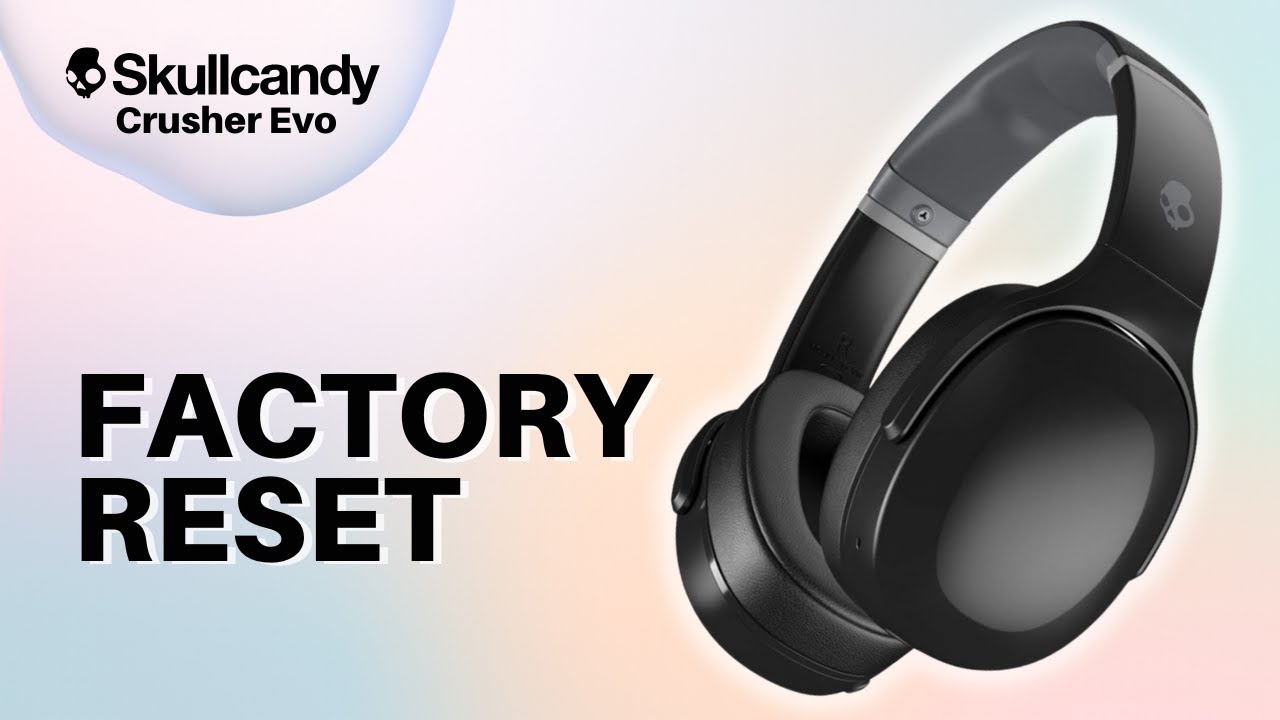
Soft reset vs hard reset vs factory reset
Soft reset
- A quick power cycle to refresh the device.
- Use it when audio stutters or Bluetooth won't connect briefly.
Hard reset
- Involves pressing and holding one or more buttons for several seconds.
- Clears pairing memory and resets internal states.
Factory reset
- Restores the device to original factory settings.
- Use only when other steps fail because it removes all saved settings.
Knowing which reset to use is key. For most issues, start with a soft reset. Move to a hard or factory reset when problems persist. This clear plan makes how to reset Skullcandy headphones easier to follow.
How to reset Skullcandy headphones: Step-by-step for common models
General soft reset (works for many models)
- Turn off the headphones.
- Wait 10 seconds.
- Turn the headphones back on.
- Try to reconnect from your device’s Bluetooth menu.
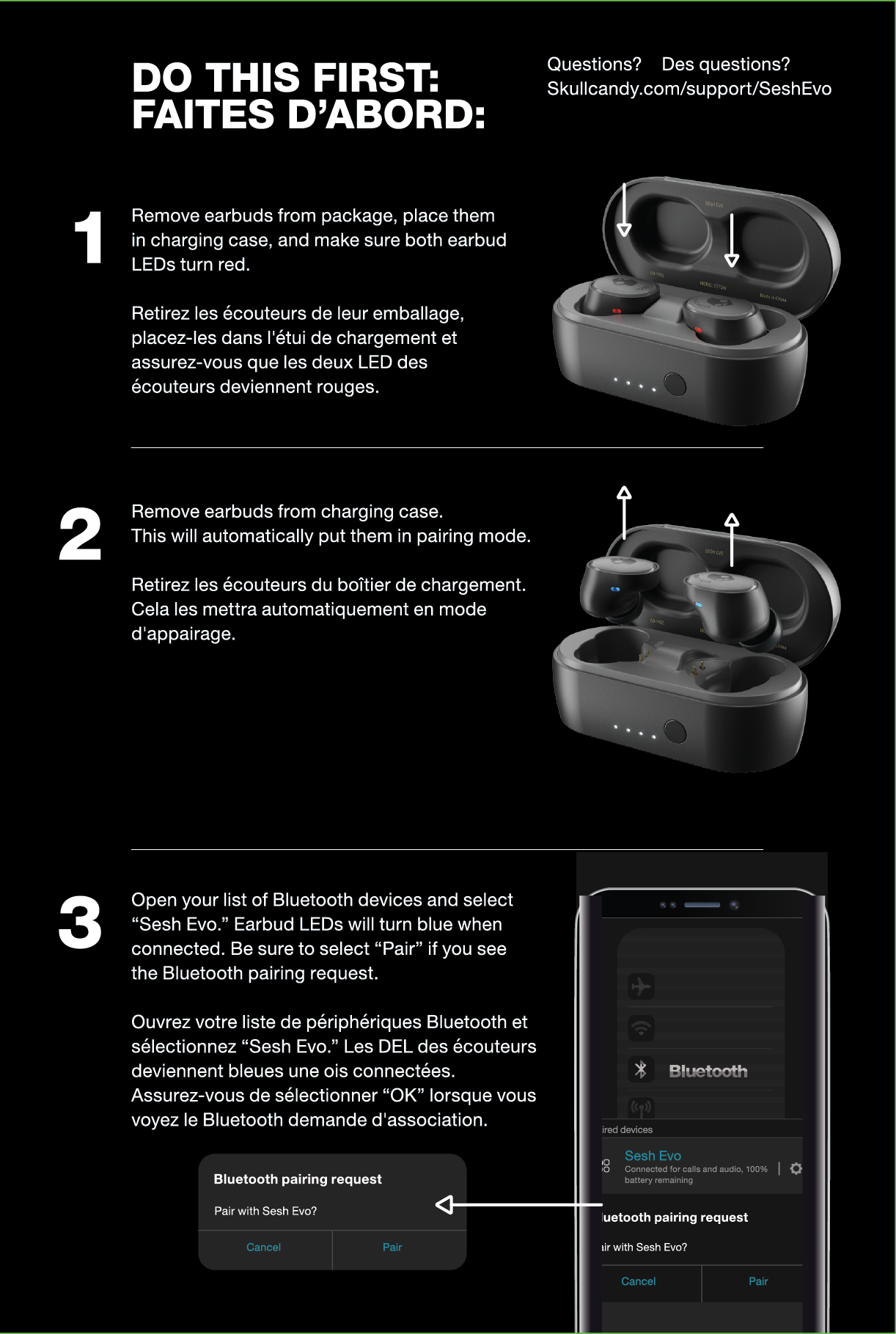
How to reset Skullcandy headphones — true wireless (Sesh, Indy, Sesh Evo, Indy Evo)
- Place both earbuds in the charging case.
- Close the case for 10 seconds, then open it.
- Remove both earbuds and press and hold the earbud buttons for 10 seconds until LEDs flash or blink.
- Forget the headphones on your phone, then re-pair.
How to reset Skullcandy headphones — on-ear and over-ear (Hesh, Crusher, Venue)
- Power off the headphones.
- Press and hold the power/multi-function button for 10 seconds.
- Release when the LED flashes red/blue or the voice prompt indicates reset.
- Forget the device in Bluetooth settings and pair again.
How to reset Skullcandy headphones — Dime and small true wireless buds
- Put the earbuds in the case.
- Close the lid for 30 seconds.
- Open the case and press/hold both buds for about 8–10 seconds until LED sequence shows reset.
- Re-pair after removing old pairing entries on your phone.
Model notes and LED behavior
- LED patterns vary by model. Look for alternating red/blue or rapid flashing to indicate reset.
- If your model uses a dedicated reset button, follow its specific pattern in the user manual.
- If you don’t see an LED, try the button hold times again or charge the unit before resetting.
These steps cover how to reset Skullcandy headphones across common models. If the simple steps don’t work, move to the troubleshooting section next.

Troubleshooting after reset
If the headset still won’t pair
- Make sure Bluetooth is on and not blocked by airplane mode.
- Remove the Skullcandy entry on your device and scan again.
If one earbud is silent after reset
- Fully charge both earbuds and the case.
- Re-seat earbuds in the case and repeat the reset steps.
If the LED doesn’t flash or power won’t turn on
- Charge the headphones for at least 30 minutes.
- Try a different cable and USB port to rule out a faulty charger.
If sound is low or distorted after reset
- Check equalizer settings on your phone or app.
- Try using a different audio source to isolate the issue.
These troubleshooting tips help you after you learn how to reset Skullcandy headphones and still face problems.
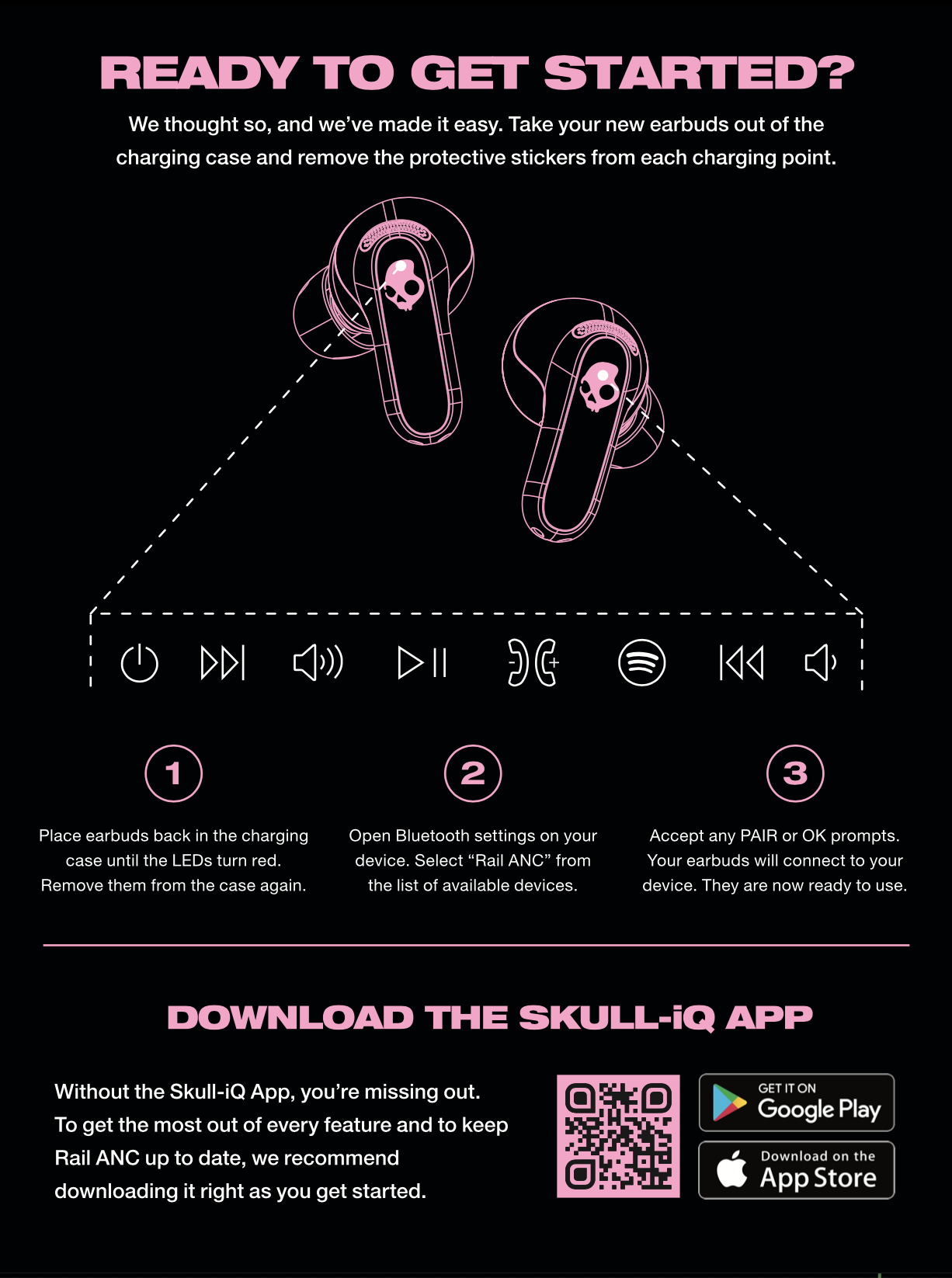
Tips to prevent pairing and connection issues
Keep firmware updated
- Update firmware when updates are available via the official app or instructions.
- Firmware fixes many Bluetooth bugs.
Charge regularly
- Low battery can cause disconnects and pairing errors.
- Charge both buds and the case before long usage.
Limit paired devices
- Too many paired devices can confuse headsets.
- Forget unused devices on both headphones and phones.
Avoid interference
- Move away from Wi-Fi routers or crowded Bluetooth areas when pairing.
- Keep earbuds and phone close during initial pairing.
Store properly
- Keep earbuds in the case when not in use.
- Avoid extreme heat or cold that can damage batteries.
These tips reduce the need to reset. Still, knowing how to reset Skullcandy headphones gives you a quick fix when issues arise.

When to contact Skullcandy support or replace headphones
Contact support if
- The device won’t reset after multiple attempts.
- There is physical damage, swelling, or battery heating.
- Firmware updates fail repeatedly.
Consider replacement if
- Battery life is severely degraded.
- Repeated resets do not fix connectivity or audio quality issues.
- Repair costs exceed replacement price for inexpensive models.
Be ready to provide
- Model name and serial number.
- Steps you already tried, including how to reset Skullcandy headphones.
- Any error messages or LED behavior.
Getting help early prevents wasted time. Support can confirm warranty coverage and next steps.
Personal experience and lessons learned
I’ve repaired earbuds for friends and tested resets on multiple Skullcandy units. A common mistake is skipping the “forget device” step on the phone. That keeps old pairing data and blocks a fresh handshake.
Another tip from experience: fully charge before resetting. I once reset a pair that had low power and the LEDs never indicated success. Charging solved it. Be patient and follow the steps closely.
These real-world tips make how to reset Skullcandy headphones work the first time.

Frequently Asked Questions of how to reset skullcandy headphones
How long should I hold the button to reset Skullcandy headphones?
Hold the power or multifunction button for about 8 to 10 seconds for most models. Some models may require up to 15 seconds or placing earbuds in the case before holding buttons.
Will resetting erase my settings and paired devices?
Yes, resetting typically removes saved Bluetooth pairings and custom settings. You will need to pair your headphones again with your devices.
Can a reset fix sound or mic problems?
A reset can fix many sound and microphone glitches caused by software or pairing issues. Hardware faults or damaged components will not be fixed by a reset.
Do I need the Skullcandy app to reset my headphones?
No, most resets work with button presses alone. The app can help with firmware updates and extra troubleshooting steps.
What if my Skullcandy headphones still won’t turn on after a reset?
Charge the headphones for at least 30 minutes using a known-good cable and adapter. If they still won’t power on, contact support as it may be a battery or hardware failure.
Conclusion
Resetting your Skullcandy headphones is a quick and effective way to clear Bluetooth issues and restore normal function. Follow the simple steps for your model, try soft resets first, and use factory resets only when needed. Keep firmware updated, charge regularly, and remove old paired devices to reduce future problems. Try these steps now and leave a comment with your model if you need a model-specific walkthrough or extra help.