How To Unpair Bose Headphones: Quick Step-By-Step Guide
Hold the power or Bluetooth button, then “Forget This Device” on your phone to unpair quickly.
I’ve helped dozens of friends and clients fix Bluetooth clutter and device conflicts. This guide explains how to unpair Bose headphones clearly and reliably. I’ll show step-by-step methods for phones, laptops, and the Bose app, plus model-specific resets and real troubleshooting tips based on hands-on experience. Read on to stop accidental connections and reclaim clean Bluetooth pairing for your devices.
Why unpair your Bose headphones?
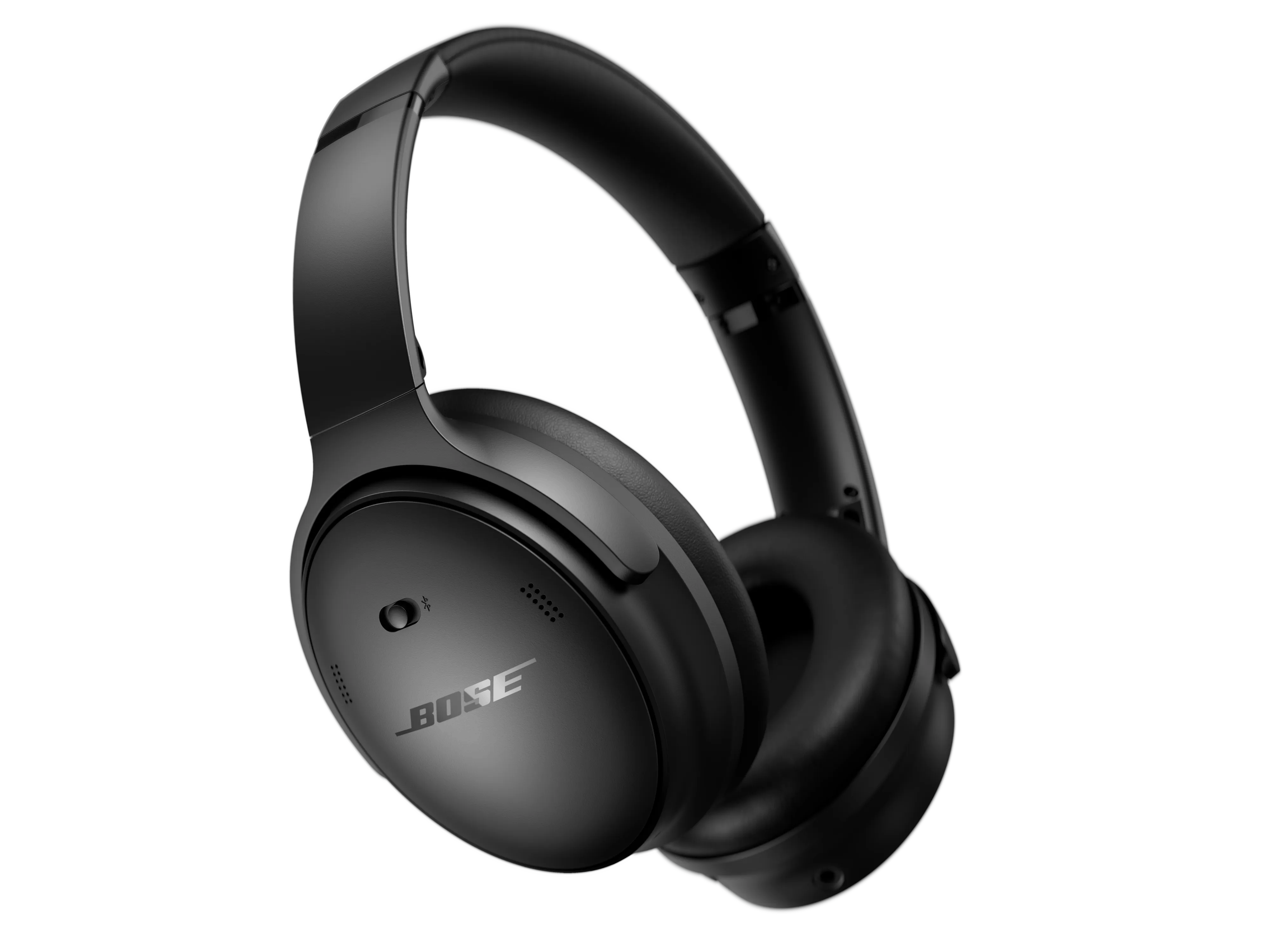
Unpairing frees your headphones from a device. This stops unwanted auto-connections and fixes pairing conflicts.
Unpairing helps when you sell or lend headphones. It also clears a stale connection that causes audio issues.
If you switch phones or pair with many devices, unpairing keeps Bluetooth lists tidy and fast.

When should you unpair Bose headphones?
Unpair when your headphones connect to the wrong device. Unpair if audio cuts out or if pairing fails repeatedly.
Unpair before gifting or selling to protect your account and settings. Unpair after firmware updates that change pairing behavior.
Unpair when you want to pair with a new device but the old device keeps reconnecting. This avoids “ghost” connections.
How to unpair Bose headphones — step-by-step
Below are simple, clear steps for common devices and for factory-resetting Bose models. These methods answer how to unpair Bose headphones on phones, computers, and within Bose apps.
General method — forget the device on your phone or computer
- Turn your Bose headphones on and make sure Bluetooth is active.
- Open Bluetooth settings on your phone or laptop.
- Find your Bose device name and choose “Forget,” “Remove,” or “Disconnect.”
- Confirm the removal and power cycle the headphones.
This step often solves most questions about how to unpair Bose headphones.
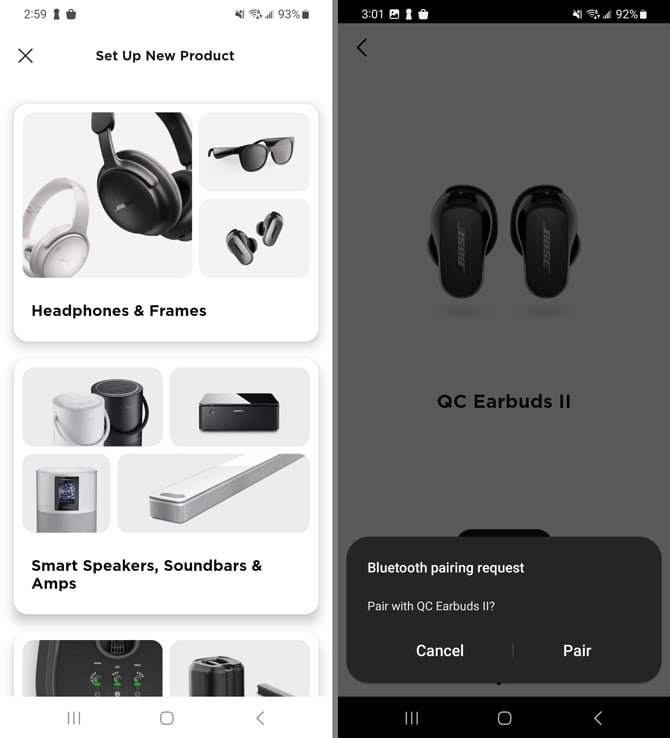
Unpair using the Bose Music or Bose Connect app
- Open the Bose Music or Bose Connect app on your phone.
- Select the device and look for settings or device management.
- Choose “Remove Device” or “Forget This Device” inside the app.
- Follow prompts to fully disable pairing.
Using the app helps if the phone’s Bluetooth list still shows the headset.
Model-specific methods and factory reset
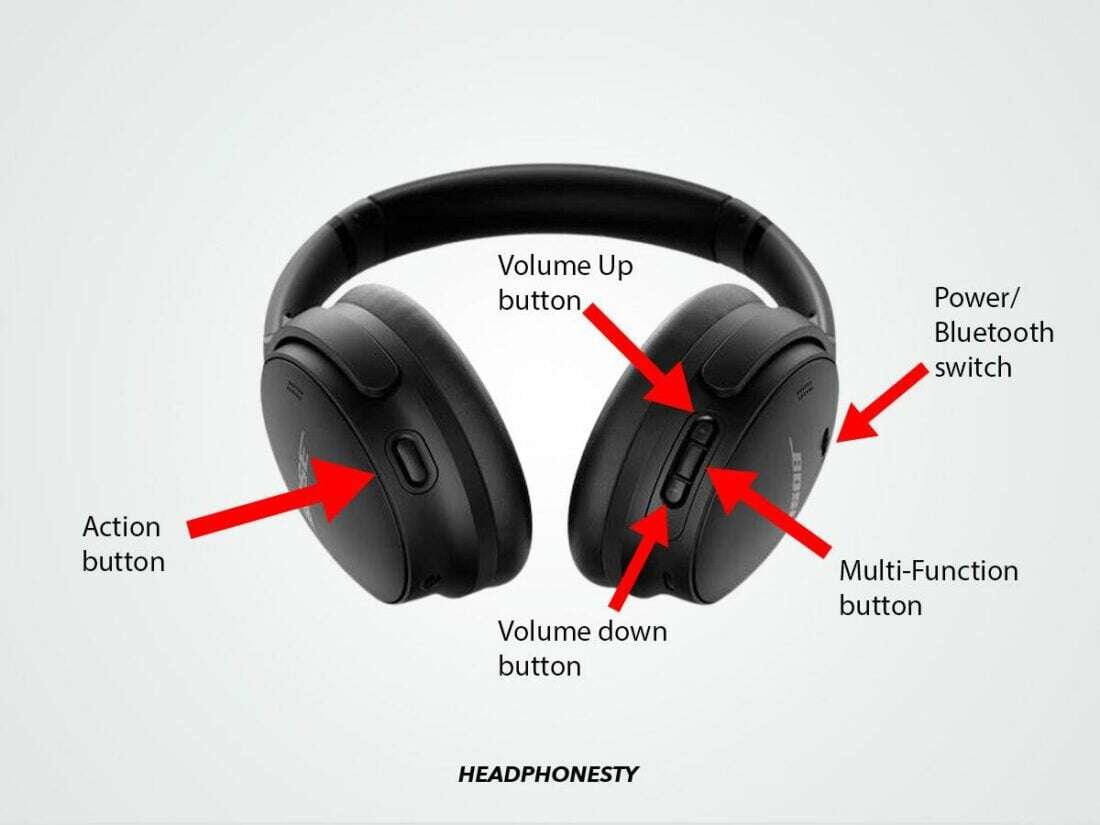
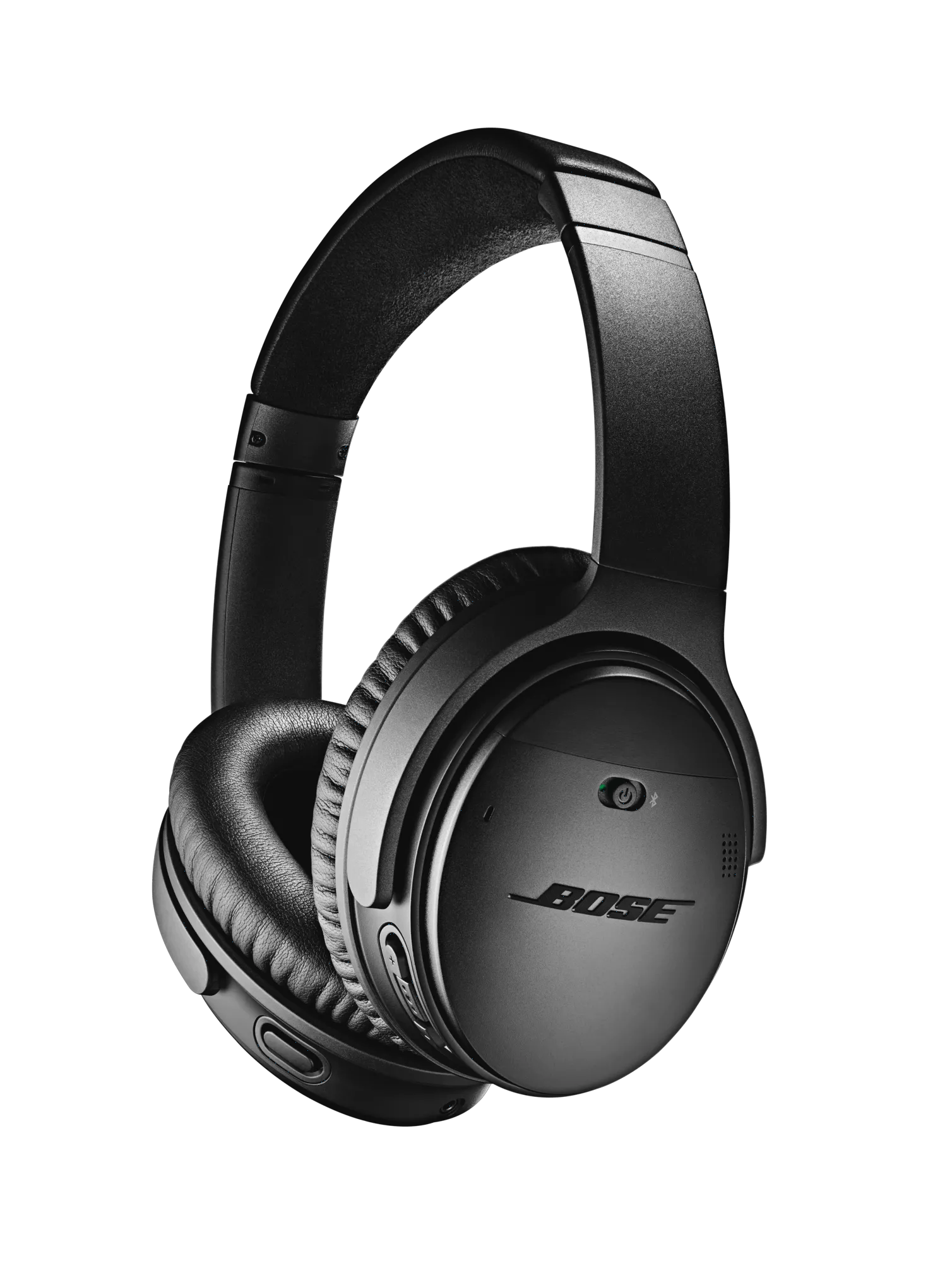
Bose QuietComfort 35 II and QuietComfort 45
- Power off the headset.
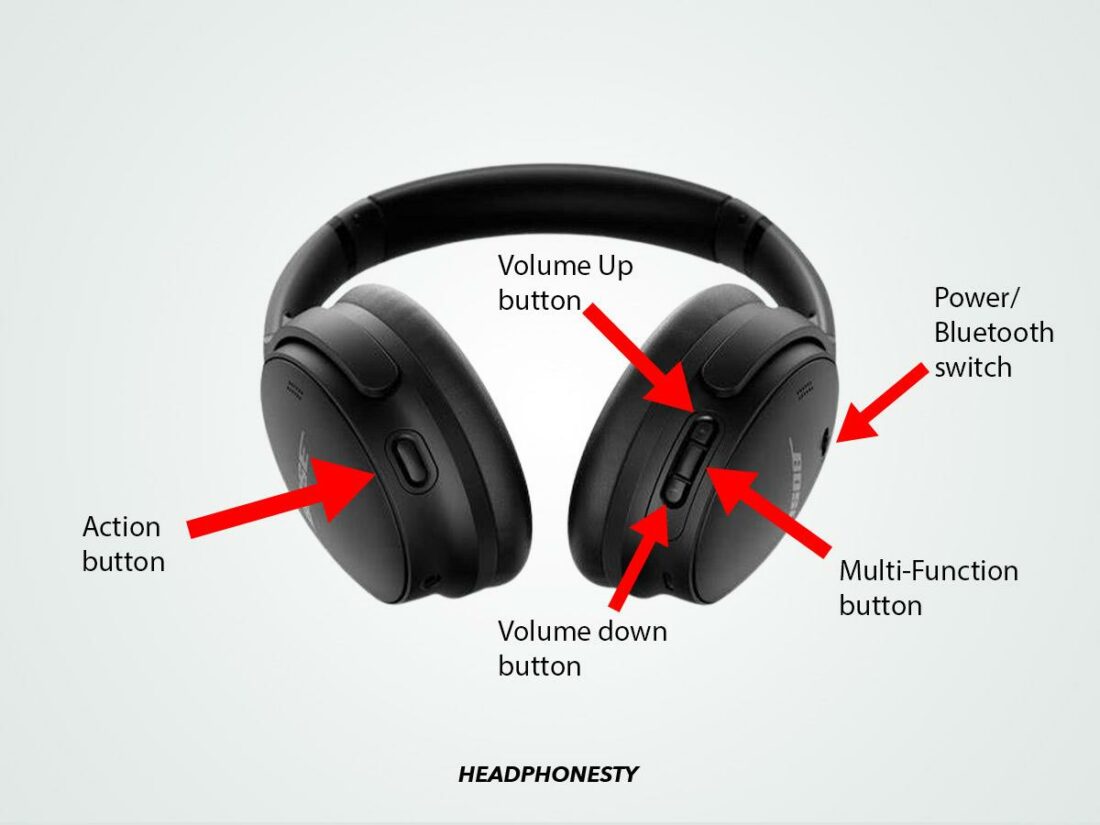
- Press and hold the Power/Bluetooth slider for 10 seconds until you hear voice prompts or see the Bluetooth light blink.
- Release and power on. The pairing list is cleared.
These steps directly address how to unpair Bose headphones for QuietComfort models.
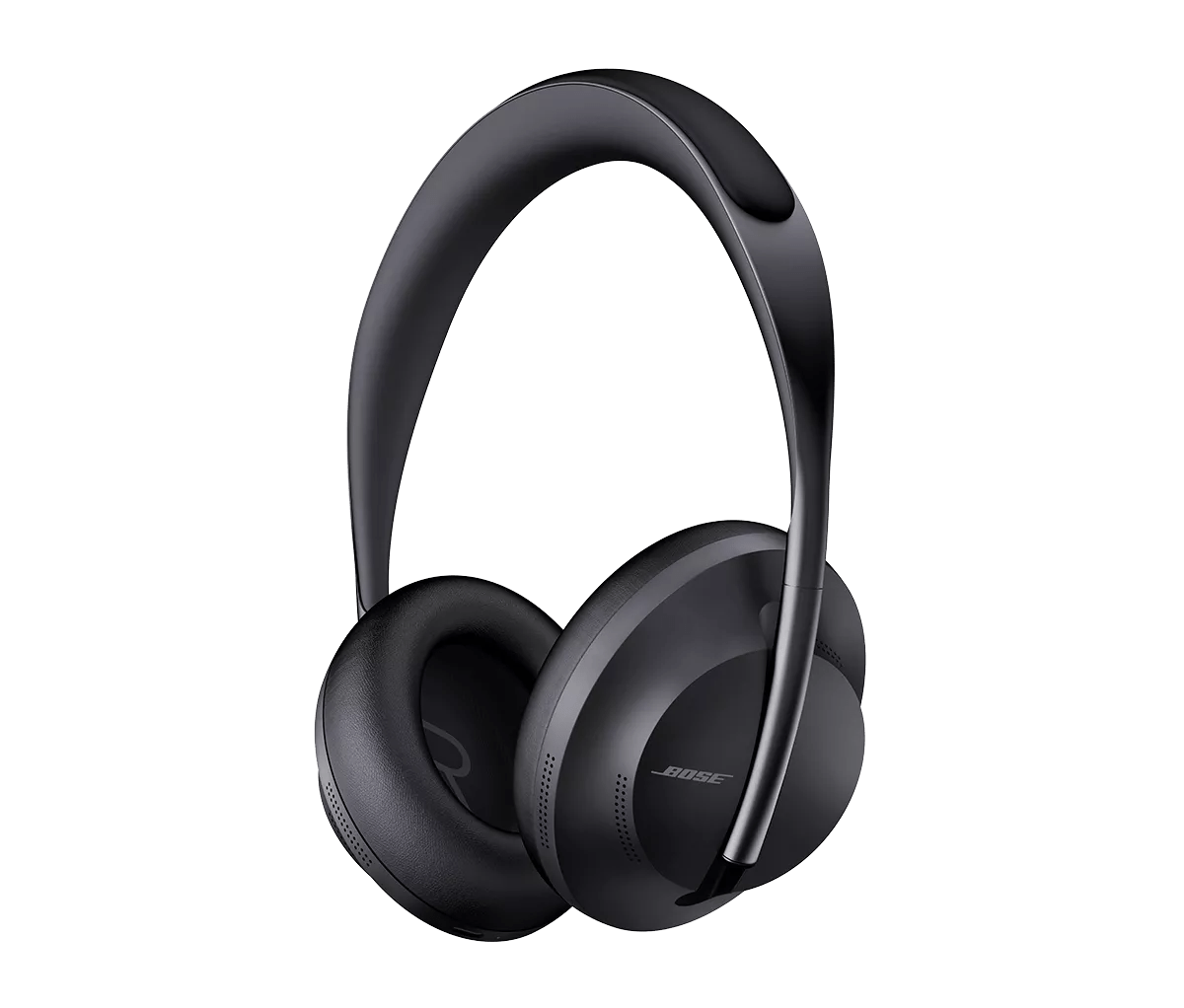
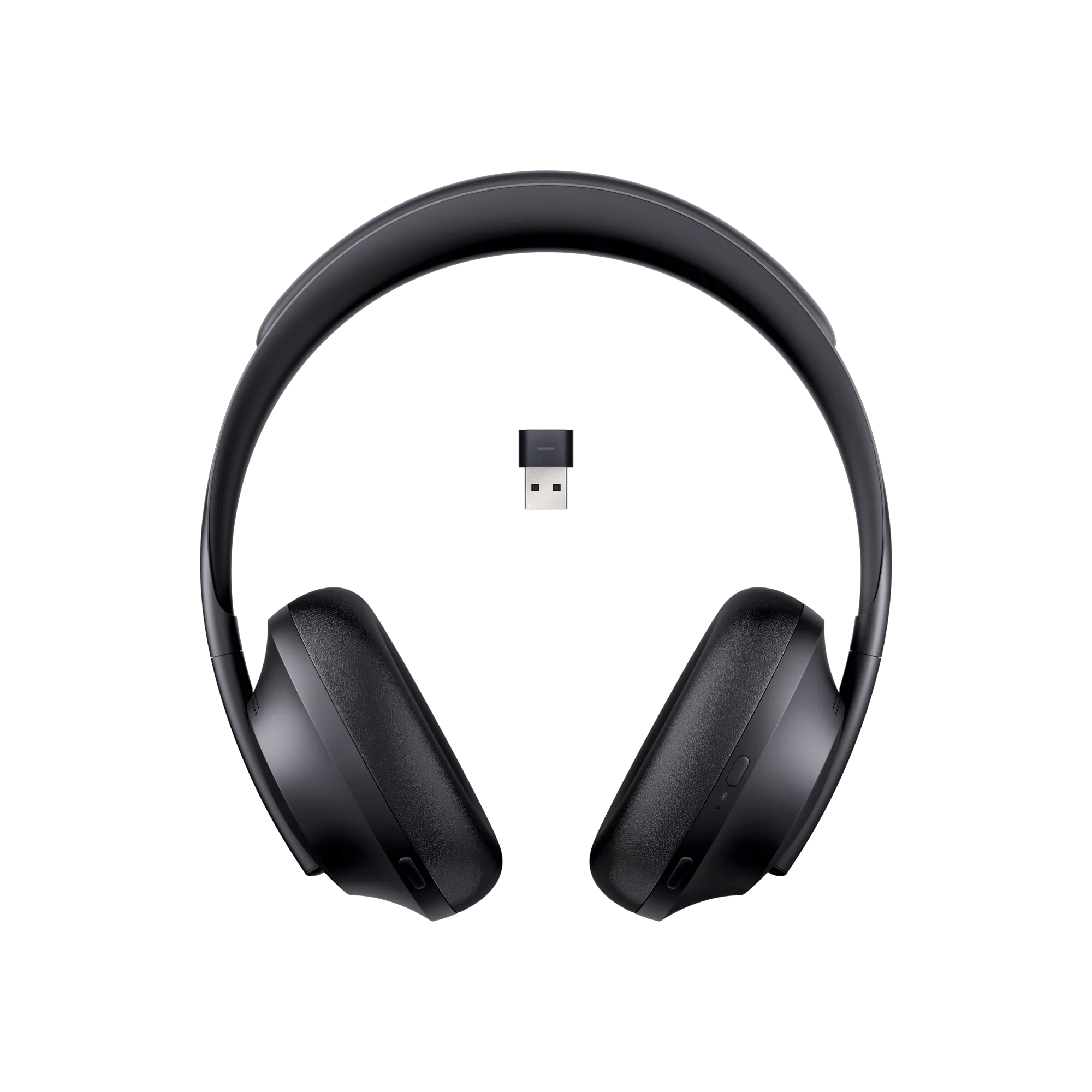
Bose 700
- Power off the headphones.
- Press and hold the Power/Bluetooth button for about 10 seconds until you hear “Bluetooth device list cleared” or see the LEDs flash.
- Turn the headphones on and pair fresh.
This reset clears saved Bluetooth entries and answers how to unpair Bose headphones for the 700 series.
Bose QuietComfort Earbuds and Earbuds II
- Place both earbuds in the charging case and close the lid for 30 seconds.
- Open the case and press-and-hold the Bluetooth button on the case for 10 seconds until the LED flashes.
- Remove and re-pair.
This method removes saved pairings and shows an easy path for how to unpair Bose headphones in true-wireless models.
SoundLink and older Bose Bluetooth models
- Power off the speaker or headset.
- Press and hold the Bluetooth and power buttons together for about 10 seconds.
- LED behavior changes when the device resets.
This clears device memory so you can pair anew and demonstrates one way to unpair Bose headphones across legacy models.
Tips for multi-device setups
- Remove the Bose device on every phone, tablet, and laptop it’s paired with.
- Turn off Bluetooth on devices you don’t use often.
- Use the Bose app to manage active devices.
These tips help you fully resolve how to unpair Bose headphones when multiple devices are involved.
Troubleshooting common issues when unpairing Bose headphones
My tests show most problems come from leftover pairings on other gadgets. Check all devices first.
If your phone still reconnects immediately, toggle Bluetooth off and on, then forget the device again. Restart both the phone and the headphones.
If the headset won’t appear in Bluetooth settings, reset the headphones per the model steps above. Update the headphone firmware via the Bose app if available.
If the headphone connects to another device automatically, turn off Bluetooth on that other device or remove the Bose from its Bluetooth list. This often fixes stubborn reconnection loops.
Best practices and personal tips from experience
I once spent an hour trying to stop my headphones from pairing with a neighbor’s laptop. The problem was a forgotten pairing on the laptop. Removing the device there fixed it fast.
Tips I use and recommend
- Always “Forget” the device on the phone instead of only disconnecting.
- Power cycle both devices after unpairing.
- Keep one device in pairing mode while removing others to ensure a clean new connection.
- Use the Bose app to remove devices when the OS-level Bluetooth list won’t update.
Following these tips makes how to unpair Bose headphones quick and repeatable.
Common mistakes to avoid
- Thinking disconnect equals unpair — it doesn’t. Forget the device.
- Skipping firmware updates that fix Bluetooth bugs.
- Not checking other nearby devices that auto-connect.
Avoiding these mistakes saves time and frustration.
Safety, limitations, and what to expect
Unpairing and factory resets remove saved settings like EQ, voice prompts, and paired devices. You might need to reconfigure personalization afterward.
If your headphones are under warranty, unpairing is safe. A full factory reset is also covered by standard use. If problems persist after resets, contact official support for diagnostics.
Be aware that some older operating systems may handle Bluetooth differently. If a device won’t forget, try removing the Bluetooth cache or restarting the device.
Frequently Asked Questions of how to unpair bose headphones
How do I unpair Bose headphones from my iPhone?
Open Settings > Bluetooth, find your Bose device, tap the info icon, and choose Forget This Device. Power the headphones off and back on afterward to clear the connection.
How do I unpair Bose headphones from Android?
Open Settings > Connected devices or Bluetooth, tap the gear next to your Bose device, and select Forget or Unpair. Restart Bluetooth on your phone to confirm removal.
Will factory reset remove all pairings?
Yes. A factory or device reset clears the saved Bluetooth list and returns settings to default. You will need to pair devices again.
My Bose headphones still reconnect after unpairing. What now?
Check all devices the headphones may have been paired with and remove the entry from each one. If that fails, perform the model-specific reset and try again.
Can I unpair Bose headphones using the Bose app?
Yes. The Bose Music or Bose Connect app often has a Remove or Forget device option that clears pairings. Use the app if system Bluetooth won’t update.
Conclusion
Unpairing Bose headphones is usually quick once you know the steps for your phone, computer, or the Bose app. Start by forgetting the device in Bluetooth settings, then use a model-specific reset if needed. Follow the practical tips here to avoid reconnection issues and keep your Bluetooth list tidy.
Take action now: remove old pairings on all your devices and perform a reset if any problems persist. If this guide helped, leave a comment or subscribe for more clear, hands-on tips about audio gear.