How To Put Beats Headphones In Pairing Mode: Quick Fix
Hold the power or system button for 5–15 seconds until the LED flashes, then connect on your device.
I’ve paired dozens of Beats models across phones, tablets, and laptops. This guide shows exactly how to put Beats headphones in pairing mode for the most common models, how to troubleshoot when pairing fails, and simple tips that save time. Read on to get clear, step-by-step instructions and real-world fixes that work.

Which Beats headphones support Bluetooth pairing
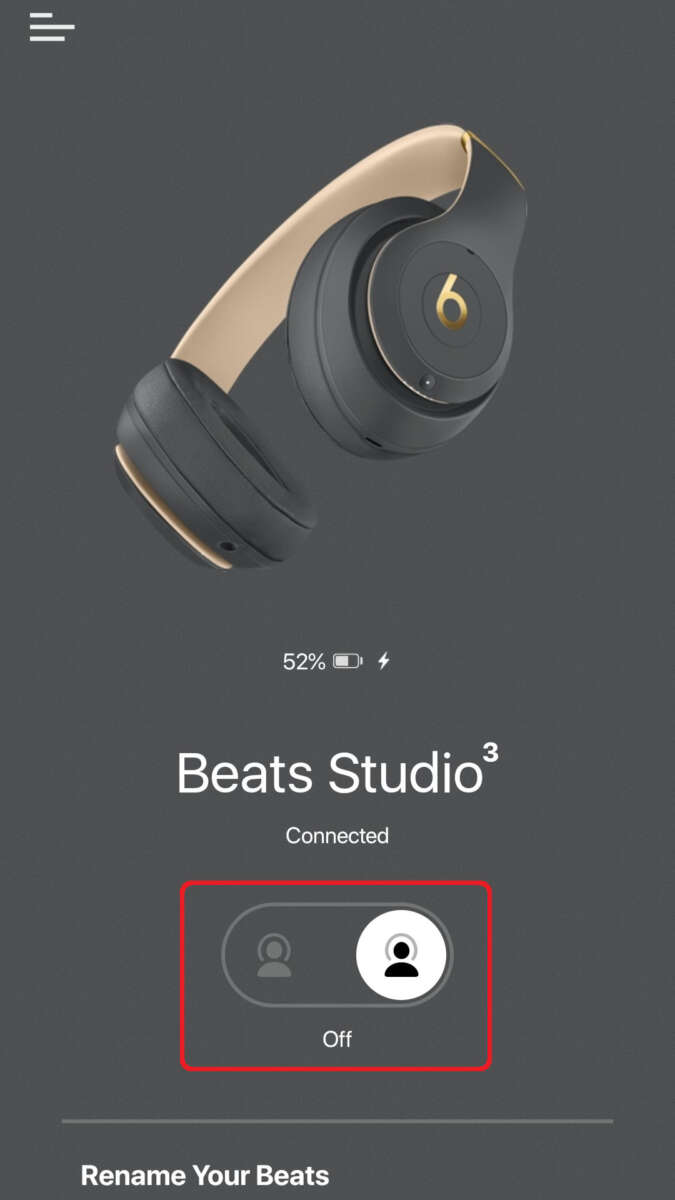
Most Beats headphones use Bluetooth and support a pairing mode. That includes over-ear and on-ear models like Beats Studio3 and Solo3, wireless earbuds like Beats Studio Buds and Beats Fit Pro, and truly wireless earbuds like Powerbeats Pro. Each model uses a similar concept: activate a discovery mode by holding a power or system button until an LED indicates readiness.
Key differences to expect:
- Some models enter pairing mode automatically the first time you power them on.
- True wireless earbuds often use the charging case button to trigger pairing.
- Older and newer Beats models may show different LED colors or blink patterns.
Knowing your model helps. If you’re unsure which Beats you have, check the earbuds, case, or box for a model name, or view the Bluetooth device list on a paired phone. This article covers the common methods for most Beats models so you can learn how to put Beats headphones in pairing mode quickly and reliably.
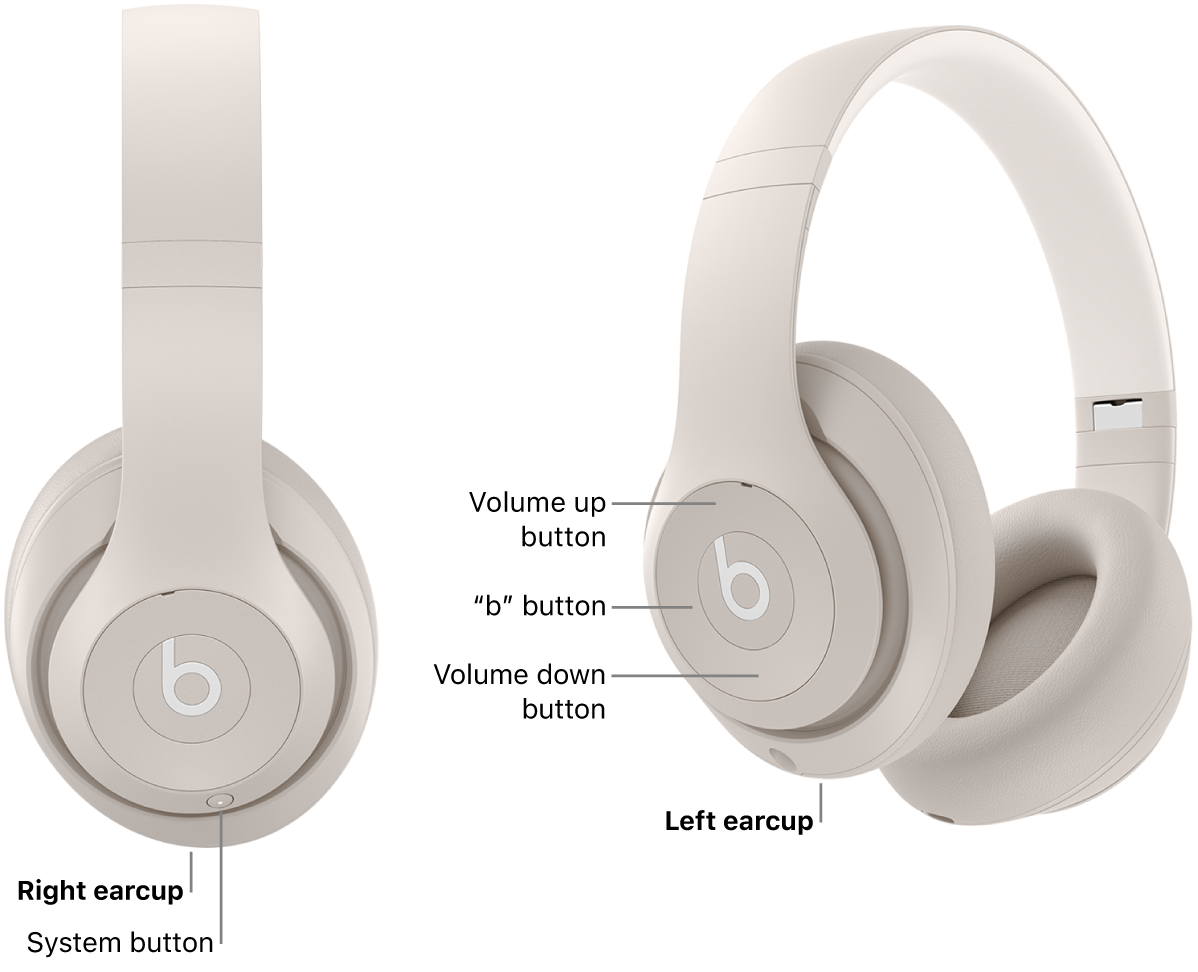
How to put Beats headphones in pairing mode — step-by-step guide
Below are clear steps for the most popular Beats models. Follow the set that matches your device. If you don’t see your exact model, use the “general method” described first.
General method for most Beats headphones:
- Turn off the headphones if they’re on.
- Press and hold the power or system button for 5–15 seconds.
- Watch the LED. Rapid flashing or alternating colors means pairing mode is active.
- Open Bluetooth settings on your phone, tablet, or computer.
- Select the Beats name from the list and complete pairing.
How to put Beats headphones in pairing mode — model-specific tips:
- Beats Studio3 / Solo3
- Turn off the headphones.
- Hold the power button for about 5–10 seconds until the LED flashes.
- Select the Beats device in Bluetooth on your phone.
- Beats Studio Buds / Beats Fit Pro
- With earbuds out of the case, press and hold the button on the case (or on the earbuds) for about 10–15 seconds until the LED blinks.
- Choose the Beats name in your device’s Bluetooth list.
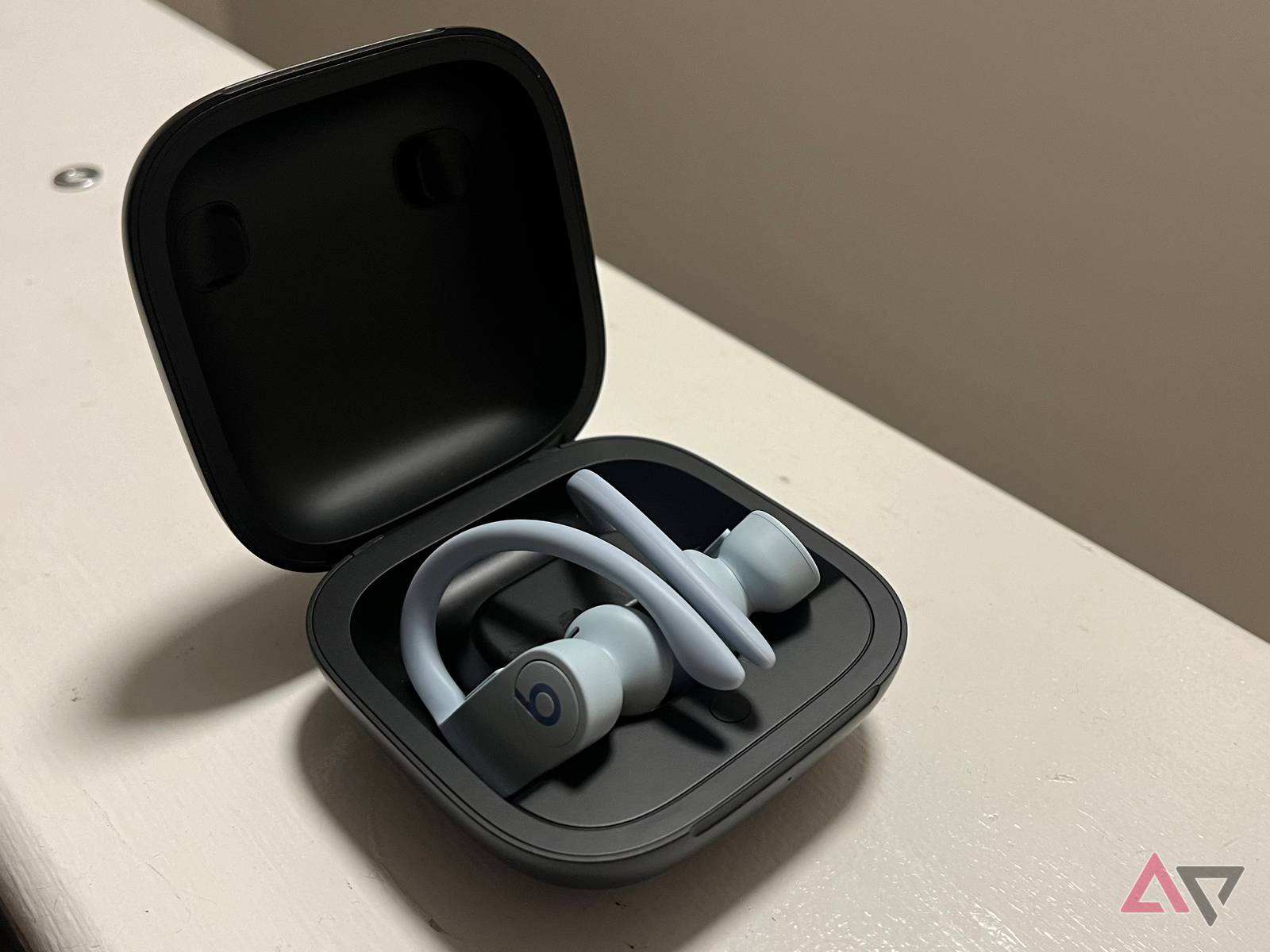
- Powerbeats Pro
- Place both earbuds inside the case.
- Open the case and press and hold the system button on the case for about 15 seconds until the LED flashes red and white, indicating reset/pairing mode.
- Find and tap the Powerbeats Pro entry in Bluetooth settings.
- Beats Flex and Solo Wireless
- Turn them off.
- Press and hold the power button for 5–10 seconds until the LED flashes.
- Connect from your device’s Bluetooth menu.
If your device supports NFC, you can also tap the NFC area of some Beats or phones to start pairing, but that depends on model and phone.
Repeat these steps when you want to pair to a new device. If pairing fails, move to the troubleshooting section below to learn how to put Beats headphones in pairing mode again and fix common problems.
Troubleshooting pairing problems
Pairing problems are often simple to fix. Try these steps in order.
Quick fixes:
- Make sure headphones and phone are close and unobstructed.
- Turn Bluetooth off and on on your phone.
- Fully charge your Beats. Low battery can block pairing.
- Turn off or forget previously paired devices that might automatically connect.
Resetting your Beats (common methods):
- Most Beats: With headphones off, press and hold the power button for 10 seconds until the LED flashes, then release to reset.
- Beats Studio Buds / Beats Fit Pro: Put earbuds in the case, press and hold the case button for 15 seconds until the LED flashes, then re-enter pairing mode.
- Powerbeats Pro: Put earbuds in the case, press and hold the system button until the LED flashes red and white, then try pairing again.
When pairing fails repeatedly:
- Use “Forget device” in Bluetooth settings for that Beats entry on your phone, then run the pairing steps again.
- Update firmware using the Beats or device maker app if available.
- Try pairing with another phone or computer to see if the issue is device-specific.
- Restart your phone and your Beats before trying again.
If nothing works, a hardware fault or deeply corrupted firmware might be the cause. Contact Beats support or visit an authorized service center.

People also ask
How long do I hold the button to put Beats in pairing mode?
Usually 5 to 15 seconds. Watch the LED for flashing that signals pairing mode.
Will Beats automatically enter pairing mode when first powered on?
Yes, many Beats models enter pairing mode the first time you turn them on after factory reset or first use.
Can I pair Beats with multiple devices at once?
Some Beats support multi-point pairing for two devices, but behavior varies by model. Check your model’s specs.

Tips, best practices, and personal experience
I’ve paired Beats headphones with many devices. Here are tips that saved me time and frustration.
Real-world tips:
- Keep headphones near the source device when pairing. I found 1–3 feet works best.
- Disable other Bluetooth devices while pairing. My laptop once grabbed the signal and blocked my phone.
- Update device firmware. An app update fixed one pair of stubborn earbuds.
- Use “forget device” before re-pairing. That cleared conflicts several times for me.
Mistakes to avoid:
- Don’t assume the LED color means the same thing across all models.
- Avoid trying resets without reading the model’s reset pattern; long presses may trigger other modes.
- Don’t pair through a phone’s quick settings repeatedly without opening full Bluetooth settings; the device list can offer clearer choices.
These practical tips make putting Beats headphones in pairing mode faster and more reliable. Keep them in mind for smooth pairing every time.
Frequently Asked Questions of how to put beats headphones in pairing mode
How do I put Beats Studio Buds in pairing mode?
Press and hold the system button on the charging case for about 10–15 seconds until the LED flashes. Then select Beats Studio Buds from your device’s Bluetooth list.
Why won’t my Beats enter pairing mode?
Common reasons are low battery, being already paired to another device, or a temporary software glitch. Charge the headphones, forget previous Bluetooth connections, and try again.
How do I reset Beats to enter pairing mode again?
For many models, hold the power or system button for 10–15 seconds until the LED blinks. Some earbuds require holding the case button with earbuds inside for a reset.
Can I pair Beats with both Android and iPhone?
Yes. Beats work with both Android and iPhone via Bluetooth. Use the Bluetooth settings on your device to pair after putting the Beats into pairing mode.
What if my device can’t find my Beats during pairing?
Move closer, ensure Bluetooth is on, turn off other Bluetooth devices, and try “forget device” or a reset. If that fails, try pairing with a different device to isolate the issue.
Conclusion
Putting Beats headphones in pairing mode is usually quick: hold the power or system button until the LED flashes, then connect from your device’s Bluetooth menu. Use the model-specific steps and troubleshooting tips above to fix common issues and avoid wasted time. Try the steps now, update your firmware if needed, and leave a comment with your model and issue if you want direct help. If this guide helped, subscribe or share it with a friend who needs pairing help.