How To Pair Sony Headphones To Iphone: Quick Bluetooth Fix
Put the Sony headphones in pairing mode, open iPhone Settings > Bluetooth, and tap the device name.
I’ve paired Sony headphones to many iPhones over the years and will walk you through every step, from first-time setup to fixes when things go wrong. This guide explains how to pair Sony headphones to iPhone clearly, shares tips I learned from hands-on use, and helps you get the best audio and call quality quickly.
Why pairing your Sony headphones to iPhone matters
Pairing connects the two devices so audio, calls, and controls work reliably. A clean pairing process avoids dropouts, preserves battery life, and ensures voice assistants and mic work correctly.
I’ll show you simple steps and fixes I use often. By the end you’ll know how to pair sony headphones to iphone, solve common problems, and tweak settings for the best experience.

What you need before pairing
- iPhone with Bluetooth turned on and updated to a recent iOS version.
- Charged Sony headphones and basic knowledge of your model’s pairing method.
- Sony Headphones Connect app installed on your iPhone for extra settings and firmware updates.
- If you previously paired the headphones to another device, have that device nearby to disconnect or turn off Bluetooth.

Step-by-step: How to pair Sony headphones to iPhone
- Charge the headphones before starting. Low battery can block pairing.
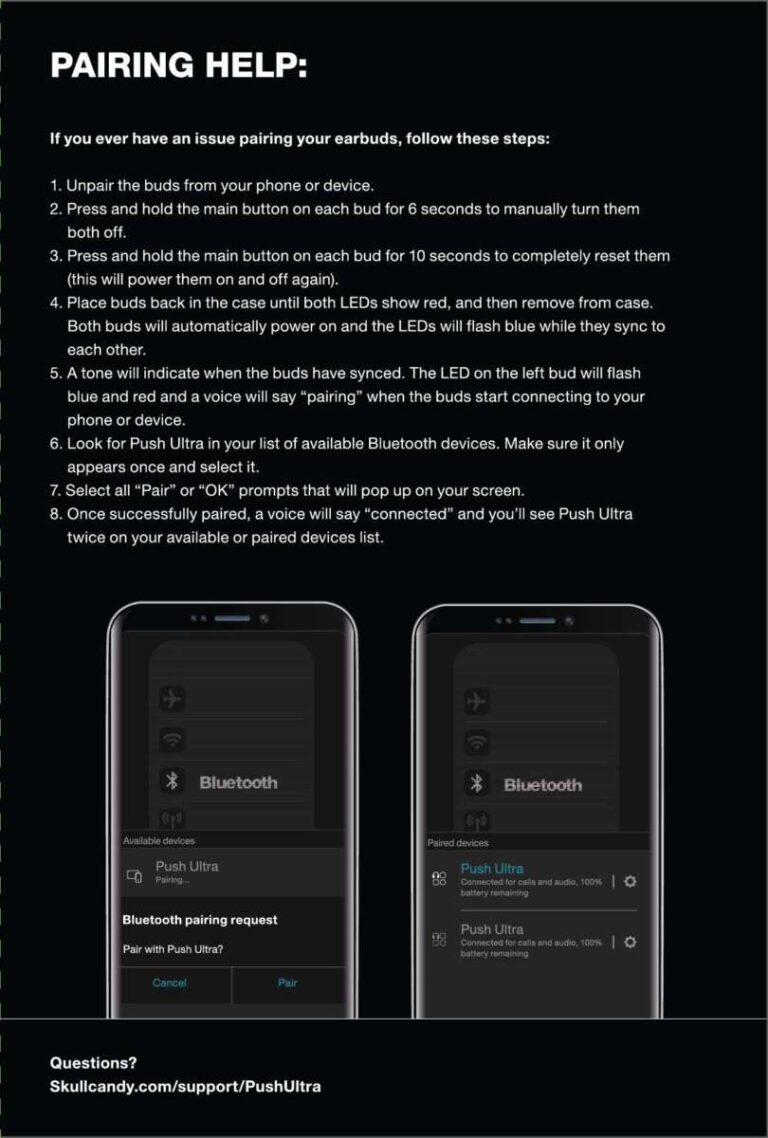
- Turn on Bluetooth on the iPhone: open Settings > Bluetooth and keep the screen visible.
- Put the Sony headphones in pairing mode:
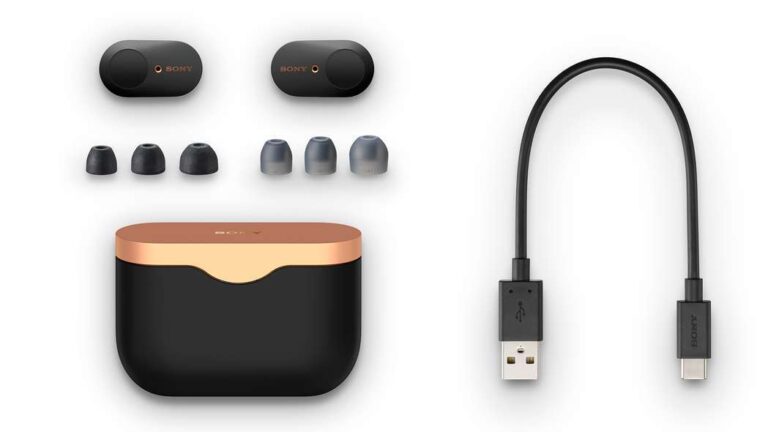
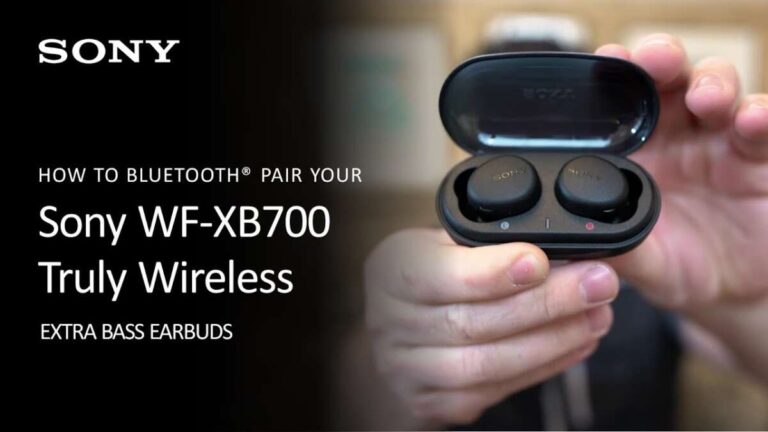
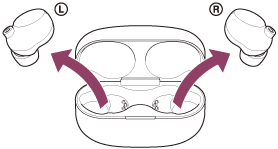
- For most true wireless (WF-series) hold the case button or follow the manual until the LED flashes.
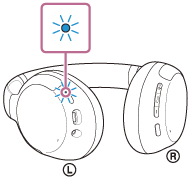
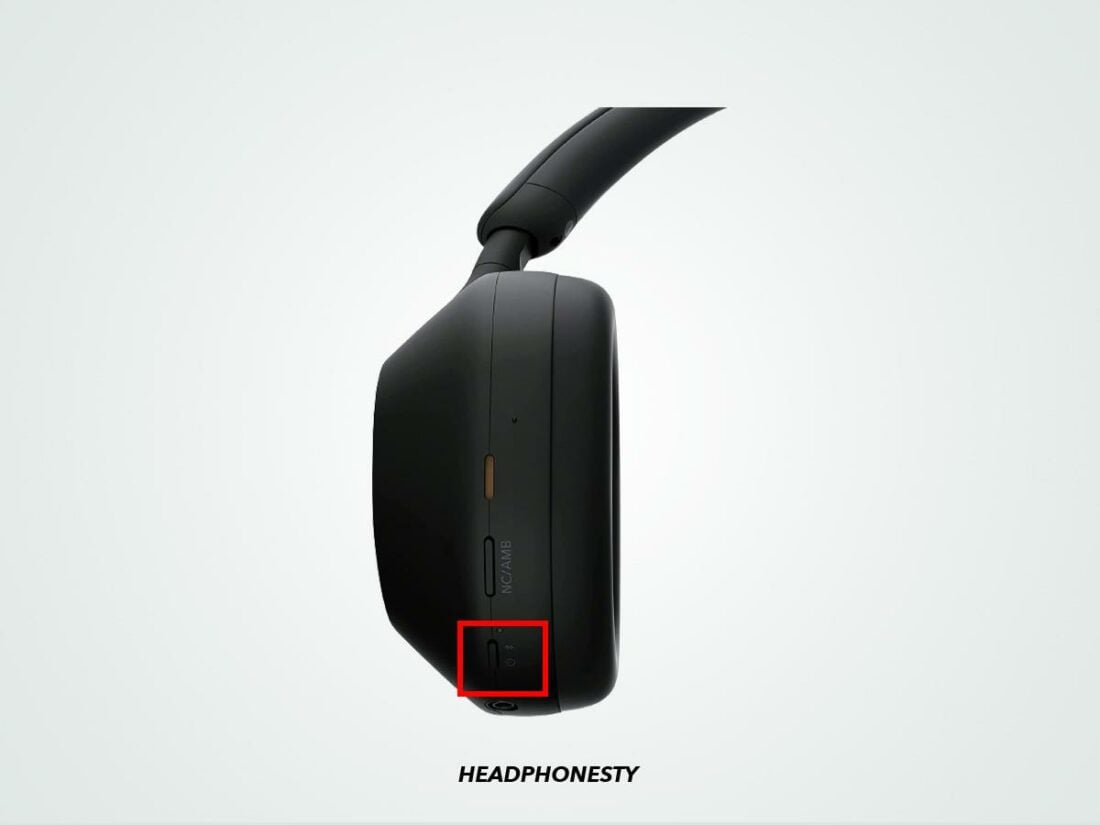
- For over-ear models (WH-series) press and hold the power button until you hear “Bluetooth pairing” or see a blinking light.
- For older models with a pairing button, press and hold that button until pairing mode starts.
- Watch the Bluetooth list on the iPhone. The Sony device name appears as "WH-xxxx" or "WF-xxxx".
- Tap the device name to connect. Wait a few seconds while iOS pairs and confirms the connection.
- Open the Sony Headphones Connect app to enable features, check firmware, or set sound profiles.
- Test audio and the mic with music and a call. Adjust volume on the iPhone or headphones.
If your headphones don’t appear, restart the iPhone and headphones, then repeat these steps. These steps cover how to pair sony headphones to iphone for most Sony models, including WF-1000XM4 and WH-1000XM5.
Troubleshooting common pairing problems
- Headphones not appearing in iPhone Bluetooth list:
- Make sure the headphones are in pairing mode and the LED flashes.
- Turn off Bluetooth on other nearby devices to avoid conflicts.
- Headphones connect but audio drops:
- Check for interference (Wi-Fi, many Bluetooth devices).
- Move closer to the iPhone and remove obstacles.
- Mic not working on calls:
- Confirm iPhone shows the headphones as the audio source during a call.
- Test the microphone with Voice Memos to isolate the issue.
- Headphones keep reconnecting to another device:
- Forget the headphones on the other device or turn that device’s Bluetooth off.
- On the iPhone, tap the “i” next to the device name and choose Forget This Device, then pair again.

Quick questions people also ask
Why won't my Sony headphones connect to my iPhone?
Often the headphones aren’t in pairing mode or another device is connected. Restart both devices, enable pairing mode, and try again.
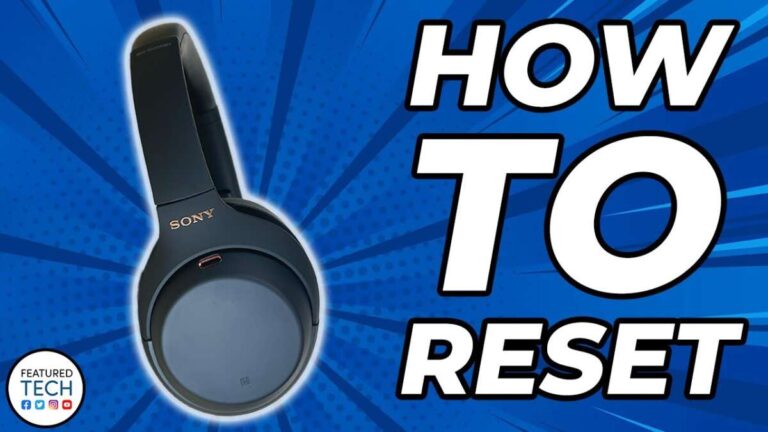
How do I reset Sony headphones for pairing?
Most Sony models use a long press of the power button or a specific reset sequence listed in the manual; check your model instructions and then re-pair to the iPhone.
Does iPhone support aptX with Sony headphones?
iPhone does not support aptX; it uses AAC or SBC codecs. For best audio, use headphones that perform well on AAC.

Advanced tips and settings
- Codec behavior: iPhone prefers AAC. If your Sony headphones support AAC, you’ll get better audio than with SBC. aptX and LDAC are not supported by iPhone.
- Firmware updates: Use the Sony Headphones Connect app to update firmware for stability improvements and bug fixes.
- Multipoint connections: Some Sony models support connecting to two devices at once. This lets your iPhone handle calls while a laptop handles media. Check your model’s specs.
- Auto power and wear detection: Enable or disable these in the app for desired behavior. Wear detection pauses playback automatically on many Sony earbuds.
- Resetting network settings: If Bluetooth issues persist, resetting iPhone network settings can help, but this also clears Wi-Fi networks.
These tips help you fine-tune how to pair sony headphones to iphone and keep the connection reliable.

Compatibility, battery, and privacy notes
- Battery life: Pairing itself won’t drain much battery, but long streaming sessions do. Monitor headphone battery in the Control Center or the Sony app.
- Privacy: Bluetooth pairing grants audio and mic access. iOS asks for microphone permission when needed. Review app permissions if privacy concerns arise.
- Model compatibility: Most modern Sony Bluetooth headphones pair with iPhone models that run recent iOS versions. Older headphones that use proprietary pairing may need manual steps.
Personal experience: lessons I learned pairing Sony headphones to iPhone
I once struggled with a WH-1000XM4 that wouldn’t connect because it stayed paired to my laptop. Turning off laptop Bluetooth fixed it. I learned to always check other nearby devices first.
Always update firmware before troubleshooting further. The Sony app fixed a glitch that caused audio dropouts on my iPhone during calls. My best tip: put the headphones in pairing mode first, then open iPhone Bluetooth — it speeds things up.
Frequently Asked Questions of how to pair sony headphones to iphone
How do I force my iPhone to forget my Sony headphones?
Open Settings > Bluetooth, tap the “i” next to the Sony device, and choose Forget This Device. Then re-pair from scratch if needed.
Can I use the Sony Headphones Connect app on iPhone?
Yes. The app works on iPhone to update firmware, set sound profiles, and enable features like adaptive sound control.
Why is audio quality lower after pairing?
iPhone uses AAC or SBC codecs; if the headphones expect aptX or LDAC, audio may sound different. Firmware updates or using AAC-compatible Sony models improves quality.
How do I pair two Sony headphones to one iPhone?
Most iPhones support one Bluetooth audio output at a time. Some Sony models offer their own party or sharing modes, but check your model for two-headphone streaming options.
What if my Sony headphones pair but won’t auto-reconnect?
Turn off Bluetooth on other devices, ensure the headphones have enough battery, and enable automatic reconnection in the Sony app if available.
Will location services or permissions affect pairing?
Location services do not affect Bluetooth pairing itself, but apps may request permissions for features like finding your earbuds. Grant only necessary permissions.
How long does pairing take?
Pairing usually completes in a few seconds once the headphones are in pairing mode and the iPhone sees the device. If it takes longer, restart and retry.
Conclusion
You now have clear steps and practical fixes to pair Sony headphones to iPhone, plus tips on codecs, firmware, and real-world pitfalls. Try the step-by-step pairing process first, update firmware, and use the Sony app to fine-tune settings for best sound and call quality. If you ran into trouble, follow the troubleshooting checklist and remember the simple rule: put the headphones in pairing mode, open iPhone Bluetooth, then tap the device.
Try pairing your headphones now, leave a comment about your model if you need help, and subscribe or save this guide for quick reference.