How To Pair Jabra Headphones: Quick Easy Steps
Turn on Bluetooth, put your Jabra in pairing mode, and select it from your device.
I’ve paired dozens of Jabra models for friends, clients, and my own gear. This guide explains exactly how to pair Jabra headphones with phones, tablets, laptops, and more. You’ll get clear step-by-step instructions, troubleshooting tips, and real-world advice from hands-on experience so you can pair fast and keep them connected.
Understanding pairing basics and why it matters
Pairing means creating a secure Bluetooth link between your device and your Jabra headphones. Good pairing gives clear audio, stable calls, and access to features like multipoint or in-app firmware updates. Knowing how to pair Jabra headphones avoids common jams like “not visible” or “stuck connecting.”
Bluetooth works the same across devices, but Jabra models have small differences in pairing mode and reset steps. I’ll show the exact actions for true wireless earbuds and single‑ear headsets. Follow the steps for your model and you’ll save time.
Prepare your devices before pairing
A little prep shortens the process and prevents errors.
- Charge both earbuds or headset and the case. Low battery can stop pairing.
- Turn off Bluetooth on nearby devices that you won’t use. They can interfere.
- Update your phone or laptop OS if prompts are pending. Newer Bluetooth stacks pair better.
- Open the Jabra app when possible to detect firmware updates and manage settings.
Preparing this way makes how to pair Jabra headphones smooth and predictable.
How to pair Jabra headphones — step-by-step for True Wireless models
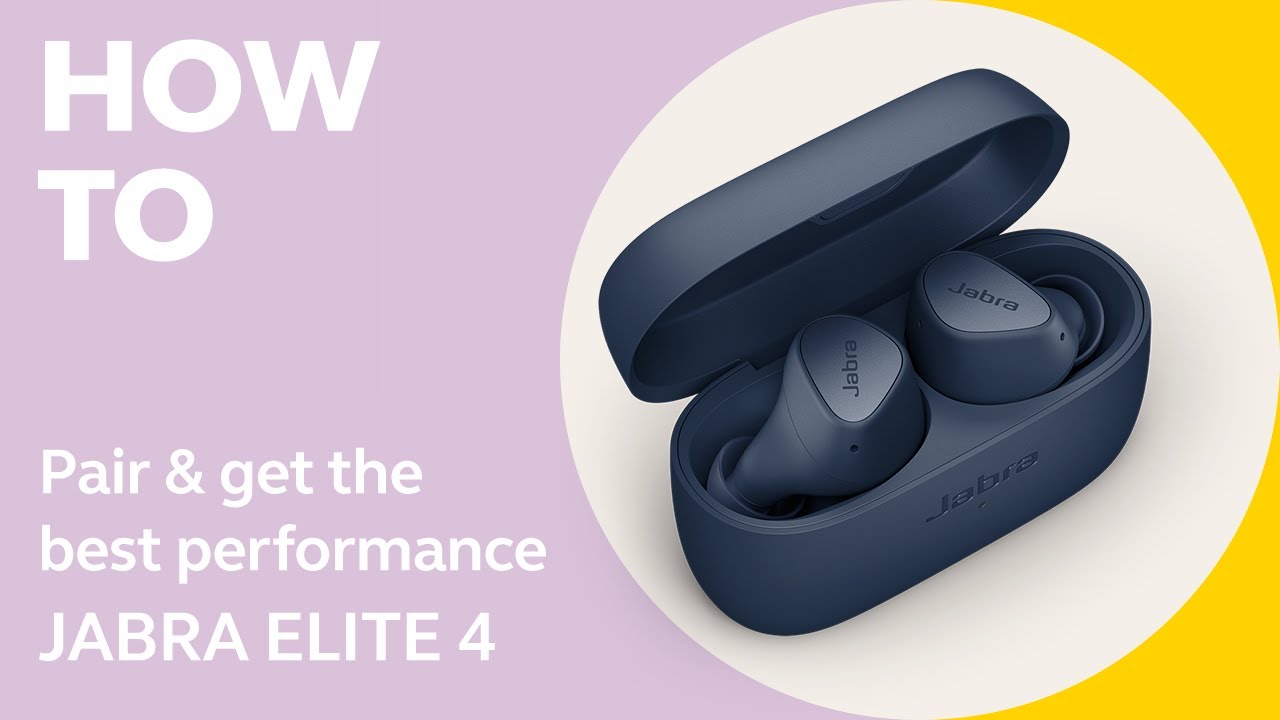
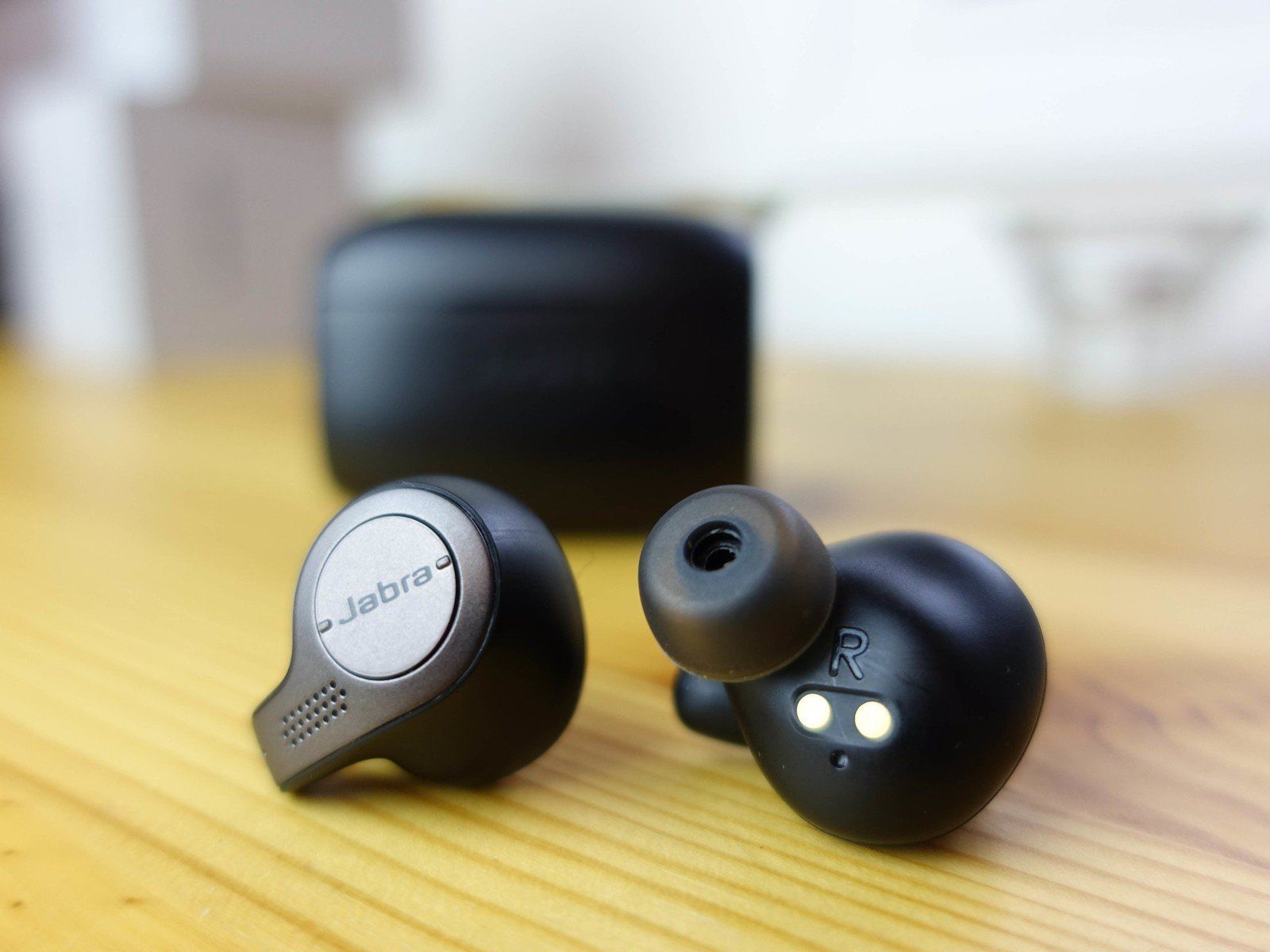
True wireless Jabra earbuds include Elite, Elite Active, and similar series. These steps explain how to pair Jabra headphones with phones or computers.
- Ensure the earbuds are charged and inside the case.
- Close the case, then open it to wake the earbuds. Many models enter pairing automatically on first use.
- If pairing mode doesn’t appear, press and hold the earbuds’ button or touch area for about 3–5 seconds. You’ll hear an audible prompt or see flashing lights.
- On your phone or computer, open Bluetooth settings and look for the Jabra name. Tap to connect.
- If asked for a PIN, enter 0000 or 1234. Most Jabra devices don’t ask for a PIN.
- After connecting, confirm audio and mic work by playing a short clip or making a test call.
- If you use multiple devices, enable multipoint in the app or follow the model’s multipoint pairing steps.
These steps show how to pair Jabra headphones quickly. If your model behaves differently, follow the device-specific pairing prompt in the Jabra app.

How to pair Jabra headset or single-ear models
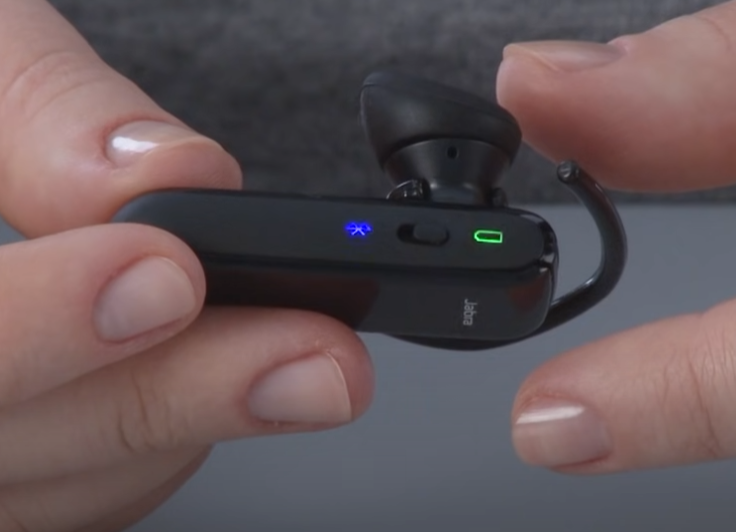
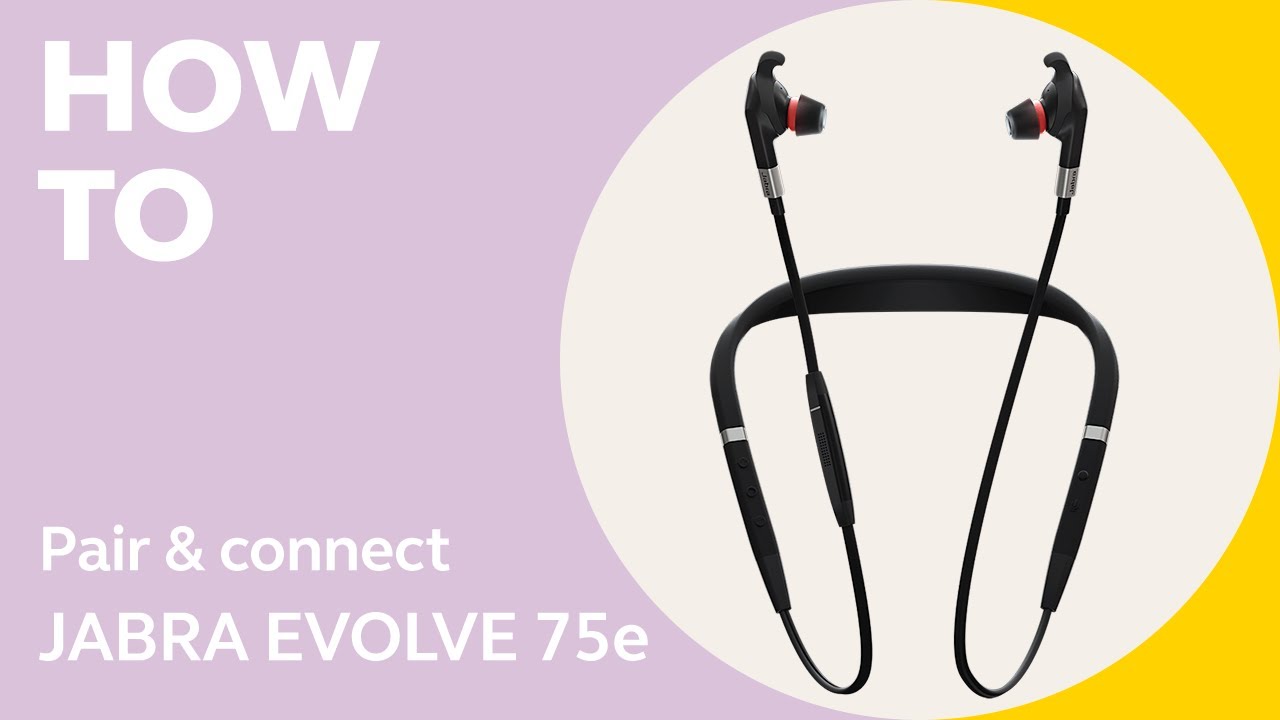
Single-ear and office headsets like Jabra Evolve or Jabra Speak have slightly different behavior. Here is how to pair Jabra headphones in those cases.
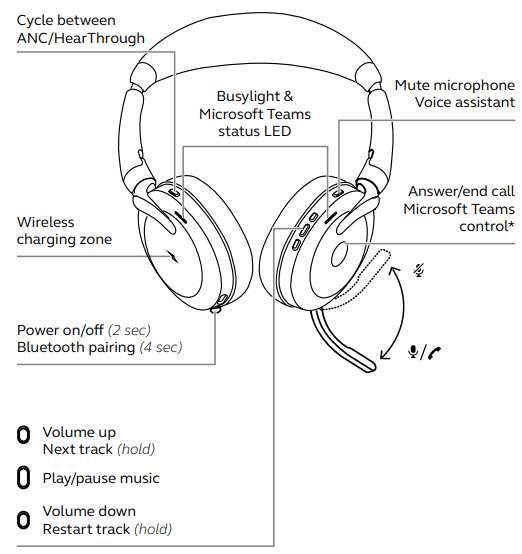
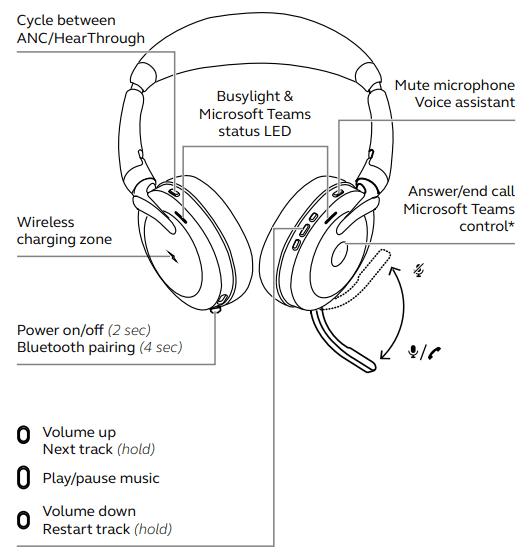
- Turn on the headset. Most models use a power button held for 2–3 seconds.
- Press and hold the Bluetooth button until the LED flashes blue or you hear “pairing.”
- Open Bluetooth on your phone, tablet, or computer. Select the headset name shown.
- For USB adapters or docking stations, plug in the adapter and let drivers install. Use the adapter when you need a stable PC connection.
- Test the mic and speakers in a meeting app to confirm.
These short steps help you pair Jabra headphones meant for office and call use. Multipoint or USB dongle use may change the order slightly.
Resetting and clearing pairing when things go wrong
If your device won’t pair, a reset often fixes it. Resetting removes previous pairings and returns the headset to factory defaults. Here’s how to reset common Jabra devices.
- For many true wireless earbuds, place both earbuds in the case and hold down the pairing or function button until LEDs flash amber or white.
- For headsets, hold the power and Bluetooth buttons together for 10 seconds until the lights flash.
- After reset, re-enter pairing mode and look for the device in your phone or PC Bluetooth list. Remove old entries first to avoid confusion.
Resetting is a quick way to solve many connection issues when you try to pair Jabra headphones.

Troubleshooting common pairing problems
Here are concise fixes for the problems you’ll see most often when you try to pair Jabra headphones.
- Device not visible in Bluetooth list: Turn off and on the headset and Bluetooth on your phone. Move closer.
- Earbuds connect to the wrong device: Forget the headset on the wrong device and reconnect to the one you want.
- One earbud not connecting: Put both earbuds in the case, close, then reopen to re-sync. Repeat pairing steps.
- Frequent dropouts: Turn off Bluetooth on nearby unused devices, and avoid busy Wi‑Fi 2.4 GHz interference zones.
- No sound after pairing: Check media volume, Bluetooth audio profile settings, and app permissions for microphone and audio.
These tactics come from real troubleshooting sessions and show practical ways to pair Jabra headphones reliably.
Tips, best practices, and personal experience
I’ve paired Jabra headphones with iOS, Android, Windows, and Mac devices. Small habits save time.
- Always update firmware in the Jabra app before heavy use. Firmware often fixes pairing bugs.
- Use the Jabra app to rename the device. This avoids confusion when several Jabra models appear nearby.
- For meetings, pair via the dedicated USB adapter for the most stable PC connection. It removes Bluetooth variables.
- If you use two devices, set up multipoint during first pairing so switching is seamless. Not all Jabra models support multipoint, so check specs.
A mistake I made once was pairing in a crowded café. Background devices kept interrupting. Now I turn other Bluetooth off and use the case reset trick when pairing fails. These real tips make how to pair Jabra headphones easier in daily life.
Frequently Asked Questions of how to pair jabra headphones
How do I put my Jabra headphones into pairing mode?
Press and hold the Bluetooth or multifunction button for about 3–5 seconds until the LED flashes or you hear “pairing.” For true wireless, opening the case often triggers pairing mode automatically.
Why won’t my phone find my Jabra headphones?
Ensure headphones are in pairing mode, Bluetooth is enabled on your phone, and old pairings are removed. Move closer and turn off other nearby Bluetooth devices that may interfere.
How do I pair Jabra headphones with two devices?
Enable multipoint if the model supports it, then pair with the first device, disconnect, and pair with the second. The headset will remember both devices and switch between them.
What if one earbud won’t connect after pairing?
Place both earbuds in the case for 10 seconds, then remove them and attempt pairing again. If that fails, reset the earbuds using the model‑specific reset sequence and re-pair.
Do Jabra headphones need a PIN to pair?
Most Jabra headphones do not require a PIN. If prompted, try common codes like 0000 or 1234. Check the user guide for model-specific PINs.
Can I pair Jabra headphones to a laptop without Bluetooth?
Yes. Use a Jabra USB Bluetooth adapter or a compatible USB audio dongle. Plug it into your laptop and follow pairing steps with the adapter active.
Conclusion
You now have clear, practical steps to pair Jabra headphones with phones, laptops, and other devices. Start by preparing devices, use the right pairing steps for your model, and apply quick resets when needed. Try the firmware update and USB adapter tips for the most reliable connections. If pairing still fails, leave a comment with your model and device and I’ll help you troubleshoot further.