How To Make Bose Headphones Discoverable: Quick Fix
Hold the power/Bluetooth button until the LED blinks blue and you hear “Ready to pair.”
I’ve helped dozens of people get stuck Bose headphones back into pairing mode. This guide explains exactly how to make bose headphones discoverable across models, phones, and computers. You’ll get clear steps, troubleshooting tips, model-specific notes, and real-world advice I learned while fixing pairing issues for friends and clients. Read on to pair faster and avoid common mistakes.
Understanding Bluetooth discoverability and why it matters
Discoverable means your headphones broadcast a Bluetooth signal so nearby devices can find them. Learning how to make bose headphones discoverable helps you pair faster and avoid confusion when a device won’t connect.
Bluetooth pairing is a short handshake. Both devices must be ready to connect. If headphones are not discoverable, the phone or laptop won’t list them. Most Bose models use a short press or a long press of the power/Bluetooth button to enter pairing mode.
Why this matters:
- Makes setup simple and quick.
- Prevents accidental connections to old devices.
- Helps when switching between phone, tablet, and laptop.
Step-by-step: how to make bose headphones discoverable (general method)
These steps work for most Bose headphones. Follow them in order. Keep your phone or computer’s Bluetooth screen open while you do this.
- Charge the headphones
- Low battery can stop pairing. Charge for at least 15–30 minutes before pairing.
- Turn the headphones off and on
- Power cycle to clear transient issues. Wait 5 seconds after power off before turning back on.
- Enter pairing mode
- Press and hold the power or Bluetooth button until you hear “Ready to pair” or see a flashing blue LED. This puts the headphones into discoverable mode.
- Open Bluetooth settings on the device
- On phone or computer, open Bluetooth settings and look for the Bose model name.
- Select and pair
- Tap the Bose entry and accept any prompts. If asked for a code, try 0000 or 1234, though Bose rarely needs one.
- Confirm connection
- You’ll hear a confirmation tone or voice. The device will show “Connected.”
If the device doesn’t show the headphones, repeat steps 2–5 and remove old Bose entries from the device’s Bluetooth list.

Model-specific commands and notes
Specific Bose models have small differences. Here are concise model tips to help you make bose headphones discoverable quickly.
-
QuietComfort 35 / QC35 II
-
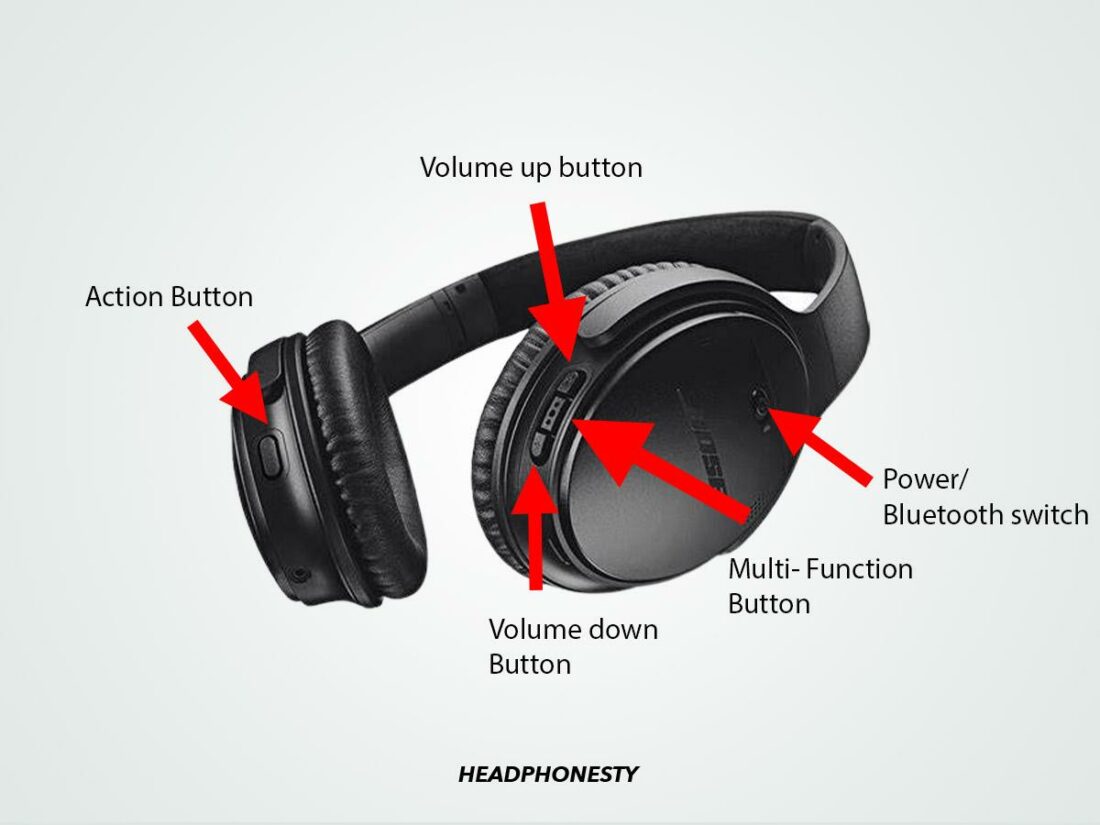
Slide the power switch to Bluetooth and hold it until “Ready to pair” plays. Look for a blinking blue light.
-
Noise Cancelling Headphones 700
-
Press and hold the Bluetooth button on the right earcup until the LED blinks blue and the voice prompt says “Ready to pair.”
-
SoundLink Around-Ear / SoundLink Wireless
-
Power on, then press and hold the Bluetooth button until the light flashes blue.
-
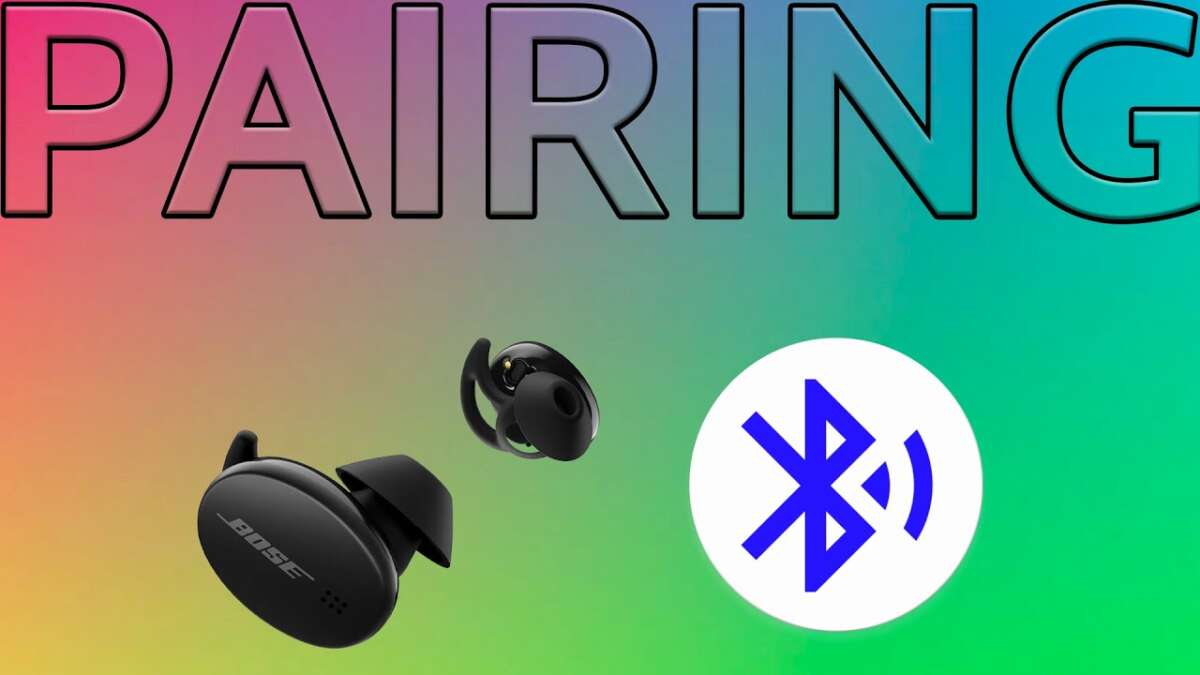
Bose Sport Earbuds / QuietComfort Earbuds
-
Remove from case or press the Bluetooth/pairing button on the case until the LED flashes. Follow the app prompts if available.
Always check the model name that appears in your device’s Bluetooth list. If you have multiple Bose devices nearby, temporarily turn the others off to avoid confusion.

Troubleshooting: common reasons headphones won’t become discoverable
If following steps doesn’t work, try these fixes. Each item targets a common root cause.
-
Headphones still connected to another device
-
Disconnect or turn off other devices. Some Bose models auto-reconnect and won’t enter pairing mode while linked.
-
Bluetooth cache or device limits
-
On phones, remove old Bose pairings from settings. On Windows, “Forget” the device then retry.
-
Interference or distance
-
Move closer and away from crowded Wi-Fi or other Bluetooth devices. Try pairing within 3 feet.
-
Firmware or app issues
-
Update firmware using the Bose Music or Bose Connect app. Updates can fix pairing bugs.
-
Hardware reset
-
If nothing else works, reset the headphones. Most Bose resets involve holding power and Bluetooth buttons together for 10–15 seconds. Model guides differ, so check your manual for exact reset steps.
PAA-style questions
Why won’t my Bose headphones show up when pairing?
Often they are still connected to another phone or have a low battery. Turn off other Bluetooth devices, charge the headphones, then hold the Bluetooth button until pairing mode starts.
How do I reset Bose headphones to make them discoverable?
Reset methods vary by model. The usual approach is to power off, then hold power and Bluetooth buttons for 10–15 seconds until lights flash; then try pairing again.
Tips to keep connections stable and make bose headphones discoverable faster
Small habits make pairing painless. These tips reflect what I use every day and what fixed problems for friends and clients.
-
Use the Bose app
-
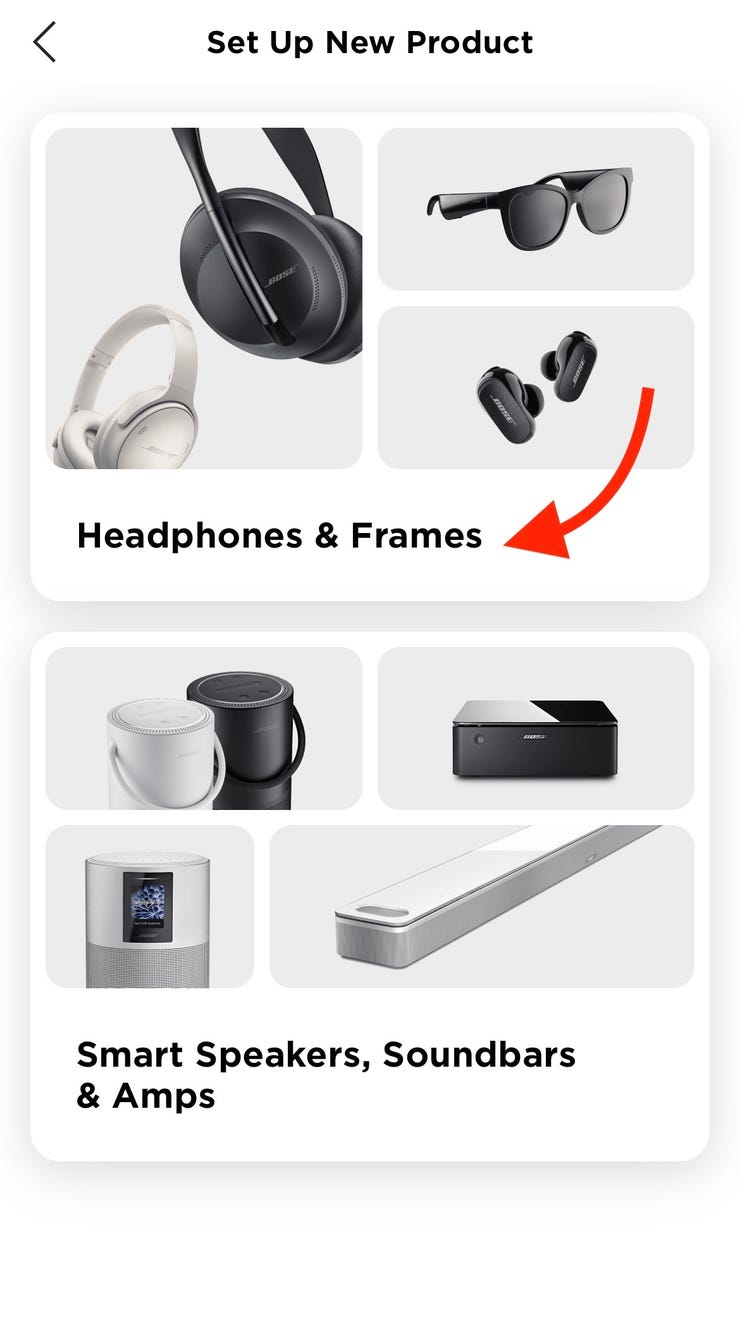
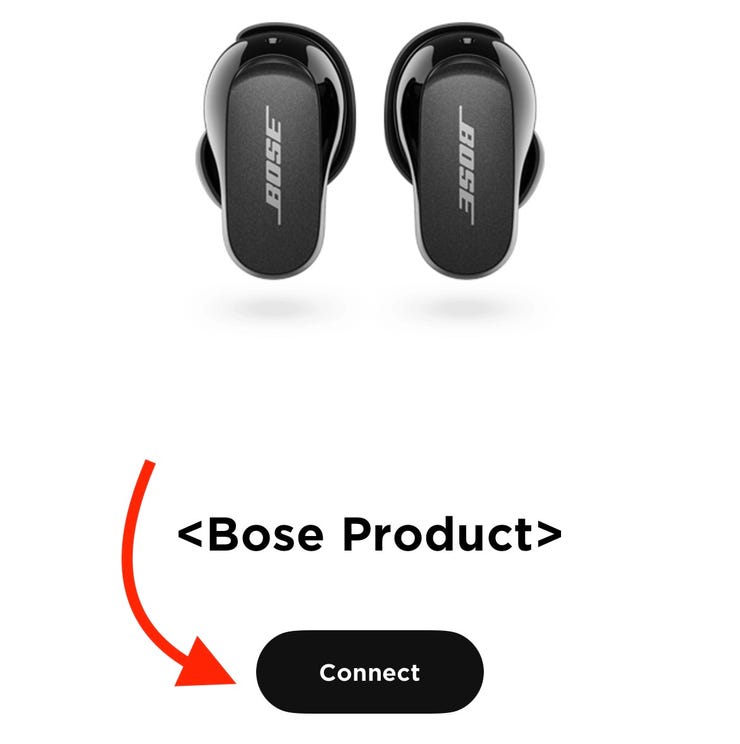
Install Bose Music or Bose Connect. The app guides pairing and installs updates.
-
Turn off auto-reconnect on old devices
-
Remove or turn off Bluetooth on devices you no longer use with the headphones.
-
Reboot devices before pairing
-
Restart your phone or laptop. A fresh Bluetooth service often finds headphones faster.
-
Keep firmware current
-
Firmware updates fix pairing bugs and improve stability.
-
Use airline and privacy mode appropriately
-
Disable airplane or privacy modes that may block Bluetooth before pairing.
From personal experience: I once could not pair my QC35 with my laptop because my smartwatch kept reconnecting. Turning off the watch and re-pairing solved it. Lesson: always consider other nearby devices first.
Frequently Asked Questions of how to make bose headphones discoverable
How long does pairing mode stay active?
Pairing mode usually stays active for about two minutes. If you don’t pair in that time, the headphones often exit pairing mode and you’ll need to re-enter it.
Can multiple devices pair at once?
Many Bose models support multipoint pairing with two devices simultaneously. If one device reconnects, make sure the other is ready to accept audio or temporarily disconnect it.
Will resetting erase settings or saved pairings?
Yes. A factory or reset clears paired devices and some personalized settings, so you will need to pair devices again afterward.
Why does my phone say “Pairing failed”?
This can happen from interference, outdated firmware, or corrupted Bluetooth cache. Remove the headphones from your phone’s Bluetooth list, restart the phone, then try pairing again.
Do I need the Bose app to pair?
No. You can pair directly in Bluetooth settings. The Bose app helps with firmware updates and feature setup, but it’s not required for basic pairing.
Conclusion
Making bose headphones discoverable is usually simple: charge the headphones, enter pairing mode by holding the power/Bluetooth button, open Bluetooth settings on your device, and select the Bose model. If you hit a snag, remove old pairings, update firmware, or reset the headphones. Try a quick restart and keep other nearby Bluetooth devices off while pairing.
Takeaway: follow the steps, keep firmware up to date, and remove old device links to make pairing smooth. If this guide helped, leave a comment with your model and problem or subscribe for more wireless audio tips.