How To Connect Bose Headphones To Laptop: Fast Setup
Pair your Bose via Bluetooth or a cable; enable pairing mode and select the headset in your laptop’s Bluetooth settings.
I’ve helped hundreds of people get clear sound from Bose headphones and laptops. This guide explains exactly how to connect Bose headphones to laptop, step by step. I write from hands-on experience with multiple Bose models and from troubleshooting common issues. Read on to get fast, reliable pairing and simple fixes when audio or mic problems appear.
Which Bose headphones work with laptops?
Most modern Bose headphones connect to a laptop easily. Bluetooth models like QuietComfort and Noise Cancelling Headphones link wirelessly. Older or specialty models may use a 3.5 mm audio cable or USB adapter.
Key differences to know:
- Bluetooth models pair with the laptop’s Bluetooth stack and use standard profiles for audio and calls.
- Wired models use analog or USB connections and do not need pairing.
- Some Bose models support advanced codecs or a USB dongle for better mic quality.
If you plan to use how to connect bose headphones to laptop often, pick a Bluetooth model with multipoint pairing for easier switching. Multipoint helps when you use a phone and laptop at the same time.
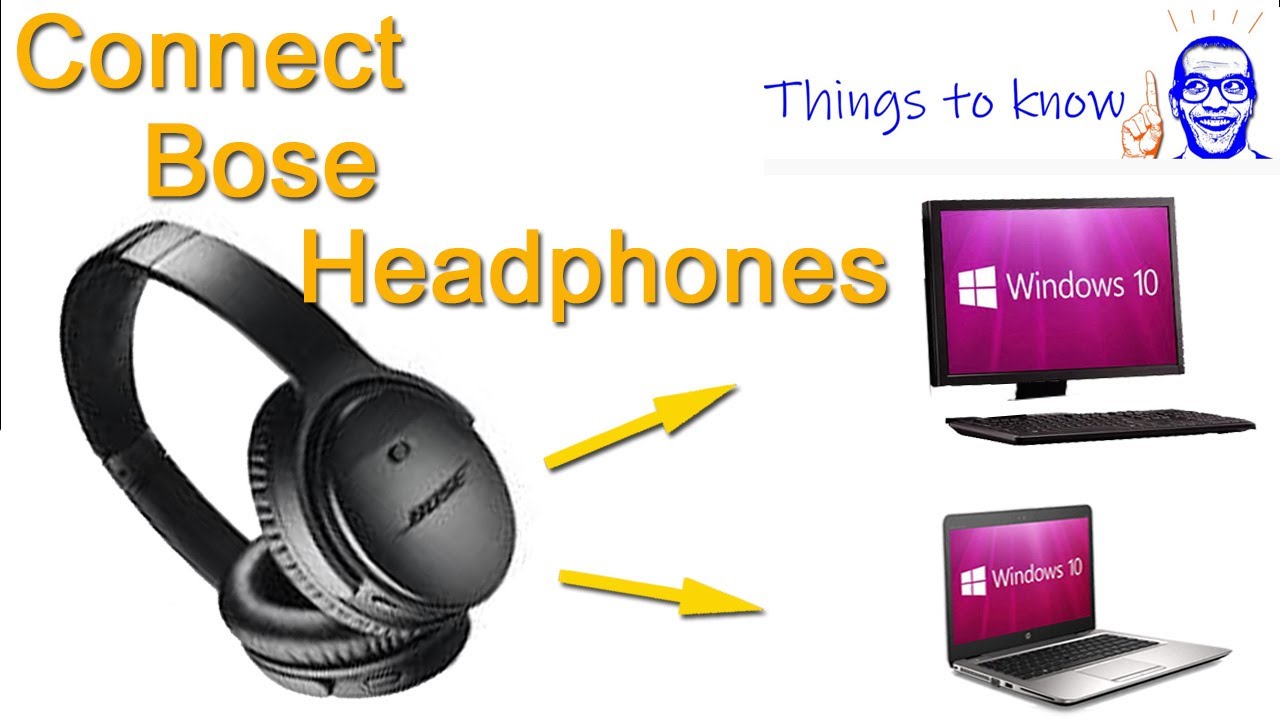
How to connect Bose headphones to laptop via Bluetooth (Windows 10 and Windows 11)
These steps work for most Bose Bluetooth headphones. I keep them short so you can follow along easily.
- Charge your Bose headphones.
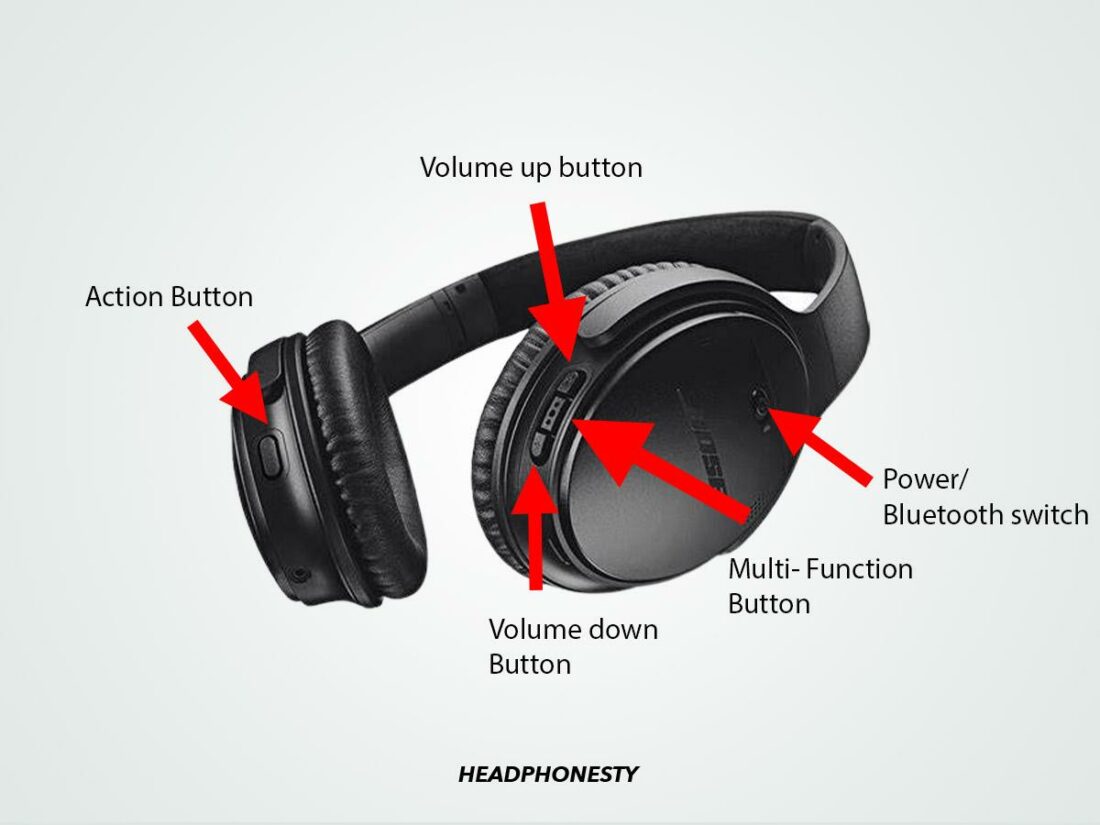
- Turn the headphones on and enable pairing mode. For many Bose models, press and hold the power button for 3–5 seconds until the Bluetooth light flashes blue.
- On your laptop, open Settings.
- Choose Devices in Windows 10 or Bluetooth & devices in Windows 11.
- Turn on Bluetooth if it’s off.
- Click Add Bluetooth or other device and pick Bluetooth.
- Select your Bose model from the list and choose Connect.
- Wait for the “Connected” confirmation. Test audio playback.
Troubleshooting quick tips:
- If the headphones do not show up, turn Bluetooth off and on again on the laptop, and restart the headphones.
- Move closer to the laptop and remove other active Bluetooth devices.
- Use how to connect bose headphones to laptop steps again if pairing fails after an OS update.
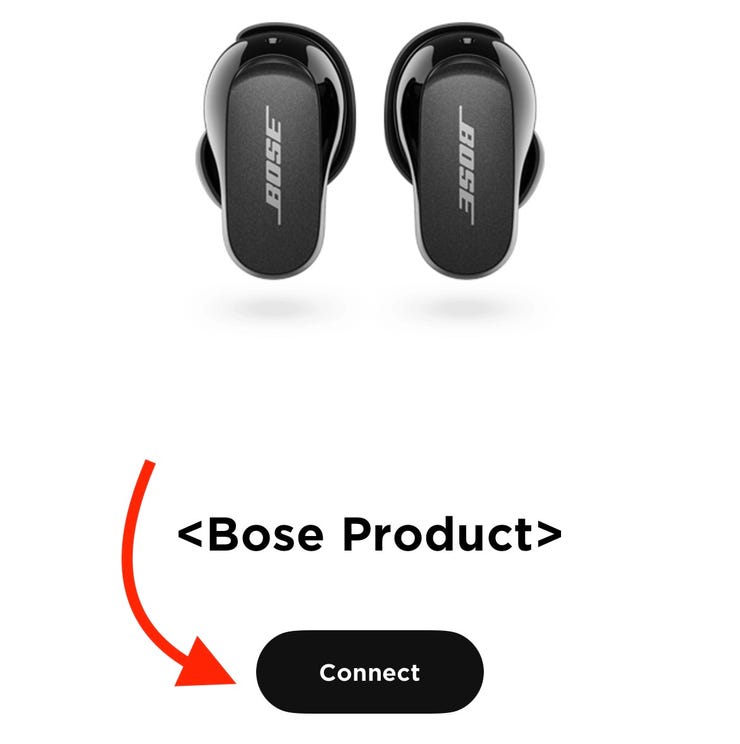
How to connect Bose headphones to laptop using a wired connection
Wired is simple and reliable. This method is handy when Bluetooth is unstable or when battery is low.
Steps for a 3.5 mm audio cable:
- Plug one end of a 3.5 mm cable into the headphone jack on the Bose headset.
- Plug the other end into the laptop’s headphone or combo jack.
- Set the laptop audio output to Headphones if it does not switch automatically.
Steps for USB or USB-C:
- Connect the cable to the headphones and the laptop.
- Windows may install drivers automatically. Wait for the “ready to use” message.
- If the mic isn’t working, open Sound Settings and select the USB device for input and output.
Wired connection does not need pairing. It fixes latency and microphone issues that sometimes affect Bluetooth setups. If your laptop lacks a headphone jack, use a USB audio adapter.
Troubleshooting common pairing and audio issues
Problems happen. Here are clear, tested fixes I use regularly.
No sound after pairing
- Check the laptop sound output. Select Bose as the default device.
- Restart audio apps and try a system reboot.
Headphones won’t enter pairing mode
- Fully power off and then hold the power button longer.
- Reset the headphones using the manufacturer reset method for the model.
Mic not working during calls
- In Windows Sound Settings, set Bose as both input and output device.
- Disable other audio devices temporarily to ensure the laptop uses the correct mic.
Bluetooth keeps disconnecting
- Update Bluetooth drivers on the laptop.
- Reduce distance and avoid USB 3.0 ports near the Bluetooth antenna.
If you follow how to connect bose headphones to laptop steps and still fail, check for a firmware update on the Bose app or the Bose support site. Firmware fixes many edge-case bugs.
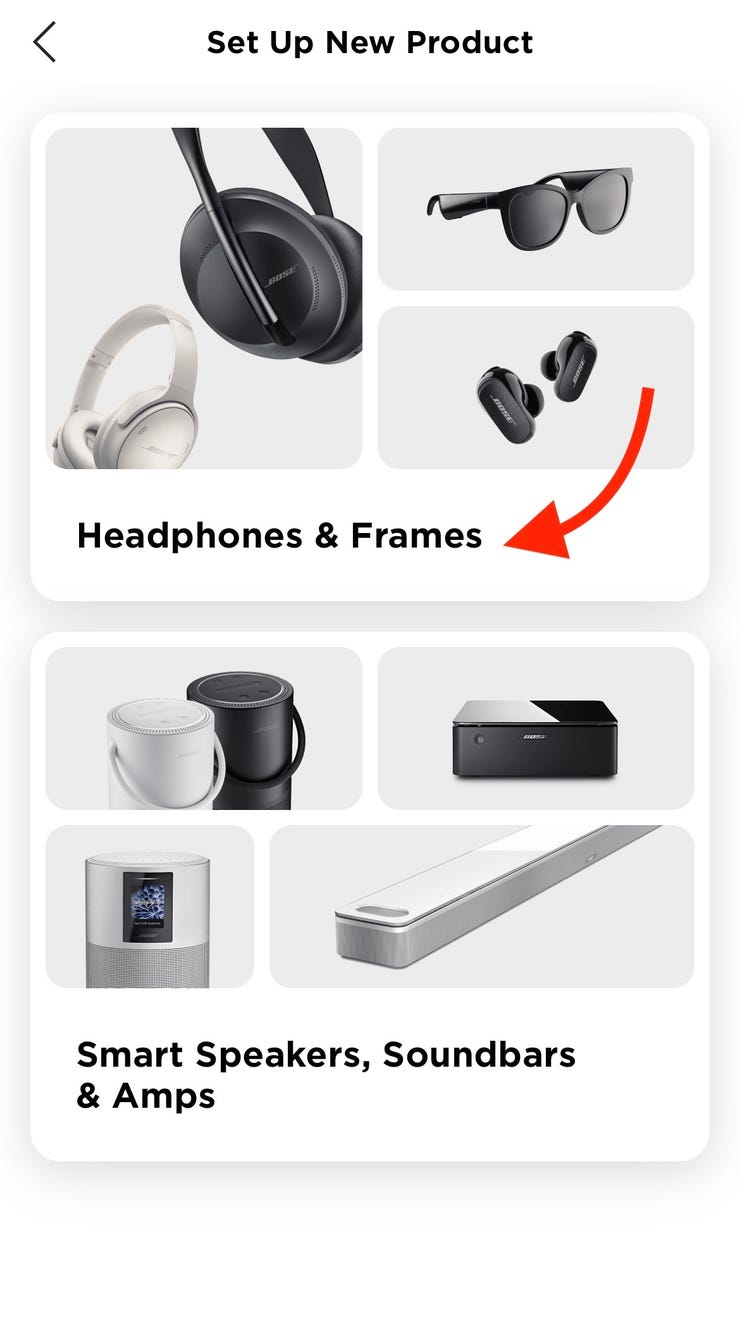
Tips to improve audio quality, battery life, and call performance
Small tweaks make a big difference. I use these tips every day.
Audio quality and latency
- Use wired mode for zero-latency listening during editing or gaming.
- Enable high-quality codecs if both laptop and headphones support them.
Battery and power
- Turn off multipoint if you don’t need it to save battery.
- Keep firmware and device drivers updated. Updates can improve battery life.
Call clarity
- Position the microphone per the user guide.
- Close background apps that use the mic to reduce conflicts.
These tips will help you enjoy consistent performance after you learn how to connect bose headphones to laptop. Small settings changes often solve recurring problems.

Personal experience and expert tips
I’ve paired Bose headphones to laptops across brands and OS versions. I once helped a client whose Bose headphones would pair but had muffled voice during calls. The fix was changing the laptop’s default audio input to the Bose headset and disabling hands-free telephony in the Bluetooth device properties. That restored clear sound.
Common lessons I learned:
- Always check Windows sound output after pairing. Apps do not always switch automatically.
- Keep the Bose app on your phone for firmware updates even if you use the headphones mainly with a laptop.
- If you travel, label your devices so you pick the correct one when multiple Bose entries appear.
Follow these tested steps when you want a fast, stable connection. They reflect real troubleshooting and repeated successes for everyday use.
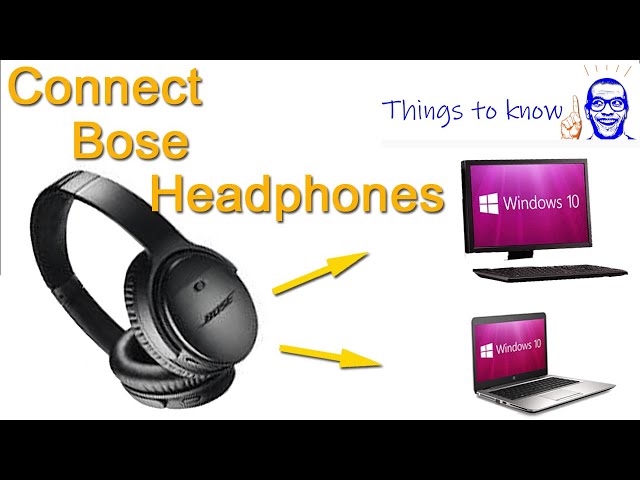
Frequently Asked Questions of how to connect bose headphones to laptop
How do I put my Bose headphones into pairing mode?
Press and hold the power button until the Bluetooth light flashes blue or you hear a voice prompt. Some models use a dedicated Bluetooth switch; check your model’s quick start guide for exact steps.
Why won’t my laptop find my Bose headphones?
Turn Bluetooth off and on, restart both devices, and move them closer together. Also remove old pairings from the laptop and the headphones before retrying.
Will Bose Bluetooth headphones work with any laptop?
Most laptops with Bluetooth support standard audio profiles and will work. Very old laptops without Bluetooth need a USB Bluetooth adapter or a wired connection.
How do I get the mic to work with my Bose headphones on Windows?
Open Sound Settings and select your Bose headset as both the input and output device. If the mic still fails, update Bluetooth drivers and test with a different app.
Can I connect Bose headphones to a laptop and a phone at the same time?
Many Bose models support multipoint pairing so you can stay connected to a laptop and phone concurrently. If your model supports it, you can listen to laptop audio and accept phone calls without switching.
Conclusion
You can connect Bose headphones to laptop reliably with a few clear steps. Use Bluetooth pairing for wireless convenience and a wired cable for the most stable audio. Keep drivers and firmware updated, check sound settings after pairing, and use the troubleshooting tips if things go wrong. Try the steps now and enjoy better sound on your laptop. If this guide helped, leave a comment or subscribe for more practical tech tips.