How To Connect Bose Headphones To Ipad: Quick Setup Guide
Turn on Bluetooth on your iPad, put your Bose headphones in pairing mode, and select them from Settings.
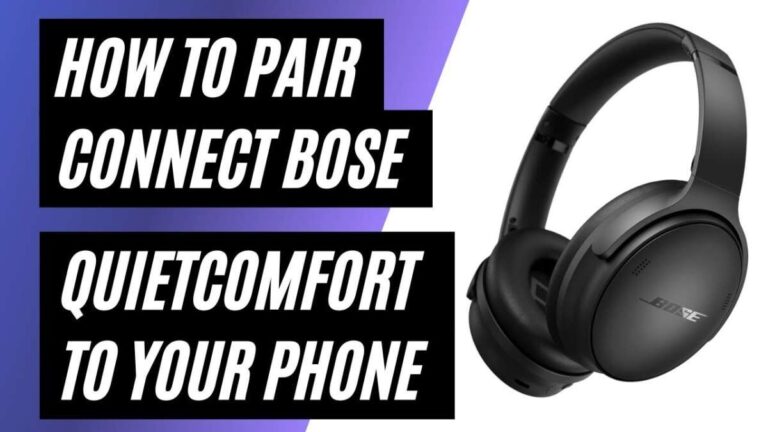
I’ve paired Bose gear with iPads for years, from QuietComfort to Noise Cancelling Headphones 700. This guide explains exactly how to connect bose headphones to ipad, step by step. I’ll walk you through pairing, wired options, fixes for common glitches, and tips to get the best sound and battery life. Read on to pair with confidence and avoid the common mistakes I learned the hard way.
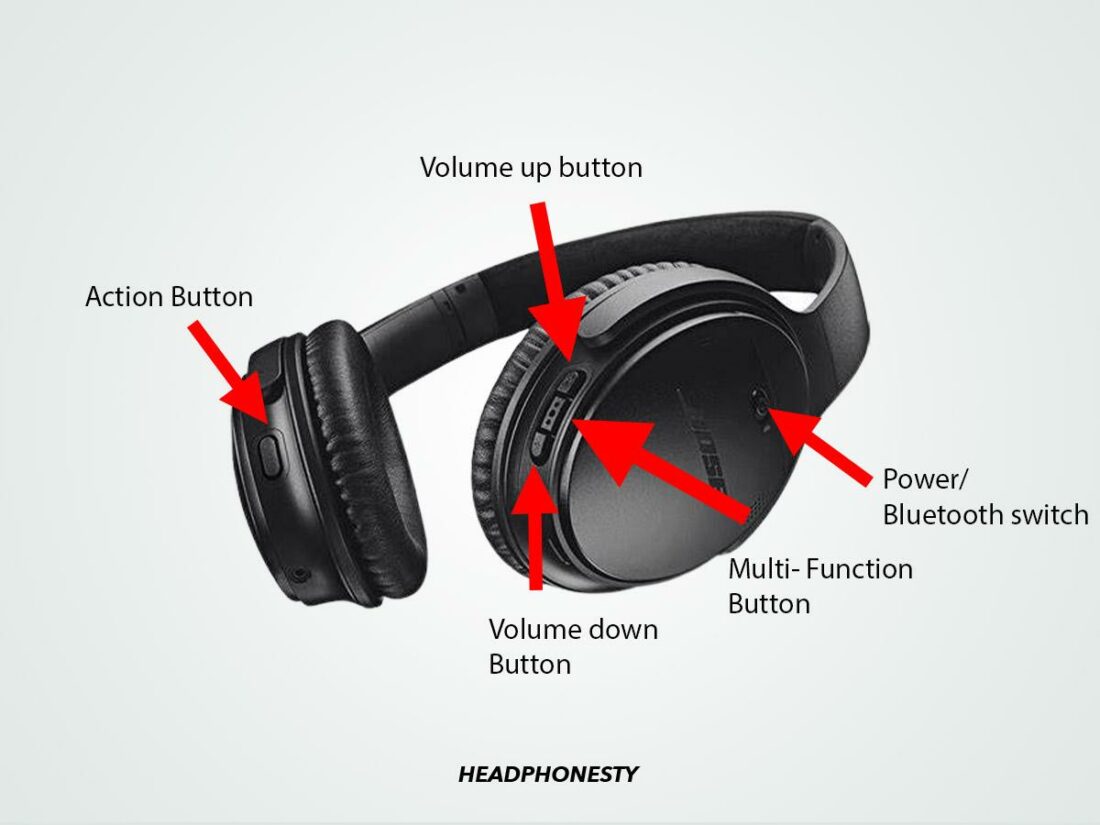
Step-by-step Bluetooth pairing: how to connect bose headphones to ipad
Follow these clear steps to pair your Bose headphones to an iPad. This method works for most Bose models like QuietComfort, SoundSport, and 700.
- Make sure your iPad has iOS updated. Open Settings > General > Software Update and install if needed.
- Charge your Bose headphones. Low battery can block pairing.
- Turn on the headphones. For most models, press the power button until you hear a voice prompt.
- Activate pairing mode. Hold the Bluetooth or power button until you hear “Ready to pair” or see a blinking blue light.
- Open Settings on your iPad. Tap Bluetooth and wait for the device list to refresh.
- Look for your Bose model in Available Devices. Tap its name to connect.
- Confirm pairing. You should hear a tone or voice on the headphones and see Connected next to the device on the iPad.
Tips while pairing:
- If you don’t see your Bose headphones, move closer to the iPad and turn off other Bluetooth devices.
- Turn Bluetooth off and on again on the iPad to refresh the list.
- Restart the headphones and try the pairing steps again.
How to connect bose headphones to ipad in bulk device environments:
- Turn off or forget other paired devices on the headphones to avoid auto-connecting elsewhere.
- Use the iPad’s Bluetooth menu to “Forget This Device” for old entries, then re-pair fresh.
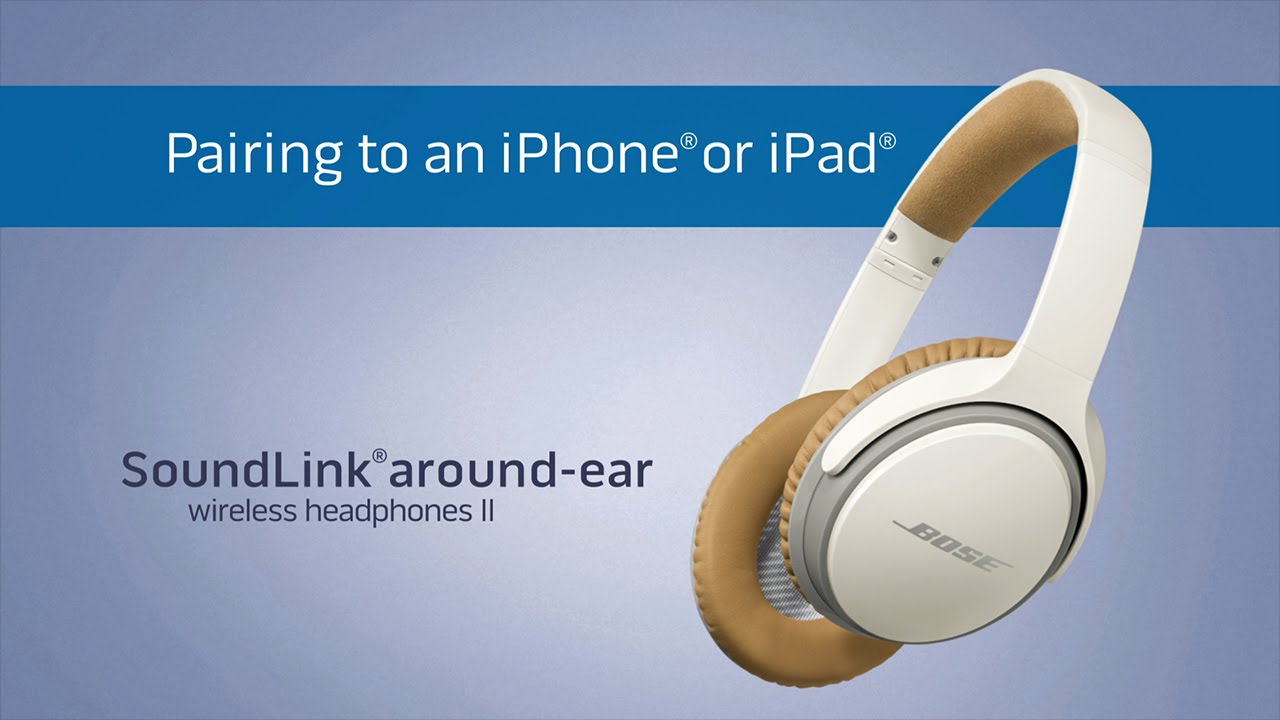
Wired connection options and legacy models: how to connect bose headphones to ipad
Some Bose headphones have a wired option. Newer iPads lack a headphone jack, but you can still connect by cable and adapter.
Wired steps:
- Use the headphone cable that came with the Bose headphones.
- If your iPad has a Lightning port, use a Lightning to 3.5 mm adapter.
- If your iPad has USB-C, use a 3.5 mm to USB-C adapter or a USB-C digital audio adapter if supported.
- Plug the cable into the headphones and the adapter into the iPad. Audio should play immediately.
Notes and limitations:
- Wired connection bypasses Bluetooth. This can cut latency for videos and games.
- Microphone and inline controls may not work with all adapters.
- If you use a Lightning-to-USB interface, make sure the adapter supports audio output.
How to connect bose headphones to ipad when Bluetooth fails:
- Wired mode is a reliable fallback. It keeps you listening while you troubleshoot Bluetooth.
Troubleshooting: common problems and fixes when connecting Bose headphones to iPad
If pairing fails or audio stutters, try these fixes. I’ve used them on multiple Bose models and most issues cleared up fast.
Quick fixes:
- Toggle Bluetooth off and on in Settings.
- Restart the iPad and headphones.
- Forget the Bose device on the iPad (Settings > Bluetooth > tap the info icon > Forget This Device), then re-pair.
- Reset your Bose headphones to factory defaults. Check your model’s reset steps in the manual.
Connection drops and audio lag:
- Move closer to the iPad and keep line-of-sight.
- Turn off other Bluetooth devices or Wi-Fi routers that may cause interference.
- Disable Bluetooth accessories on other nearby devices.
Firmware and app checks:
- Install the Bose Music or Bose Connect app and look for firmware updates.
- Update the headphones’ firmware to improve compatibility and stability.
If nothing works:
- Test the headphones with another phone or computer to isolate the issue.
- Test the iPad with another Bluetooth headset. This helps find whether the iPad or the headphones are the problem.
src="https://i.ytimg.com/vi/ta_q-0AUJKg/sddefault.jpg"
alt="Audio, settings, and battery tips for the best experience with Bose headphones and iPad”
style=”max-width: 100%; height: auto; border: 2px solid black; border-radius: 10px; display: block; margin: 0 auto;”
loading=”lazy”
/>
Audio, settings, and battery tips for the best experience with Bose headphones and iPad
Small setting changes can boost sound and battery life. These steps help you get the best from how to connect bose headphones to ipad.
Audio settings:
- Use Settings > Bluetooth > tap the info icon next to your Bose device to check firmware and features.
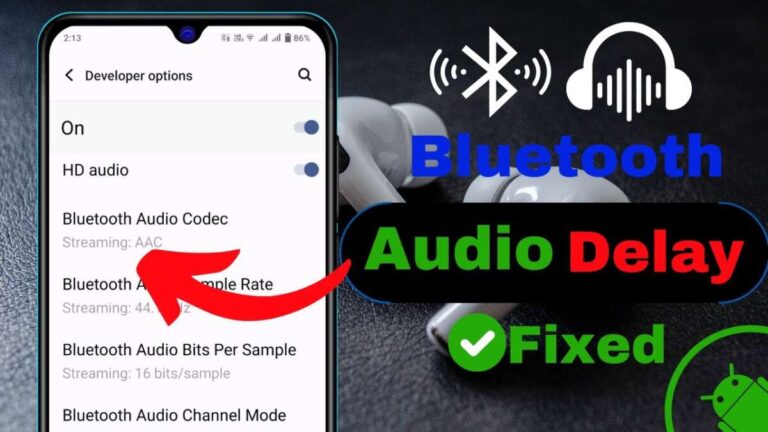
- For the best Bluetooth codec, ensure your iPad and Bose model support AAC. iPads use AAC by default for Apple devices.
- Use the Bose app to toggle noise cancellation levels and EQ (if available).
Battery care:
- Fully charge the headphones before long use.
- Turn off the headphones when not in use to save power.
- Use wired mode if battery is low and you need uninterrupted audio.
Practical habits:
- Keep the Bose app installed for firmware updates.
- Label your headphones in Bluetooth settings if you own multiple devices.
- Store headphones in their case to protect the battery and controls.

Frequently Asked Questions of how to connect bose headphones to ipad
How do I put my Bose headphones in pairing mode?
Hold the power button or Bluetooth button until a voice prompt says “Ready to pair” or a light blinks. Exact steps vary by model.
My iPad won’t find my Bose headphones. What should I try?
Restart both devices, toggle Bluetooth on the iPad, and move closer. If needed, forget the device on the iPad and re-enter pairing mode.
Can I connect Bose headphones to iPad with a cable?
Yes. Use the included audio cable and a Lightning or USB-C adapter if your iPad lacks a headphone jack.
Do I need the Bose app to pair with an iPad?
No. Pairing works through iPad settings. The Bose app is useful for firmware updates and extra features.
Why is the sound cutting out when I connect my Bose headphones to iPad?
Interference, low battery, or outdated firmware often cause cuts. Try restarting, charging, updating firmware, and minimizing interference.
Conclusion
You can pair and use Bose headphones with an iPad quickly by following a few clear steps. Start by updating iOS, charge your headphones, and use pairing mode to connect via Settings > Bluetooth. If problems appear, try wired mode, reset steps, or the Bose app for firmware updates. My best tip: keep devices updated and use the Bose app to get the most reliable experience. Try these steps now, leave a comment if you hit a snag, and subscribe for more practical how-to guides on audio gear.