How To Turn Off Beats Headphones: Quick Power Off Guide
Press and hold the power button or return your Beats earbuds to their charging case to turn them off.
I’ve worked with many headphones and helped dozens of people with Beats gear, so I know the common confusion around how to turn off Beats headphones. This guide walks you through simple, reliable methods for every Beats type — over-ear, on-ear, neckband, and true wireless — plus troubleshooting, battery tips, and practical advice I’ve learned from hands-on use.

Why knowing how to turn off Beats headphones matters
Turning off your Beats properly saves battery, prevents accidental pairing, and keeps them working longer. It also avoids leaving devices awake and draining your phone or laptop Bluetooth connections.
Knowing how to turn off Beats headphones helps you:
- Preserve battery life for longer listening sessions.
- Avoid unexpected audio playback or connectivity issues.
- Store your headphones safely without unwanted power drain.
Understanding basic on/off behavior removes guesswork and frustration. Follow these clear steps to stop wasting battery and get predictable performance.
Simple universal steps to turn off Beats headphones
Most Beats products fall into a few groups. Use these universal steps tailored to each group when you’re unsure how to turn off Beats headphones.
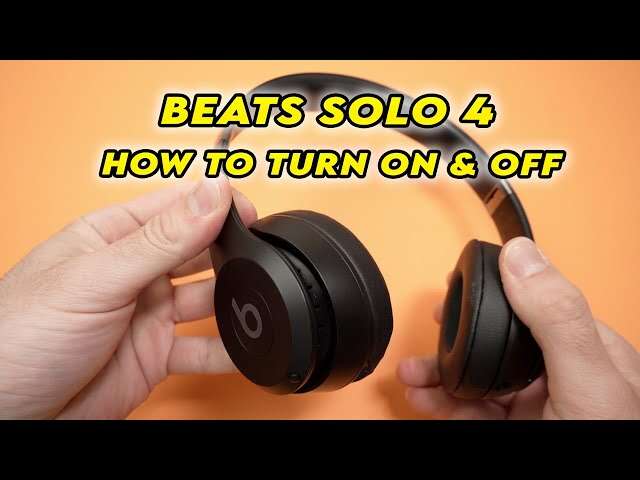
Over-ear and on-ear Beats (Studio, Solo, etc.)
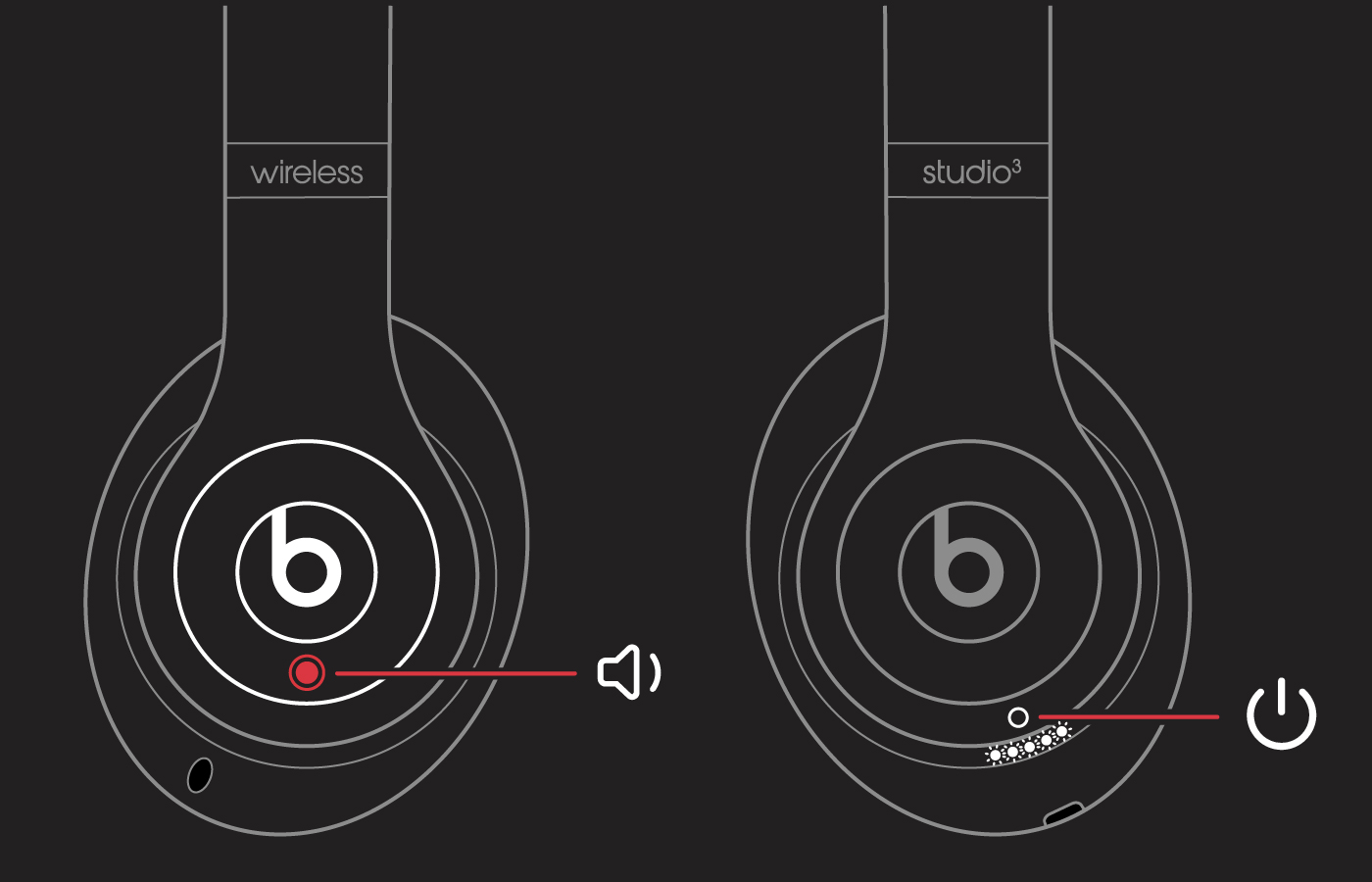
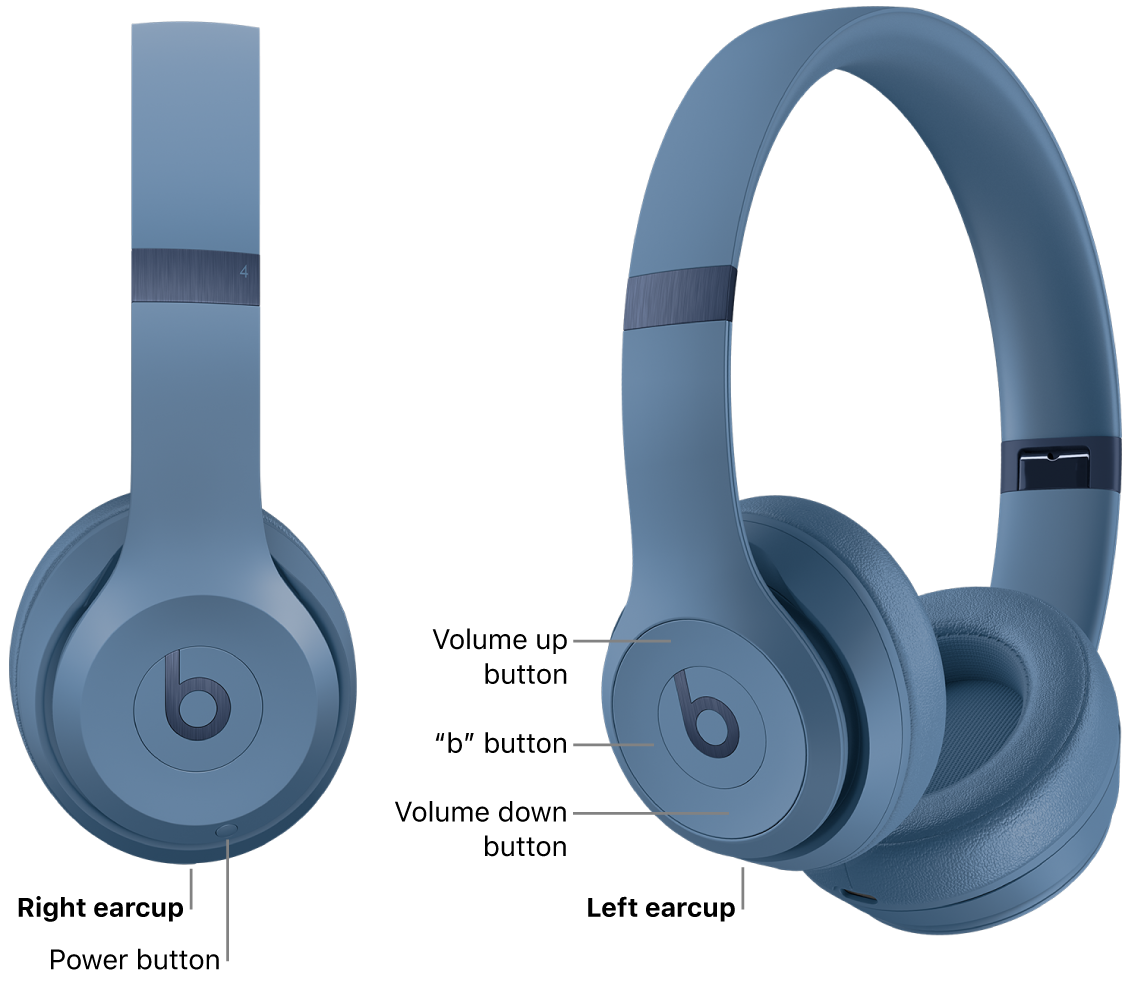
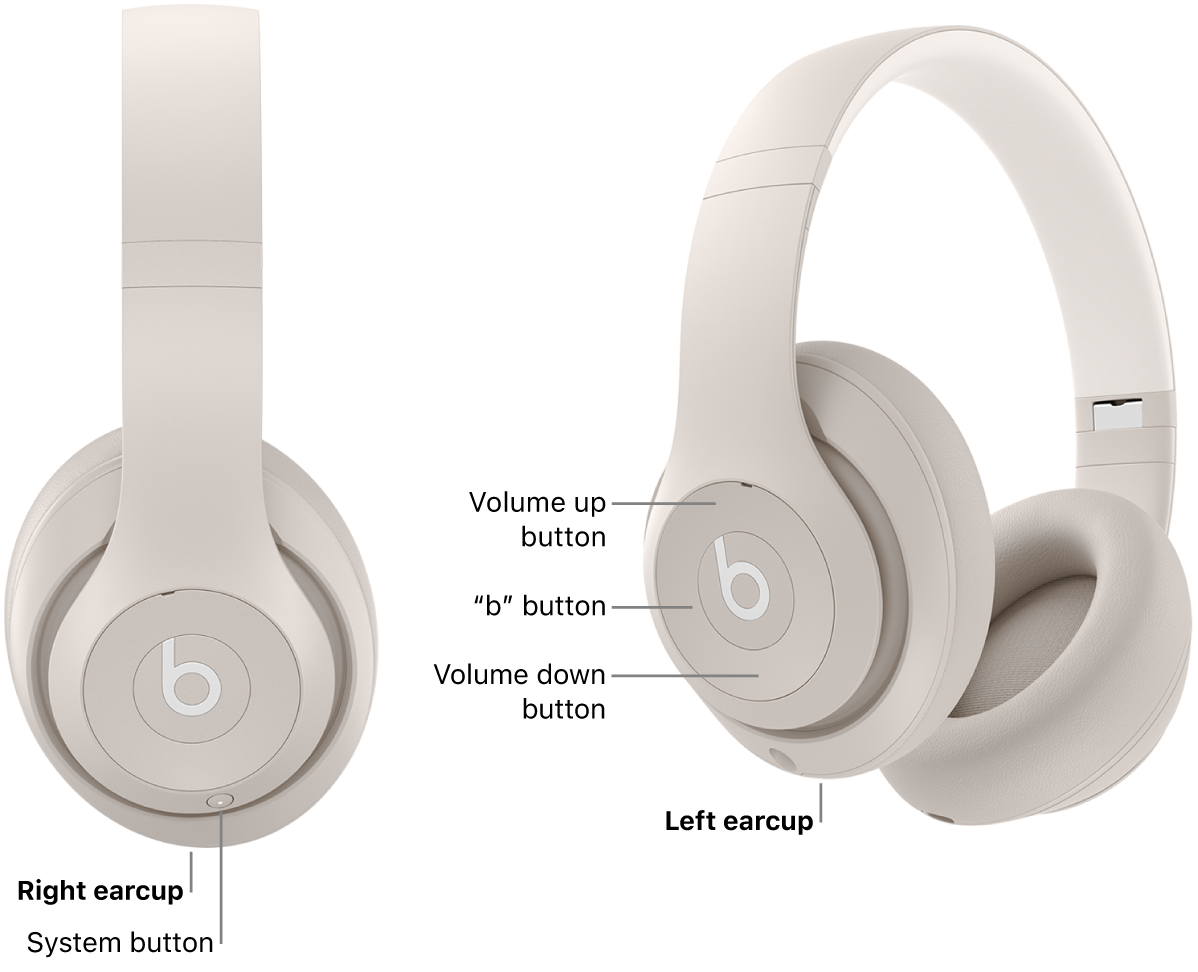
- Find the power button on an earcup.
- Press and hold the power button for about 1–3 seconds.
- Wait for the LED to shut off or for a power-down chime.
True wireless earbuds (Powerbeats Pro, Studio Buds, Fit Pro)
- Place both earbuds in their charging case.
- Close the case lid; earbuds usually power off automatically.
- If they stay on, hold any pairing/power button on the case for a few seconds.
Neckband and inline remote models (Beats Flex, BeatsX)
- Locate the inline power or multifunction button.
- Press and hold until LEDs turn off or you hear a tone.
- For magnetic earbuds, snapping magnets together often enters sleep mode.
Wired Beats (solo wired or standard 3.5 mm)
- Wired models do not have power switches; they draw power from the connected device or have no power to manage.
- To “turn off,” unplug from the audio source and store them safely.
If a model behaves differently, consult its quick start guide. These patterns cover most situations and answer the common question of how to turn off Beats headphones quickly.

Model-specific notes and examples
Some Beats models have small differences. Below are practical, model-focused notes that make it easier to know how to turn off Beats headphones for the most common units.
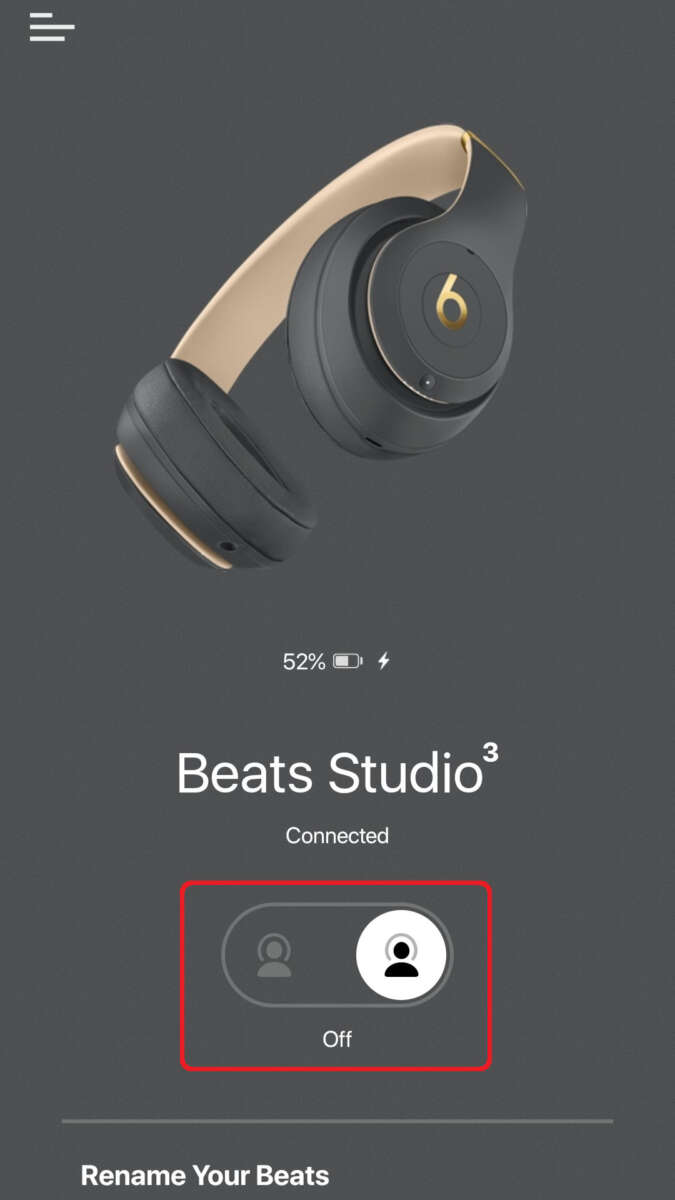
Beats Studio3 (and similar over-ear models)
- Press and hold the power button on the earcup until the light goes off.
- If paired to a device, you may get a tone. Wait for silence to confirm power-off.
Beats Solo3 and Solo Pro (on-ear)
- The power button sits on the earcup. Press and hold for about 2 seconds to turn off.
- Solo Pro has active noise cancellation features; turning off ANC does not always power down the headphones.
Powerbeats Pro (true wireless)
- Place the earbuds in the charging case and close it. They power down and charge automatically.
- Removing them from the case wakes them up.
Beats Studio Buds and Beats Fit Pro
- Putting earbuds in the case and sealing it powers them down.
- Some models show LED status on the case to confirm they’re off or charging.
Beats Flex and neckband models
- Use the multifunction button on the remote to toggle power with a long press.
- For quick sleep, snap the magnetic earbuds together if your model supports it.
If you’re ever unsure about specific timing, press and hold the power button longer (6–10 seconds) to force a shutdown. That often resolves stubborn power states without needing complex resets.
Troubleshooting: when your Beats won’t turn off
If you’re asking how to turn off Beats headphones but they won’t power down, try these steps.
Force hold the power button
- Press and hold the power button for a full 10 seconds. This often forces a shutdown.
Use the charging case
- For true wireless earbuds, return both buds to the case and close it. If one bud is stuck, remove and reseat it.
Disconnect Bluetooth and restart paired device
- Turn off Bluetooth on your phone or computer and try powering off again.
Let the battery drain
- If a firmware hang keeps them awake, let the battery run out fully, then charge and test.
Check for firmware updates
- Updated firmware can fix power management quirks. Use the manufacturer’s app or device settings to update.
Contact support if nothing works
- If a force power-off or battery drain doesn’t help, reach out for repair or replacement. Persistent power issues may indicate hardware failure.
These steps are safe and avoid risky resets. They answer real-world questions about how to turn off Beats headphones when simple methods fail.

Battery-saving habits and power management
Good habits extend battery life and make turning off Beats headphones less of a chore.
Store them charged but not full
- Store headphones with about 30–60% battery for long-term storage.
Use the case for true wireless models
- Always return earbuds to the case when not in use to ensure they power off and stay charged.
Disable always-on features when not needed
- Turn off features like noise cancellation or voice wake if you won't use them for a while.
Keep firmware updated
- Battery and power management are often improved through firmware patches.
Avoid extreme temperatures
- Heat and cold hurt battery life. Store your Beats in moderate conditions.
These simple changes reduce how often you need to think about how to turn off Beats headphones and improve daily reliability.
Personal experience, tips, and things I learned
I’ve used Beats over multiple years and fixed power issues for friends. Here are real tips that helped me and others.
Tip 1: Use the case habit
- I stopped losing battery by always returning earbuds to the case after a session. It became automatic and saved many emergency charges.
Tip 2: Don’t confuse sleep with off
- Once I learned that some Beats go to sleep (still using a tiny bit of power) I started closing Bluetooth on my phone to fully disconnect. That prevented phantom pairing and battery drain.
Tip 3: Force-hold works more often than you think
- When a pair refused to power down, holding the button for 8–10 seconds forced a reset. It felt like a last resort, but it worked in many cases.
Common mistake to avoid
- Don’t leave earbuds stuck in pairing mode when you store them. Pairing mode consumes power and can be avoided by turning the headphones off or putting them in the case.
These small practices answer “how to turn off Beats headphones” in everyday life and make ownership smoother.

Frequently Asked Questions of how to turn off beats headphones
How do I turn off Beats Studio3 headphones?
Press and hold the power button on the earcup for a couple of seconds until the LED turns off or you hear a chime indicating shutdown.
How do I turn off Powerbeats Pro earbuds?
Place both earbuds in their charging case and close the lid; they power off and begin charging automatically when seated correctly.
My Beats won’t turn off — what should I try first?
Press and hold the power button longer (8–10 seconds), return earbuds to their case, or let the battery drain fully before recharging and testing.
Do Beats headphones turn off automatically?
Many models enter sleep mode or power off after inactivity, but the timeout varies by model; check your manual for specifics and use the case for reliable off behavior.
Can I turn off Beats from my phone or the Bluetooth menu?
You can disconnect or forget the device via Bluetooth, but that does not always power the headphones off; use the hardware power method or case to fully power down.
How do I turn off Beats Flex or neckband models?
Use the inline multifunction button and press and hold until the LED goes out or you hear a power-off tone. Magnetic earbuds may enter sleep when snapped together.
Conclusion
Knowing how to turn off Beats headphones is simple once you recognize the type: press and hold the power button for over-ear and on-ear models, or use the charging case for true wireless earbuds. Use the troubleshooting steps if they don’t respond, and adopt battery-friendly habits to avoid frequent shutdown worries.
Try these methods next time you’re done listening and keep a note of your specific model’s behavior. If this guide helped, leave a comment with your model and any quirks you found — or subscribe for more hands-on tips and troubleshooting guides.