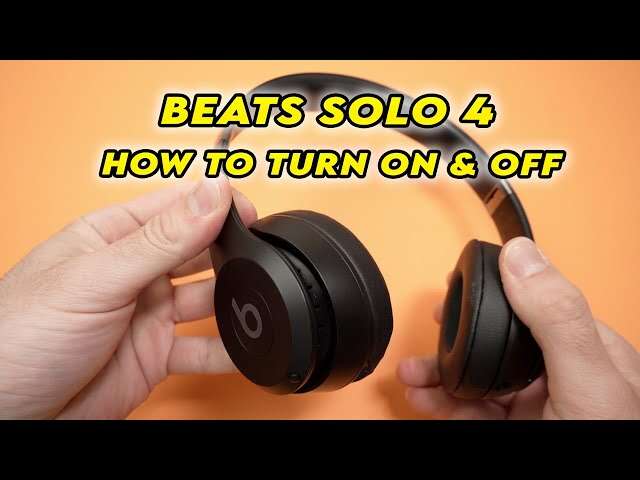
How To Turn Beats Headphones On: Quick Power Guide
Press and hold the power button until the LED and tone confirm the headphones are on and ready.
I’ve spent years testing wireless headphones and fixing connectivity issues. This guide walks you through how to turn Beats headphones on for every common model. You’ll get clear, step-by-step instructions, quick troubleshooting, and real-world tips I learned from hands-on use. Read on and you’ll be powering up your Beats, pairing them, and avoiding common mistakes in minutes.
Quick overview: what turning on Beats headphones looks like
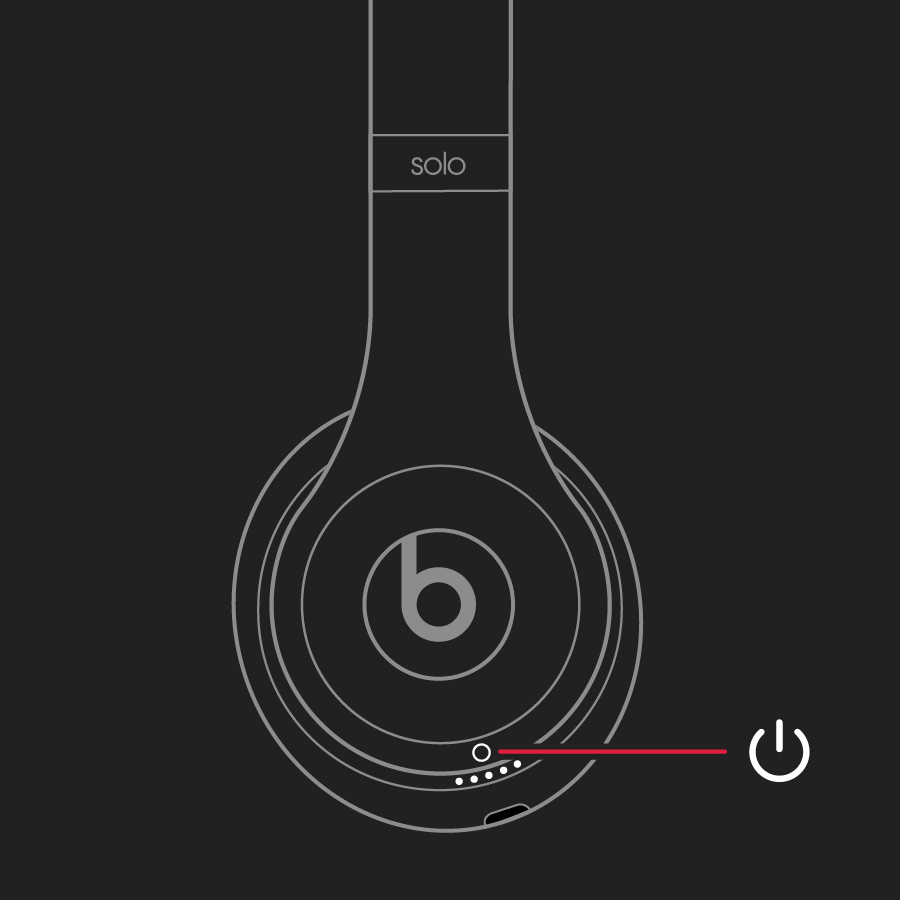
Turning on Beats headphones usually means pressing and holding the power button until you hear a tone or see an LED flash. Some models wake automatically when you unfold them or connect to a device. Knowing your model helps.
Which button turns Beats headphones on
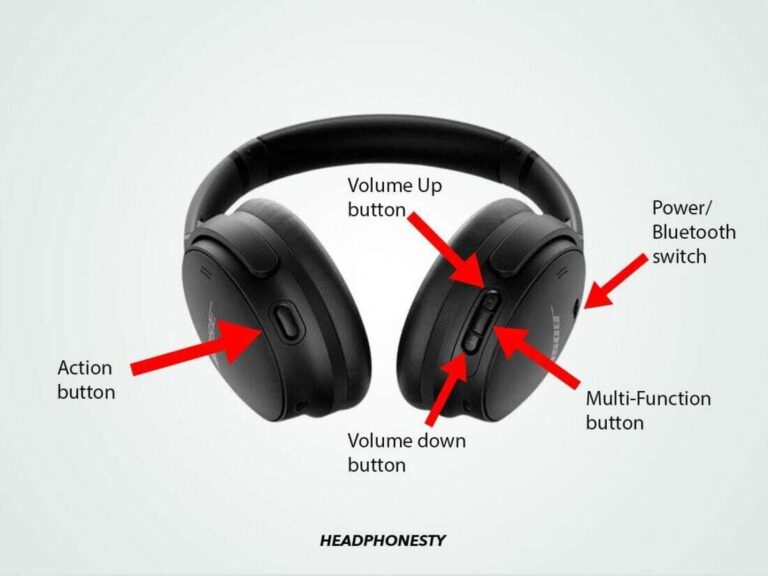
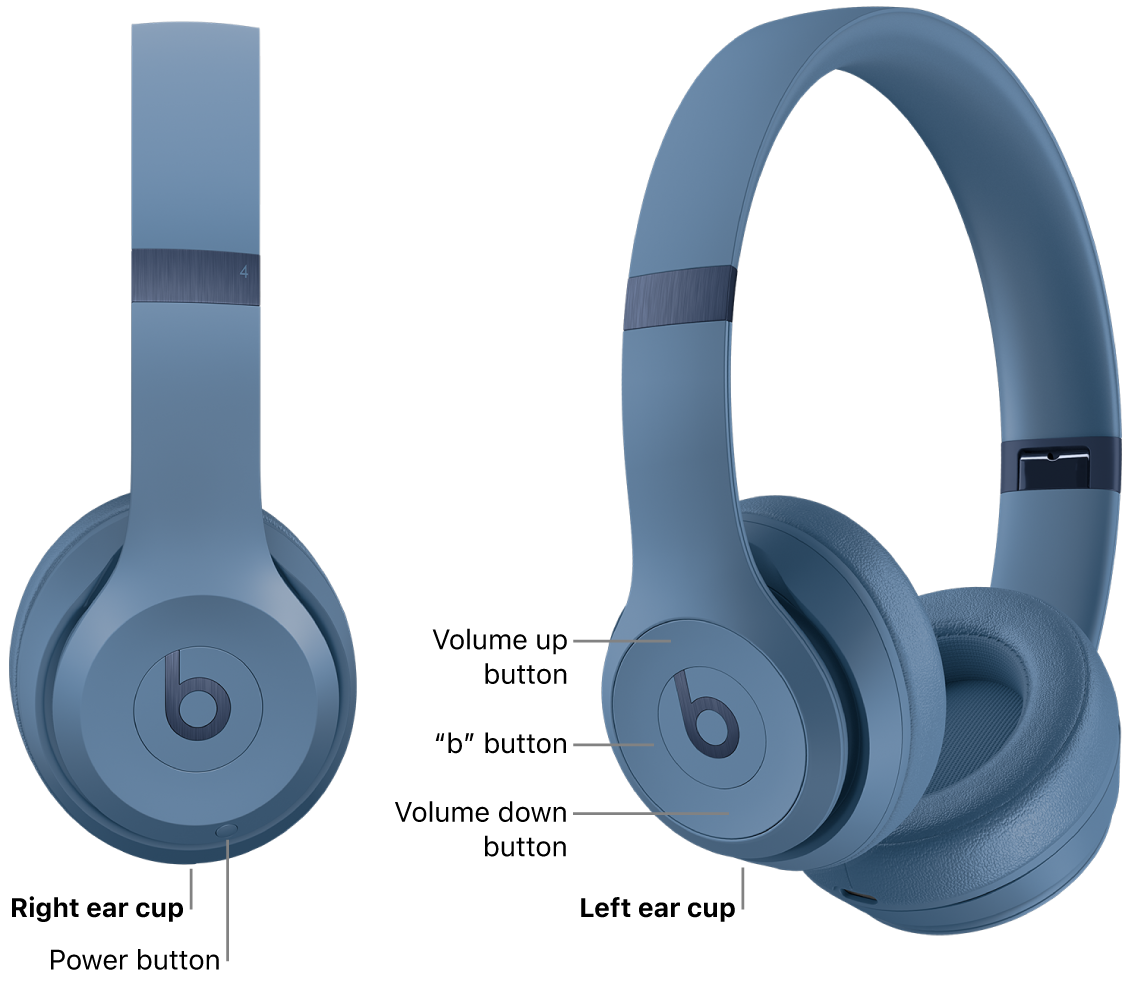
Most Beats models have a single multi-function button for power and pairing. Here’s how to find it:
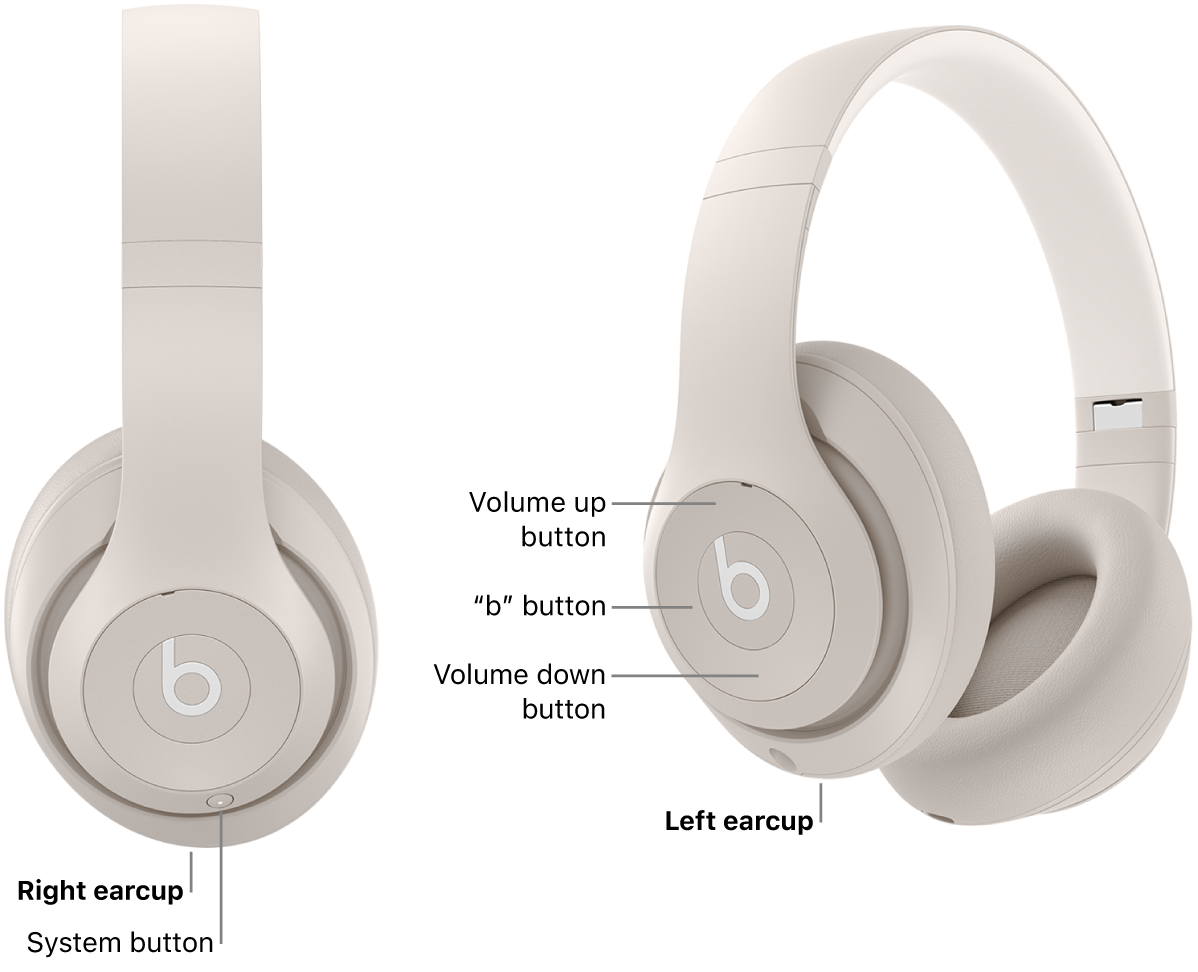
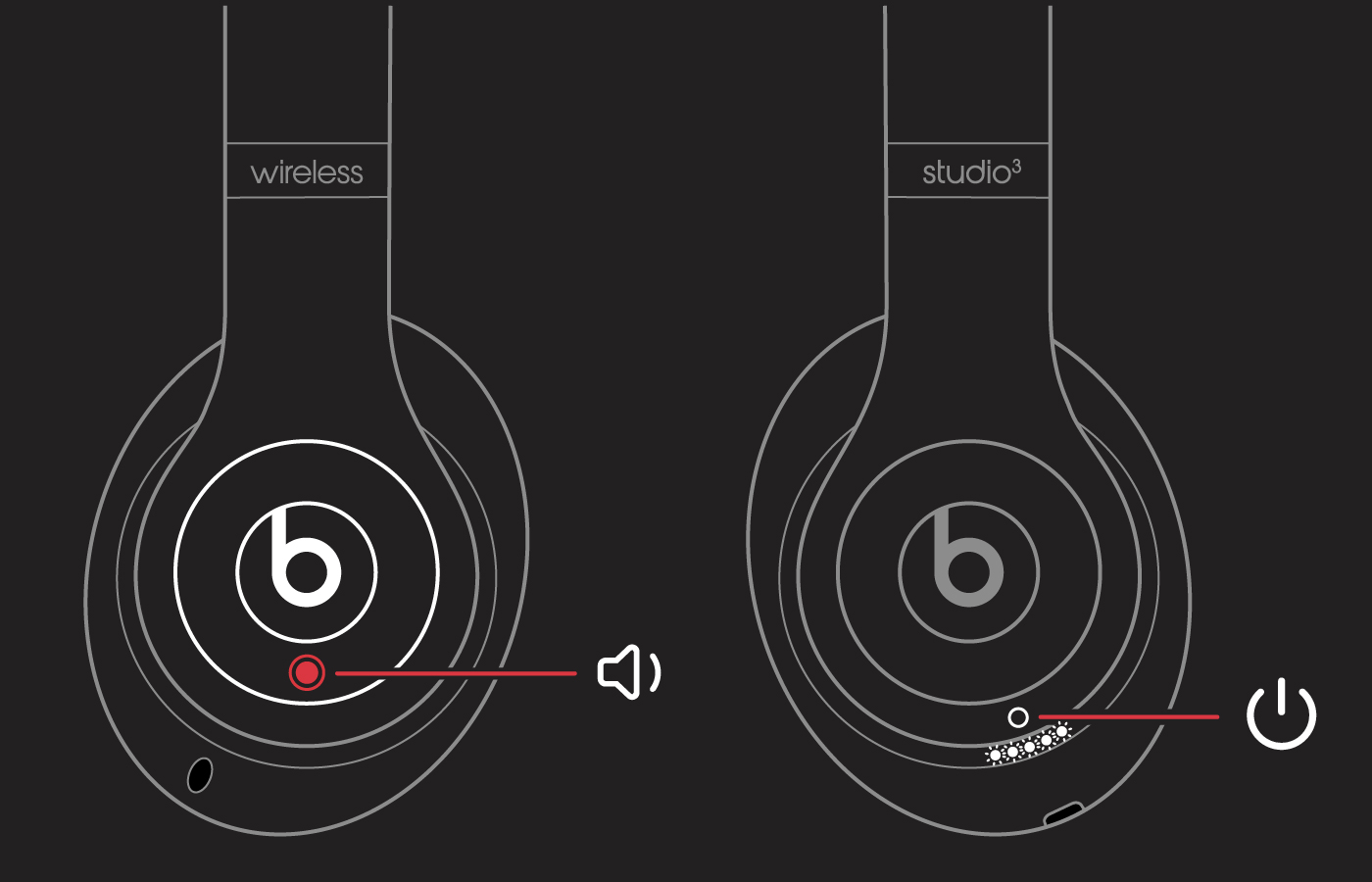
- On over-ear models like Beats Studio and Solo, the power button sits on the right earcup edge.
- On in-ear models like Powerbeats, a small button near the earbud controls power.
- On neckband-style models like Beats Flex, a central remote usually holds the power button.
Knowing the exact button makes turning them on fast and stress-free.

Step-by-step: how to turn Beats headphones on (general method)
Follow these simple steps to power on most Beats headphones:
- Locate the power/multi-function button on your model.
- Press and hold that button for 1 to 3 seconds.
- Listen for a chime or watch for a blinking LED that confirms power and pairing mode.
- If no LED or sound appears, charge the headphones for 10–15 minutes and try again.
This general method covers most Beats devices. If yours behaves differently, skip to the model-specific section.
Model-specific instructions
Beats models behave slightly differently. Use the steps below for your exact device.
Beats Studio and Beats Solo (wireless)
- Press and hold the power button on the right earcup for about 2 seconds.
- Wait for the LED to flash and a tone to say “Power on” or indicate pairing.
- To enter Bluetooth pairing, hold until the LED blinks quickly.
Powerbeats and Powerbeats Pro
- For Powerbeats (wired neckband), press and hold the button near the right earbud until you hear a tone.
- For Powerbeats Pro (true wireless), open the charging case and press the button on the case if needed to wake the buds. Removing them from the case usually turns them on automatically.
Beats Flex
- Press and hold the power button on the inline remote for 1–2 seconds.
- Release when the LED blinks and you hear a power tone.
If your model is older or a different edition, consult the quick steps above or try a short charge.
LED indicators and sounds explained
LED colors and tones tell you what’s happening:
- Solid white or green usually means powered on and connected.
- Blinking white or blue usually indicates pairing mode.
- Red or amber means low battery.
- Two short tones often mean power on; one tone can mean pairing.
These signals help you know whether you successfully turned your Beats headphones on and whether they’re ready to pair.

Troubleshooting: Beats won’t turn on
If your Beats headphones won’t turn on, try these fixes:
- Charge the headphones for at least 30 minutes using the original cable or a high-quality replacement.
- Try a different charging cable and wall adapter to rule out a faulty charger.
- Do a soft reset by holding the power button for 10 seconds. Some models have a separate reset procedure—see the reset section.
- Inspect the charging port for lint or debris and clean gently with a dry brush.
I’ve found that a bad cable is often the culprit. Replacing it solved several “dead” headphones for me.

How to reset Beats headphones
A reset can fix many power and pairing issues. Basic reset steps:
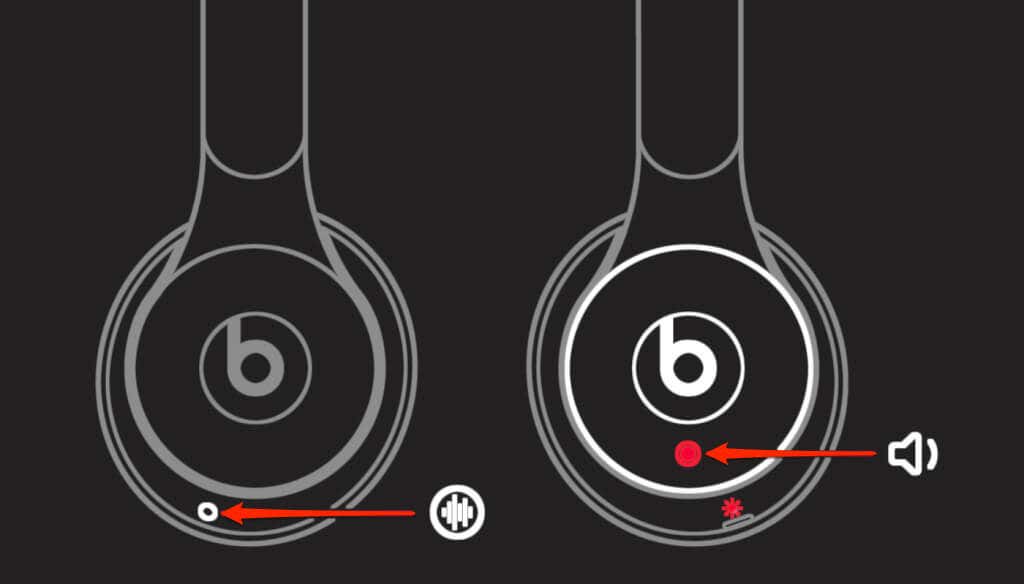
- For most models, hold the power button for 10 seconds until the LED flashes.
- For Beats Studio and Solo, hold power and volume down together for a longer reset if the basic method fails.
- For Powerbeats Pro, place both earbuds in the case and press and hold the case button for about 15 seconds until the LED flashes.
Resetting clears pairing history. Re-pair your headphones after a reset.

Battery care and charging tips
Good battery habits keep your Beats ready:
- Charge fully before long use.
- Avoid letting the battery drain completely often.
- Use quality USB-C or Lightning cables as specified by your model.
- Keep firmware updated when connected to the official app for better battery management.
I recommend topping up after a long session. Regular short charges prolong battery health.
Common mistakes to avoid when turning on Beats headphones
Avoid these common errors:
- Pressing the button too quickly and thinking they’re off. Hold for 1–3 seconds.
- Using a damaged cable that appears to charge but doesn’t deliver enough power.
- Forgetting to check the LED or listen for the tone.
- Skipping a reset when pairing issues persist.
I once tried to pair a set that wouldn’t power on, only to find the cable was frayed inside. A new cable fixed everything.
Pairing after you turn Beats headphones on
Turning on is only step one. To pair after powering on:
- Enable Bluetooth on your phone or device.
- Open Bluetooth settings and select your Beats model name when it appears.
- If asked, accept the pairing request.
If they don’t show up, reset the headphones and try again.
Real-world tips from my experience
Here are practical tips I use every day:
- Keep a spare cable in your bag to avoid dead battery surprises.
- If traveling, power off headphones to save battery and avoid accidental pairing.
- Label the case or the device name in Bluetooth for quick recognition among many devices.
These small habits save time and frustration.
Related concepts and why they matter
Understanding power vs. pairing helps:
- Power on: the device is ready to run.
- Pairing mode: the device is discoverable by Bluetooth.
- Connected: the device is actively linked to a gadget.
Knowing these states helps you troubleshoot and use your headphones efficiently.
Frequently Asked Questions of how to turn beats headphones on
How long should I hold the power button to turn my Beats on?
Hold the power button for about 1 to 3 seconds until you hear a tone or see an LED. Some models require a slightly longer hold to enter pairing mode.
My Beats make no sound when I turn them on. What should I do?
Charge them for at least 15–30 minutes and try again. If charging doesn’t help, try a reset or a different charging cable.
Do Beats headphones turn on automatically when removed from the case?
True wireless Beats, like Powerbeats Pro, usually turn on when removed from the case. Other models may require pressing the power button.
Why is the LED flashing but my device won’t pair?
A flashing LED usually means pairing mode. If it won’t pair, reset the headphones and clear Bluetooth history on your phone before trying again.
Can I turn on Beats headphones without pressing a button?
Some models wake automatically when unfolded or removed from the case. Most still offer a power button for manual control.
Conclusion
Turning on Beats headphones is usually fast and simple: locate the power button, press and hold until a tone or LED confirms power, and pair when needed. Follow the model-specific tips, keep your cables healthy, and use resets when things act up. Try these steps today and you’ll save time and avoid common mistakes. If this guide helped, share your experience in the comments or subscribe for more practical headphone tips.