How To Reset Bluetooth Headphones: Quick Fix Guide
Reset Bluetooth headphones by turning off, unpairing, then using the factory-reset button combo.
I’ve spent years fixing audio gear for friends, clients, and my own messy desk drawer. This guide on how to reset bluetooth headphones covers simple universal steps, brand-specific resets, why resets work, common pitfalls, and quick troubleshooting. Read on and you’ll have a clear, confident plan to get your headphones back to fresh-out-of-box behavior.
Why reset Bluetooth headphones?
Resetting clears pairing data and settings that cause problems. A reset can fix connection drops, one-ear silence, stuck LEDs, and ghost pairings on phones or laptops.
A reset is often faster than chasing firmware updates or changing phone settings. Think of it as reconnecting the headphones to a clean slate. This step is one of the first and most effective measures when learning how to reset bluetooth headphones.

When should you reset Bluetooth headphones?
Reset when basic fixes fail. Try charging, toggling Bluetooth on your phone, and restarting both devices first. If the issue returns or you see persistent error codes, perform a reset.
Reset if you switch primary devices often, give the headphones to someone else, or if pairing lists get full. These are common reasons users need to learn how to reset bluetooth headphones.
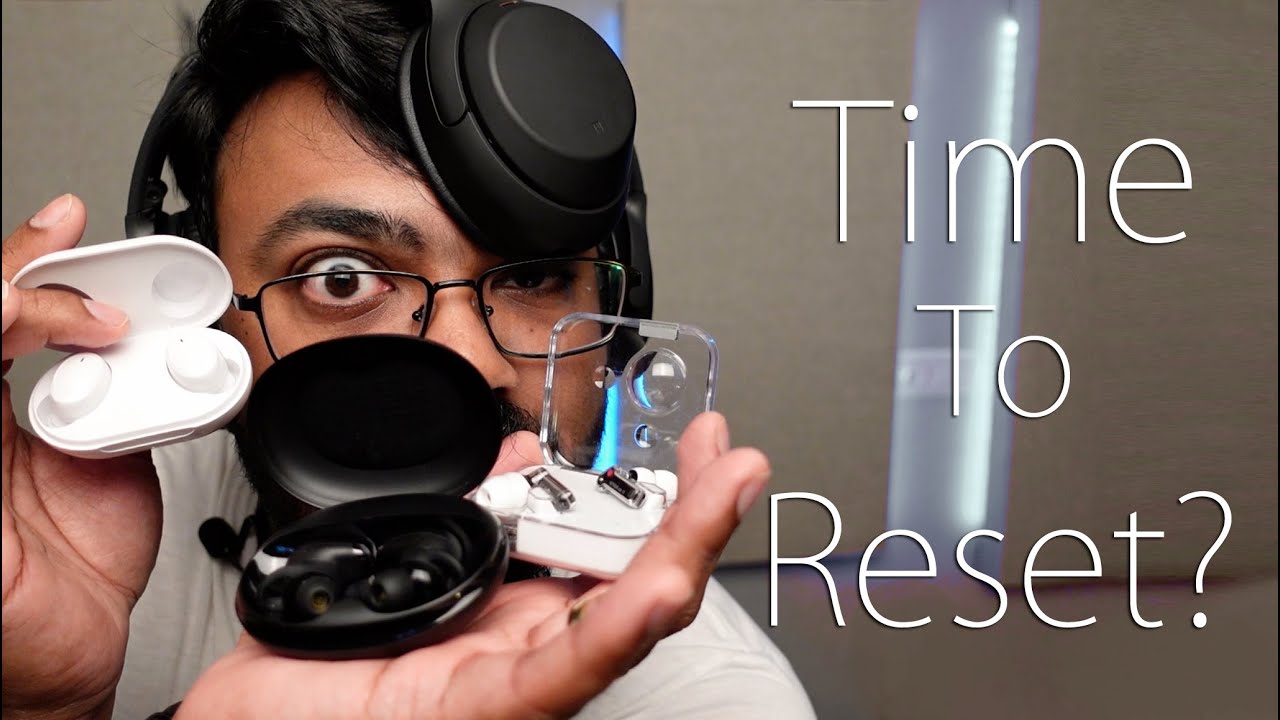
Quick universal steps for how to reset bluetooth headphones
Most headphones follow similar logic: remove stored pairings, then force a factory reset. These universal steps work with many models.
- Charge the headphones
- Plug them in and charge to at least 50 percent. Low battery can block reset routines.
- Forget the device on your phone or PC
- Open Bluetooth settings and remove or forget the headphones.
- Power off fully
- Turn headphones off and wait 10 seconds.
- Use the reset button combo
- Hold the power button and one other function (play/pause, volume +, or pairing) for 10–20 seconds until LEDs flash or you hear a confirmation tone.
- Re-pair the headphones
- Put them into pairing mode and connect from your device as if new.
Notes:
- If your headphones have a dedicated reset pinhole, use a paperclip to press it.
- Some models require holding both earcup buttons at once; consult the manual if unsure.
These steps summarize how to reset bluetooth headphones in a practical, repeatable way.
Brand-specific reset examples
Different brands use slightly different sequences. Below are common patterns for popular models. If in doubt, check your manual or support page for exact timing.
Apple AirPods and AirPods Pro
- Put both AirPods in the case and close the lid for 30 seconds.
- Open the lid, press and hold the setup button until the LED flashes amber then white.
- Reconnect by selecting AirPods on your device.
This method is the standard way to reset Bluetooth headphones from Apple.
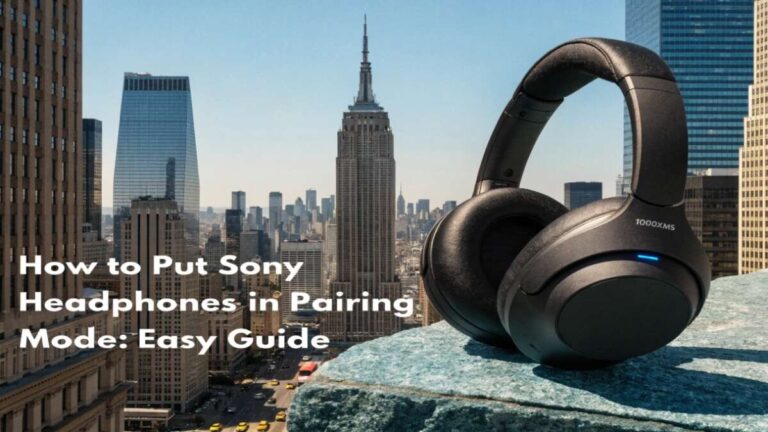
Sony (WH-1000XM and similar)
- Power off the headphones.
- Press and hold power and the NC/Ambient button for about 7 seconds until the indicator blinks blue and red.
- Use the Sony Headphones Connect app to finish setup.
Sony often uses multi-button holds when explaining how to reset bluetooth headphones.
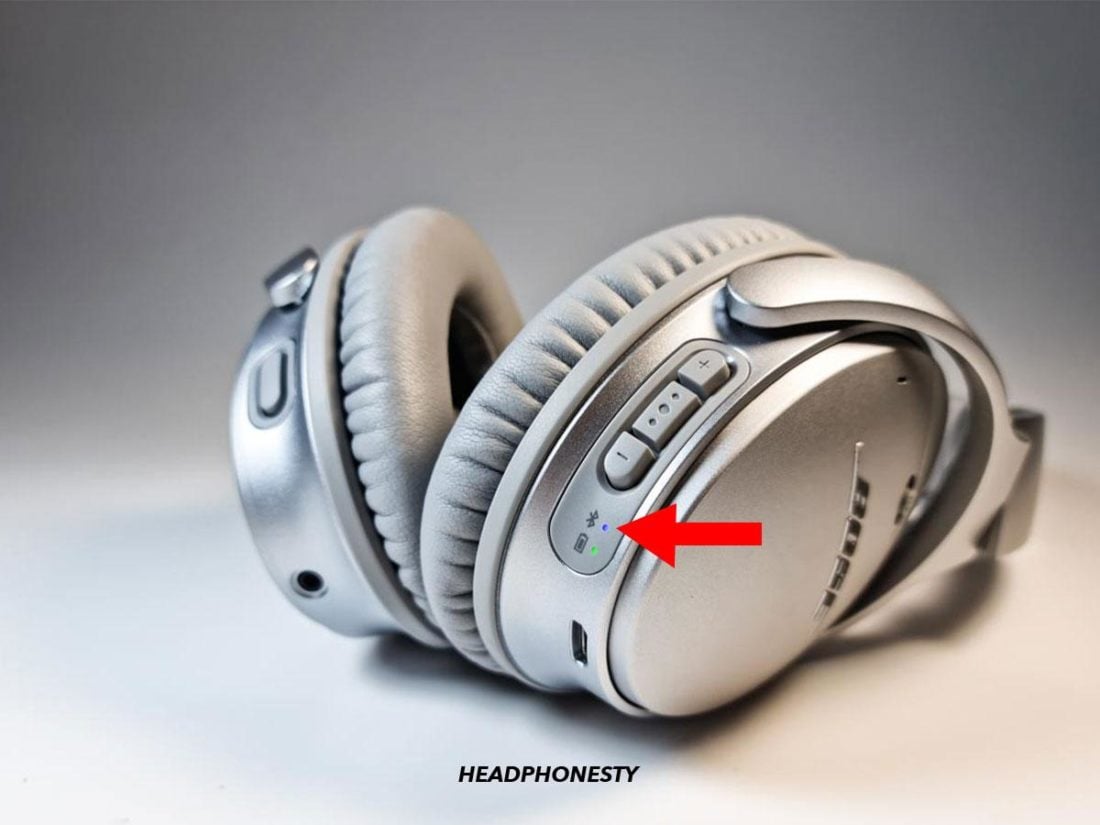
Bose (QuietComfort and Headphones 700)
- Power off the headset.
- Press and hold power for 10 seconds until you hear “Bluetooth device list cleared.”
- Re-pair from your device.
Bose gives a voice prompt when the reset completes.
Beats (Solo, Studio, Powerbeats)
- Hold power and volume down for 10 seconds (model-dependent).
- Indicator light will flash; re-pair via Bluetooth settings.
Beats models differ, so follow the exact combo for your unit when learning how to reset bluetooth headphones.
Samsung Galaxy Buds
- Place buds in case, keep case lid open.
- Press and hold the touchpads for 10 seconds or use the Galaxy Wearable app to reset.
- Reconnect from your phone.
Compact true-wireless earbuds often use the case plus touch controls to reset.
Jabra Elite series
- Turn on and then press and hold the multi-function button for 10 seconds.
- LED will flash purple/blue to indicate a reset.
- Use the Jabra Sound+ app or Bluetooth settings to re-pair.
These brand examples show common patterns for how to reset bluetooth headphones across the market.

Troubleshooting after reset
If pairing still fails after you learn how to reset bluetooth headphones, try these steps.
- Restart your phone or laptop and toggle Bluetooth off/on.
- Delete any conflicting device profiles on computers, like old headset entries.
- Check for firmware updates in the brand app and install them.
- Test with another phone to rule out device-specific issues.
- If one ear is silent after reset, check mono/stereo settings and inspect the jack or earbud for debris.
If none of these help, contact support for potential hardware repairs or replacement.
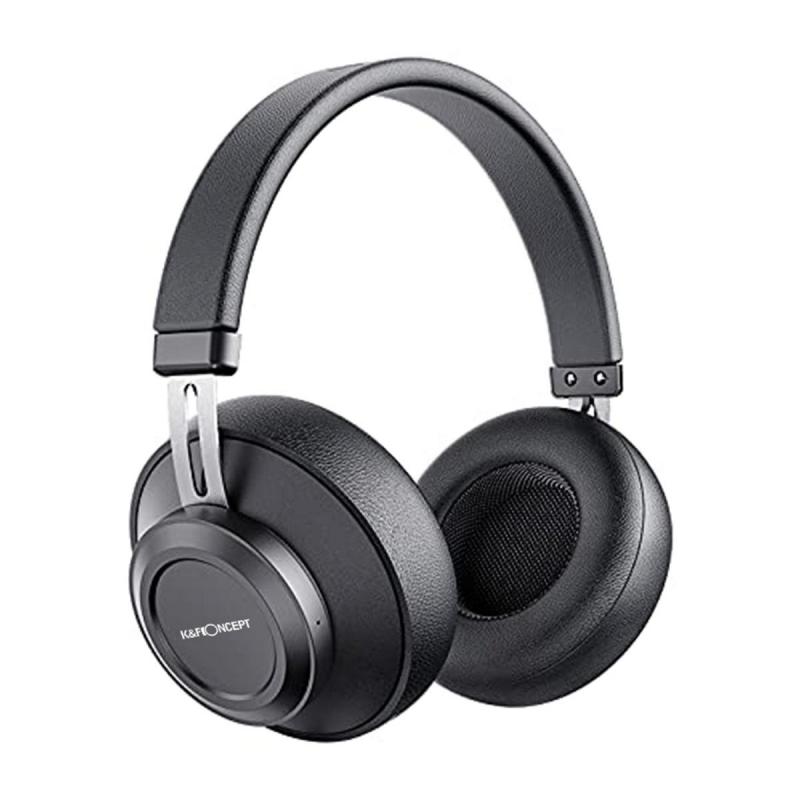
What a reset actually does and why it helps
A reset clears the headphones’ internal paired-device list and restores default Bluetooth settings. That removes corrupted pairings, forgotten firmware states, and custom EQ or gesture settings that can cause issues.
Bluetooth devices store limited pairing slots; when full, new devices won’t pair. Resetting makes space. Resetting also forces the headphones to re-initiate secure key exchange, which clears mismatched encryption states that can block audio.
Understanding this helps when diagnosing why you need to reset Bluetooth headphones again.

Personal experience and practical tips
I once helped a client whose headset refused to connect to any device. We reset the headphones, unpaired them from every gadget, and re-paired. The fix took 10 minutes. Lesson: always remove old pairings on phones before re-pairing.
Tips I use:
- Keep one device as the “primary” to avoid repeated resets.
- Record the reset steps for each model you own.
- Update firmware monthly to prevent bugs that lead to resets.
These small habits reduce the frequency you need to learn how to reset bluetooth headphones.
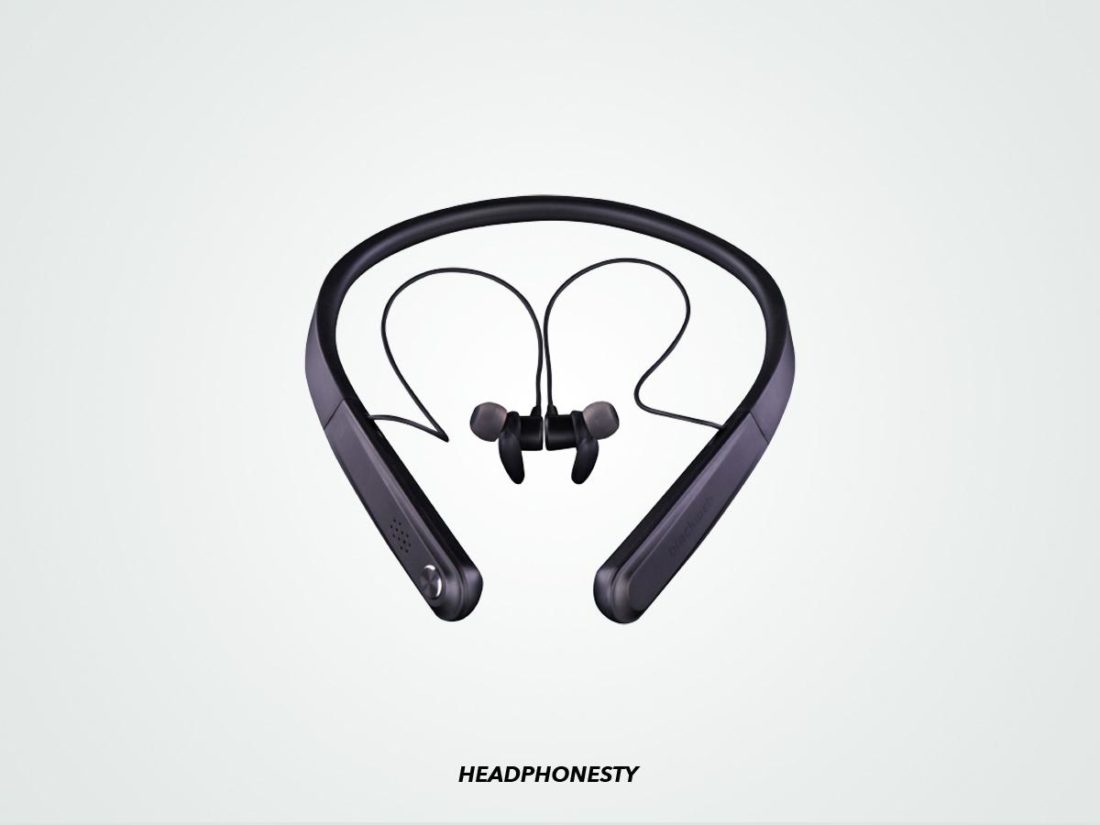
Common mistakes to avoid
- Trying to reset with low battery. This can hang the process.
- Forgetting to remove the device from your phone before re-pairing.
- Using the wrong button combo and assuming the reset succeeded.
- Not checking the manual for model-specific steps.
- Skipping firmware updates after a reset.
Avoid these mistakes and resetting will be quick and reliable.
Quick questions users often ask
Can resetting damage my headphones?
A reset does not physically harm headphones. It removes saved settings and pairings but does not void warranty or erase firmware.
How long does a reset take?
Most resets complete in 10–30 seconds of holding buttons, plus a minute to re-pair with your device.
Will reset fix battery drain?
Reset can help if a software bug causes excessive drain. If hardware causes drain, a reset won’t solve it.
These short answers help with the immediate things people search when learning how to reset bluetooth headphones.
Frequently Asked Questions of how to reset bluetooth headphones
How do I reset Bluetooth headphones without a manual?
Try the universal method: forget the device on your phone, power off, then hold power and a function button for 10–20 seconds. Look for flashing LEDs or voice prompts to confirm.
Will I lose equalizer settings after a reset?
Yes. A factory reset typically removes EQ settings and saved preferences. You’ll need to reapply them in the app or device.
Why do my headphones reconnect to the wrong device after resetting?
They may auto-pair with the last active device nearby. Turn Bluetooth off on other devices while you pair to avoid this.
My headphones blink but won’t pair after reset. What now?
Delete the entry from your phone’s Bluetooth list, restart the phone, then put headphones into pairing mode again. If still failing, try pairing with another device to isolate the problem.
How often should I reset Bluetooth headphones?
Only when you face persistent problems you can’t fix with basic troubleshooting. Frequent resets are not necessary and won’t prevent hardware failures.
Conclusion
Resetting is a simple, powerful tool that clears pairing conflicts and software hiccups. Use the universal steps first, follow brand-specific guidance when needed, and apply the troubleshooting tips here to get stable connections fast. Try a reset next time your audio stumbles, keep firmware updated, and share your results or questions below — your next listen should be smooth and simple.