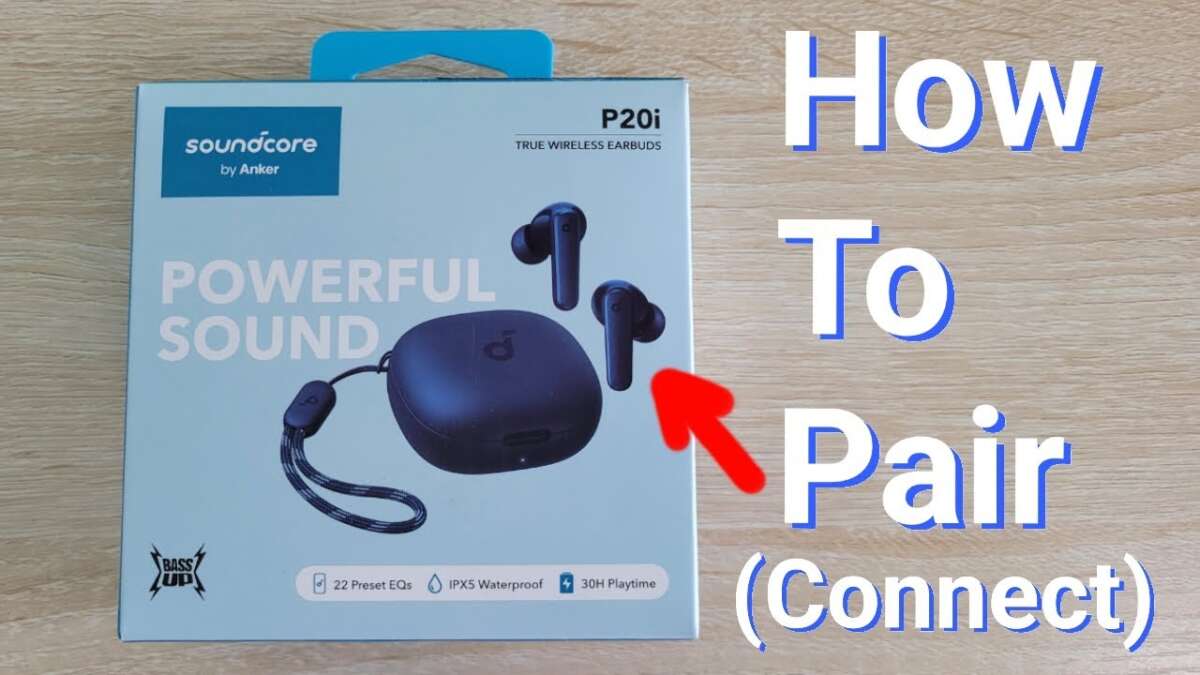
How To Pair Soundcore Headphones: Quick Pairing Guide
Turn on pairing mode on your Soundcore headphones and select them from your device’s Bluetooth list.
I’ve paired dozens of Soundcore models across phones, tablets, and laptops. This guide explains exactly how to pair Soundcore headphones with any device, step by step, and how to fix common problems fast. Read on for clear actions, real-world tips from my experience, and tested troubleshooting so you can get reliable audio in minutes.

Step-by-step pairing guide for Soundcore headphones
Knowing how to pair soundcore headphones is simple when you follow a short checklist. I’ll walk you through the general process most Soundcore models use. Keep your device nearby and the headphones charged.
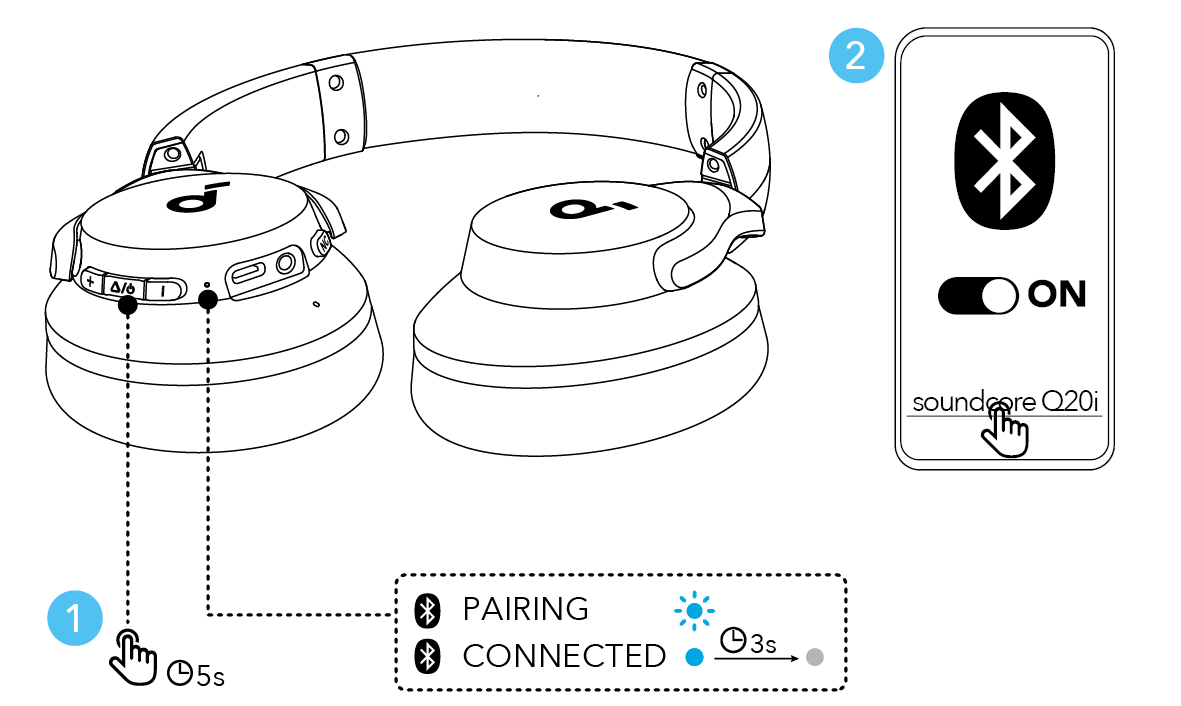
- Turn on the headphones
- Press and hold the power button until you hear a voice prompt or see a flashing LED. This typically takes 2–4 seconds.
- Enter pairing mode
- If the lights flash blue and red or you hear “pairing,” the headphones are in pairing mode. Some models require holding the power button longer to enter pairing mode.
- Open Bluetooth on your device
- On your phone or laptop, open Bluetooth settings and make sure Bluetooth is on.
- Find and select the headphones
- Look for a name like “Soundcore Life P2” or “Soundcore Liberty” and tap to connect.
- Confirm the connection
- You should hear a confirmation sound or voice. The LED may change to a steady light.
If connection fails, turn Bluetooth off and on, and retry the steps. Learning how to pair soundcore headphones this way covers most models and scenarios.
Pairing with different devices
Different devices require tiny tweaks. Here’s how to pair Soundcore headphones with common devices.
Android phones and tablets
- Open Settings > Bluetooth.
- Turn Bluetooth on and scan.
- Tap the Soundcore name to connect.
- If pairing fails, clear old pairings on Android and on the headphones by resetting them.
iPhone and iPad
- Open Settings > Bluetooth and stay on the Bluetooth screen.
- Put the headphones into pairing mode.
- Tap the Soundcore name when it appears.
- If prompted, accept pairing requests or enter a PIN (0000 or 1234 are typical).
Windows PC
- Open Start > Settings > Devices > Bluetooth & other devices.
- Click Add Bluetooth or other device > Bluetooth.
- Choose the Soundcore device from the list and connect.
Mac
- Open System Settings (or System Preferences) > Bluetooth.
- Turn Bluetooth on and click Connect next to the Soundcore name.
Smart TVs and game consoles
- Enter your TV or console Bluetooth settings.
- Put the headphones in pairing mode.
- Select the Soundcore device from the list. Note that some TVs require a Bluetooth transmitter for low-latency audio.
Knowing how to pair soundcore headphones across these devices helps avoid wasted time and guesswork.
Troubleshooting common pairing issues
You may need to troubleshoot if pairing stalls. Below are direct fixes I use when I see problems.
No device found
- Ensure the headphones are in pairing mode and not already connected to another device.
- Restart Bluetooth on your device and move closer to the headphones.
Connected but no audio
- Check output device in media or system settings and choose the Soundcore headphones.
- Restart the app playing audio and confirm volume is up on both devices.
Drops or poor sound quality
- Make sure only one device is connected unless your model supports multipoint.
- Update headphone firmware and device Bluetooth drivers.
Headphones won’t enter pairing mode
- Fully power off, then hold the power button longer (10 seconds) to force reset.
- Check battery level—very low battery can block pairing.
Pairing loop or stuck “pairing”
- Delete the Soundcore entry from your device’s Bluetooth list and re-pair.
- Reset the headphones to factory settings (model-specific steps below).
When you learn how to pair soundcore headphones with these fixes, you’ll be back listening faster.

Model-specific reset and pairing tips
Some Soundcore models have small differences. Here are common model tweaks and reset steps.
True wireless earbuds (Liberty, Life P, etc.)
- Place both earbuds in the case. Close and open the case, then press and hold the button on the case or touch sensors to reset pairing.
- If only one earbud connects, put them back in the case, remove the single earbud’s pairing record on your device, then retry.
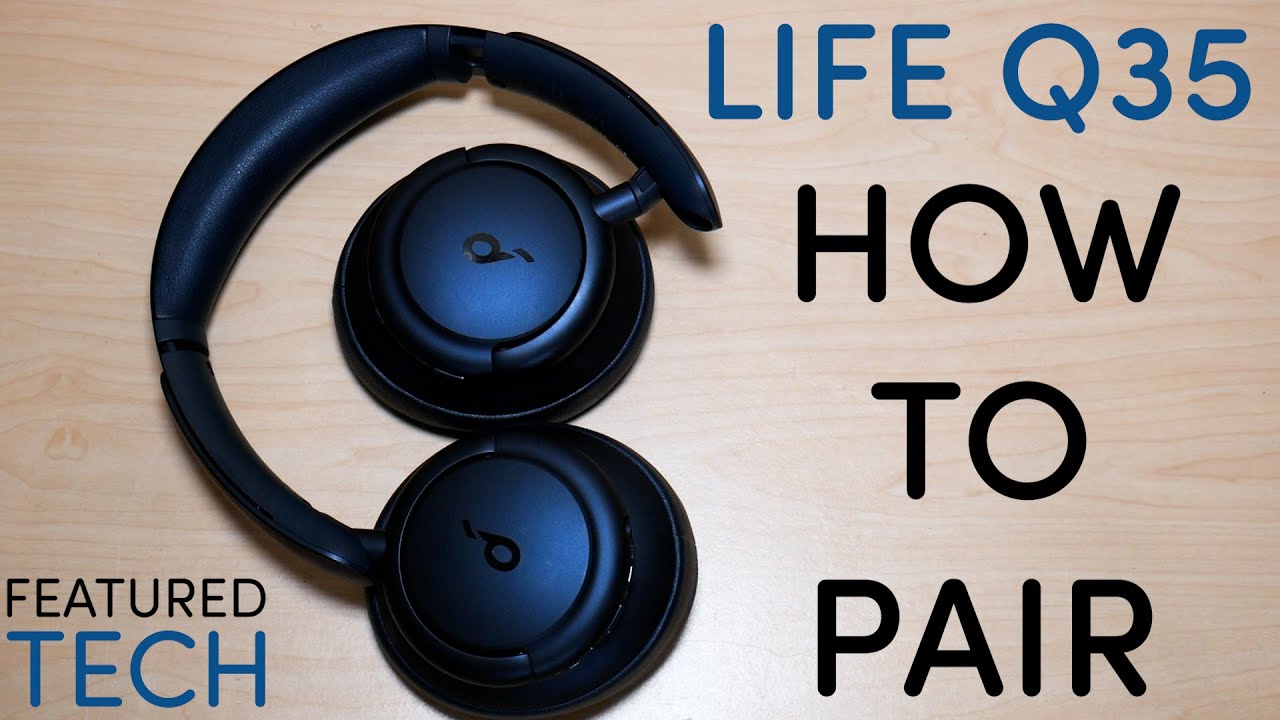
Over-ear and on-ear (Space Q, Life Q series)
- Hold power and volume up together for 5–10 seconds to trigger a reset on some models.
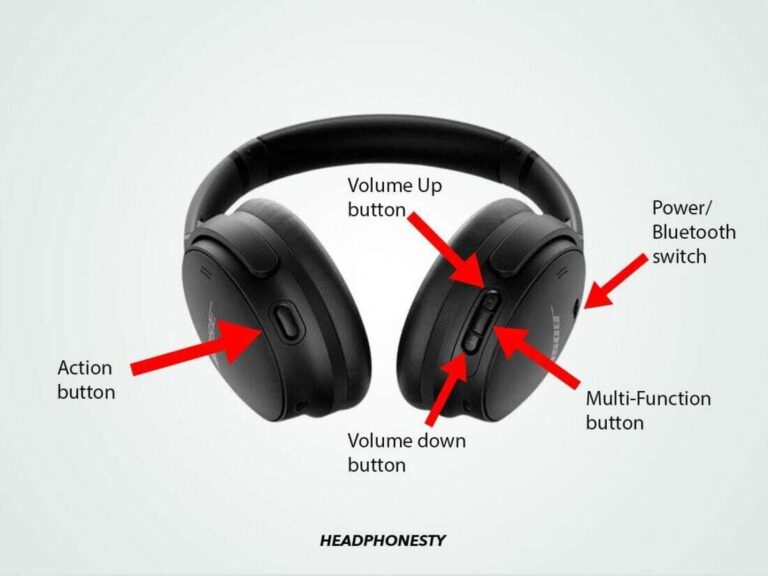
- Some models use a dedicated pairing button near the power switch.
Firmware update
- Use the Soundcore app to check firmware. Updating can clear stubborn pairing bugs and improve stability.
Factory reset general method
- Turn the headphones off. Hold the power and paired-function buttons together until LEDs flash or voice prompt confirms reset. Then re-enter pairing mode.
These model-specific steps make it easier to understand how to pair soundcore headphones no matter which model you own.
Advanced tips, multipoint, and app features
Soundcore headphones often support advanced features. Use them to improve pairing and performance.
Multipoint pairing
- Multipoint lets you connect to two devices at once. Enable it in the Soundcore app or check your manual.
- When using multipoint, prioritize the device you want to use for media. Calls often take priority.
Low latency and gaming mode
- Some Soundcore models offer a gaming mode for lower latency. Enable it in the app before pairing for consistent results.
Battery and power habits
- Keep firmware and app updated.
- Charge headphones to at least 30% before pairing to avoid connectivity issues.
Security and privacy
- Avoid pairing in public spaces when possible.
- Forget the device from public gear after use.
With experience, I found that using the Soundcore app reduces pairing friction. The app guides firmware updates and shows device status, which makes learning how to pair soundcore headphones faster and more reliable.

Personal experience and practical tips
I’ve paired Soundcore headphones with many devices in real-world setups. Here are the insights I picked up.
Lessons learned
- Always check battery before blaming Bluetooth. Low power causes most pairing bugs.
- Close competing Bluetooth apps. Background apps sometimes keep a headset busy.
- Keep an eye on the Soundcore app for firmware notices and tips.
Mistakes to avoid
- Don’t assume your phone will auto-connect—sometimes you must select the device.
- Don’t try to pair more than two devices with models that don’t support multipoint.
Quick, practical workflow I use
- Charge the headphones.
- Open Bluetooth on device and put headphones in pairing mode.
- Select and confirm sound output.
- Open the Soundcore app and check firmware.
Learning how to pair soundcore headphones through trial saves time. These small habits cut troubleshooting by half and keep audio reliable.

PAA-style questions (common quick queries)
What should I do if my device won’t find Soundcore headphones?
- Restart Bluetooth on your device, make sure headphones are in pairing mode, and move closer. If needed, reset the headphones and try again.
Can I pair Soundcore headphones to two devices at once?
- Many Soundcore models support multipoint pairing for two devices. Check the model specs or the Soundcore app to confirm and enable it.
Do I need the Soundcore app to pair?
- No. You can pair without the app, but the app simplifies firmware updates and advanced settings.
How long does pairing take?
- Pairing usually takes under a minute. If it takes longer, restart both devices and retry.
Is a PIN required to pair Soundcore headphones?
- Most models pair without a PIN. If asked, try 0000 or 1234.

Source: soundcore.com
Frequently Asked Questions of how to pair soundcore headphones
How do I put my Soundcore headphones into pairing mode?
Press and hold the power button until you hear a voice prompt or see flashing lights indicating pairing mode. Check your manual for model-specific button combos.
Why won’t my phone find my Soundcore headphones?
Common reasons are low battery, headphones already connected to another device, or Bluetooth on the phone is off. Restart both devices and retry.
How do I reset my Soundcore headphones to factory settings?
Turn off the headphones, then hold down the power and function buttons together until the LEDs flash or you hear a reset prompt. Steps vary by model, so consult the manual if unsure.
Can I use the Soundcore app to help pair headphones?
Yes. The Soundcore app shows device status, helps with firmware updates, and can guide pairing for some models. It’s optional but useful.
What if audio keeps dropping after pairing?
Try removing other nearby Bluetooth devices, update firmware, and ensure no Wi-Fi interference. If the problem persists, reset the headphones and re-pair.
Conclusion
You now have clear, practical steps for how to pair soundcore headphones with phones, computers, and TVs. Start by ensuring good battery, enter pairing mode, and select the Soundcore device on your host device. If you hit a snag, use the reset and firmware tips above. Try these steps now and you’ll likely be listening in under five minutes. If this guide helped, leave a comment, share your model and experience, or subscribe for more tips.