How to Pair Skullcandy Headphones: Quick & Easy Guide
You just bought new headphones. That is great!
The box looks cool. The design is sleek. You can already imagine the bass hitting your ears. You are ready to rock. But, there is a problem. You have to connect them first.
We have all been there. You press a button. You wait. Nothing happens. You press it again. Still nothing. It can be annoying.
I remember my first time with the Skullcandy Indy earbuds. I was at the gym. I was ready to lift. I put them in. Only the right side worked. The left side was silent. I spent twenty minutes tapping my ear. I looked silly. I felt frustrated. I ended up working out in silence.
I do not want that to happen to you.
I have tested dozens of audio devices. I know Skullcandy gear inside and out. From the big Crusher headphones to the tiny Dime earbuds.
In this guide, we will fix your problem. We will make it easy. We will go step-by-step. By the end, you will be a pro.
Let’s get your music playing.
Getting Ready: The Pre-Pairing Checklist
Before we push buttons, we need to prep.
Bluetooth is like a radio. It needs power. It needs a clear signal. If you skip this, you might fail. So, let’s do it right.
Check the Battery
First, charge your headphones.
New headphones usually have some power. But it might be low. Low battery causes weird bugs.
If the battery is red, plug it in. Wait for the green light. A full battery makes pairing faster.
Remove the Stickers
This is for earbud owners.
Open the case. Look at the metal pins on the buds. Is there a blue plastic film?
Take it off!
I once spent an hour helping a friend. His Skullcandy wireless headphones won’t connect. Why? The sticker was blocking the charger. The buds were dead.
Peel it off. Put them back in the case. Let them wake up.
Turn Off Other Devices
Bluetooth is sticky.
If your headphones were paired to your old phone, they will find it. They will stick to it.
Turn off Bluetooth on your iPad, old phone, or laptop. This forces the headphones to look for a new friend.
Credit: hometheaterreview.com
Identifying Your Skullcandy Model Type
Skullcandy makes many types of headphones. They all pair differently.
We need to know what you have.
Are they big? Do they go over your head?
Or are they tiny? Do they go in your ear?
The Three Main Types
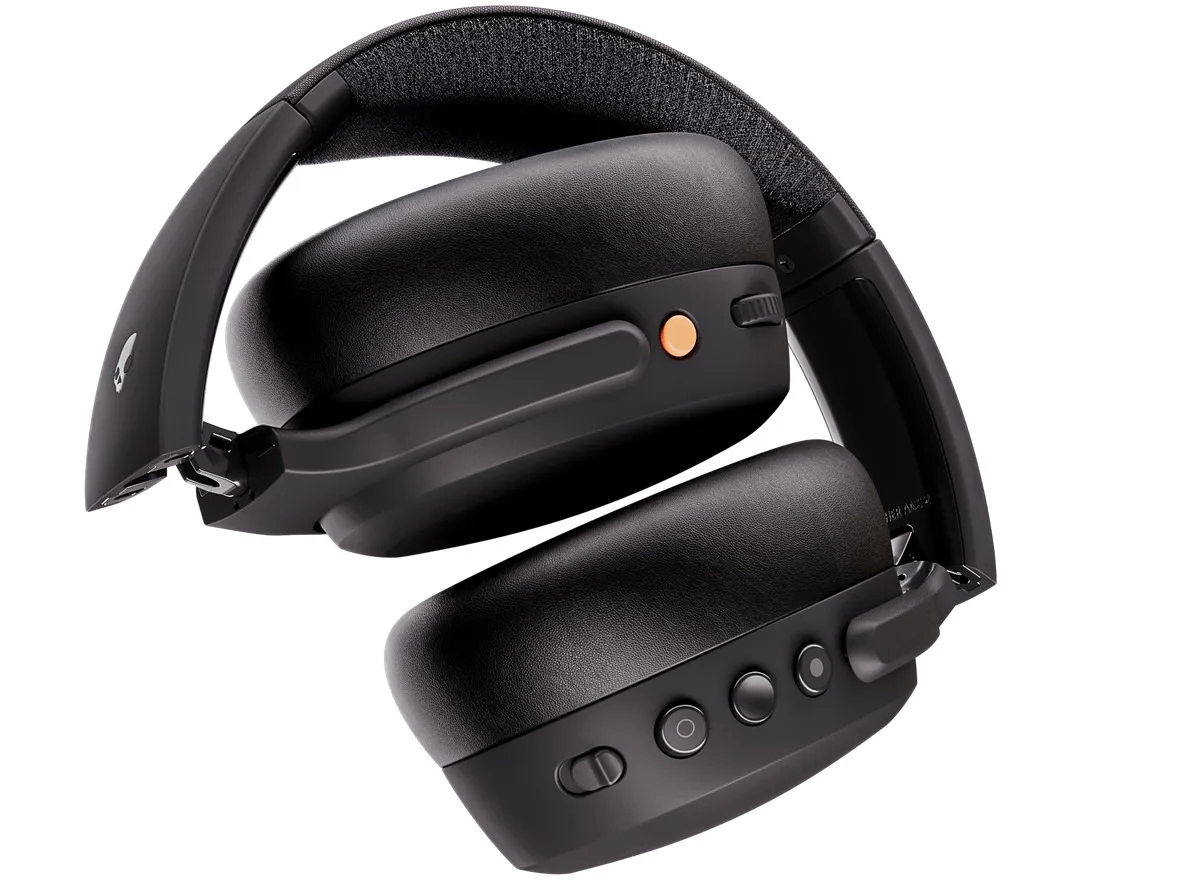
- Headband (Over-Ear): These are models like Crusher, Hesh, Riff, and Cassette. They have real buttons.
- True Wireless (Earbuds): These are models like Indy, Sesh, Dime, Push, and Mod. They usually use touch sensors.
- Neckband: These have a wire connecting the two buds. Models like Ink’d or Method.
Identify your type. Then, scroll to that section below.
How to Pair Skullcandy Headband Models (Crusher, Hesh, Riff)
Do you have the big headphones? Great. These are usually the easiest to pair.
I love the Crusher Evo. The bass is insane. But the button layout can be tricky.
Step 1: Power Off First
Start with the headphones off. If you see a light, hold the power button until it goes dark.
Step 2: The Magic Hold
Now, find the power button again. It is usually the middle button.
Press it. Do not let go.
You will hear “Power On.” Keep holding.
Wait for about 5 seconds.
You will hear a second voice say “Pairing.”
Step 3: Watch the Lights
Look at the tiny LED light.
It should flash Red and Blue. Or maybe just Blue very fast.
This is Skullcandy pairing mode.
Step 4: Connect
Go to your phone. Open Bluetooth settings. Scan for devices.
You will see “Skullcandy Crusher” (or your model name).
Tap it.
You should hear “Connected.”
My Tip: If it asks for a PIN, type “0000”. But this rarely happens these days.
How to Pair Skullcandy True Wireless Earbuds (Indy, Sesh, Push)
These are trickier. You have two devices (left and right). They need to talk to each other first. Then, they talk to the phone.
Let’s get these buds connected.
Method A: The Case Method
Most new models are smart.
- Open the lid of the charging case.
- Do not take them out yet.
- Look at the lights on the buds. Are they flashing?
- If yes, check your phone. They should appear.
Method B: The Manual Way
If the case method fails, try this.
- Take both buds out.
- Touch and hold the sensor on BOTH buds.
- Hold for about 4 to 6 seconds.
- They will turn off.
- Let go. Then, touch and hold again for 4 seconds.
- They will turn on.
- One bud will flash Red/Blue. The other might stay blue.
- This means they are ready.
Important Note:
You must pair the left to the right first.
If you see “Skullcandy Indy” twice on your phone list, stop.
This means they are not synced. Put them back in the case. Try again. You want to connect Skullcandy earbuds as one unit, not two.
Credit: support.skullcandy.com
Special Guide: Pairing the Skullcandy Dime Series
The Dime earbuds are very small. They are cheap and great. But the case is different.
The lid has holes. You can see the buttons.
How to Pair Dime
- Keep the buds in the case.
- Leave the lid open.
- Take them out.
- If they are new, they auto-pair.
- If not, press the button on the bud (not the case) for 4 seconds.
- Dime has a physical click button. It is not touch. You have to press hard.
- Wait for the flashing light.
I keep a pair of Dimes in my car. They are reliable. But you have to press the button firmly.
Connecting to Your iPhone or iPad (iOS)
Okay, your headphones are flashing. They are screaming “Pair with me!”
Now, let’s look at your phone.
If you have an iPhone, follow this.
- Unlock your iPhone.
- Find the Settings App. It looks like gears. Tap it.
- Tap Bluetooth. It is near the top.
- Check the Toggle. Is it green? If not, tap it to turn it on.
- Scroll Down. Look at “Other Devices.”
- Wait. You will see a spinning wheel.
- Spot the Name. Look for “Skullcandy [Model Name].”
- Tap It.
- Listen. Your headphones will beep or say “Connected.”
Pro Tip:
If it does not show up, toggle Bluetooth off. Then on again. This refreshes the search.
Connecting to Android Phones
Android phones are smart. Sometimes, they do the work for you.
Google Fast Pair
Some Skullcandy models support this.
- Turn on Bluetooth on your phone.
- Put headphones in pairing mode near the phone.
- A picture of the headphones pops up on your screen.
- Tap “Connect.”
- Done!
The Manual Way
If the picture does not pop up, do this.
- Go to Settings.
- Tap Connected Devices or Connections.
- Tap Bluetooth.
- Tap Pair New Device.
- Wait for the list.
- Select your headphones.
Note on Audio Codecs:
Android lets you choose sound quality. Once connected, click the gear icon next to the headphone name. Ensure “HD Audio” or “aptX” is turned on. This makes the music sound better.
Credit: hometheaterreview.com
How to Connect Skullcandy Headphones to Windows Laptop
Connecting to a PC can be annoying. Windows has many menus.
Let’s make it simple to connect Skullcandy headphones to PC.
- Open Start. Click the Windows logo.
- Type “Bluetooth”.
- Click “Bluetooth and other devices settings”.
- Turn Bluetooth On.
- Click the Big Plus (+). It says “Add Bluetooth or other device.”
- Choose the First Option. It says “Bluetooth (Mice, keyboards, audio).”
- Put Headphones in Mode. Make sure they are flashing Red/Blue.
- Click the Name.
- Wait. It will say “Your device is ready to go.”
Crucial Step for Calls:
If you use Zoom or Teams, check your sound settings.
Click the speaker icon in the bottom right.
Select “Headphones (Skullcandy Stereo)” for music.
Select “Headset (Skullcandy Hands-Free)” for calls.
If you pick the wrong one, the audio will sound bad.
How to Connect to a Mac (macOS)
Macs are usually easier. But sometimes they hide the menu.
- Look at the Top Bar. Do you see the Bluetooth icon?
- If Yes: Click it. Check the list.
- If No: Click the Apple logo (top left).
- Select System Preferences (or System Settings).
- Click Bluetooth.
- Put Headphones in Mode.
- Hover and Connect.
- Find your device in the list. Click “Connect.”
My Experience:
Sometimes my Mac connects, but music plays from the speakers.
If this happens, click the “Sound” icon. Select your headphones as the “Output.”
The Skullcandy App: Your Secret Weapon
Did you know there is an app?
Many people skip it. You should not.
The Skullcandy App unlocks features.
It works with Indy, Push, Crusher, and more.
Why use it?
- Updates: It fixes bugs. If your connection drops often, an update might fix it.
- Sound Modes: You can boost the bass. Or pick “Podcast Mode” for voice.
- Button Mapping: You can change what the buttons do.
Download it from the App Store or Play Store. Pair your headphones to your phone first. Then open the app. It will find them.
Using Multipoint Pairing
This is a fancy feature.
It lets you connect to two devices at once.
For example, your laptop and your phone.
How it works:
You are watching a movie on your laptop.
Your phone rings.
The headphones pause the movie. They switch to the phone. You answer the call.
When you hang up, the movie audio comes back.
How to set it up:
- Pair with Device 1 (Phone).
- Turn off Bluetooth on Phone.
- Headphones go back to pairing mode.
- Pair with Device 2 (Laptop).
- Turn Bluetooth back on Phone.
- Connect to headphones in settings.
Now, both are active. Not all Skullcandy models do this. Check your box. The Crusher Evo and Indy ANC do.
Troubleshooting: When Things Go Wrong
Is it still not working?
Don’t worry. Technology glitches. Here are the fixes.
Why is only one earbud working?
This is the most common issue.
The buds lost their sync. They think they are strangers.
You need to re-sync them. We will cover the reset below.
The Bluetooth Signal Lag
Does the audio cut out?
- Check your pockets. Thick clothes can block signals.
- Are you near a microwave? Or a Wi-Fi router? These cause interference.
- Walk away from other electronics.
Fix Skullcandy Pairing Issues
If the phone sees the device but won’t connect:
- Tap the “i” or Gear icon next to the name.
- Select “Forget This Device.”
- Turn Bluetooth off.
- Restart your phone.
- Try again from scratch.
The Master Reset: How to Reset Skullcandy Earbuds
This is the nuclear option.
If nothing works, do this. It wipes the memory. It fixes 99% of syncing problems.
This helps reset Skullcandy earbuds effectively.
Step 1: Forget
“Forget” the headphones from your phone’s Bluetooth list. This is vital.
Step 2: Power Off
Take buds out of the case. Turn them off manually (hold buttons for 6 seconds).
Step 3: The Reset Press
This varies by model.
- Indy/Sesh: Touch and hold BOTH buds for 10 seconds. Keep holding until they cycle through lights. They will turn off.
- Dime: Press the button on buds for 2 seconds (on), then 4 seconds (pairing), then tap twice quickly.
- Push: Press and hold for 10 seconds.
Step 4: Re-Sync
Put them back in the case.
Close the lid.
Wait 10 seconds.
Open the lid. Remove them.
Watch them flash blue. They should blink together.
Now, try pairing to your phone again.
Understanding the LED Light Codes
The lights talk to you. You just need to know the language.
- Flashing Red and Blue: “I am looking for a phone!” (Pairing Mode).
- Slow Flashing Blue: “I am connected and happy.”
- Solid Red: “I am charging.”
- No Light (in case): “I am fully charged.”
- Flashing Red: “Battery low! Charge me!”
If you see no light when you press buttons, the battery is dead. Charge it.
Finding Lost Headphones with Tile
I lose things. A lot.
Skullcandy partnered with Tile. This is cool.
Tile is a tracking tech. It is built inside many Skullcandy chips.
How to use it:
- Download the Tile App.
- Tap “Add a Tile.”
- Select “Skullcandy.”
- Follow the steps.
If you lose a bud under the sofa, open the app. Tap “Find.”
The earbud will chirp loudly.
I have found my Sesh earbuds in my laundry basket twice using this. It is a lifesaver.
Caring for Your Connection
You want your headphones to last.
Dirt is the enemy of connection.
Clean the Pins
Earbuds have metal contacts. Earwax gets on them.
If they get dirty, they won’t charge. If they don’t charge, they won’t pair.
Use a cotton swab. Use a little rubbing alcohol. Wipe the pins on the bud and inside the case.
Update Drivers
If you use a PC, keep it updated.
Old Bluetooth drivers cause errors.
Run Windows Update often.
Conclusion
We made it.
You learned the lights. You learned the buttons. You learned the reset tricks.
Pairing Skullcandy headphones does not have to be hard.
It is just a sequence. Power on. Pairing mode. Connect.
If you get stuck, remember the reset. It is the magic fix.
And always keep them charged.
Now, stop reading. Go listen.
Put on your favorite playlist. Turn up the volume. Feel the bass.
Enjoy your music. You earned it.
Frequently Asked Questions (FAQ)
1. How do I put my Skullcandy headphones in pairing mode?
For most headsets, start with power off. Press and hold the power button for 5 to 7 seconds. Wait until the LED light flashes red and blue rapidly.
2. Why is only one of my Skullcandy earbuds working?
The earbuds have likely lost connection with each other. You need to reset them. Forget the device on your phone, power them off, and follow the specific reset instructions for your model to re-sync them.
3. How do I reset my Skullcandy earbuds to factory settings?
First, remove the device from your phone’s Bluetooth list. Turn off the earbuds. Press and hold the buttons on both buds for 10 seconds (time varies by model) until they flash and power off. Place them back in the case.
4. Can I connect Skullcandy headphones to two devices at once?
Yes, but only on specific models that support Multipoint Pairing, like the Crusher Evo or Indy ANC. This allows you to switch between a phone and a laptop automatically.
5. Why won’t my Skullcandy headphones connect to my iPhone?
Ensure Bluetooth is on and you are in pairing mode. If it fails, toggle Bluetooth off and on. If the device name is in the list but won’t connect, choose “Forget This Device” and pair again.
6. What does the red light on my headphones mean?
A solid red light usually means the headphones are charging. A flashing red light typically indicates that the battery is very low and needs to be charged immediately.