How to Pair Bluetooth Headphones to Laptop: Effortless Guide
Imagine this. You just bought a new pair of headphones. They look great. They feel soft. You are ready to listen to your favorite song. You sit down at your laptop. You put the headphones on. And then… silence.
We have all been there.
Wires are old news. We all want freedom. We want to move around without pulling a cord. But Bluetooth can be tricky. Sometimes it works like magic. Other times, it feels like a puzzle.
I have been a tech writer for over ten years. I have tested hundreds of headphones. From cheap earbuds to high-end studio cans. I have paired them with old laptops and brand-new MacBooks. I know the pain when they just won’t connect.
A Quick Personal Story
I remember one specific morning. It was 8:58 AM. I had a big video call at 9:00 AM. I grabbed my trusty over-ear headphones. I turned them on. My laptop showed nothing. No device found. The clock ticked to 8:59. I started sweating. I clicked buttons wildly. Nothing worked. I ended up using wired earbuds with a broken wire. It was embarrassing.
After that day, I learned everything about Bluetooth. I learned why it fails. I learned how to fix it fast. Now, I want to share that with you.
In this guide, we will make your setup smooth. We will fix the hiccups. We will get your music playing.
Let’s dive in.
Understanding the Basics Before We Start
Before we click anything, we need to know a few things. Bluetooth is a radio signal. It connects two things. But they have to “shake hands” first. This is called pairing.
Many people make one simple mistake. They turn the headphones on. They think that is enough. It is not.
The “Pairing Mode” Secret
Your headphones have two modes.
- On Mode: This just wakes them up. They look for the last device they knew.
- Pairing Mode: This shouts to the world, “I am here! Connect to me!”
You must use Pairing Mode for a new laptop. We will cover how to do this for different brands later.
Check Your Laptop
Does your laptop have Bluetooth? Most do. If your laptop is less than 10 years old, you are likely safe. But, the software matters. Windows and Mac work differently.
We will look at both.
Credit: www.drivereasy.com
Step-by-Step: Connect Bluetooth Headphones to Windows 11
Windows 11 is the newest system. It looks clean. It connects fast. But the menus can be hidden.
Here is the easiest way to connect Bluetooth headphones to Windows 11.
- Look at the Taskbar: This is the bar at the bottom of your screen. Look for the network icon. It looks like a WiFi signal.
- Click the Icon: A small menu pops up.
- Find the Bluetooth Logo: It looks like a sharp ‘B’. If it is grey, it is off. Click it to turn it blue. Blue means on.
- Right-Click the Icon: Select “Go to Settings.”
- Add Device: You will see a big button that says “Add device.” Click it.
- Choose Bluetooth: A new window asks what kind of device. Pick the first option.
- Wait: Your laptop is now searching.
- Activate Your Headphones: Put your headphones in pairing mode now. (Hold the button!).
- Select Your Name: You will see your headphone’s name on the screen. Click it.
- Done: It should say “Connected.”
Pro Tip: If you see “Connected voice,” but not music, wait a few seconds. Windows often connects voice first, then high-quality audio.
Step-by-Step: Connect Bluetooth Headphones to Windows 10
Many of us still use Windows 10. It works great. The steps are slightly different from Windows 11.
Follow these steps carefully.
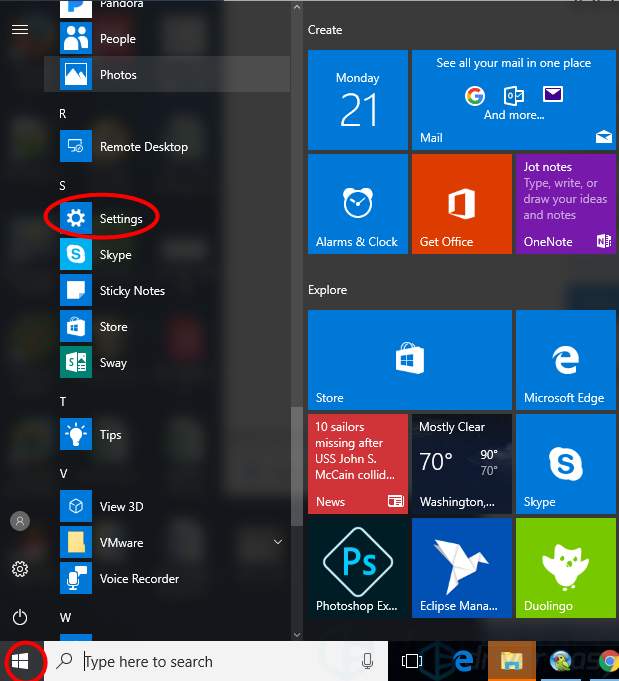
- Open Start Menu: Click the Windows logo in the corner.
- Click the Gear: This is the Settings icon.
- Select Devices: Look for the icon that shows a keyboard and speaker.
- Check the Toggle: Make sure the Bluetooth switch is set to “On.”
- Click the Plus (+): At the top, click “Add Bluetooth or other device.”
- Select Bluetooth: Choose the top option (Mice, keyboards, pens, audio).
- Enter Pairing Mode: Hold the power button on your headphones until lights flash.
- Connect: Click your device name in the list.
If your computer does not see the device, you might need to update Bluetooth drivers Windows 10. Old drivers are a common cause of pain. We will discuss this in the troubleshooting section.
Step-by-Step: Pair Wireless Headphones to Mac (macOS)
Apple likes to keep things simple. But sometimes simple can be confusing. The menus changed in the new updates like Sonoma and Ventura.
Here is how to pair wireless headphones to Mac.
- Open System Settings: Click the Apple logo in the top left. Select “System Settings” (or System Preferences on older Macs).
- Find Bluetooth: It is usually on the left sidebar. It has the blue ‘B’ icon.
- Turn It On: Ensure the toggle is blue.
- Look at “My Devices”: This shows old connections.
- Look at “Nearby Devices”: This is where new things show up.
- Activate Pairing: Put your headphones in pairing mode. Ensure they are close to the Mac.
- Hover and Connect: When the name appears, click “Connect.”
My Experience with Mac:
Sometimes, a Mac will connect but still play sound through the speakers. This is annoying.
To fix this:
- Click the Control Center (top right, looks like two switches).
- Click Sound.
- Select your headphones manually.

Credit: gntos.org
The Critical Step: Putting Headphones in Pairing Mode
This is where 90% of people get stuck.
You turn the headphones on. You see a light. But the laptop sees nothing. Why? Because the headphones are not “looking” for a new friend. They are looking for your phone.
To fix this, you must force pairing mode.
How to do it:
- Most Headphones (Sony, Bose, JBL): Start with them OFF. Press and hold the power button. Keep holding. Do not let go when you hear “Power On.” Keep holding. Wait for “Bluetooth Pairing.” Usually, the light will flash Blue and Red rapidly.
- AirPods: Put them in the case. Open the lid. Keep them inside. Turn the case around. Press the small white button on the back. Hold it until the front light flashes white.
- True Wireless Earbuds: Often, you must take both out of the case at the same time. Sometimes you hold the touch sensors on both buds for 5 seconds.
Check the Manual: Every brand is a little different. If the light is steady, it is connected to something else. If it blinks fast, it is ready to pair.
Troubleshooting: When Good Tech Goes Bad
So, you tried the steps. It still does not work. Do not panic. We can fix this.
Issue 1: Bluetooth Headphones Connected But No Sound
This is the most common issue. The screen says “Connected.” The music plays. But the sound comes from the laptop speakers.
How to Fix:
- Check Volume: Is the volume up on the headphones? Some have their own volume buttons.
- Check Output: Click the speaker icon on your laptop. Is the output set to your headphones? Or is it set to “Realtek Audio” (the speakers)? Switch it.
- Disconnect: Turn Bluetooth off and on again.
Issue 2: The Computer Can’t Find the Headphones
You search, but the list is empty.
How to Fix:
- Get Closer: Move the headphones right next to the laptop.
- Turn Off Other Devices: Is your phone nearby? The headphones might grab the phone connection first. Turn off Bluetooth on your phone.
- Restart: Restart your laptop. It clears out the temporary bugs.
Issue 3: Robot Voice and Cutting Out
Does your music sound like a skipping CD? Or like a robot is singing?
My Personal Tip:
I once had terrible audio stutter. It turned out to be my microwave. Yes, really. Bluetooth uses the 2.4GHz signal. So does WiFi. So do microwaves.
- Move away from the kitchen.
- Move away from your WiFi router.
- If you have a wireless mouse, it might interfere too. Try unplugging the mouse dongle to test.
Advanced Fixes for Power Users
If the easy stuff failed, we need to go deeper. We need to look at the software that runs the hardware. These are called drivers.
Update Bluetooth Drivers
Old drivers cause crashes. If you use Windows 10 or 11, this is key.
- Right-click Start Button.
- Select Device Manager.
- Find Bluetooth. Click the arrow to open the list.
- Find Your Radio: It might say “Intel Wireless Bluetooth” or “Realtek Bluetooth.”
- Right-click it.
- Select “Update driver”.
- Choose “Search automatically”.
This can solve many bugs. It ensures your laptop speaks the same language as your new headphones.
Fix Bluetooth Audio Delay
Do you watch movies? Does the mouth move before the words come out? This is latency.
How to Fix Bluetooth Audio Delay:
- Use the Right App: Some video players fix this automatically. VLC Media Player allows you to shift audio timing.
- Check “Game Mode”: Some headphones have a “Low Latency” or “Game Mode.” Check your headphone app on your phone to turn this on.
Credit: thecfhk.org
Understanding Audio Quality and Codecs
Not all Bluetooth is the same. The signal carries data. We call the packaging of this data a “Codec.”
This is important if you love high-quality music.
The Main Codecs
- SBC: Basic. Every device has it. It sounds okay, but not great.
- AAC: Apple uses this. It sounds good on Macs and iPhones.
- aptX / aptX HD: This is for high detail. Windows supports this well.
- LDAC: Sony’s high-quality format.
Why This Matters:
If you buy expensive headphones, you want the best sound. To get the best Bluetooth codecs for laptops, you might need a dongle.
Windows usually picks the best one automatically. But, if sound is flat, check your headphone app. Ensure “Priority on Sound Quality” is selected, not “Priority on Connection.”
Multipoint Connection: The Game Changer
Modern headphones have a cool trick. It is called Multipoint.
This allows you to connect to your laptop AND your phone at the same time.
How it works:
You are listening to music on the laptop. Your phone rings. The music stops automatically. The ringtone plays in your ears. You answer the call. When you hang up, the music on the laptop starts again.
How to set it up:
- Pair with the phone first.
- Turn off Bluetooth on the phone temporarily.
- Pair with the laptop.
- Turn Bluetooth back on the phone.
- Go to your phone settings and tap the headphone name to reconnect.
Now both are active. This is a lifesaver for office work.
Maintaining Your Connection
Once you are paired, you want to stay paired.
Battery Life
Bluetooth needs power. When your headphone battery is low, the signal gets weak. You might hear static. Or it might disconnect. Keep them charged.
Clear the List
Over time, your laptop saves many devices. Old speakers. Old mice. This can confuse the system.
Go to settings. Remove devices you do not use anymore. It keeps the radio clear.
Conclusion
We have covered a lot. From the basic buttons to the complex drivers.
Connecting headphones should be easy. But technology is not perfect. By following these steps, you can solve 99% of issues.
Remember the golden rule: Always check Pairing Mode.
Now, put those headphones on. Connect to your laptop. Play your favorite track. Close your eyes. Enjoy the freedom of wireless sound. You earned it.
Frequently Asked Questions (FAQ)
1. How do I put my headphones in pairing mode?
Start with headphones off. Press and hold the power button for 5 to 7 seconds. Wait for flashing red and blue lights.
2. Why won’t my laptop find my Bluetooth headphones?
Your headphones might be connected to your phone. Turn off Bluetooth on your phone and try pairing to the laptop again.
3. Can I connect Bluetooth headphones to an old laptop?
Yes, but you might need a USB Bluetooth adapter. Older laptops may have old radios that do not support modern audio.
4. Why is the sound quality bad on my laptop?
It might be using the “Hands-Free” profile meant for calls. Go to sound settings and ensure “Stereo” or “Headphones” is selected as output.
5. How do I remove a device to start over?
Go to Settings, then Bluetooth. Find your device name. Click the three dots or the “Remove” button. Then try pairing again.
6. Do I need to install software for my headphones?
Usually, no. But installing the brand’s app on your phone can help update the headphone firmware, which fixes bugs.