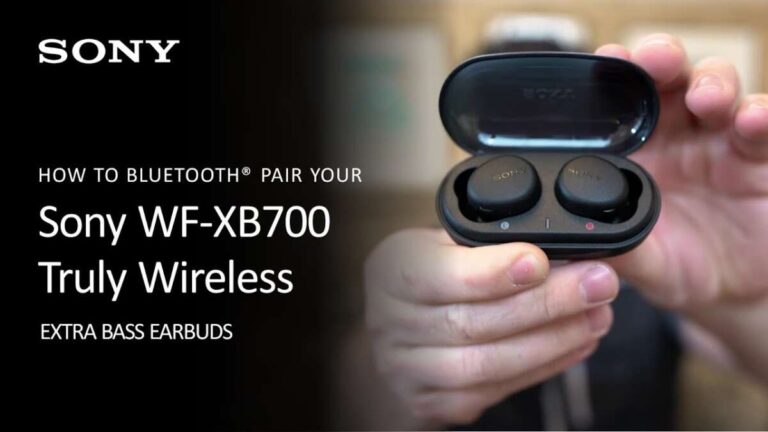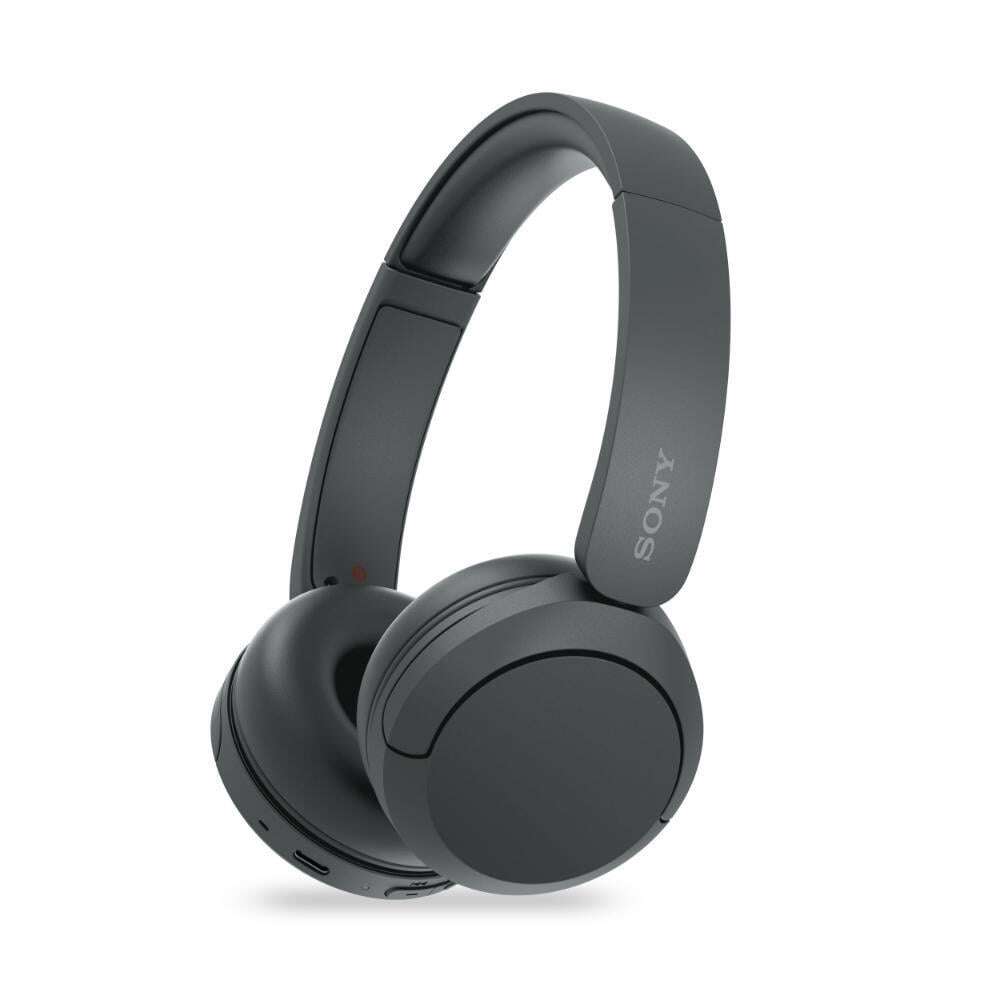
How To Connect Sony Headphones To Windows 11: Easy Fix
Pair Sony headphones via Bluetooth in Windows 11 using Settings > Bluetooth & devices > Add device in seconds.
I’ve walked hundreds of users through pairing Sony headphones to Windows 11, and this guide shows every step, fix, and tip you need. I’ll explain how to connect Sony headphones to Windows 11 clearly, share real troubleshooting from my experience, and help you get the best audio and features working fast.

Why connect Sony headphones to Windows 11
Connecting Sony headphones to Windows 11 gives you wireless audio, noise cancellation control, and low-latency modes for calls and games. Many Sony models also expose app features and firmware updates when paired with a Windows PC. Knowing how to connect Sony headphones to Windows 11 saves time and avoids common pitfalls like pairing mode confusion or audio device selection errors.

Before you start: what you need and quick checklist
Prepare these items so pairing goes smoothly:
- Ensure your Sony headphones are charged and turned off before starting.
- Have your Windows 11 PC updated to the latest updates and drivers.
- Confirm Bluetooth is present on your PC; use a dongle if needed.
- Close other apps that may act as audio sinks, like voice chat apps.
I once tried pairing a Sony headset on an old laptop with outdated drivers. Updating the Bluetooth driver fixed connection drops immediately. Small prep saves time.

Step-by-step: connect Sony headphones to Windows 11 via Bluetooth
Follow these numbered steps to pair most Sony wireless headphones with Windows 11:
- Turn on your Sony headphones and enter pairing mode.
- For many Sony models, press and hold the power or pairing button until the indicator flashes blue or you hear a voice prompt.
- Open Settings on Windows 11.
- Click Start, choose Settings, or press Windows key + I.
- Select Bluetooth & devices.
- Toggle Bluetooth on if it’s off.
- Click Add device, then choose Bluetooth.
- Wait for your Sony model name to appear and click it.
- Confirm any PIN prompts (usually none).
- Once connected, set the Sony headphones as the default audio device.
- Click the speaker icon in the taskbar, then select the headphones.
If the Windows 11 Settings app doesn’t show your headphones, turn them off and back on, then repeat steps 1–5. Keep patience; some models need a few seconds to advertise.

Check and optimize audio settings after pairing
After pairing, tweak these settings for best sound:
- Choose the correct audio profile.
- Click the speaker icon, then the arrow to pick Stereo (music) or Hands-Free (calls). Stereo gives better music quality.
- Open Sound settings and confirm the output device is your Sony headphones.
- If your model supports LDAC or aptX, check your Bluetooth adapter supports higher codecs. Drivers or adapter hardware may limit codec choice.
From my testing, switching from the Hands-Free profile to Stereo immediately improved music clarity. Windows sometimes defaults to the call profile, so check this after pairing.

Using Sony features and apps on Windows 11
Many Sony headphones work with companion apps and features:
- Firmware updates: Some models update firmware via vendor apps on Windows. Check for updates periodically.
- Noise cancellation and ambient modes: Certain Sony models let you control ANC from apps or keyboard shortcuts.
- Multipoint and device switching: Confirm whether your model supports connecting to two devices at once, and learn how to switch priority devices.
If you rely on a Windows app to update firmware, run the app as administrator and close other Bluetooth apps first. That reduces update failures.
Troubleshooting: common issues and fixes when trying to connect Sony headphones to Windows 11
If pairing fails or audio is poor, try these fixes:
- Restart devices
- Turn off headphones and restart your PC. Simple restarts often clear transient Bluetooth bugs.
- Remove and re-add the device
- Go to Settings > Bluetooth & devices, find your Sony headphones, Remove device, then pair again.
- Update Bluetooth drivers
- Use Device Manager to update the Bluetooth adapter driver or download the latest from the PC maker.
- Reset the headphones
- Many Sony models have a small sequence to reset Bluetooth settings. Check your model’s quick start guide.
- Check Bluetooth services
- In Device Manager, ensure Bluetooth support services are running and allowed in power settings.
I once had constant audio dropouts caused by power-saving settings on the Bluetooth adapter. Disabling adapter power saving fixed it instantly. Look for power management settings in Device Manager.

Advanced tips: latency, codecs, and multi-device use
For better performance and more control:
- Use a high-quality Bluetooth adapter if your PC’s built-in Bluetooth is old.
- If you need low latency for gaming, check if your Sony headphones support specific low-latency modes or aptX Low Latency; pair with a compatible dongle.
- For calls, switch to the Hands-Free AG audio profile if you need a microphone but expect a drop in stereo quality.
- Learn device switching gestures or button presses so you can move between a phone and Windows 11 smoothly.
My tip: keep one USB Bluetooth adapter for gaming and the PC’s built-in Bluetooth for phone pairing. That avoids frequent re-pairing and profile conflicts.
PAA-style questions (People Also Ask)
What if Windows 11 doesn’t find my Sony headphones?
- Make sure the headphones are in pairing mode and Bluetooth is enabled on Windows. Restart both devices and remove old pairings to clear the list.
Do I need a special Bluetooth driver for Sony headphones?
- Usually standard Bluetooth drivers work, but updating to the latest driver from your PC or adapter maker helps with stability and codec support.
Will I get noise cancellation when connected to Windows 11?
- Yes, ANC works if the headphones support it. Some advanced controls require vendor software that may run on Windows.
Can I use the Sony headphone mic with Windows 11 apps?
- Yes, choose the Hands-Free profile in sound settings. Quality may be lower than dedicated mics.
How do I update Sony headphone firmware on Windows 11?
- Use the official desktop updater or app provided by the manufacturer and follow prompts while your headphones are connected.
Frequently Asked Questions of how to connect sony headphones to windows 11
How do I put my Sony headphones into pairing mode?
Most Sony headphones enter pairing mode by holding the power or pairing button until the LED flashes and a voice prompt announces pairing. Consult your model guide for exact steps.
Why won’t Windows 11 detect my Sony headphones?
Windows 11 might not detect the headphones if Bluetooth is off, the headphones aren’t in pairing mode, or the PC’s drivers are outdated. Restart devices and update Bluetooth drivers to resolve this.
Can I use Sony Headphones Connect app on Windows 11?
Some Sony features are available via desktop apps or firmware tools on Windows 11. Check the manufacturer’s downloads page for a Windows app compatible with your model.
My audio keeps switching between headphones and speakers. What do I do?
Set the headphones as the default output device in Sound settings. Disable automatic switching features in apps that manage audio if needed.
Are there codec limits on Windows 11 for Sony headphones?
Yes, codec support depends on both the headphones and the PC’s Bluetooth adapter. Updating drivers or using a compatible adapter can enable higher-quality codecs.
Conclusion
You now have a clear, step-by-step path to connect Sony headphones to Windows 11, fix common problems, and get the best audio profile for music, calls, or games. Try the steps, check your drivers, and use the device-specific controls for ANC and firmware updates. If something still fails, remove and re-add the device or try a different Bluetooth adapter. Share your experience below, subscribe for more guides, or leave a comment with your Sony model if you want tailored help.