How To Connect Headphones To Tv: Easy Step-By-Step Guide
Connect Bluetooth or wired headphones to most TVs using Bluetooth adapters, audio outputs, or TV settings.
I’ve spent years helping people set up home entertainment gear, testing dozens of TVs, headphones, and adapters. This guide explains exactly how to connect headphones to TV, step by step, whether you want wired clarity, wireless freedom, or a low-latency gaming setup. I’ll cover the ports, adapters, settings, common problems, and real-world tips so you can get reliable audio from your TV to your headphones fast.
Understanding TV audio outputs and headphone types
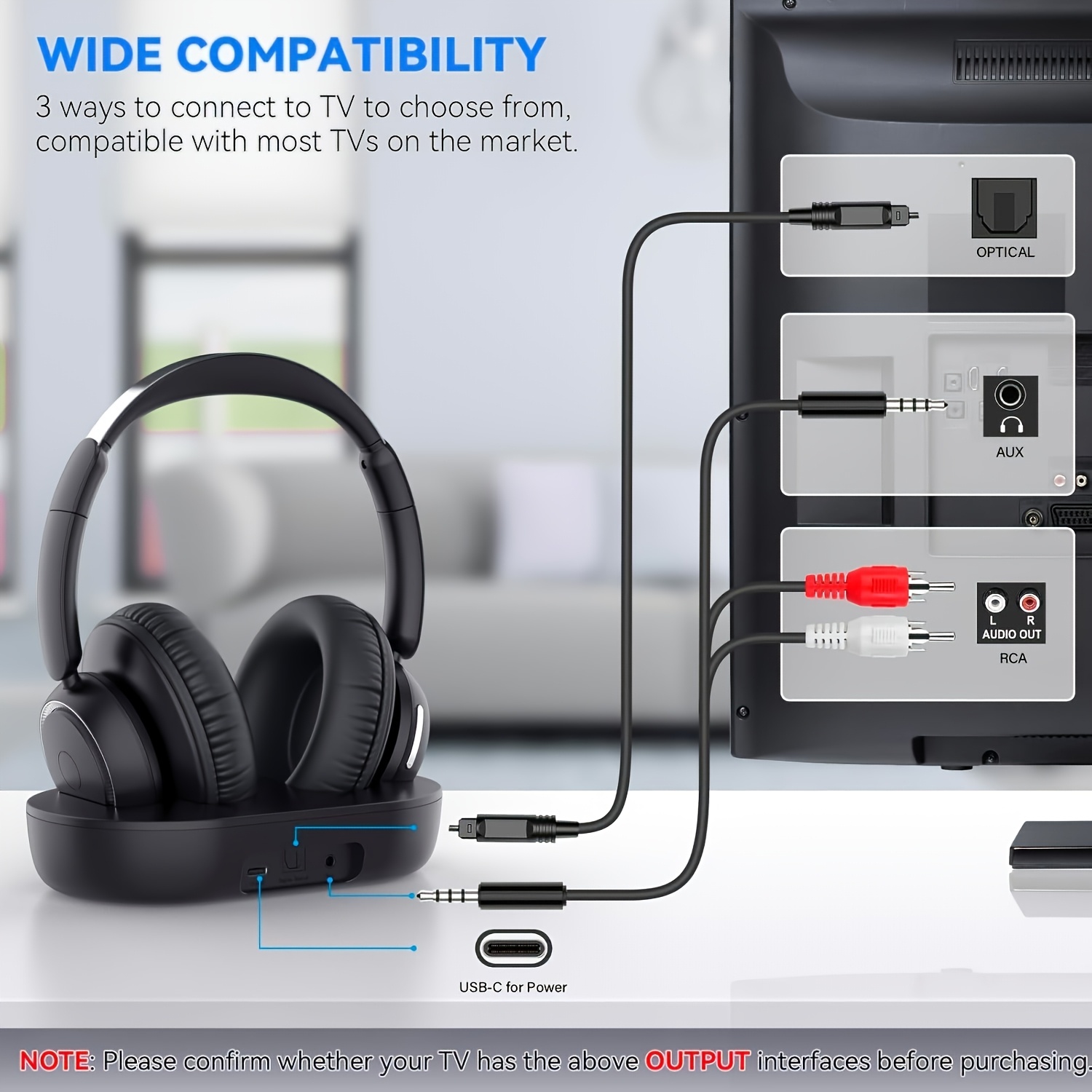
Knowing the ports and headphone types makes learning how to connect headphones to TV simple. TVs usually offer several audio output options. Match the TV output to the headphone input for the best result.
Common TV audio outputs
- 3.5 mm headphone jack — Direct plug-in on older or budget TVs.
- RCA analog outputs — Left and right red/white jacks that need a cable or adapter.
- Optical / TOSLINK (digital) — Common on modern TVs for high-quality sound.
- HDMI ARC / eARC — Used mainly for soundbars, but can route audio to devices.
- Bluetooth (built-in) — Some smart TVs support Bluetooth headphones.
- USB — Rarely used for headphones; often powers devices or supports USB headsets.
Headphone types and compatibility
- Wired 3.5 mm headphones — Easiest when TV has a headphone jack.
- Wired headphones with RCA or optical adapters — Use a DAC or specific cable.
- Bluetooth headphones — Require TV Bluetooth or a Bluetooth transmitter.
- RF wireless headphones — Come with their own base station that plugs into TV.
- USB headsets — Work with TVs that support USB audio or with a connected device.
Why understanding this matters when learning how to connect headphones to TV
- You avoid buying the wrong adapter.
- You get clear audio without lag.
- You know which settings to change on the TV.

Step-by-step: Wired connections
Wired links give stable audio and zero Bluetooth lag. Here are the main wired methods to connect headphones to TV.
Using a TV headphone jack
- Locate the 3.5 mm headphone port on the TV.
- Plug in your headphones.
- Lower TV speaker volume or disable TV speakers if needed.
Using RCA outputs with a cable
- Get a 3.5 mm to RCA cable or adapter.
- Plug the RCA ends into the TV’s red and white outputs.
- Plug the 3.5 mm end into the headphones or headphone amp.
- Adjust TV audio settings to route sound via external output.
Using an optical/TOSLINK output with a DAC
- Buy a TOSLINK-to-3.5 mm DAC (digital-to-analog converter).
- Connect the optical cable from the TV to the DAC.
- Plug headphones into the DAC’s 3.5 mm jack.
- Set TV audio to PCM if needed to ensure compatibility.
Using HDMI ARC/eARC (rare direct connection)
- Most TVs do not accept headphones directly via HDMI.
- Use an AV receiver or soundbar with headphone output.
- Connect the HDMI ARC/eARC between TV and receiver, then headphones to the receiver.
Quick tips from experience
- If audio is low, check TV volume and headphone amp volume separately.
- Use a short, quality cable to avoid static.
- Keep adapters powered if they require USB power.

Step-by-step: Wireless connections (Bluetooth and RF)
Wireless is great for freedom and late-night viewing. Latency and pairing are the key issues when learning how to connect headphones to TV.
Using built-in TV Bluetooth
- Put your headphones in pairing mode.
- Open TV settings > Sound > Bluetooth devices (names vary).
- Select your headphones and pair.
- Lower TV speaker volume to avoid echo.
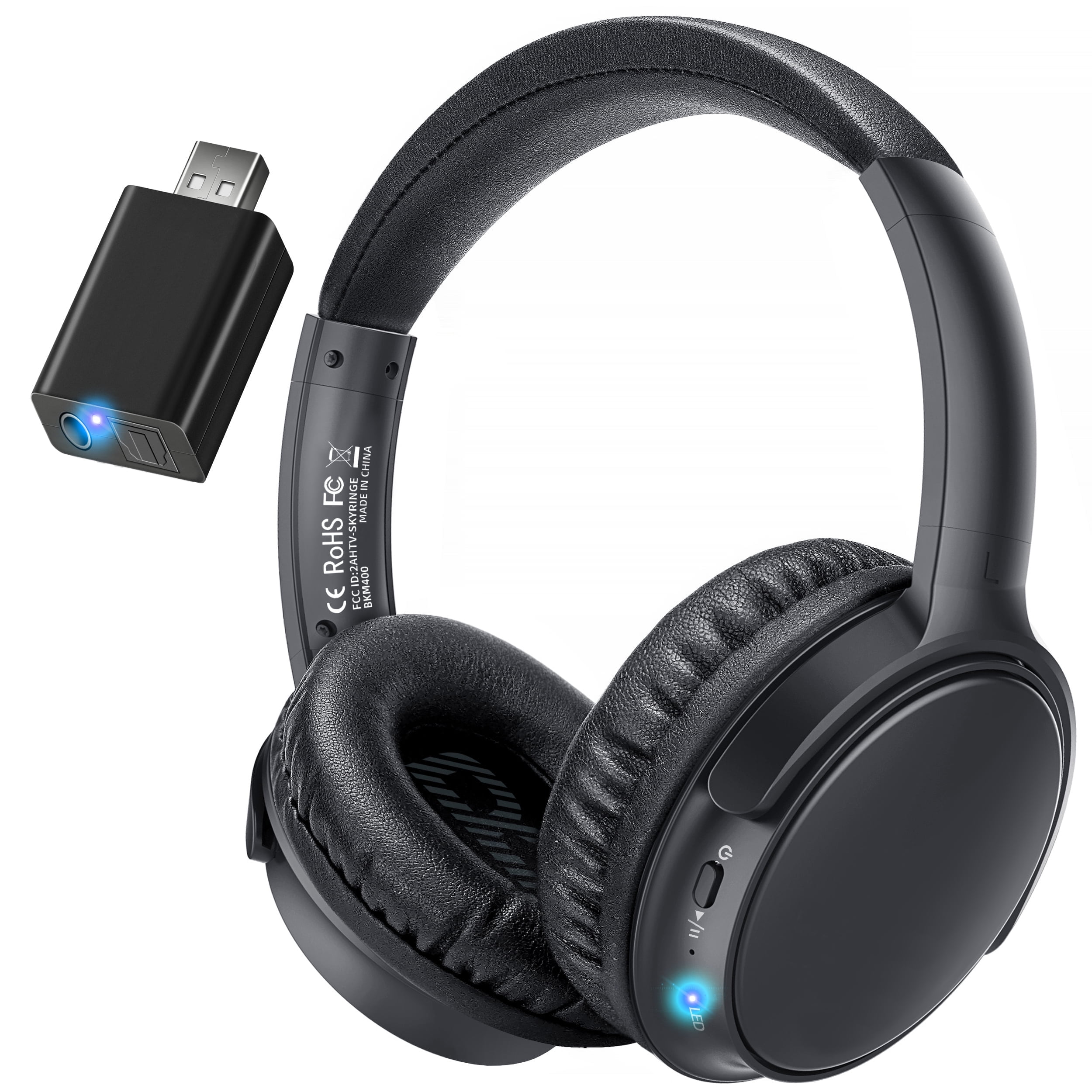
Using a Bluetooth transmitter
- Buy a Bluetooth transmitter that supports aptX Low Latency (if you need low lag).
- Connect transmitter to TV via 3.5 mm, RCA, optical, or USB depending on the model.
- Put transmitter and headphones in pairing mode.
- Confirm TV audio is routed to the transmitter.
Using RF wireless headphones
- Plug the RF base station into the TV audio output (3.5 mm, RCA, or optical with DAC).
- Turn on the base and headphones; they usually auto-pair.
- Adjust volume on the base station or headphones if available.
Latency and codecs
- aptX Low Latency reduces audio lag and is best for gaming.
- SBC is standard Bluetooth codec and has higher lag.
- TV and headphones must support the same low-latency codec for best results.
Real-world note
I once paired a cheap Bluetooth transmitter for a gamer. Without aptX LL the audio lag made dialog and controller sounds feel off. Swapping to an aptX LL transmitter fixed the issue instantly.
Advanced setups and practical tips
For power users and tricky TVs, these tips help when standard approaches fail.
Using a soundbar or AV receiver
- Connect headphones to the soundbar or receiver if they have a headphone jack or Bluetooth transmitter built-in.
- Use HDMI ARC/eARC between TV and soundbar, then route audio from soundbar to headphones.
Multiple headphone setup
- For wired multiple listeners, use a headphone splitter or multi-output amplifier.
- For multiple wireless listeners, use a Bluetooth transmitter with multi-pair support.
Improving audio quality
- Use a DAC for clearer sound from optical or HDMI sources.
- Use a headphone amplifier if using high-impedance headphones.
Power and charging
- Wireless transmitters often need USB power. Keep a USB port or wall adapter handy.
- Check headphone battery life before long sessions to avoid mid-show cutoffs.
Privacy and volume considerations
- Lower TV speakers or disable them when using wireless headphones to avoid echo or feedback.
- Use in-line or on-headphone volume controls to protect hearing.
Mistakes to avoid
- Don’t assume "Bluetooth pairing" means low latency.
- Avoid cheap DACs with poor sampling rates for music.
- Don’t forget to check TV audio formats; some TVs default to bitstream for optical, which needs PCM conversion for many DACs.

Troubleshooting common issues
Problems happen. Here’s how to fix them fast when you try to connect headphones to TV.
No audio after connecting
- Check TV audio output settings and speaker selection.
- Make sure the headphone or transmitter is selected as the active device.
Audio delay or lip-sync issues
- Use an aptX Low Latency transmitter and compatible headphones.
- Check TV audio delay or lip-sync setting and adjust.
Audio too quiet or distorted
- Increase headphone volume and TV volume separately.
- Try a different cable, or use a powered DAC or amplifier.
Bluetooth pairing fails
- Power cycle TV and headphones.
- Remove old pairings on the TV and try again.
- Keep devices close during pairing.
Headphones disconnects randomly
- Ensure transmitter has stable power.
- Move other wireless devices away to avoid interference.
When to call a pro
- If ports are damaged or internal TV audio circuitry is faulty, contact a technician or the manufacturer.
People also ask
How do I connect Bluetooth headphones to a non-Bluetooth TV?
- Use a Bluetooth transmitter that plugs into the TV’s 3.5 mm, RCA, or optical output. Pair the headphones to the transmitter.
Can I use Bluetooth and TV speakers at the same time?
- Many TVs mute built-in speakers once Bluetooth audio is active. Some models support dual audio, but it varies by brand.
Will optical to analog converters add latency?
- A basic DAC adds negligible latency for movies, but Bluetooth remains the primary source of lag. HDMI/optical to analog converters usually do not cause noticeable lip-sync issues.
Do I need a DAC for better sound?
- Yes if you use optical/TOSLINK or digital outputs and want clean analog sound for wired headphones. A DAC improves clarity and reduces hiss.
How to reduce audio lag for gaming?
- Use wired headphones or a Bluetooth aptX Low Latency link. Also enable game mode or reduce TV audio processing when available.
Frequently Asked Questions of how to connect headphones to tv
What if my TV has only HDMI ports and no audio output?
If your TV has HDMI ARC/eARC, use a soundbar or AV receiver that extracts audio and provides a headphone output. Alternatively, use an HDMI audio extractor that gives optical or 3.5 mm outputs.
Can I connect a USB headset directly to my smart TV?
Some smart TVs support USB audio devices, but many do not. Check the TV manual. If unsupported, use a USB-to-3.5 mm adapter connected to a PC or streaming device.
Are wireless headphones better than wired for TV?
Wireless is more convenient for movement. Wired often offers lower latency and stable audio. For gaming, wired or low-latency wireless is best.
Will Bluetooth headphones work with all smart TVs?
No. Only TVs with Bluetooth audio profiles for headphones will pair directly. Use a Bluetooth transmitter if the TV lacks compatible Bluetooth.
How do I fix low volume when using headphones with TV?
Raise the TV output level and headphone volume. If still low, use a headphone amplifier or enable fixed/variable audio output settings and choose variable for control.
Conclusion
You now have clear, practical ways to connect headphones to TV using wired and wireless methods. Match the TV’s output to the right adapter or transmitter, watch for latency and codecs if you game, and choose a DAC or amp when you want better sound. Try the recommended steps for your setup, and you’ll be enjoying private, high-quality TV audio in minutes. Share your setup or questions below, subscribe for more guides, or leave a comment about what worked for you.