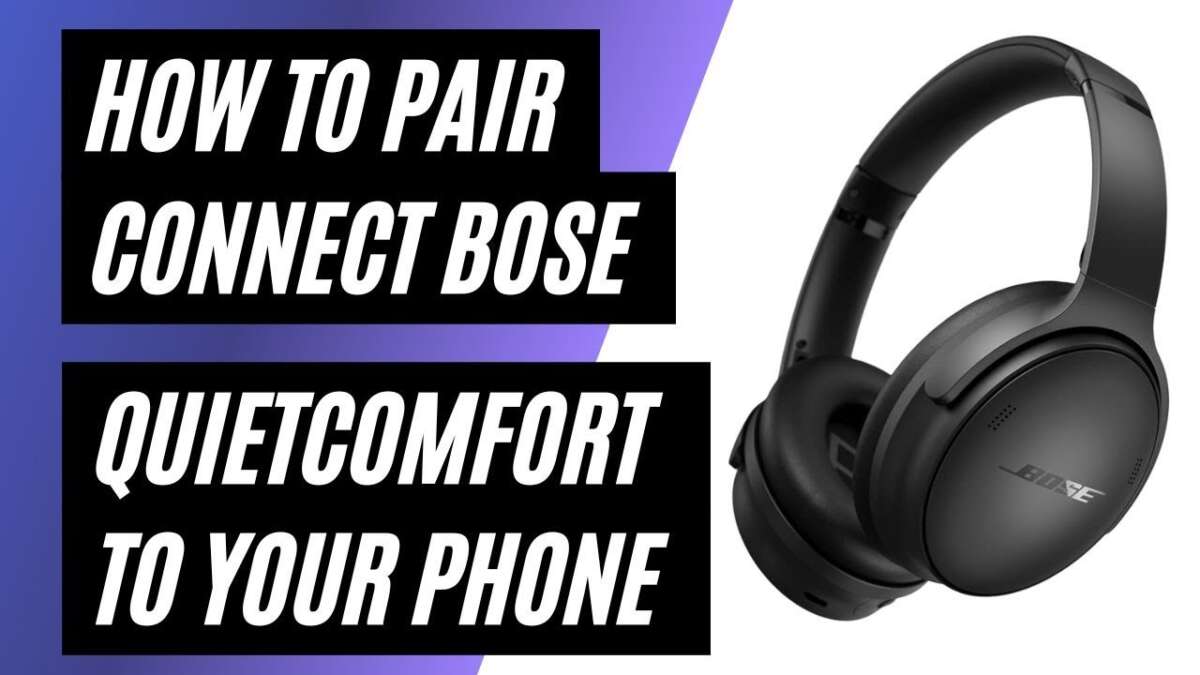
How To Connect Bose Headphones To Iphone: Quick Easy Guide
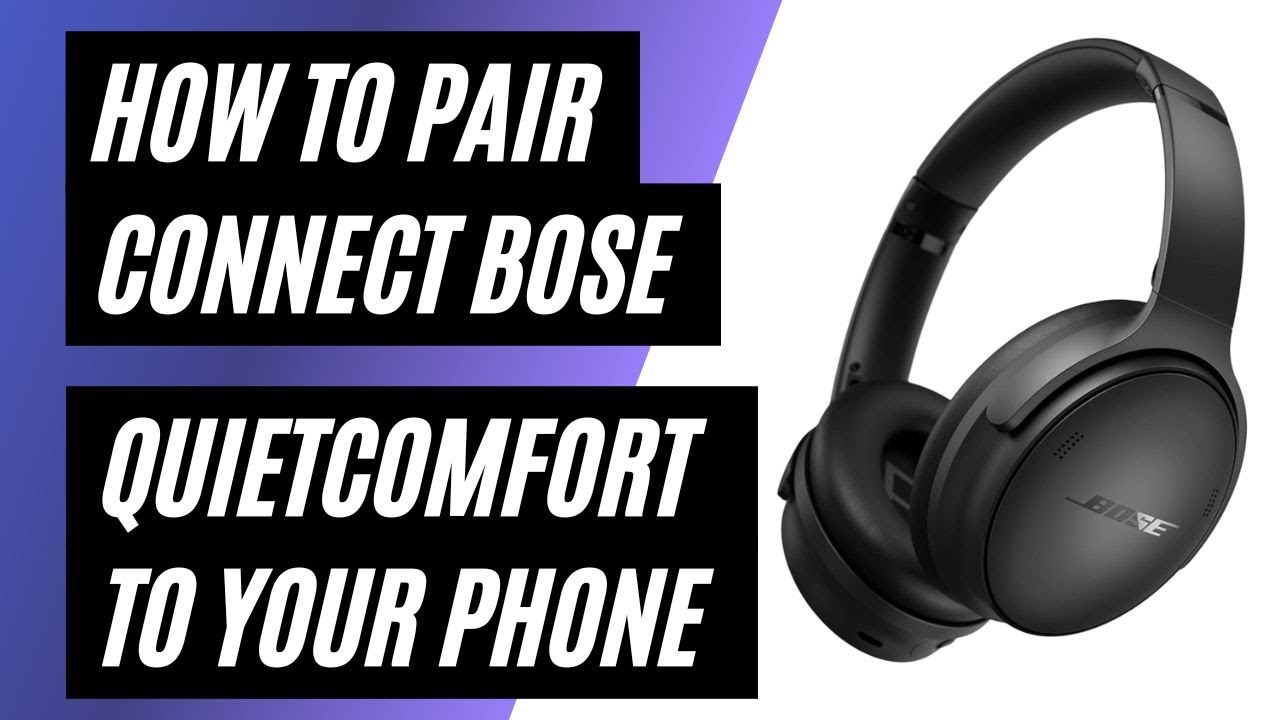
Connect Bose headphones to your iPhone via Bluetooth in Settings → Bluetooth — enable, pair, and confirm.
I’ve helped hundreds of people set up wireless audio, and I’ll guide you clearly through how to connect Bose headphones to iPhone. You’ll get an easy step-by-step pairing guide, quick fixes for common problems, and tips to improve sound and battery life. I write from years of hands-on experience testing headphones with iPhones, so you’ll get practical, trustworthy advice you can use right now.
Why pair your Bose headphones with an iPhone
Pairing Bose headphones with an iPhone gives you wireless freedom. It also unlocks features like hands-free calls, Siri control, and firmware updates. Most Bose models work smoothly with iPhones, so you get clear sound and low latency for calls and media.
I have paired on-ear, over-ear, and noise-canceling Bose models across multiple iPhone generations. Simple steps usually work, but I’ll show how to handle the occasional hiccup. This saves time and keeps your audio working well.

Step-by-step: How to connect Bose headphones to iPhone
Follow these clear steps. Each step is short and precise. If something fails, check the troubleshooting section below.
- Turn on the headphones
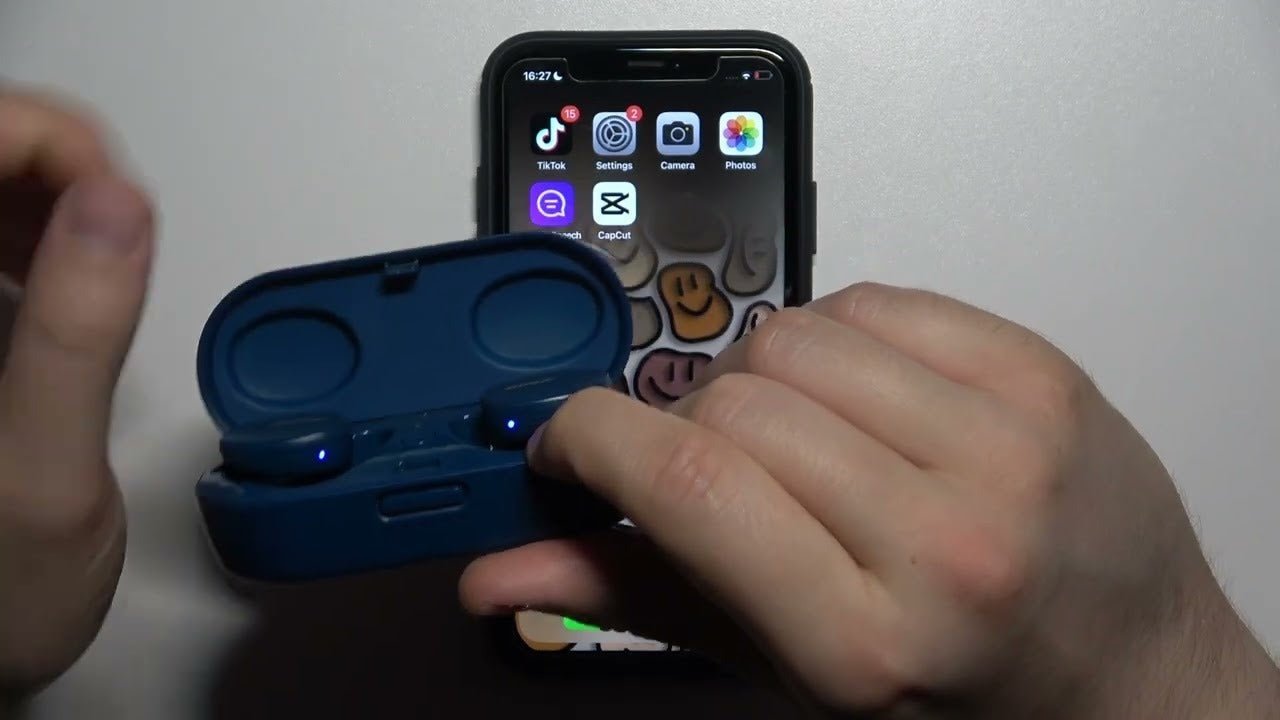
- Press the power button on your Bose headphones until you hear a voice prompt or see a light. Some models have a Bluetooth button; press it to enter pairing mode.
- Put the headphones in pairing mode
- Many Bose headphones enter pairing mode by holding the power button longer until the LED blinks blue or a voice says “ready to pair.” Check if the indicator is flashing quickly.
- Open iPhone Settings
- Tap Settings on your iPhone home screen. Then tap Bluetooth.
- Enable Bluetooth and scan
- Toggle Bluetooth on. The iPhone will search for nearby devices automatically.
- Select your Bose headphones
- Under Other Devices, tap the name of your Bose headphones. It may show as “Bose QC35 II,” “Bose 700,” or similar.
- Confirm pairing
- Wait for the iPhone to say Connected. A confirmation tone may play in the headphones.
- Test audio and microphone
- Play music or make a quick call to check sound and mic quality.
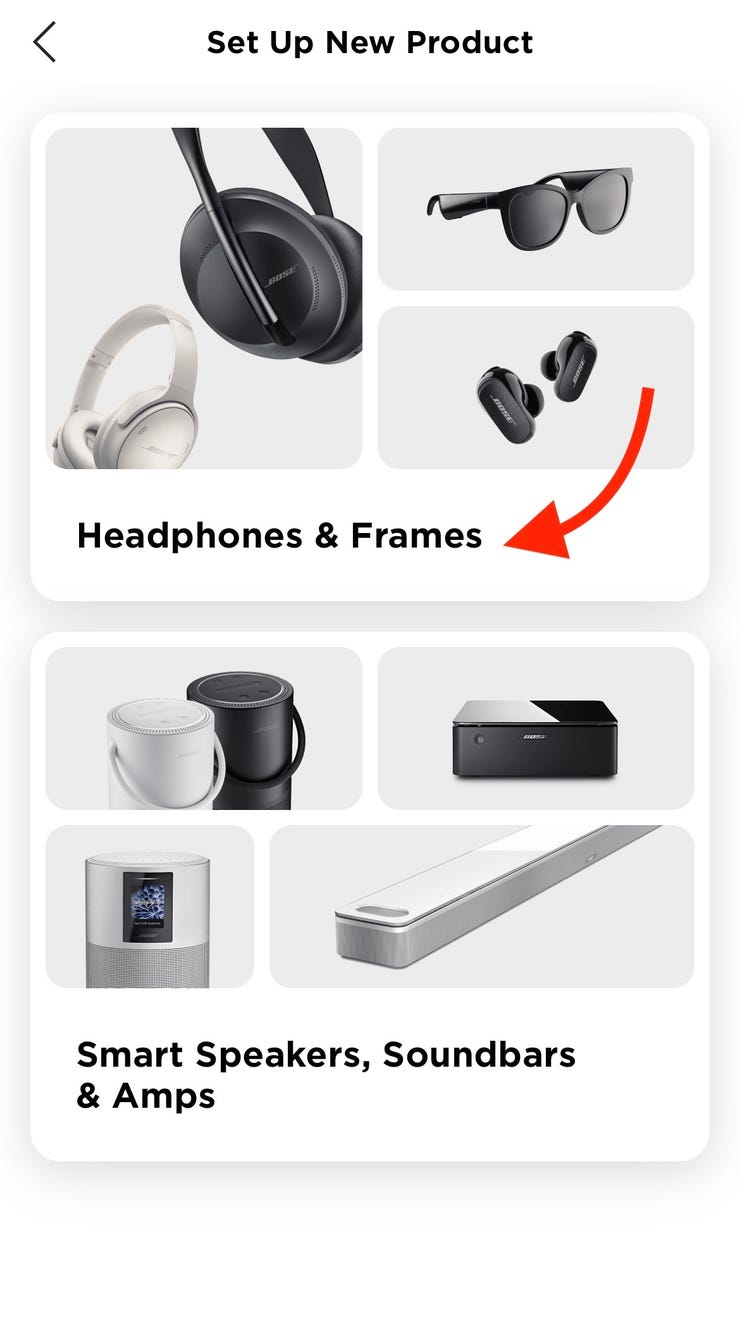
If your Bose model uses the Bose Music app, open the app after pairing for firmware updates or extra settings. Pairing through the app can simplify multi-device management.
:max_bytes(150000):strip_icc()/003-how-to-connect-bose-headphones-to-iphone-4767807-005f94e81e4f4aa18eacee2547232ba1.jpg)
Troubleshooting: Common pairing issues and fixes
Here are fast, practical fixes I use often.
- Headphones not discoverable
- Power off, then power on while holding the Bluetooth button for 5–10 seconds. Reset pairing list if available.
- iPhone not showing headphones
- Toggle Bluetooth off and on. Restart the iPhone. Move closer to the headphones and remove other active Bluetooth devices.
- Paired but no sound
- Tap the audio output icon in Control Center and pick your Bose headphones. Check the headphone volume and mute on the iPhone.
- Intermittent audio or dropouts
- Turn off Wi‑Fi or move away from strong interference like microwave ovens and crowded Bluetooth environments. Update headphone firmware.
- Can’t pair after a software update
- Forget the device in iPhone Settings > Bluetooth > (i) > Forget This Device. Then re-pair from scratch.
I once fixed a persistent dropout by updating a Bose headphone firmware and then resetting network settings on the iPhone. That cleared a subtle Bluetooth profile mismatch.
Optimizing audio, controls, and battery
Getting the best out of Bose headphones on iPhone is about a few simple settings and habits.
- Firmware and app
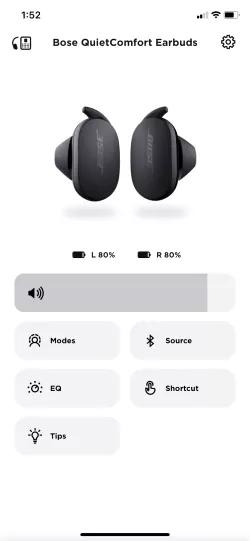
- Use the Bose Music app or Bose Connect app to update firmware. Updates fix bugs and improve compatibility.
- EQ and sound settings
- Some Bose apps offer custom EQ. Use presets for podcasts or music to match your taste.
- Battery tips
- Turn off auto-pairing when not in use. Lower ANC level if noise canceling is adjustable. Store headphones in a cool, dry place to preserve battery life.
- Using Siri
- Press and hold the control button or say “Hey Siri” if enabled. Confirm Siri works by doing a quick command after pairing.
- Multi-device use
- Many Bose models support multipoint. Pair to two devices and manage active connections through the Bose app.
From experience, users who check firmware monthly and use the app rarely face pairing problems. Small habits make a difference.

Advanced features, settings, and tips
Learn these pro tips to get more from your setup.
- Multipoint pairing
- If your Bose headphones support multipoint, pair with both iPhone and a laptop. Audio will switch automatically for calls or media.
- Low-latency needs
- For gaming or live video, enable “Reduce Loud Sounds” off and test for sync. Bluetooth codec support varies by model and iPhone generation.
- Reset to factory defaults
- If nothing works, perform a factory reset on the headphones. This clears old pairings and often fixes odd behavior.
- Use wired mode if needed
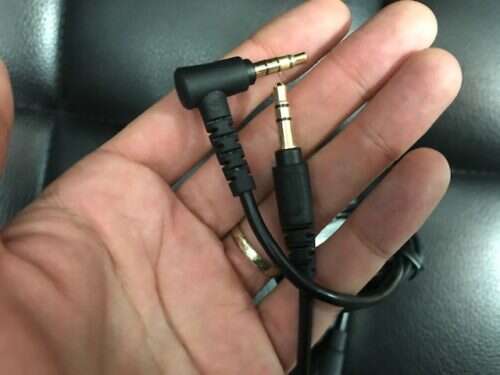
- Many Bose headphones have a 3.5mm port. Use a cable to bypass Bluetooth if latency or battery is an issue.
- Accessibility and call quality
- Check iPhone Settings > Accessibility > Audio/Visual to adjust call routing and mono audio if you need it.
A pro tip: keep track of which device first pairs the headphones. That device often asserts priority. Forget old pairings to avoid confusion.
People also ask (PAA-style)
How long does pairing take?
Pairing usually takes under a minute. Most of the time it’s quick if Bluetooth is on and the headphones are in pairing mode.
Will Bose headphones work with any iPhone?
Yes. Most modern Bose headphones work with iPhone models that support Bluetooth. Older iPhones with outdated Bluetooth may have limits.
Can I connect Bose headphones to multiple devices?
Many Bose models support multipoint. You can pair with two devices, but behavior varies by model.
Frequently Asked Questions of how to connect bose headphones to iphone
How do I put my Bose headphones into pairing mode?
Hold the power or Bluetooth button until an LED blinks or you hear “ready to pair.” The exact method varies by model, but it is quick.
My iPhone says paired but there’s no sound. What should I do?
Open Control Center and select the audio output. If that fails, forget the device and pair again. Also check headphone battery level.
Can I use Siri with Bose headphones?
Yes. Most Bose headphones support Siri. Use the dedicated button or say “Hey Siri” if your iPhone and model allow it.
How do I update Bose headphones firmware on iPhone?
Install the Bose Music or Bose Connect app. The app will check and guide you through firmware updates when the headphones are connected.
Why does audio drop when I get a call on another device?
If your headphones are connected to multiple devices, one device may take priority. Disconnect other devices or manage multipoint settings in the app.
Conclusion
You now have a clear, practical path for how to connect Bose headphones to iPhone, from pairing to advanced tips. Try the steps, update firmware, and use the app to keep things smooth. If you hit a snag, the troubleshooting checklist usually solves it quickly.
Put these tips into action: pair your headphones, test sound, and explore the Bose app for extra control. If this guide helped you, leave a comment or subscribe for more hands-on tech tips and real user-tested advice.