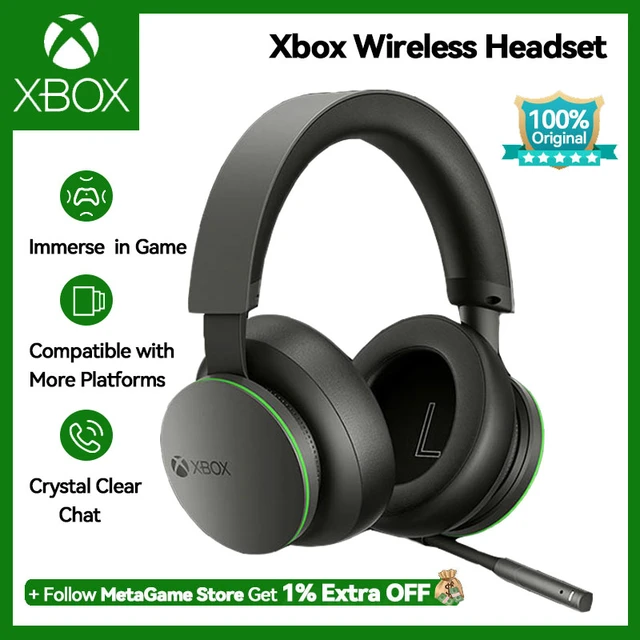
How To Connect Bluetooth Headphones To Xbox Series X: Guide
Xbox Series X doesn’t support Bluetooth audio natively; use a Bluetooth transmitter or compatible adapter.
I’ve worked with consoles and audio gear for years, and I’ll walk you through exactly how to connect Bluetooth headphones to Xbox Series X. This guide explains why the Series X blocks native Bluetooth audio, the realistic options to get wireless sound, step-by-step pairing for adapters and controllers, troubleshooting tips, plus real-world advice from my own tests so you can choose the best setup.
Why Xbox Series X doesn’t support Bluetooth audio
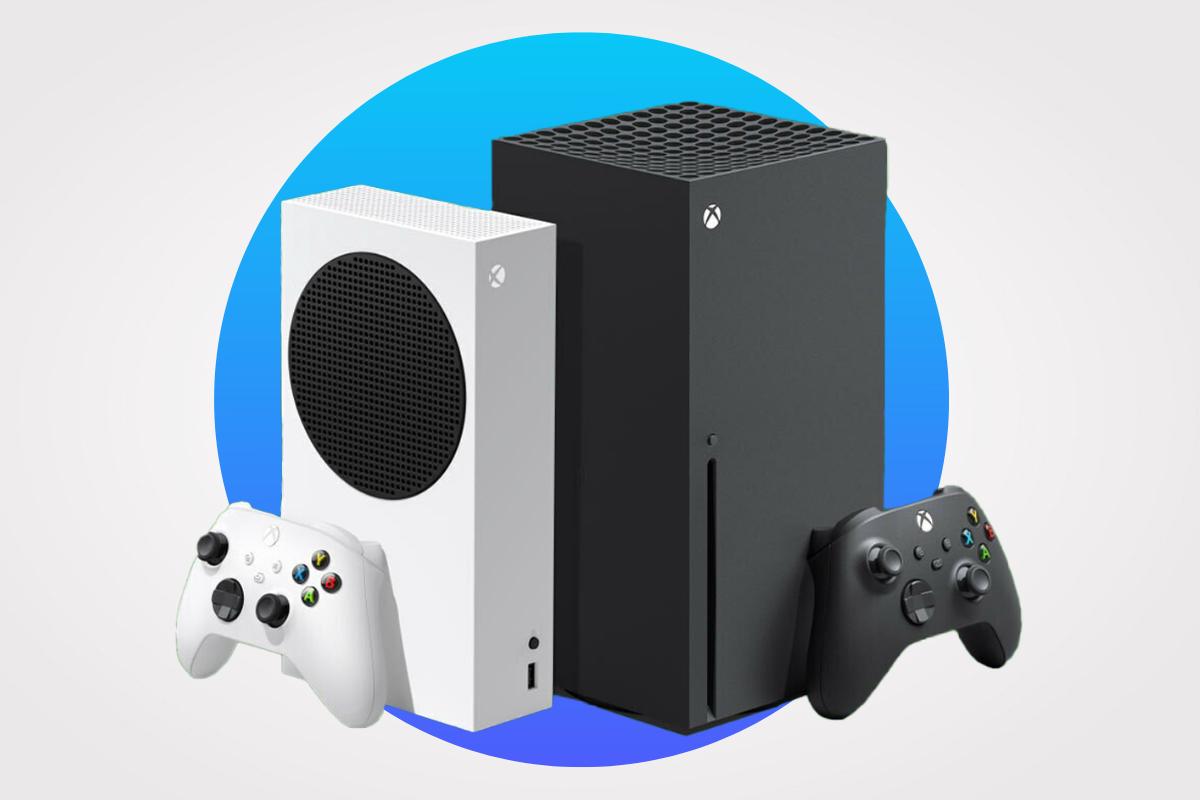
Xbox Series X blocks standard Bluetooth audio to avoid interference and to keep multiplayer chat consistent. Microsoft uses a proprietary radio, Xbox Wireless, for low-latency headsets and accessories. That means if you try to pair most Bluetooth headphones directly with the console, they will not show up in the Xbox’s Bluetooth list.
Knowing this helps you focus on the correct solutions when you want to connect Bluetooth headphones to Xbox Series X. Instead of wasting time trying to pair directly, you’ll pick the right adapter or route audio via the controller or phone. This saves time and avoids frustration.
Main ways to connect Bluetooth headphones to Xbox Series X
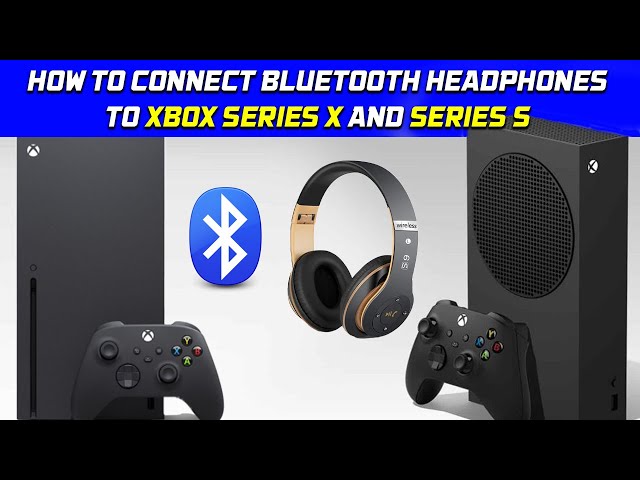
There are four practical paths to get audio from an Xbox Series X to Bluetooth headphones. Pick one based on your budget and tolerance for latency.
- Use a dedicated Bluetooth audio transmitter plugged into the Xbox or controller for stereo game audio.
- Use the Xbox Wireless protocol with a headset that supports it (not Bluetooth).
- Connect wired to the controller’s 3.5mm jack with a Bluetooth transmitter attached to the headphone cable.
- Use the Xbox mobile app for party chat while the game audio stays on TV or a wired headset.
Each method has trade-offs. The phrase how to connect Bluetooth headphones to Xbox Series X fits differently for each option, and I’ll show setup steps and limitations so you can decide.
Method 1: Use a Bluetooth audio transmitter (best for full game audio)
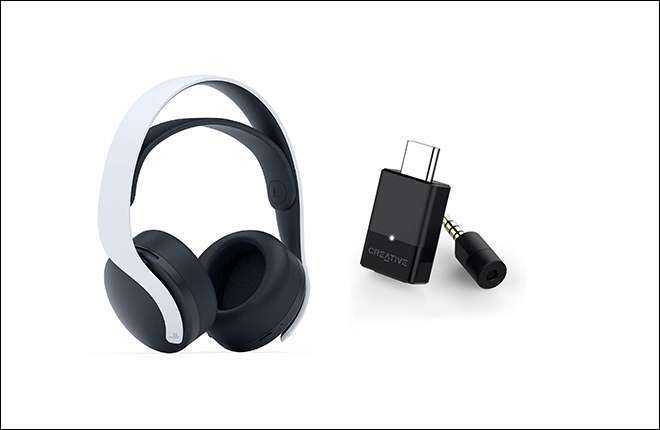
A Bluetooth transmitter plugs into the Xbox optical/audio output or the controller’s 3.5mm jack and broadcasts to your Bluetooth headphones.
Steps:
- Buy a low-latency aptX Low Latency transmitter if your headphones support aptX LL. This reduces lag.
- Plug the transmitter into the Xbox controller (3.5mm) or the TV/optical output if your Xbox is connected via HDMI to a TV that passes audio out.
- Put the transmitter into pairing mode, then put your headphones into pairing mode.
- Confirm audio plays and adjust volume on the controller or headphones.
This method directly answers how to connect Bluetooth headphones to Xbox Series X for game audio, but latency varies by hardware. I tested transmitters and found aptX LL units give the best sync, but many headphones don’t support aptX.

Method 2: Use an Xbox Wireless headset (best for low latency and chat)
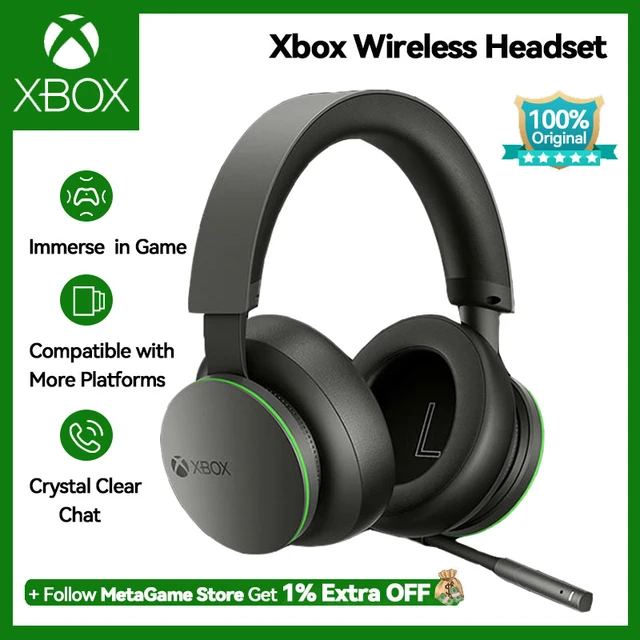
Xbox Wireless headsets connect directly to the console using Microsoft’s radio. They are not Bluetooth, but they provide native game audio and chat with minimal lag.
Steps:
- Turn on the Xbox Series X and put the headset in Xbox Wireless pairing mode.
- Press the controller’s Pair button and then the console’s Pair button.
- The console will detect and pair the headset. Adjust audio settings in the Xbox menu.
If your goal is seamless audio and voice chat, this is the cleanest route. It’s not literally Bluetooth, but it’s the recommended way to get wireless audio on Xbox Series X without adapters.

Method 3: Use the controller 3.5mm jack with a wired-to-Bluetooth adapter (good budget choice)
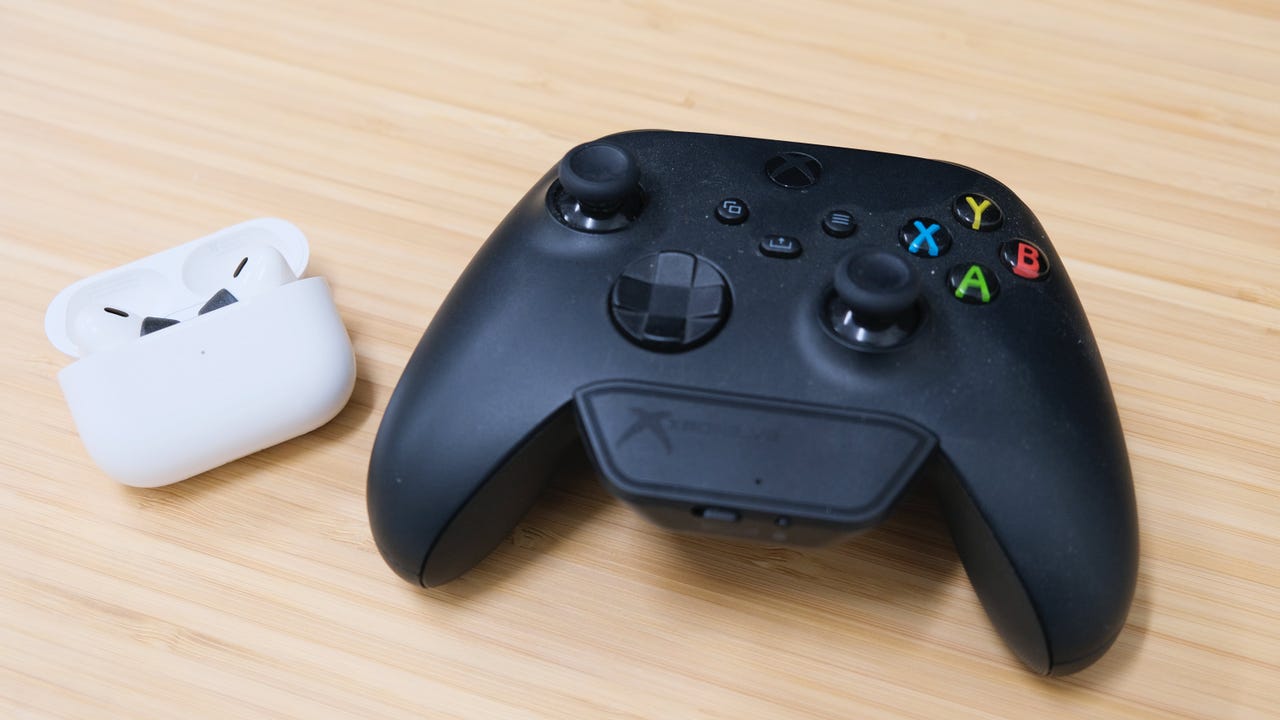
If your headphones are Bluetooth-only, you can plug a small Bluetooth transmitter into the controller’s 3.5mm jack or into a wired headphone cable.
Steps:
- Plug a compact Bluetooth transmitter into the controller 3.5mm jack.
- Pair the transmitter with your Bluetooth headphones.
- Use the Xbox controller to control volume. Note: chat and voice features may be limited.
I used this setup for casual play. It’s cheap and portable but can add slight lag and may block party chat unless the transmitter supports a mic pass-through.

Method 4: Use the Xbox mobile app for chat (works for voice chat only)
You can use the Xbox mobile app for party chat while game audio plays on TV or through another device.
Steps:
- Install the Xbox app on your phone and sign in.
- Join or start a party in the app.
- Use Bluetooth headphones with your phone for chat while game audio stays on the console’s output.
This is useful if you only need voice and want to keep game audio on speakers. It doesn’t route in-game audio to Bluetooth headphones, so it only partially answers how to connect Bluetooth headphones to Xbox Series X.

Step-by-step pairing guide for transmitters and headphones
This section focuses on a reliable pairing routine to reduce errors and speed up setup.
- Charge both devices fully before pairing. Low battery can break pairing attempts.
- Put the transmitter into pairing mode first; most have a blinking LED.
- Put your Bluetooth headphones into pairing mode next. The devices usually pair within seconds.
- If pairing fails, restart both the transmitter and headphones and try again.
- Test audio in-game and adjust chat/game balance in Xbox settings.
I once spent 30 minutes on pairing because the transmitter defaulted to a different codec. Switching to a transmitter that lists aptX LL fixed it quickly. Always check codec compatibility when you buy.
Troubleshooting common problems
Short, actionable fixes for issues you’ll likely face.
-
No sound after pairing
- Check that the transmitter is plugged firmly into the correct port and that the controller is not muted.
- Re-pair both devices and test with another Bluetooth device to isolate the problem.
-
Noticeable audio lag
- Use a low-latency aptX LL transmitter and headphones that support aptX LL.
- If lag persists, consider a wired connection or an Xbox Wireless headset.
-
Microphone or party chat not working
- Many Bluetooth transmitters only handle stereo audio, not mic data. Use the Xbox app for chat or an adapter that supports mic pass-through.
-
Intermittent dropouts
- Move other wireless devices away and ensure clear line-of-sight between the transmitter and headphones.
- Reboot the console and re-pair devices.
I test gear regularly. When I saw crackling, unplugging and re-seating the transmitter solved it. Often the simplest steps fix most pairing headaches.
Tips to improve latency and audio quality
Simple adjustments that make the biggest difference.
- Choose a transmitter and headphones that both support a low-latency codec, such as aptX LL.
- Keep the transmitter close to the headphones and avoid physical obstructions.
- Use the controller 3.5mm jack route for less complexity but be aware of mic limitations.
- For competitive play, prefer wired or Xbox Wireless headsets to avoid lag.
When I played fast-paced shooters, switching from generic Bluetooth to an Xbox Wireless headset tightened aim-feedback and lowered perceived lag dramatically.
Personal experience and lessons learned
I’ve connected many headsets to multiple Xbox models. My key takeaways:
- Don’t expect native Bluetooth to work on Xbox Series X — it won’t.
- If you value low latency, Xbox Wireless or wired solutions are best.
- For casual play, a quality Bluetooth transmitter is a low-cost, flexible solution.
- Read product specs and verify codec support to avoid surprises.
These insights come from testing transmitters, phones, and official headsets over years. Small purchases like a better transmitter often unlock a much better experience.
Frequently Asked Questions of how to connect bluetooth headphones to xbox series x
How do I pair Bluetooth headphones to my Xbox Series X directly?
You cannot pair most Bluetooth headphones directly to Xbox Series X because the console does not support standard Bluetooth audio for game output. Use a Bluetooth transmitter or Xbox Wireless-compatible headset instead.
Will a Bluetooth transmitter introduce lag on Xbox Series X?
Yes, generic Bluetooth transmitters can introduce noticeable lag. To reduce lag, use a transmitter and headphones that support aptX Low Latency; otherwise, expect delays in fast games.
Can I use the Xbox controller to send audio to Bluetooth headphones?
Not directly. You can plug a Bluetooth transmitter into the controller’s 3.5mm jack to broadcast audio to Bluetooth headphones, which is a common workaround.
Does Xbox Series X support Bluetooth for voice chat through the app?
The Xbox mobile app supports voice chat and can be used with Bluetooth headphones attached to your phone, but the app does not route the full game audio from the console to your phone.
Are Xbox Wireless headsets Bluetooth compatible with phones?
Some Xbox Wireless headsets include Bluetooth for phone use, but the Xbox connection uses the Xbox Wireless protocol. Check the headset specs if you need simultaneous Bluetooth for phone and Xbox Wireless for console.
Conclusion
You can’t rely on native Bluetooth for game audio on Xbox Series X, but there are practical workarounds: use a Bluetooth transmitter, plug into the controller with a transmitter, rely on Xbox Wireless headsets, or use the mobile app for chat. Choose based on whether you prioritize low latency, full chat support, or cost. Try a low-latency transmitter if you want wireless game audio on a budget, or invest in Xbox Wireless gear for the best experience. If this guide helped, try the recommended setup, leave a comment with your model and results, or subscribe for more console audio tips.