How To Connect Bluetooth Headphones To Xbox One: Easy Guide
You usually cannot pair standard Bluetooth headphones directly with an Xbox One console.
I’ve helped dozens of gamers get private audio working on Xbox One, and I’ll show exactly how to connect Bluetooth headphones to Xbox One using real-world methods that work. This guide explains why Xbox One blocks native Bluetooth, walks through safe workarounds (Bluetooth transmitters, the Xbox app, wired options, and Xbox Wireless-compatible headsets), gives step-by-step instructions, troubleshooting tips, and honest trade-offs so you can pick the best solution for your setup. Read on to learn practical, tested ways to use Bluetooth headphones with your Xbox One and avoid common mistakes.

How Xbox One handles Bluetooth audio
Xbox One does not support standard Bluetooth audio profiles for headsets. The console uses a proprietary wireless protocol called Xbox Wireless for native wireless game and chat audio. That means most Bluetooth headphones will not pair directly with the console the way they do with phones or PCs.
This limitation is by design. It prevents interference and ensures low audio latency and chat stability for multiplayer games. Knowing this helps you pick the right workaround rather than wasting time on direct pairing attempts.

Methods to use Bluetooth headphones with Xbox One
There are several practical ways to use Bluetooth headphones with an Xbox One. Choose the one that matches your budget and goals.
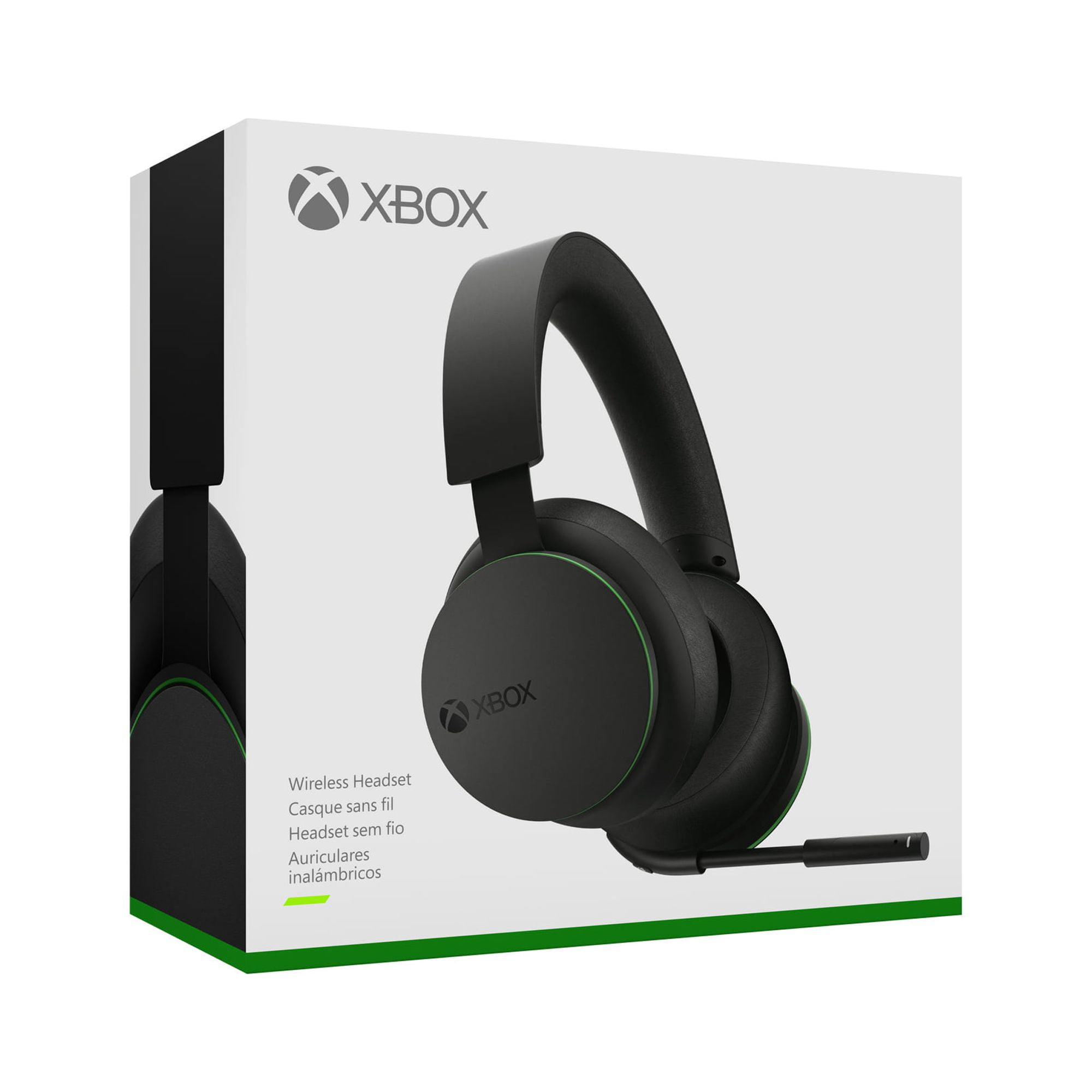
- Use an Xbox Wireless-compatible headset for full wireless audio and chat without Bluetooth.
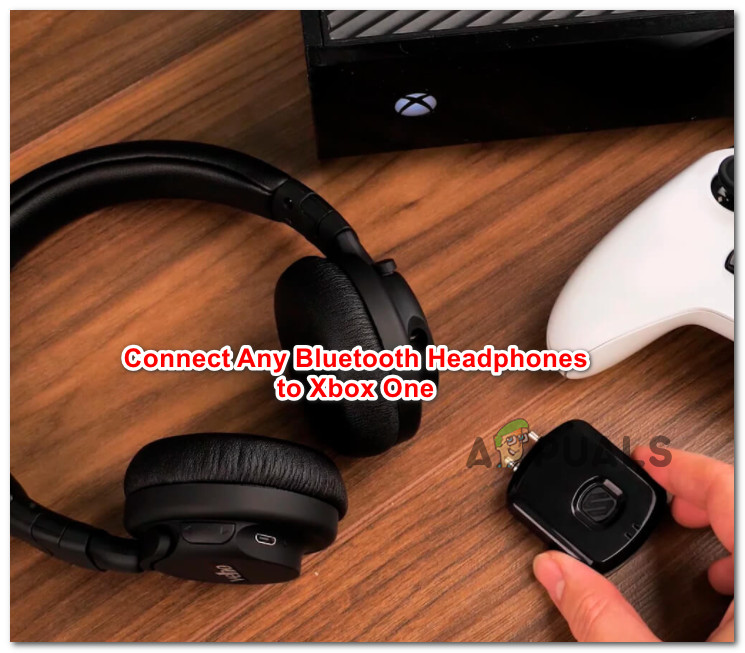
- Use a Bluetooth transmitter plugged into the Xbox controller or TV to send game audio to Bluetooth headphones.
- Use the Xbox mobile app for party chat on your phone while routing game audio differently.
- Use a wired connection to the controller or use an adapter to get chat and game audio.
- Use a USB Bluetooth adapter or transmitter for the console or controller when supported.
Each option has pros and cons in latency, chat support, and setup complexity. Later sections give step-by-step instructions and troubleshooting for the most common approaches.
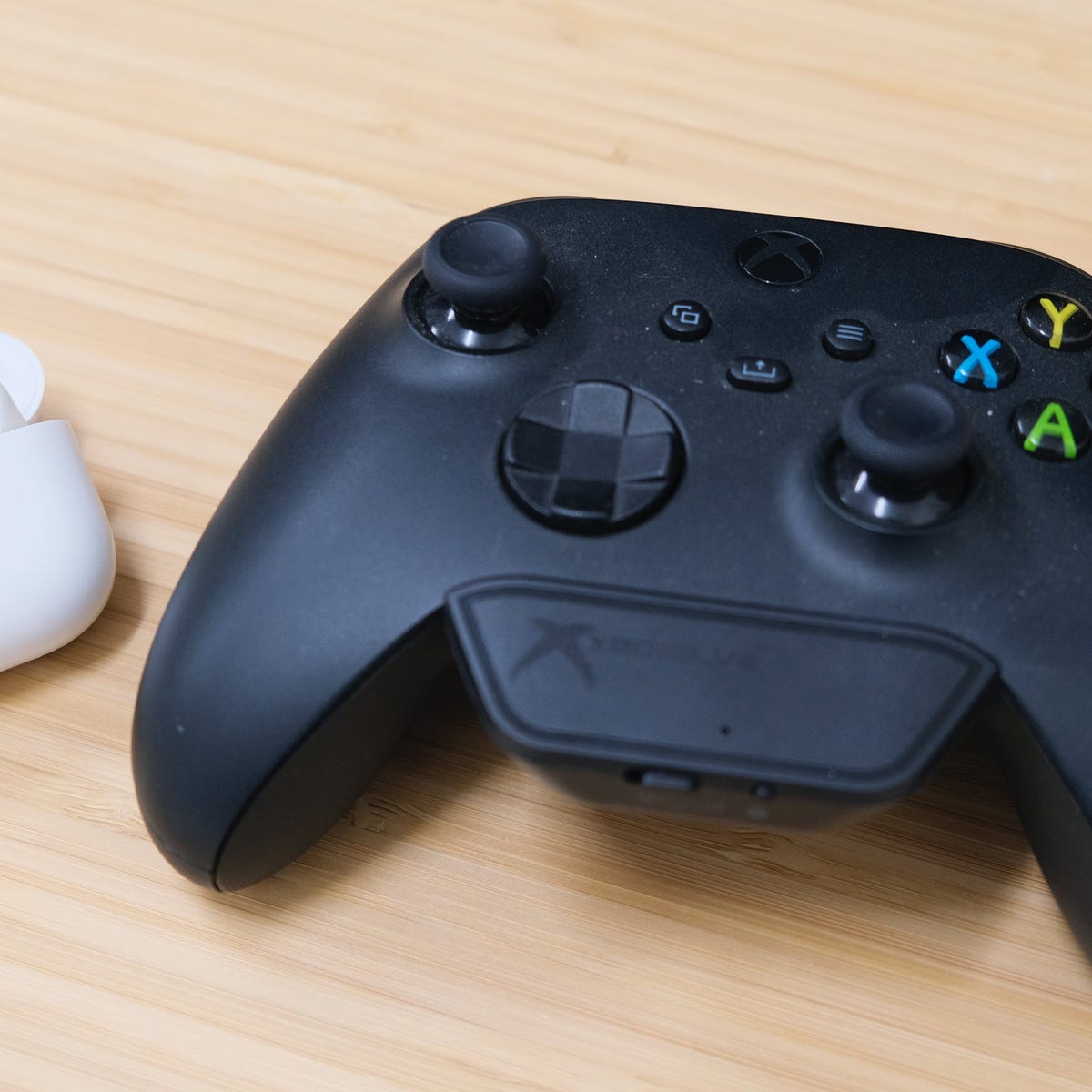
Step-by-step: use a Bluetooth transmitter with Xbox One
A Bluetooth transmitter can send game audio from the Xbox to your Bluetooth headphones. This method handles game sound, but chat may be limited unless the transmitter supports two-way audio.
- Choose the right transmitter. Look for low-latency support (aptX Low Latency) and the right connection type for your setup (3.5 mm, optical/TOSLINK, or USB).
- Decide where to plug it in. You can connect to the Xbox controller 3.5 mm jack for both game and chat (if the transmitter supports mic passthrough). Or connect to the TV or Xbox optical output for game audio only.
- Plug the transmitter in and power it on. Follow its pairing mode instructions.
- Put your Bluetooth headphones in pairing mode and pair them to the transmitter. Follow any active indicator lights.
- Test audio and chat. If chat doesn’t work, you can route chat through the Xbox app on your phone or use a wired headset for chat.
- Adjust volume and latency settings if your transmitter or headphones support them.
This approach is low cost and works well for single-player or casual play, but expect small audio delay unless both devices use low-latency codecs.
:max_bytes(150000):strip_icc()/PXL_20201108_004746486-e6e2c998b9704a258f0fa4878556501e.jpg)
Step-by-step: use the Xbox app for party chat with Bluetooth headphones
If your goal is to use Bluetooth headphones mainly for voice chat, the Xbox app on Android or iPhone is a handy workaround.
- Install and sign into the Xbox app with the same account used on the console.
- On your phone, pair your Bluetooth headphones to your phone as normal.
- Open the Xbox app and start or join a party chat. The app will route voice chat to your phone and headphones.
- For game audio, leave the TV or speaker as the main audio source. You’ll hear chat in your headphones and game audio from the console.
- Use in-app voice volume controls and mute as needed.
This method keeps chat private and is simple to set up. But it splits audio between devices — you’ll hear game sound from the TV and chat in your ears — which can be fine for many players.

Alternative: wired connection through the Xbox controller
The simplest and most reliable way to get headset audio and chat is via a wired headset.
- Plug any headset with a 3.5 mm jack into the Xbox controller. The controller will carry both chat and game audio.
- If your controller lacks a jack, use a stereo headset adapter for the older controllers or use a compatible chat adapter.
- If your Bluetooth headphones include a detachable audio cable, plug that cable into the controller for an instant wired connection.
Wired connections remove latency and pairing issues. They are usually the lowest-cost, most dependable solution for clear game and chat audio.
Troubleshooting common issues
Here are quick fixes for problems you may face when trying to use Bluetooth headphones with Xbox One.
- No audio from headphones: Check transmitter power and pairing. Confirm the TV or controller output is set to the port where the transmitter is plugged in.
- Chat not working: If using a transmitter, confirm it supports mic input. Otherwise use the Xbox app for chat or a wired mic.
- Loud latency or echo: Use a low-latency transmitter and headphones with aptX Low Latency support. Reduce Bluetooth distance and RF interference.
- Only game audio, no chat: This is normal when the transmitter connects to TV or optical output; route chat via phone app or wired mic.
- Controller audio too quiet: Check controller volume and headset audio mixer settings in the Xbox settings menu.
Patience helps—small firmware updates for transmitters or the console can change how devices behave. Keep gear firmware up to date when possible.
Quick PAA-style questions
What happens if I try to pair Bluetooth headphones to Xbox One directly?
- The console will not find standard Bluetooth audio devices because Xbox One does not use the common Bluetooth headset profiles for audio and chat.
Can I get both game audio and chat to Bluetooth headphones on Xbox One?
- Yes, but only with specific hardware like a two-way Bluetooth transmitter or an Xbox Wireless-compatible headset; standard Bluetooth pairs rarely support both game and chat reliably.
Will an Xbox Wireless headset work with Bluetooth devices?
- Xbox Wireless uses a different protocol and usually does not act as a standard Bluetooth headset, so many Xbox Wireless headsets will not pair to other Bluetooth devices without a separate Bluetooth mode.
Best Bluetooth transmitters and what to look for
When shopping for a Bluetooth transmitter for Xbox One, focus on features that reduce lag and support chat.
- Low-latency codecs: aptX Low Latency or similar. This reduces audible delay.
- Two-way audio: Supports microphone input if you want chat to work through the headphones.
- Multiple connection options: 3.5 mm, optical/TOSLINK, and USB increase compatibility.
- Long battery life or USB power: For long sessions, USB-powered transmitters avoid charging downtime.
- Compact and easy pairing: Clear indicators and simple modes reduce setup time.
I avoid ultra-cheap transmitters that lack latency specs. They often cause lag or dropouts during intense gaming.
Personal experience, tips, and mistakes to avoid
I’ve tested several setups while helping friends and clients. Here’s what I learned.
- Tip: If you want wireless game + chat with low latency, buy an Xbox Wireless headset. It’s the friction-free choice.
- Tip: For budget builds, a good low-latency Bluetooth transmitter to the controller works well for single-player games.
- Mistake to avoid: Buying a transmitter without mic support when you expected chat to work. Read specs carefully.
- Lesson: The Xbox app is a lifesaver for private party chat. It’s simple and avoids extra hardware.
- Practical trick: Keep a short aux cable handy. Many Bluetooth headphones support wired input and that solves most issues instantly.
These tips come from hands-on testing and from troubleshooting setups in living rooms and small LAN sessions. They help you choose the right path for your play style.
Frequently Asked Questions of how to connect bluetooth headphones to xbox one
Can I pair any Bluetooth headphones directly to my Xbox One?
No. Xbox One does not support standard Bluetooth audio profiles, so most Bluetooth headphones cannot pair directly with the console.
How do I get both game audio and chat to my Bluetooth headphones?
Use a two-way Bluetooth transmitter that plugs into the controller or an Xbox Wireless-compatible headset; otherwise route chat through the Xbox app and game audio through the TV or transmitter.
Will a Bluetooth transmitter add audio delay?
It can. To minimize delay, pick a transmitter and headphones that support low-latency codecs like aptX Low Latency and keep devices close to each other.
Can I use the Xbox mobile app to get chat on Bluetooth headphones?
Yes. Pair the headphones to your phone, open the Xbox app, and join a party chat. Chat will route to your phone while game sound stays on the console.
What is the most reliable way to get voice chat working?
A wired headset plugged into the Xbox controller or an Xbox Wireless-compatible headset is the most reliable method for both game sound and voice chat.
Do I need any special settings on Xbox One to use a transmitter?
You may need to set audio output to optical or HDMI, depending on where you plug the transmitter. Check the console audio settings and the transmitter manual for exact steps.
Are Xbox Wireless headsets Bluetooth?
Some models include Bluetooth for secondary devices, but Xbox Wireless is a separate protocol designed for low-latency console audio and chat. Always check headset specs for Bluetooth mode.
Conclusion
You can’t pair most Bluetooth headphones directly with Xbox One, but practical workarounds let you enjoy private audio. Choose an Xbox Wireless headset for the easiest, lowest-latency experience. Use a good Bluetooth transmitter if you want to keep your current headphones, or use the Xbox app for chat-only solutions. Try one method, test it, and adjust settings to match your priorities for latency, chat, and comfort.
Take action: pick the method that fits your budget, try it with a short test session, and post your setup or questions below so others can learn from your experience.