How To Connect Bluetooth Headphones To PS5: Quick Fix
You can connect Bluetooth headphones to PS5 using a USB Bluetooth adapter or a wired workaround.
I’ve spent years testing consoles and headsets, and I’ll walk you through exactly how to connect Bluetooth headphones to PS5 — step by step, with real tips, common pitfalls, and simple fixes. If you want low-latency sound for gaming, clear chat, and a fast setup, this guide covers official methods, reliable adapters, troubleshooting, and personal insights so you can get back to the game fast.

Why the PS5 limits direct Bluetooth audio
Sony’s PS5 does not offer full native support for arbitrary Bluetooth audio devices. That’s by design. The console favors secure, low-latency links for controllers and licensed headsets.
Common reasons the PS5 blocks direct Bluetooth headphone pairing include latency concerns, certification standards, and interference with voice chat systems. These limits mean many consumer Bluetooth headsets won’t pair the same way they do with phones.
Knowing this helps you pick the right approach when learning how to connect Bluetooth headphones to PS5. You can either use a compatible adapter or choose a wired route for reliable sound.
Official and supported ways to connect Bluetooth headphones to PS5
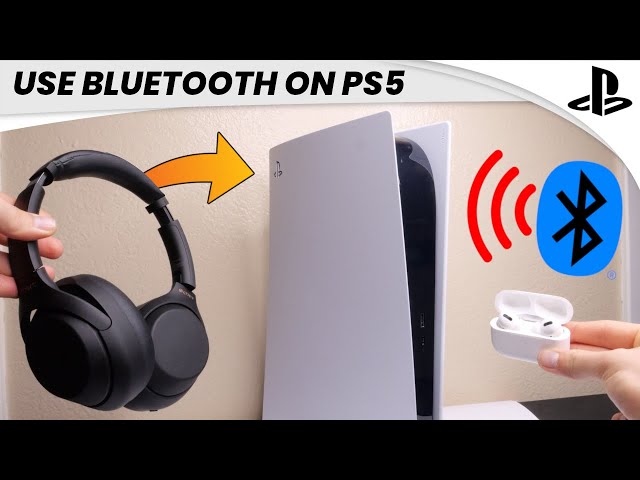
Here are the practical, supported options to use Bluetooth or wireless headphones with your PS5.
- Use an officially licensed PS5 wireless headset
- Many PS5-ready headsets use a USB wireless dongle. Plug the dongle into the PS5 and follow the headset pairing steps.
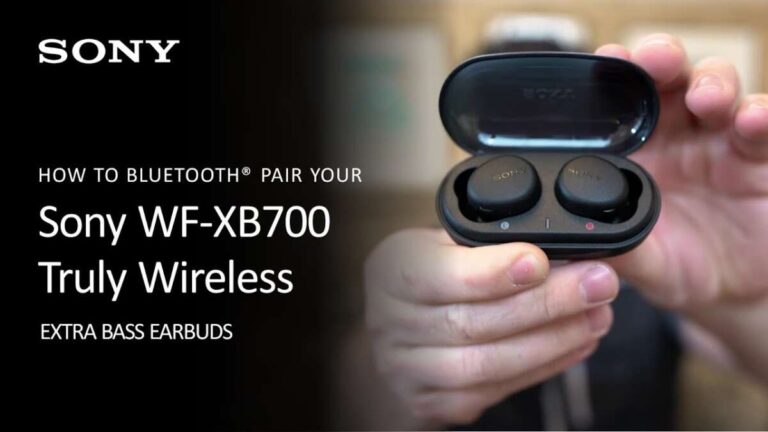
- Use a USB Bluetooth adapter with audio profile support
- A small adapter that supports A2DP and low-latency codecs can enable many headphones to work with the PS5.
- Use a wired connection
- Plug headphones into the DualSense controller via a 3.5mm cable. This is the simplest, most compatible method for game and chat audio.
- Use the PS Remote Play app
- Connect your Bluetooth headphones to your phone or PC and stream PS5 audio via Remote Play. This bypasses PS5 Bluetooth limits.
When learning how to connect Bluetooth headphones to PS5, pick the method that matches your needs for chat, latency, and ease of use.
Step-by-step: How to connect Bluetooth headphones to PS5 with a USB Bluetooth adapter
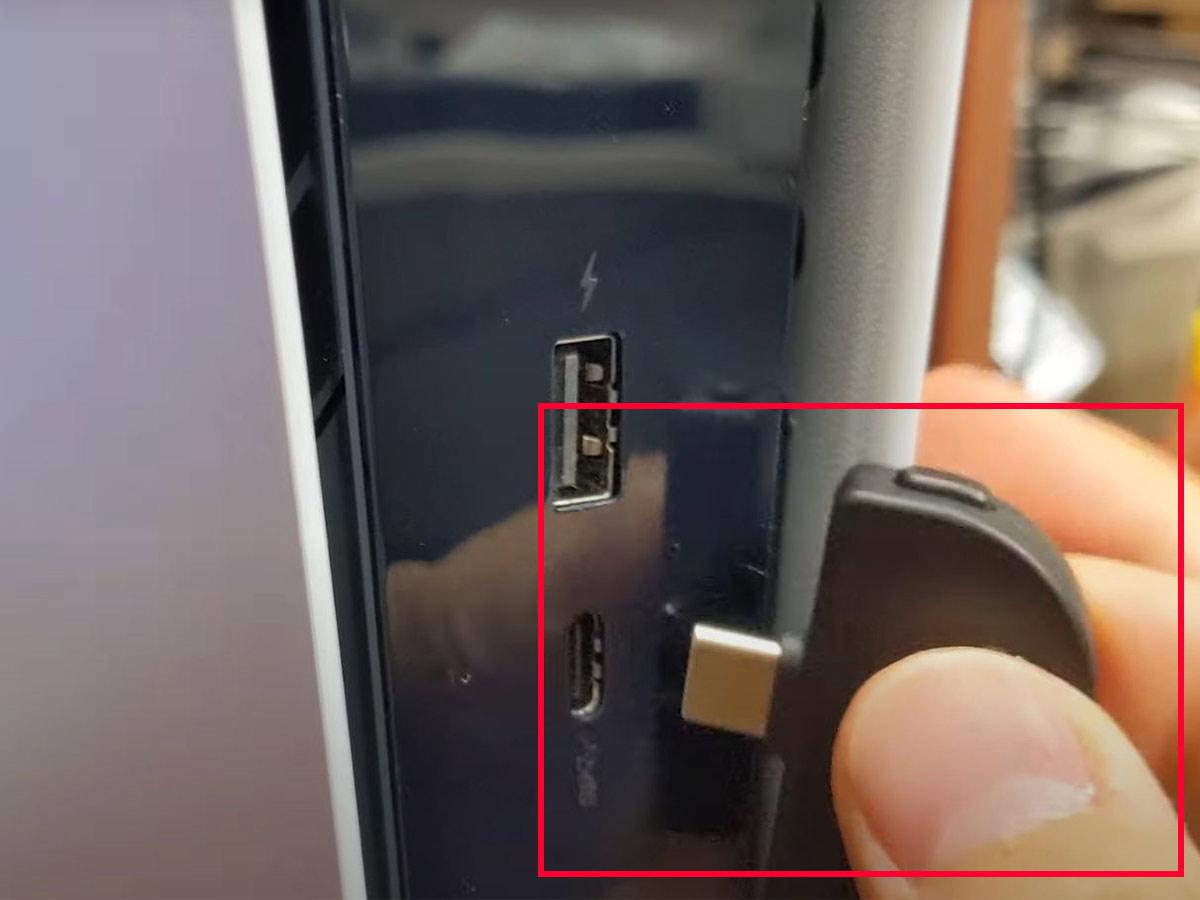
This is the most common DIY solution. I recommend a small adapter that explicitly supports audio and low-latency codecs.
- Choose a compatible USB Bluetooth adapter that lists headset or A2DP support and low-latency codecs like aptX Low Latency.
- Plug the adapter into a front or rear USB port on the PS5.
- Put your Bluetooth headphones in pairing mode. The LED on the headset usually flashes.
- Activate pairing on the USB adapter (follow the adapter’s manual) so it detects the headset.
- Wait for the adapter and headset to pair. On success, the adapter’s LED will stabilize or change color.
- On the PS5, open Settings > Sound > Audio Output to confirm output is set to USB audio device if available.
Notes and tips:
- If audio doesn’t route automatically, restart the PS5 while the adapter and headset are connected.
- Some adapters only handle audio out, not voice chat. If chat fails, use the controller mic or a separate wired mic.
- Latency varies by adapter and headset. For competitive play, wired is still best.
Using this approach taught me to always check adapter specs. Cheap dongles often lack needed audio profiles.

How to connect Bluetooth headphones to PS5 using the DualSense controller (wired fallback)
If your headset supports a wired connection, this method is fast and reliable.
- Plug a 3.5mm cable into the headphone port on the DualSense controller.
- Plug the other end into your headset. For headsets with inline controls, set volume and mic mute as needed.
- On PS5, go to Settings > Sound > Microphone and Audio Output. Choose “Controller Headset” or set the output to “Headphones Connected to Controller.”
- Adjust volume and chat mix to balance game audio and chat.
This wired route is what I use when low latency matters. It’s plug-and-play and works for gaming and voice chat reliably.

How to use PS Remote Play or PC as a bridge for Bluetooth headphones
If you prefer true Bluetooth pairing without buying hardware, use a second device.
- Install PS Remote Play on a smartphone or PC.
- Connect your Bluetooth headphones to that device.
- Launch Remote Play and connect to your PS5 over the same network.
- Audio streams to your device; you’ll hear game sound and can use the device mic for chat if set up.
This is an effective workaround for how to connect Bluetooth headphones to PS5 without adapters. Network quality affects latency, so use a 5 GHz Wi-Fi network or wired PC for best results.

Troubleshooting: common problems and fixes
Here are fast answers to frequent issues when trying to connect Bluetooth headphones to PS5.
- No pairing or no sound
- Ensure the USB adapter supports audio and the headset is in pairing mode. Restart the PS5 if needed.
- Microphone not working
- Many Bluetooth adapters only send audio out. Use the DualSense mic or a wired chat solution.
- High latency / audio delay
- Choose a low-latency adapter and a headset with aptX Low Latency if possible. Otherwise use a wired connection.
- Adapter not recognized by PS5
- Try different USB ports and reboot. Some cheap dongles aren’t PS5-compatible.
- Intermittent dropouts
- Keep the adapter and headset close. Reduce interference and avoid crowded 2.4 GHz environments.
PAA-style quick questions:
Q: Can I pair any Bluetooth headphone directly to PS5?
A: No. PS5 blocks many standard Bluetooth headsets. Use an adapter or wired connection.
Q: Will a USB Bluetooth dongle always fix pairing?
A: Not always. The dongle must support the correct audio profiles and be compatible with PS5.
Q: Is audio lag guaranteed with Bluetooth on PS5?
A: Not guaranteed. Latency varies by headset and adapter. Wired is lowest-latency.
When I tested multiple adapters, the best ones reduced lag and preserved chat. Cheap dongles often failed or lacked mic support.
Best practices, personal tips, and recommendations
From long hours of testing, here are my go-to tips and lessons learned.
- Prioritize a USB adapter with explicit PS5 or console compatibility.
- If you play competitively, use a wired headset for zero latency.
- For chat, verify the adapter supports microphone input or plan a separate mic solution.
- Keep firmware updated for both headset and adapter when possible. Updates can fix compatibility.
- Test in-game and in voice apps (party chat) to confirm both game audio and chat work.
Personal note: I once spent an afternoon chasing a pairing issue that came down to a sleeping Bluetooth adapter. A quick reboot fixed it. That taught me to test restarts before throwing out hardware.
Recommended quick gear:
- Mid-range USB Bluetooth adapter with low-latency support.
- A reliable wired headset with a detachable cable for flexibility.
- Use Remote Play as a free bridge when adapters aren’t available.
Frequently Asked Questions of how to connect bluetooth headphones to ps5
Can I pair my phone-connected Bluetooth headphones directly to PS5?
Most phone-paired Bluetooth headsets won’t pair directly with PS5. Use a USB Bluetooth adapter, wired connection, or the Remote Play app.
Will using a USB Bluetooth dongle allow voice chat?
Some dongles support both audio out and mic in, but many only support audio out. Check the dongle specs for headset and mic support.
Does using Bluetooth cause audio lag on PS5?
Bluetooth can introduce lag. Latency depends on the headset and adapter. Wired connections are the best choice for minimal delay.
Are there PS5-certified Bluetooth headphones?
Yes. Some headsets are sold with a USB dongle and PS5 support. These typically offer the best compatibility and voice chat performance.
How do I set headset audio after connecting?
Go to Settings > Sound > Audio Output and pick the active device. Adjust volume and chat mix under Sound settings for the best balance.
Conclusion
You have multiple ways to connect Bluetooth headphones to PS5: use a compatible USB Bluetooth adapter, plug in via the DualSense controller, or stream through Remote Play. Each option has trade-offs for latency, chat support, and cost. Start with the simplest path for your needs—wired for competitive play, a good USB adapter for convenience, or Remote Play for a no-hardware workaround. Try one method, test audio and chat in a quick match, and adjust settings until it feels right. If this helped, try an adapter or wired test and share your experience or questions below.