How To Connect Beats By Dre Wireless Headphones: Easy Setup
Put the headphones in pairing mode and connect via Bluetooth in your device’s settings.
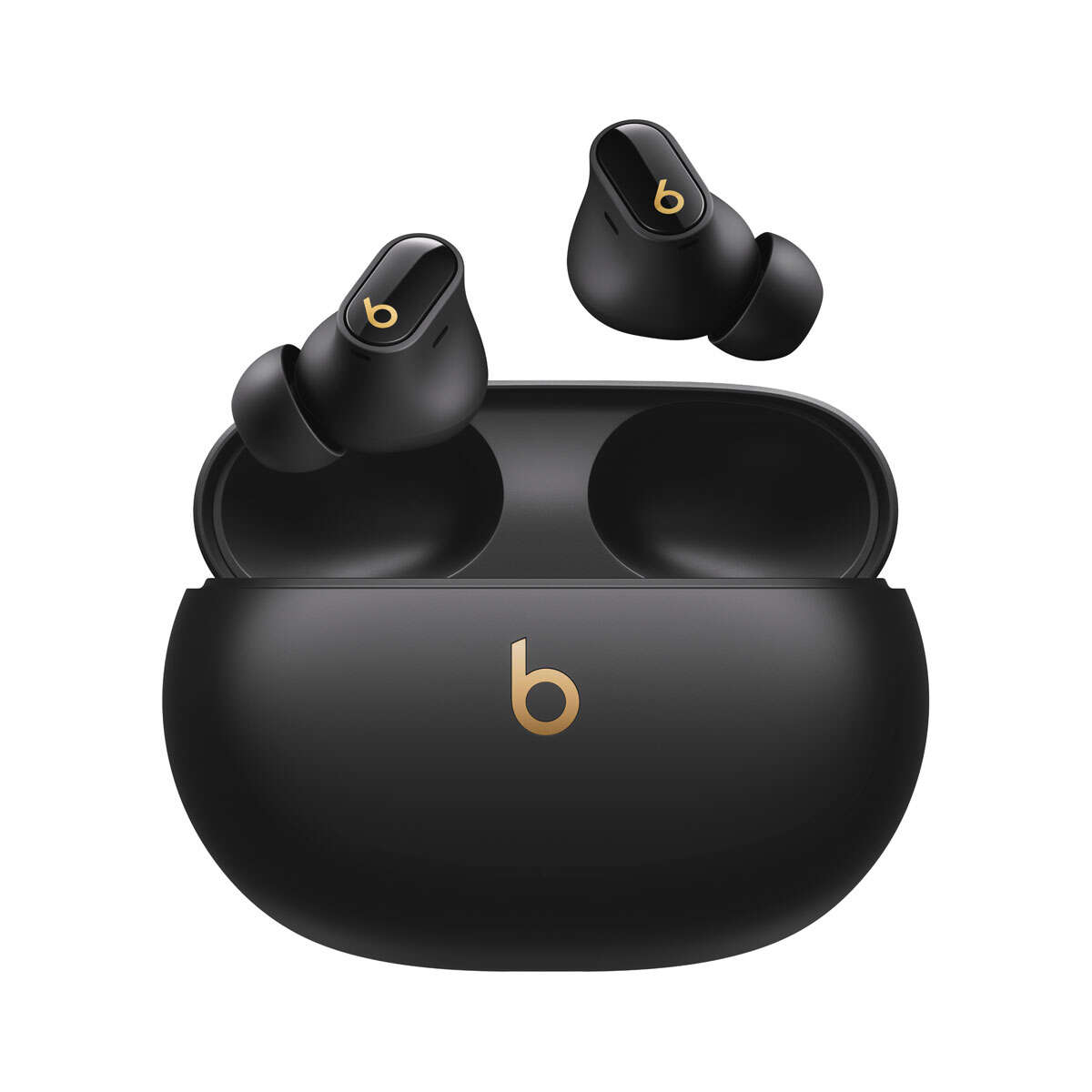
I’ve paired dozens of Beats models across phones, tablets, and laptops. This guide walks you through clear, tested steps on how to connect Beats by Dre wireless headphones to iPhone, Android, Mac, and Windows. You’ll find simple pairing directions, fixes for common issues, battery tips, and smart habits I learned from hands-on use. Read on for a clean, reliable path to a stable Bluetooth link.
Why connecting Beats by Dre wireless headphones is easy (and what to expect)
Beats headphones use standard Bluetooth profiles. Most recent Beats models support quick pairing and can remember devices. Expect a short pairing process that takes 10–30 seconds for most phones. Older devices or low battery can slow pairing or prevent discovery.
Real-world note: I once spent 20 minutes troubleshooting a pair because the headphones were low on charge. A quick charge fixed everything. Small factors often matter more than complex settings.

Quick steps to connect Beats by Dre wireless headphones
Follow these steps to pair most Beats models. These steps explain how to connect Beats by Dre wireless headphones in a generic, reliable way.
- Turn on the headphones.
- Place the headphones in pairing mode. For many Beats, press and hold the power button until the LED flashes or you hear “pairing.”
- Open Bluetooth settings on your device.
- Look for the Beats name in the device list. Tap it to connect.
- Confirm any prompts and test audio.
If you see “Connected” or hear a confirmation tone, the pairing worked. If not, repeat the steps after turning Bluetooth off and on.
How to connect Beats by Dre wireless headphones to iPhone or iPad
Apple devices can pair Beats quickly, especially with iOS H1/W1 chip models. Here’s a short, reliable method.
- Turn on the headphones and keep them close to your iPhone.
- Unlock the iPhone and open the Home screen.
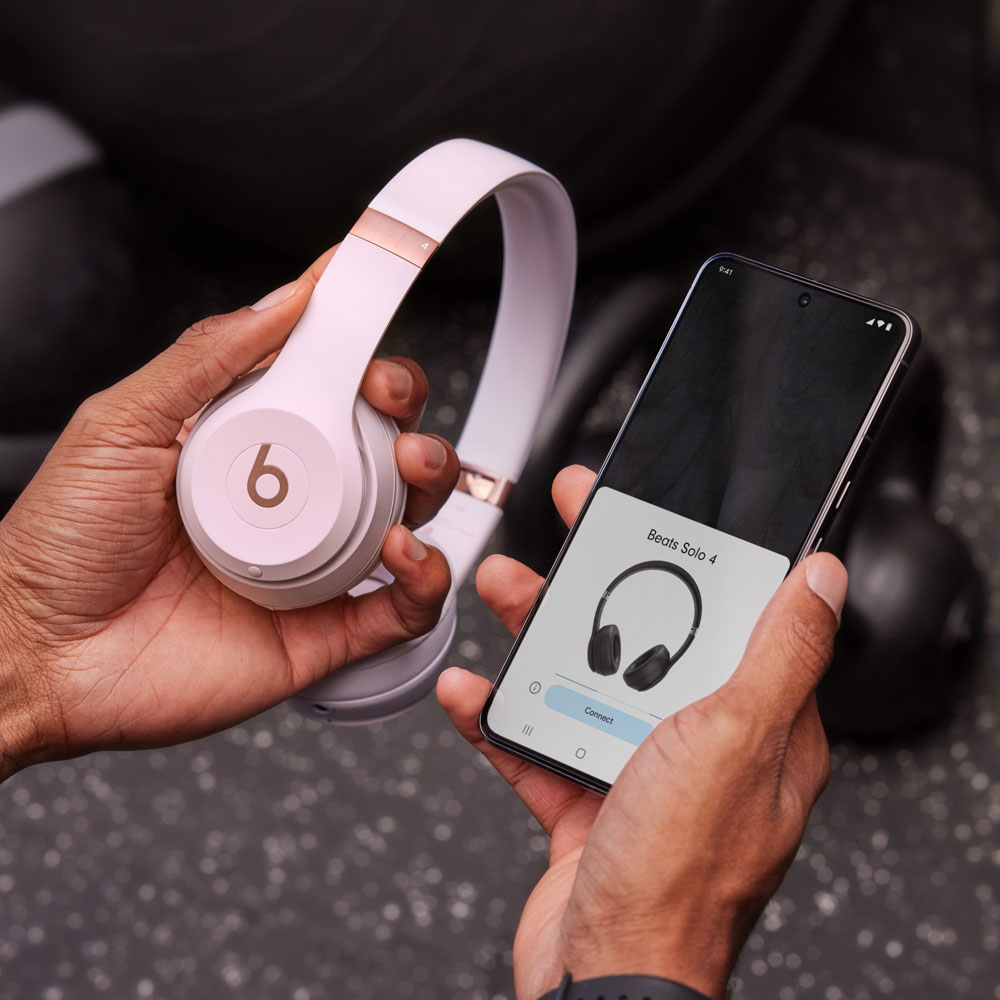
- For newer Beats, a pop-up should appear with an image and Connect button. Tap Connect.
- If no pop-up appears, go to Settings > Bluetooth. Wait for Beats to appear and tap the name to pair.
- Test sound and controls.
Tip: If your Beats use the H1 chip, pairing can be faster and switching between Apple devices is seamless. This is a big convenience for iPhone users.
How to connect Beats by Dre wireless headphones to Android devices
Android pairing is straightforward but varies slightly by phone model.
- Make sure the headphones are charged and in pairing mode.
- Open Settings > Connections or Bluetooth.
- Turn Bluetooth on and tap Scan.
- Tap the Beats device name when it appears.
- Confirm pairing if prompted, then test playback.
Note: If you use an Android phone with an older Bluetooth version, expect slightly slower connect times. Updating phone software can help.
How to connect Beats by Dre wireless headphones to Mac and Windows PC
Pairing with a laptop is simple and similar across systems.
On Mac:
- Turn on the headphones and enable pairing mode.
- Click the Apple menu > System Settings > Bluetooth.
- Wait for the Beats name, then click Connect.
On Windows:
- Turn on the headphones and enable pairing mode.
- Open Settings > Bluetooth & devices.
- Click Add device > Bluetooth, select the Beats name, and pair.
If audio doesn’t route to the headphones, open sound output settings and choose Beats as the output device.

Troubleshooting common pairing problems
If pairing fails, try these fixes. I used these steps many times with stubborn pairs.
- Ensure the headphones have enough battery. Low battery often blocks pairing.
- Move closer to the device and remove large barriers.
- Turn Bluetooth off and on on your device.
- Forget or remove previous Beats entries in Bluetooth settings, then retry pairing.
- Restart both the headphones and the device.
- Update the device OS and any Beats firmware if available.
People also ask:
Can Beats connect to two devices at once?
Many Beats support multipoint or can remember several devices, but active audio from two sources at once is rare. You can switch between devices quickly, however.
Why won’t my device find my Beats?
Interference, low battery, or a previously active Bluetooth connection can hide the Beats in scans. Resetting Bluetooth or the headphones usually helps.

Tips, best practices, and battery care
Use these practical tips I learned from real use.
- Keep firmware and phone software updated for better compatibility.
- Charge regularly. Short charging sessions help if you plan long use.
- Use the correct reset method for your model to clear persistent issues.
- Store headphones in their case to preserve battery and avoid accidental pairing.
- Avoid pairing with many nearby devices at once to reduce interference.
Personal lesson: I once paired a pair to the wrong laptop in a cafe. Naming devices clearly in settings and turning off Bluetooth on devices you’re not using saved time and embarrassment.
Frequently Asked Questions of how to connect beats by dre wireless headphones
How long does it take to pair Beats with a phone?
Most Beats pair in under 30 seconds when in pairing mode and close to your phone. If the device is older or the battery is low, it can take longer.
What if my Beats do not show up in Bluetooth settings?
Turn Bluetooth off and on, ensure the headphones are in pairing mode, and charge them. If they still don’t appear, restart your phone and reset the headphones.
Can I connect Beats to multiple devices at once?
Some Beats models offer multipoint or quick switching. You can pair with many devices but may need to switch active audio manually.
How do I reset my Beats headphones?
The reset method varies by model. Generally, hold the power button or the power and volume buttons together for about 10 seconds until the LED flashes. Check your model’s reset steps if that doesn’t work.
Will noise canceling affect pairing or battery life?
Noise cancelling does not affect pairing but can reduce battery life when active. Turn it off to extend listening time during long trips.
Conclusion
You now have clear, step-by-step methods for how to connect Beats by Dre wireless headphones to phones, tablets, and computers. Start by ensuring a good charge, put the headphones in pairing mode, and select the Beats name in your device’s Bluetooth menu. Use the troubleshooting and battery tips to avoid common problems. Try these steps now and enjoy a seamless audio connection—leave a comment with your model and any issues, or subscribe for more hands-on tips.