How Do I Pair Sony Bluetooth Headphones: Easy Guide
Imagine this. You are sitting in a busy coffee shop. The grinder is loud. People are talking. You just want peace. You put on your headphones. You press play. Suddenly, the world goes quiet. Only your music remains. This is the magic of Sony Bluetooth headphones.
But wait. Before the magic happens, you must connect them.
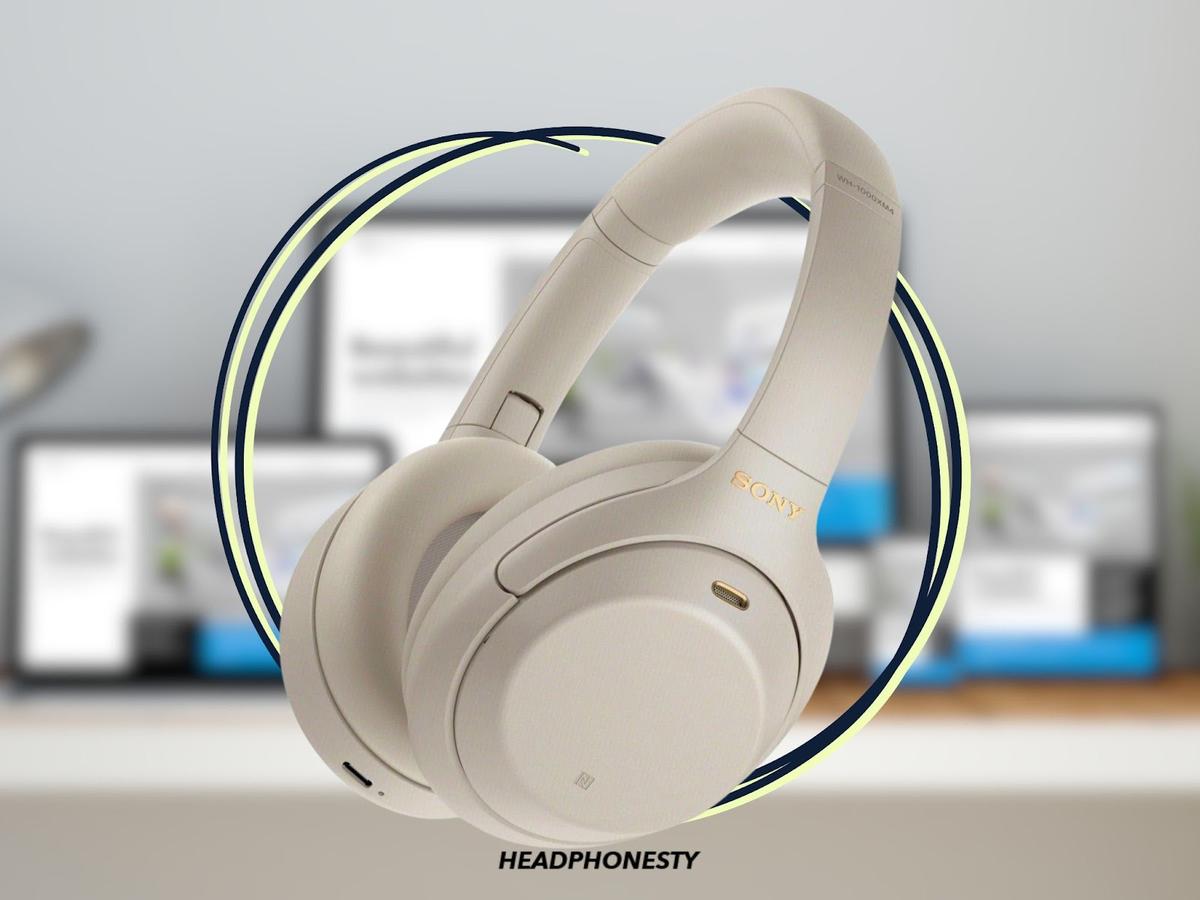
I remember when I bought my first pair of Sony WH-1000XM4s. I was so excited. I took them out of the box. I pressed the power button. Nothing happened. My phone could not find them. I felt silly. I thought they were broken. They were not broken. I just didn’t know the secret.
Do not worry. I learned the secret. Now, I will share it with you.
In this guide, we will solve this puzzle. I will show you how do I pair Sony Bluetooth headphones to any device. We will look at phones, computers, and TVs. It is easier than you think. Let’s start this journey together.
Getting to Know Your Sony Headphones
First, let us look at your headphones. Sony makes many types. You might have big ones that go over your ears. These usually have names starting with WH (like WH-CH720N). Or, you might have small earbuds. These go inside your ears. These usually start with WF (like WF-C500).
Knowing your type is important. They work a bit differently.
Locating the Buttons
Look at the ear cups. On the big headphones, look at the left side. You will see buttons. One is the Power button. It usually has a small symbol. It looks like a circle with a line.
Next to it, you might see volume buttons. Or, you might see a button labeled “NC/AMB.” This controls noise cancellation. But for now, we only care about the Power button.
The Light Signals
Your headphones talk to you with lights.
- Blue light blinking once: It is on.
- Red light blinking: Battery is low.
- Blue and Red blinking fast: This is what we want. This is Sony headphones pairing mode.
Credit: www.youtube.com
The Golden Rule: The 7-Second Hold
Here is the secret I missed. This is the most important part of this guide.
Most people just press the power button. The light turns blue. They think they are ready. They are not. If you just press it, the headphones connect to the last device they knew. If they are new, they might do nothing.
You must hold the button.
Here is the trick:
- Make sure the headphones are OFF.
- Press the Power button.
- Do not let go.
- Keep holding it. Count to seven.
- You will hear a voice. It will say, “Bluetooth Pairing.”
- The light will flash blue and red.
Now, your headphones are shouting, “I am here! Find me!”
This works for almost all Sony over-ear models. It is simple. But it is vital.
Preparation: Before You Connect
We are almost ready. But let’s check a few things first. This saves time later.
Check the Battery
Bluetooth needs power. If your battery is low, it might not pair. Charge your headphones first. Use the USB-C cable in the box. Plug it in for 10 minutes. That is usually enough for a test.
Clear the Area
Do you have an old phone nearby? Or a tablet? If your headphones know them, they might connect to them first. Turn off Bluetooth on other gadgets. This stops them from fighting for the connection.
Stay Close
Bluetooth is like a short rope. It does not reach far. Keep your phone or computer close. Within three feet is best.
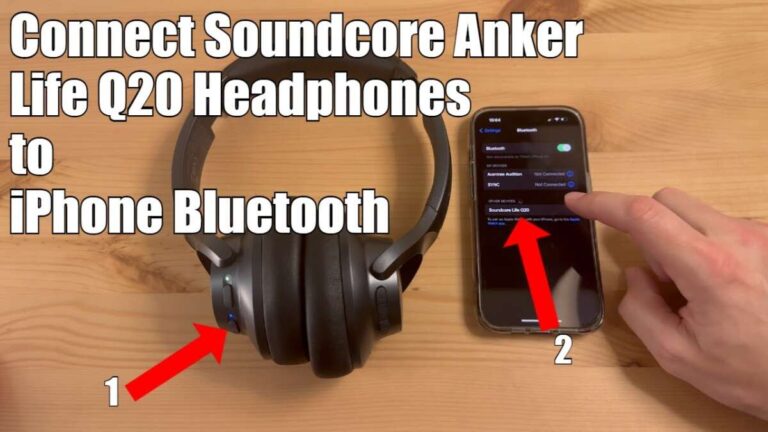
Step-by-Step: Connect Sony Headphones to iPhone (iOS)
Do you have an iPhone? Or maybe an iPad? This section is for you. Apple makes it very easy.
- Unlock your iPhone. Go to the Home screen.
- Find Settings. It looks like a grey gear. Tap it.
- Tap Bluetooth. It is near the top.
- Turn Bluetooth On. The toggle should be green.
- Grab your headphones. Ensure they are off.
- Enter Pairing Mode. Hold the power button for 7 seconds. Wait for the blue and red lights.
- Look at your iPhone. Look under “Other Devices.”
- Find your name. You will see something like “WH-1000XM5.”
- Tap the name. The wheel will spin.
- Done! It will say “Connected.” You will hear a beep in the headphones.
Now, play a song. Enjoy the sound.
Step-by-Step: Pair Sony Headphones to Android
Android phones are smart. They give you a few ways to connect. You can use the menu. Or, you can use cool tricks.
The Standard Method
- Open Settings.
- Tap Connected Devices or Bluetooth.
- Tap Pair New Device.
- Put headphones in pairing mode. (Remember the 7-second hold!).
- Wait for the name to pop up on the screen.
- Tap the name.
- Confirm the pair.
Pro Tip: Google Fast Pair
Newer Sony headphones love Android.
- Turn on Bluetooth on your phone.
- Put headphones in pairing mode near the phone.
- A photo of the headphones will pop up on your screen.
- It will ask, “Connect?”
- Tap Connect.
- That is it! No menus needed.
Expert Trick: Using NFC
Does your phone have NFC? Look for the N-mark on your headphones. It is usually on the left ear cup.
- Unlock your Android phone.
- Enable NFC in settings.
- Touch the back of your phone to the N-mark on the headphones.
- Your phone will vibrate.
- Tap Yes to pair.
This feels like magic. It is very fast.
Connecting to Computers
We work on computers. We watch movies on them. We need good sound there too.
Windows 10 & 11 Guide
Windows can sometimes be tricky. But follow these steps.
- Click the Start button.
- Type “Bluetooth.”
- Click Bluetooth and other devices settings.
- Make sure Bluetooth is On.
- Click the big button: Add device.
- Choose Bluetooth.
- Put headphones in pairing mode. (Blue and red lights!).
- Click your headphone model in the list.
- Click Done.
Note: If you see two names, pick the one with the headphone icon. Do not pick “LE-WH-xxxx.” That is for data, not audio.
macOS Guide
Macs are very friendly with audio.
- Click the Apple Menu (top left).
- Select System Settings (or Preferences).
- Click Bluetooth.
- Put headphones in pairing mode.
- Look at the bottom of the list.
- Hover over your device name.
- Click Connect.
Pairing with TVs and Gaming Consoles
Watching a movie late at night? You don’t want to wake the house. Pair your headphones to your TV.
Smart TV Connection
Most modern TVs have Bluetooth.
- Go to TV Settings.
- Find Sound or Remote & Accessories.
- Look for Bluetooth Speaker List.
- Activate pairing mode on your Sony headphones.
- Select them on the TV screen.
Gaming Consoles (PS5 & Xbox)
Here is some bad news. The PS5 and Xbox do not support standard Bluetooth audio directly. They use special wireless tech.
For Xbox: You must plug the wired cable into the controller.
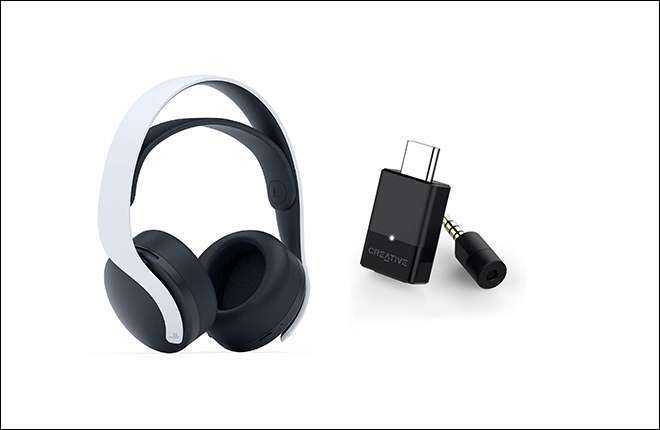
For PS5: You can plug the cable into the controller. Or, you can buy a Bluetooth dongle. Plug the dongle into the USB port. Pair your headphones to the dongle.
Credit: www.headphonesty.com
The Sony Headphones Connect App
You have paired them. Great. But you can do more. You should download the Sony Headphones Connect app. It is free. It is on iPhone and Android.
Why You Need It
This app is the brain of your headphones.
- Updates: It fixes bugs. It adds features.
- Sound Control: Do you like bass? You can add more bass here.
- 360 Reality Audio: This makes music sound like it is all around you.
How to Use It
- Pair your headphones to your phone first.
- Open the app.
- Follow the setup guide.
- It will register your headphones.
- Now you can change settings easily.
Advanced Features: Multipoint Connection
This is my favorite feature. It lets you connect to two devices at once.
Imagine this. You are watching a video on your laptop. Your phone rings. The headphones automatically switch to the phone. You answer the call. When you hang up, the video audio comes back.
How to Set It Up
- Open the Sony Headphones Connect app.
- Go to the System tab.
- Find “Connect to 2 devices simultaneously.”
- Turn it on.
- Pair the first device.
- Turn off Bluetooth on the first device for a moment.
- Pair the second device.
- Turn Bluetooth back on for the first device.
Now both are connected. It is very seamless.
Understanding Earbuds (WF Series) vs. Headphones (WH Series)
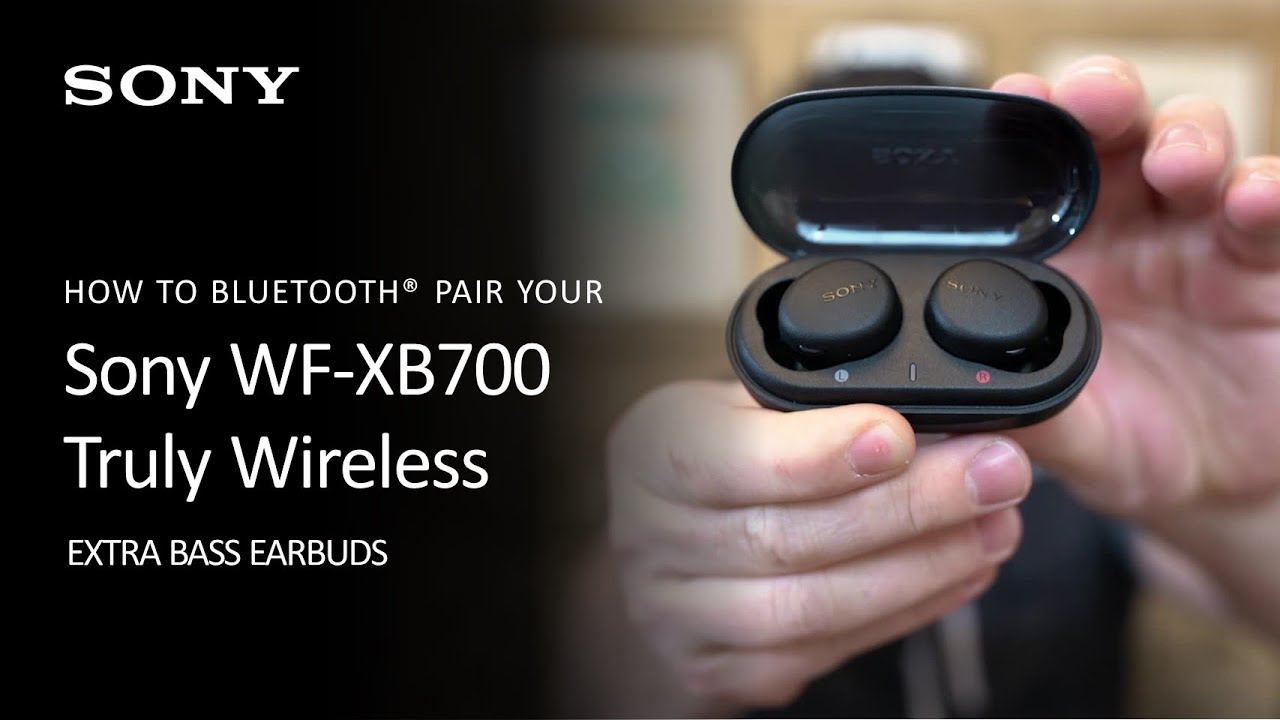
So far, we talked about big headphones. But what about the small earbuds? Like the WF-1000XM5 or LinkBuds?
These do not have a power button on the bud itself. The case is the key.
Case Pairing Method
- Put both earbuds in the charging case.
- Leave the lid open.
- Look for a button on the back (or inside) of the case.
- Press and hold that button.
- Hold it for about 5 seconds.
- The light on the case will flash blue.
- Now they are discoverable.
Touch Sensor Method
Some older models are different. You might need to wear them. Then, hold your fingers on the touch sensors of both buds at the same time. Hold for 7 seconds. You will hear “Bluetooth Pairing.”
Always check the manual for your specific earbuds.
Troubleshooting: Why Won’t They Pair?
Sometimes, things go wrong. Technology isn’t perfect. I have been there. It is frustrating. Let’s fix it.
“I Can’t See the Name”
- Reason: You are not in pairing mode.
- Fix: Turn them off. Hold the power button longer. Wait for the flashing blue and red lights. If it is just flashing blue, it is not ready.
“It Says Connected, But No Sound”
- Reason: The volume is zero. Or the output is wrong.
- Fix: Check volume on both devices. On a PC, click the speaker icon. Make sure the output is set to your headphones.
“The Sound Keeps Cutting Out”
- Reason: Interference.
- Fix: Too many wireless devices are nearby. Move away from the microwave. Move away from the Wi-Fi router. Also, charge the battery. Low battery causes weak signals.
“Connect Sony Headphones to iPhone” Fails
- Reason: Old connection data.
- Fix: Go to Bluetooth settings. Tap the “i” icon next to the headphones. Tap “Forget This Device.” Then, try pairing again from scratch.
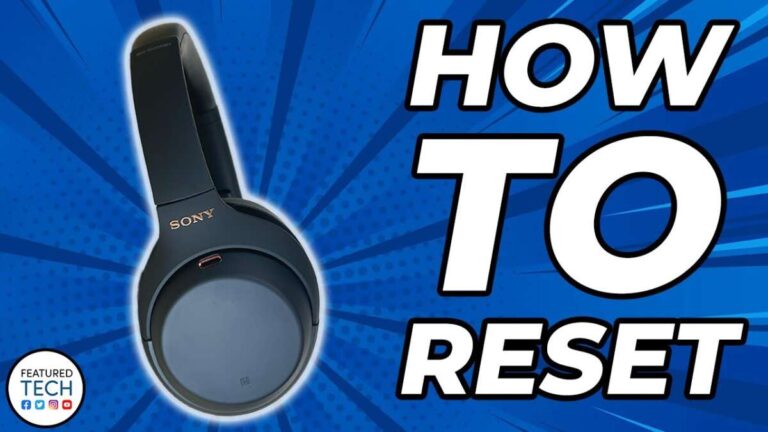
How to Reset Sony Bluetooth Headphones
If nothing works, start fresh. We call this a reset.
The Soft Reset
This restarts the system without erasing data.
- Plug the headphones into power (charge them).
- Press the Power button and the NC button at the same time.
- The headphones will reset.
The Factory Reset (The Hard Reset)
This erases everything. It forgets all phones.
- Unplug the USB cable.
- Turn off the headphones.
- Hold the Power button and the Custom/NC button at the same time.
- Hold for at least 7 seconds.
- The blue light will flash 4 times.
- It is done. Now they are like new. You must pair them again.

Credit: www.sony.co.uk
Maintenance and Care for Long-Lasting Connection
You want your headphones to last. Good care helps the connection too.
Battery Health
Do not let them die completely often. Lithium batteries like to be charged. Try to keep them between 20% and 80%. This keeps the battery strong. A strong battery means a strong Bluetooth signal.
Keep Firmware Updated
Use the app. Check for updates. Sony releases updates to fix connection issues. If your connection is bad, an update might fix it.
Clean the Sensors
On earbuds, clean the metal contacts. Use a dry cloth. If they are dirty, they won’t charge. If they don’t charge, they won’t pair.
Conclusion
We have covered a lot. From the first button press to advanced resets.
How do I pair Sony Bluetooth headphones? Now you know. It is all about the “7-second hold.” It is about looking for the blue and red lights. It is about checking your settings.
Technology should make life better. It should not be hard. Once you connect, the wires are gone. You are free. You can walk. You can dance. You can work.
The next time you sit in a coffee shop, you will be ready. You will press that button. You will hear the voice. You will connect instantly. And then? Just music.
Enjoy your listening journey.
Frequently Asked Questions
How do I activate pairing mode on Sony headphones?
To activate pairing mode, first, turn the headphones off. Then, press and hold the power button. Keep holding it for about 7 seconds. Do not let go until you see the indicator light flash blue and red rapidly. You will also hear a voice prompt say “Bluetooth pairing.”
Why can’t I find my Sony headphones on Bluetooth list?
If they do not appear, they are likely not in pairing mode. A simple blue light is not enough. Ensure the light flashes blue and red. Also, ensure Bluetooth is enabled on your phone. If they are connected to another device nearby, they won’t show up. Turn off Bluetooth on other devices.
Can Sony headphones connect to multiple devices?
Yes, most premium Sony models support Multipoint connection. This allows two devices to connect at once. You must enable this feature in the Sony Headphones Connect app. Once enabled, pair the second device while the first one is temporarily disconnected or paused.
How do I reset my Sony Bluetooth headphones?
Turn off the headphones first. Then, press and hold both the Power button and the Noise Cancellation (or Custom) button simultaneously. Hold them for about 7 seconds. The indicator light will flash blue four times. This confirms the factory reset. All previous pairings will be deleted.
Do Sony headphones work with PS5?
Sony Bluetooth headphones do not connect directly to the PS5 for game audio via Bluetooth. This is due to latency. You must use a wired connection to the controller. Alternatively, you can use a Bluetooth USB dongle plugged into the console to transmit audio wirelessly.
What is the Sony Headphones Connect app?
This is a free mobile app for iOS and Android. It allows you to customize your listening experience. You can adjust the equalizer, control noise cancellation, and update the headphone software. It is highly recommended for all Sony Bluetooth headphone users.