How to Sync Beats by Dre Headphones: Easy Guide
You just bought a pair of Beats. That is awesome.
The box is heavy. The design is slick. You can already imagine the bass hitting your chest. You are ready to zone out. You are ready to focus.
But there is a problem. You press a button. A light blinks. You look at your phone. Nothing happens. You press it again. Still nothing.
Now, you are frustrated. You just want to listen to music. You do not want to solve a puzzle.
I know this feeling well.
My Personal Story
I remember standing in a busy airport lounge. I had my Beats Studio 3 headphones around my neck. My flight was boarding in ten minutes. I wanted to watch a movie on my iPad. I turned the headphones on. But they were still connected to my phone, which was deep in my backpack.
I tried to force them to pair with the iPad. I held the button. I tapped the screen. Nothing worked. The lights just kept flashing white. I started sweating. People were looking at me. I ended up watching the movie in silence with subtitles.
It was not the headphones’ fault. It was mine. I did not know the right steps.
I do not want you to be that person.
I have been a tech writer for over a decade. I have tested every single pair of Beats released since 2012. From the old Solo HDs to the new Studio Pro. I know their tricks. I know their secrets.
In this guide, we will fix your issue. We will get you synced. We will cover every device. We will make it simple.
Let’s get that music playing.
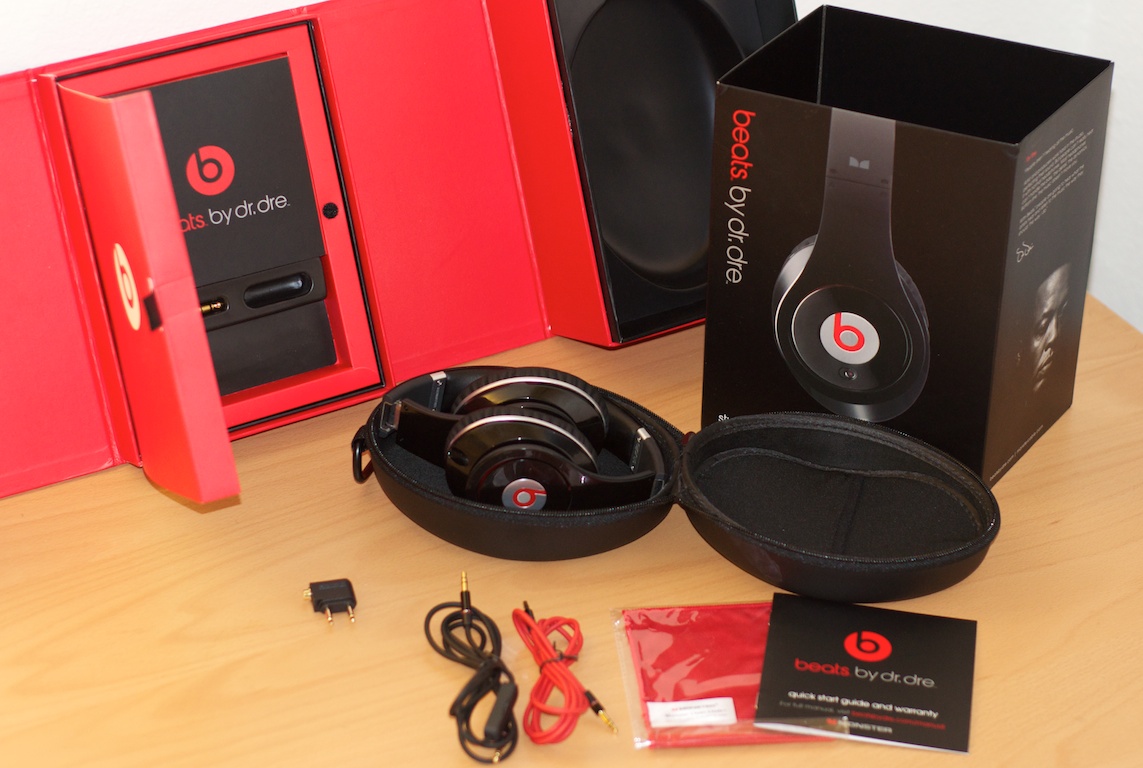
Credit: paulstamatiou.com
Getting Started: The Pre-Sync Checklist
Before we touch any buttons, we need to prepare.
Bluetooth is a radio signal. It is picky. If conditions are not right, it fails. So, let’s set the stage.
Check Your Battery
This sounds silly. But it is the number one cause of failure.
If your battery is low, the Bluetooth radio gets weak. It might turn on, but it won’t pair.
- Red Light: This means low battery. Charge it for 10 minutes.
- No Light: It is dead. Plug it in.
- White Light: It has power.
The “Disconnect” Rule
Beats headphones are loyal. They love the last device they touched.
If you used them with your iPhone yesterday, they will hunt for that iPhone today.
If you want to pair them to your laptop, you must turn off Bluetooth on your iPhone first.
This forces the headphones to look for a new friend. This resolves many Beats wireless connection issues.
Know Your Model
Not all Beats are the same.
- Headphones: These go over your head (Studio, Solo).
- Earbuds: These go in your ear (Fit Pro, Studio Buds).
- Neckbands: These have a wire (Flex, Powerbeats).
The buttons are in different spots. We will cover all of them.
Understanding the Apple Advantage (The H1/W1 Chip)
If you use an Apple device, you are in luck.
Apple owns Beats. Because of this, they put a special computer chip inside.
It is called the W1 or H1 chip.
Why is it special?
It makes pairing look like magic. You do not need to go to the settings menu.
You just open the box. A card pops up on your screen. You tap “Connect.”
That is it.
Also, it uses iCloud.
Once you pair with your iPhone, it automatically pairs with your iPad, Mac, and Apple Watch. You do not need to pair again. It just knows.
If you are on Android, don’t worry. We have tricks for you too.
How to Sync Beats to iPhone or iPad
Let’s start with the easiest method. This works for almost all modern Beats.
This helps you pair Beats to iPhone in seconds.
The “Magic” Method
- Unlock your iPhone. Go to the Home screen.
- Turn on Bluetooth. Ensure it is blue in the Control Center.
- Hold the Beats near the phone.
- For Headphones: Turn them on.
- For Earbuds: Keep them in the case. Open the lid.
- Wait.
- Look at the screen. A white card will slide up from the bottom. It will spin around.
- Tap “Connect”.
- Done.
The Manual Method
Sometimes the magic fails. Maybe the chip is confused.
- Open Settings.
- Tap Bluetooth.
- Put your Beats in pairing mode (we will explain how below).
- Look at the list under “Other Devices.”
- Tap your Beats name.
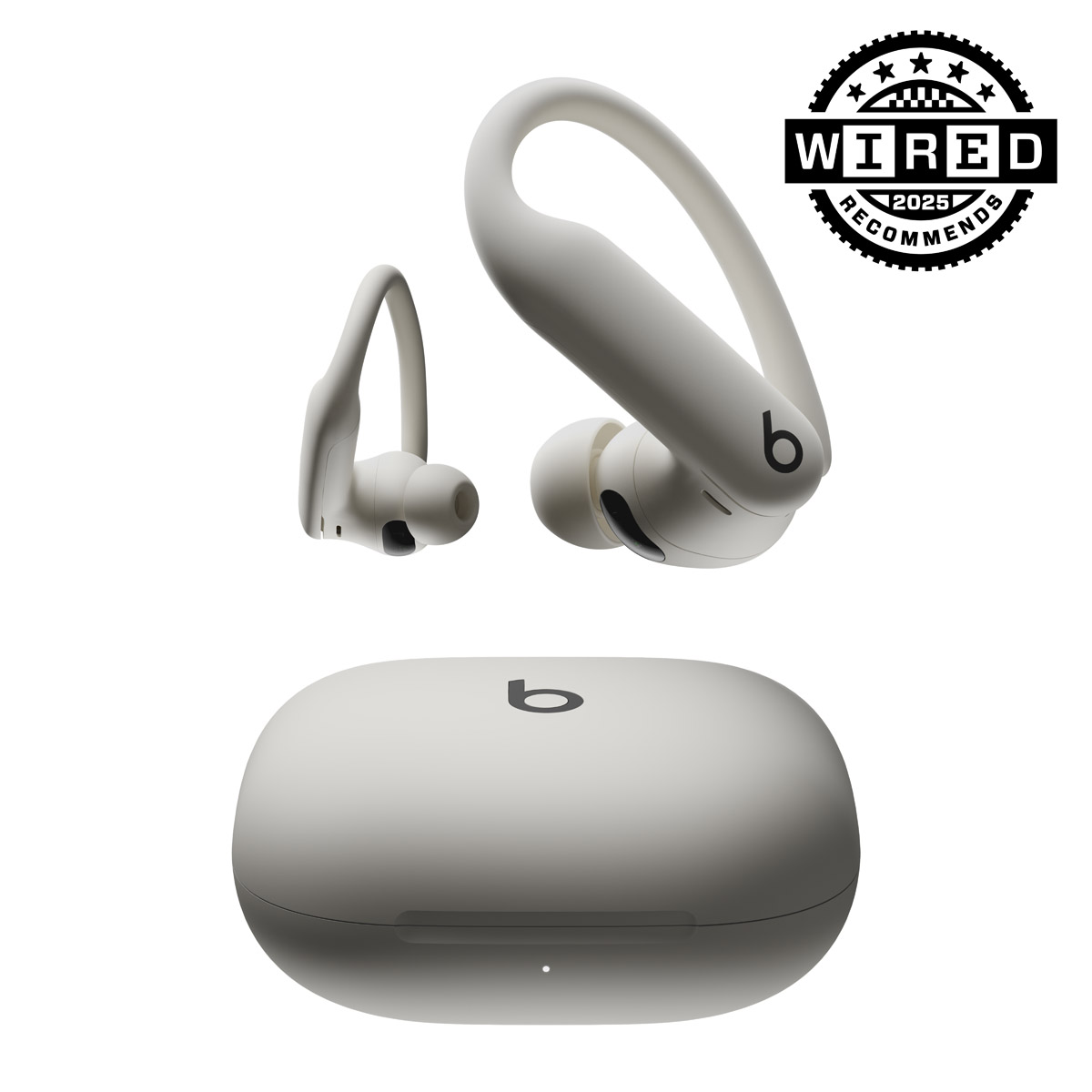
Credit: www.beatsbydre.com
How to Sync Beats to Android Devices
Android users used to have a hard time. Not anymore.
Now, it is very smooth to connect Beats to Android.
Method 1: Google Fast Pair
Newer Android phones work like iPhones.
- Turn on Bluetooth and Location.
- Open the Beats case (or turn on headphones) near the phone.
- A notification pops up at the top of the screen.
- Tap “Connect.”
Method 2: The Beats App
I highly recommend this.
Go to the Google Play Store. Download the “Beats” app.
Why?
- It updates your firmware.
- It shows exact battery life.
- It helps you find lost buds.
To pair with the App:
- Open the App.
- Tap “Connect New Headphones.”
- Follow the pictures on the screen.
Method 3: The Old School Way
- Go to Settings.
- Tap Connected Devices or Bluetooth.
- Tap Pair New Device.
- Activate pairing mode on the Beats.
- Select them from the list.
How to Sync Beats to Windows Computers
Connecting to a PC can be tricky. Windows has many drivers.
Sometimes it connects as a “Phone” instead of “Headphones.”
Let’s do it right.
- Open Start. Click the Windows logo.
- Type “Bluetooth”. Open the settings.
- Turn Bluetooth On.
- Click “Add Device”. It is the big plus sign.
- Choose “Bluetooth”. It is the first option.
- Put Beats in Pairing Mode. (Hold the button until lights flash).
- Select the Name. Click “Beats Studio” (or your model).
- Wait. It will say “Ready to go.”
Pro Tip for Zoom/Teams:
Once connected, click the volume icon on your PC taskbar.
Make sure the playback device is “Headphones (Beats Stereo).”
Do not pick “Headset (Hands-Free)” for music. The sound quality will be bad. Only use “Hands-Free” for calls.
How to Sync Beats to Mac (macOS)
If you have an iPhone, check your Mac first.
Click the volume icon. Your Beats might already be there!
This is the iCloud magic I told you about.
If they are not there, follow this.
- Click the Apple Menu. Top left corner.
- Select System Preferences (or System Settings).
- Click Bluetooth.
- Put Beats in Pairing Mode.
- Look at the list.
- Hover over the name. A “Connect” button will appear.
- Click it.
Model-Specific Guide: Beats Studio and Solo (Over-Ear)
Okay, let’s talk buttons.
If you have the big headphones (Studio 3, Studio Pro, Solo 3, Solo Pro), read this. This is for Beats Studio pairing.
Where is the button?
It is on the Right Ear Cup.
It is a small, round button. It is usually below the LED lights.
Do not press the big “b” logo on the left. That is for pause/play.
How to Pair:
- Start with them OFF.
- Press the small power button.
- Hold it down. Do not let go.
- Count to 5.
- Watch the five little lights (Fuel Gauge).
- They will flash back and forth. Or the main light will pulse white.
- This means “I am ready to pair.”
Note for Solo Pro:
The Solo Pro is different. It has no power button. You unfold them to turn on.
To pair, hold the “Mode” button on the left ear cup for 3 seconds.

Credit: www.youtube.com
Model-Specific Guide: Beats Fit Pro and Studio Buds (True Wireless)
These are the tiny earbuds. They have no wires.
The brain is in the case.
Where is the button?
It is inside the case.
Or sometimes on the front of the case.
It is a tiny, flush circle.
How to Pair:
- Keep the buds inside the case. This is vital.
- Open the lid. Keep it open.
- Find the System Button.
- Studio Buds: It is in the center, between the buds.
- Fit Pro: It is also in the center.
- Powerbeats Pro: It is inside, near the front edge.
- Press and Hold. Use your thumb.
- Watch the LED. There is one light on the case.
- Hold until it flashes White.
- Now, check your phone.
If you take the buds out of the case, they stop pairing. Leave them in.
Model-Specific Guide: Powerbeats and Beats Flex (Neckbands)
These have a wire connecting the left and right side.
They are great for running.
Powerbeats 3 / 4 (High Performance)
- The button is on the Left Ear Hook.
- Start with them off.
- Hold the button for 4 seconds.
- The light on the hook will flash.
Beats Flex / Beats X
- The button is on the Right Module (the plastic part that sits on your neck).
- It is a small power button.
- Press and hold for 5 seconds.
- The light will pulse.
Troubleshooting: When the Lights Keep Blinking
So, you did the steps.
The light is flashing.
But your phone says “No Devices Found.”
This is annoying. But we can fix it. Here is how to handle Beats Bluetooth pairing mode errors.
1. Toggle Bluetooth
Sometimes your phone gets stuck.
Turn Bluetooth off. Count to three. Turn it on.
This resets the radio scanner.
2. Move Away from WiFi
Do you have a WiFi router nearby?
WiFi and Bluetooth use the same frequency (2.4GHz).
Sometimes the router shouts louder than the headphones.
Walk to a different room. Try again.
3. Forget the Device
Did you pair them before?
Maybe the connection is corrupt.
Now start from scratch.
Go to Bluetooth settings.
Find “Beats Studio.”
Tap the “i” or Gear icon.
Tap “Forget This Device” or “Unpair.”
The Master Reset: How to Reset Beats Headphones
If nothing works, you need the nuclear option.
A factory reset wipes the memory. It makes the headphones brand new.
This is the best way to reset Beats headphones.
Resetting Studio and Solo
- Hold the Power Button.
- Hold the Volume Down button (on the left ear cup).
- Press both at the same time.
- Hold for 10 seconds.
- The lights will flash continuously.
- Let go. They are now reset.
Resetting Studio Buds / Fit Pro
- Put buds in the case. Leave lid open.
- Hold the System Button (on the case).
- Hold for 15 seconds.
- The light will flash Red and White.
- Let go.
Resetting Powerbeats Pro
- Put buds in case.
- Hold the System Button.
- Hold for 15 seconds.
- Wait for the flashing light.
After a reset, you must “Forget” the old connection on your phone before trying to pair again.
Updating Your Firmware
Software runs the hardware.
If your software is old, you get bugs. Connection drops. Static noise.
You need to update.
On iPhone
It is automatic.
If your iPhone is on WiFi, and your Beats are connected, they update while you sleep.
You do not need to do anything.
On Android
You must use the Beats App.
Open the app. Connect the headphones.
If there is an update, a button will appear.
Tap “Update.” Keep the phone close.
Do not close the app until it is done.
Optimizing Audio Quality After Syncing
You are connected. But does it sound good?
Let’s make it sound great.
Active Noise Cancellation (ANC)
Beats Studio and Fit Pro have this.
It blocks outside noise.
On iPhone, go to Bluetooth settings. Tap the “i”.
You can choose:
- Noise Cancellation: Blocks noise.
- Transparency: Lets noise in (good for walking).
- Off: Saves battery.
Spatial Audio
This is like 3D sound. It sounds like the band is in the room.
On Apple Music or Netflix, look for the Dolby Atmos logo.
Your Beats will play it automatically.
Android Codecs
On Android, go to Bluetooth settings. Tap the Gear icon.
Look for “LDAC” or “AAC.” Turn it on.
This sends more data to the headphones. The music will sound clearer.
Switching Between Devices
This is a common question.
“Can I listen to my PC and my Phone at the same time?”
Usually, no.
Most Beats do not have “Multipoint” (connecting to two active devices).
They only talk to one.
How to switch:
- Pause music on Device A.
- Go to Bluetooth settings on Device B.
- Tap “Beats.”
- It will steal the connection from Device A.
The Exception:
If you have an iPhone and an iPad, and they use the same iCloud account, the switching is automatic.
If you answer a call on iPhone, the movie on iPad pauses. The audio switches to the phone. It is seamless.
Lost and Found: Using “Find My”
Beats are expensive. Losing them hurts.
But they have a tracker inside.
On iPhone
- Open the Find My app.
- Tap “Devices.”
- Tap your Beats.
- You will see a map. It shows the last place they connected.
- Tap “Play Sound”.
- The headphones will chirp loudly. Follow the sound.
On Android
Use the Beats App.
It has a “Locate My Beats” feature.
It works the same way.
Caring for Your Connection
Dirt is the enemy.
If your earbuds won’t pair, check the case.
Clean the Contacts:
Look inside the case. Look at the metal pins.
Is there dust? Is there earwax?
This blocks the electricity. The buds won’t know they are in the case.
Use a Q-tip (cotton swab). Put a little rubbing alcohol on it.
Gently wipe the pins.
Wipe the metal spots on the earbuds too.
Battery Health:
Do not leave them dead for months.
Lithium batteries hate being at 0%.
If you don’t use them, charge them to 50% before storing.
Conclusion
We made it.
You learned the lights. You learned the buttons. You learned the resets.
Syncing Beats by Dre headphones is easy if you know the rules.
Remember the basics:
- Check the battery.
- Disconnect from old devices.
- Hold the right button.
If you ever get stuck, come back to this guide. Try the reset. It works like magic.
Now, put those headphones on.
Pick your favorite song. Turn the volume up (but not too high!).
Close your eyes.
Enjoy the music. You earned it.
Frequently Asked Questions (FAQ)
1. How do I put my Beats Studio 3 in pairing mode?
Turn the headphones off first. Press and hold the power button on the right ear cup for 5 seconds. Wait until the five Fuel Gauge lights flash.
2. Why won’t my Beats connect to my iPhone?
Ensure Bluetooth is on. If the pop-up doesn’t appear, go to Settings > Bluetooth. If they still won’t connect, try resetting the headphones by holding the power and volume down buttons.
3. How do I reset my Beats earbuds?
Place both earbuds in the charging case and keep the lid open. Press and hold the system button inside the case for 15 seconds until the LED flashes red and white.
4. Can I connect Beats to a Samsung phone?
Yes. You can pair via the Bluetooth menu or download the Beats App for Android. The app allows for one-touch pairing and firmware updates.
5. Do Beats headphones work with Windows laptops?
Yes. Put your Beats in pairing mode. On Windows, go to Settings > Devices > Add Bluetooth or other device. Select “Bluetooth” and click on your Beats.
6. What does the flashing red light mean?
A flashing red light usually means the battery is very low (less than an hour of play time). If it flashes red and white, it means the device has been reset and is ready to pair.