How to Put Sony Headphones in Pairing Mode: Easy Guide
You just bought new Sony headphones. They look great. They feel soft. You are ready for deep bass. You put them on your head. You wait for the music.
But there is silence.
You press buttons. You look at your phone. Nothing happens. The headphones are not connecting.
I know this feeling well. It is frustrating. You just want to listen to your songs. You do not want a tech puzzle.
I am here to help. I have tested dozens of Sony audio products. From the big WH-1000XM5 to the tiny LinkBuds. I have paired them with phones, laptops, and tablets.
In this guide, I will show you how to put Sony headphones in pairing mode. We will cover every type. We will fix common bugs. We will make it easy.
Let’s get your music playing.
Understanding the Basics of Bluetooth Pairing
Before we press buttons, we must understand the tech. Why is pairing hard sometimes?
What is Pairing Mode?
Think of pairing like a handshake.
Your phone is the boss. Your headphones are the worker. They need to meet. They need to agree to work together.
Normally, headphones are “invisible.” Your phone cannot see them. This is for security. You do not want a stranger connecting to your audio.
Pairing Mode makes your headphones visible. It yells, “I am here! Connect to me!”
Once they shake hands, they remember each other. You only do this once for each new device.
The 7-Second Rule (The Golden Key)
There is a secret rule for Sony devices. I call it the 7-Second Rule.
Most problems happen because people are too fast. They press the power button for two seconds. The headphones just turn on. They connect to the old device. They do not look for a new one.
To find a new phone, you must keep holding the button. You hold it past the “Power On” voice. You hold it until the magic happens.
Usually, this takes 7 seconds. Count it out loud. One, two, three… seven.
Keep this rule in mind. It solves 90% of issues.
Credit: www.sony.co.uk
Preparation: Before You Press Buttons
We need to prep your gear. A little work now saves time later.
Check Your Battery Levels
Bluetooth needs power. If your battery is low, the radio gets weak.
Check your LED light.
- Green: You are good.
- Orange: You are okay, but charge soon.
- Red: Stop. Charge your headphones.
I once tried to pair my buds with 5% battery. They kept disconnecting. I thought they were broken. They were just hungry.
Plug them in for 10 minutes. Sony has fast charging. 10 minutes gives you hours of play.
Disconnect From Old Devices
This is a classic problem.
Imagine you have an iPad and an iPhone. Your headphones are paired to the iPad. You want to use the iPhone.
You turn on the headphones. They instantly grab the iPad signal. They love the last device they saw.
Now, you try to pair with the iPhone. But the headphones are busy. They are “married” to the iPad right now.
The Fix:
Turn off Bluetooth on your old device. Or, walk far away from it. This forces the headphones to look for a new friend.
How to Pair Sony Over-Ear Headphones (WH Series)
Do you have big headphones? The ones that cover your ears? These are the WH Series.
Common models are:
- WH-1000XM5
- WH-1000XM4
- WH-CH720N
- WH-XB910N
The method is almost always the same.
Step-by-Step Guide for Over-Ear Models
Follow these steps exactly.
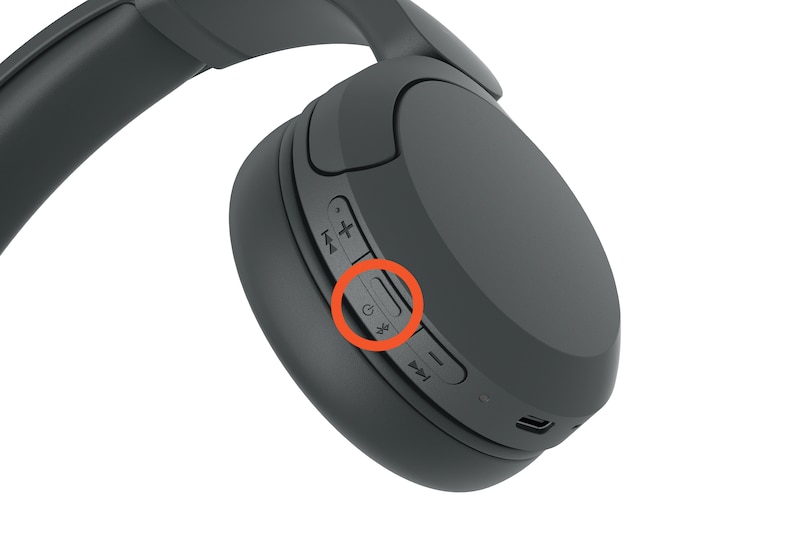
- Turn them OFF. This is vital. You cannot start from “On.” Press the power button until the lights go out.
- Find the Power Button. Look at the ear cup. Usually, it is on the left side. It has a power symbol.
- Press and Hold. Push the button. Do not let go.
- Wait for the Voice. You will hear “Power On.” Keep holding. Do not lift your finger.
- Wait for the Second Voice. After 7 seconds, you will hear “Bluetooth Pairing.”
- Look for the Light. The tiny LED will flash. It goes Blue-Red-Blue-Red.
This fast flashing is the signal. Your headphones are now shouting, “I am here!”
My Personal Experience:
I remember my first flight with the WH-1000XM4. I bought them at the airport. I was in my seat. The plane was loud. I turned them on. They would not connect to my phone.
I was panicked. I kept turning them on and off.
Then I realized my mistake. I was letting go of the button too soon. I held it longer. “Bluetooth Pairing.” The voice saved me. The rest of the flight was silent bliss.

Credit: www.youtube.com
How to Pair Sony Wireless Earbuds (WF Series)
Earbuds are different. They have no big buttons. They have a case. These are the WF Series or LinkBuds.
Common models:
- WF-1000XM5
- WF-C500
- LinkBuds S
- WF-C700N
There are two ways to do this.
The Case Method (Newer Models)
Most new Sony buds use the charging case.
- Put buds in the case. Make sure they sit right.
- Leave the lid OPEN. Do not close it.
- Find the button. Look on the back of the case. Sometimes it is a tiny circle.
- Press and Hold. Push that button for 5 seconds.
- Watch the Light. The case LED will flash Blue.
The flashing blue light on the case means pairing mode is active.
The Touch Sensor Method (Older Models)
Some older buds (like the WF-1000XM3) act differently. You might need to wear them.
- Put the buds in your ears.
- Hold both touch sensors. Put a finger on the left bud. Put a finger on the right bud.
- Hold them at the same time. Keep touching them for 7 seconds.
- Listen for the Voice. You will hear “Bluetooth Pairing.”
My Experience with LinkBuds Fit
I recently tested the LinkBuds Fit. They are tiny. I looked for a button on the case. I found it.
But I had trouble. The case was slippery. My finger kept sliding off the button.
Tip: Use your fingernail. Press the button firmly. Watch the light. If it does not flash blue, wipe the metal contacts on the buds. Dust can stop the connection.
How to Pair Sony Neckband Headphones (WI Series)
Some people love neckbands. These have a wire connecting the buds. They sit on your neck. These are the WI Series.
Models like:
- WI-C100
- WI-C310
- WI-1000XM2
Locating the Power Button on Neckbands
The button is on the control stick. It hangs near your neck. It is usually the middle button.
The Pairing Sequence
The process mirrors the big headphones.
- Start with them OFF.
- Press and Hold the center button.
- Count to 7.
- Wait for the Blue/Red flash.
The light is small on these. Look closely at the control stick.
Credit: www.sony.co.uk
Connecting to Specific Devices
Your headphones are flashing. Now what? You need to finish the job on your screen.
How to Connect Sony Headphones to iPhone (iOS)
iPhones are easy to use.
- Unlock your iPhone.
- Tap “Settings”. It is the gray gear icon.
- Tap “Bluetooth”. It is near the top.
- Check the switch. Make sure Bluetooth is green (On).
- Look at “Other Devices”. It is at the bottom.
- Find your Sony name. It might say “WH-1000XM5.”
- Tap the name.
It will spin for a second. Then it will say “Connected.” You will also hear a voice in the headset say “Bluetooth Connected.”
How to Connect to Android Phones
Android is very smart. It has a feature called Google Fast Pair.
Using Fast Pair:
- Put headphones in pairing mode.
- Hold them near your unlocked Android phone.
- A pop-up appears. It shows a picture of your headphones.
- Tap “Connect”.
That is it. It does the work for you.
Manual Connection:
If the pop-up does not show:
- Go to Settings.
- Tap Connected Devices.
- Tap Pair New Device.
- Select your Sony headphones from the list.
How to Connect to Windows Laptops
Connecting to a PC can be tricky. Windows has changed.
Windows 10 and 11 Steps:
- Put headphones in pairing mode.
- Click the Start Menu on your PC.
- Type “Bluetooth”. Click Bluetooth and other devices settings.
- Turn Bluetooth On.
- Click the big button: Add device.
- Choose Bluetooth (the first option).
- Wait for the list. Click your Sony model.
- Click Done.
Pro Tip: If you see two icons for your headphones, click the one with the headphone icon. Do not click the one that looks like a phone/computer screen.
How to Connect to Mac Computers
Macs love Bluetooth.
- Put headphones in pairing mode.
- Click the Apple Logo (top left).
- Click System Settings (or System Preferences).
- Click Bluetooth.
- Look for “Nearby Devices.”
- Find your Sony model.
- Click the Connect button.
Advanced Pairing Features
Sony gives you extra tools. These make life easier.
Using NFC (Near Field Communication)
Do you see an “N” logo on your headphones? This stands for NFC.
It allows “Touch to Pair.”
- Unlock your Android phone. (iPhones do not use NFC for this).
- Make sure NFC is On in your phone settings.
- Touch the phone to the “N” logo. Usually, it is on the left ear cup.
- Hold it there for 2 seconds.
The phone will vibrate. It will ask to pair. Say yes. You did not even need to touch the power button!
Sony Multipoint Connection
This is my favorite feature. Multipoint lets you connect two devices at the same time.
You can watch a video on your laptop. Then, your phone rings. The headphones automatically switch to the phone. You answer the call. When you hang up, the movie audio comes back.
How to set it up:
- You must use the Sony Headphones Connect App.
- Go to the “System” tab.
- Turn on “Connect to 2 devices simultaneously.”
- Pair with Device 1.
- Pair with Device 2.
Now, both are active. You are a multitasking master.
The Sony Headphones Connect App
You need this app. Go to the App Store or Play Store. Download “Sony Headphones Connect.”
It gives you power.
- You can manage pairings.
- You can change the sound (EQ).
- You can update software.
When you open the app, it guides you. It makes pairing very visual. It shows you exactly what is connected.
Troubleshooting Connection Issues
Sometimes, technology fails. Let’s fix it.
Why Won’t My Headphones Enter Pairing Mode?
Reason 1: You are too fast.
Remember the 7-second rule. Count slowly.
Reason 2: The USB cable is plugged in.
Most Sony headphones cannot pair while charging. Unplug the cable. Try again.
Reason 3: Buttons are stuck.
Check the button. Is it sticky? Did you spill soda on it? Press it a few times to loosen it.
Factory Resetting Your Headphones
If nothing works, we wipe the brain. This is a Factory Reset.
For Over-Ear (WH-1000XM4/5):
- Turn headphones off.
- Hold the Power Button AND the Custom/NC Button.
- Hold both at the same time for 7 seconds.
- The blue light will flash 4 times.
They are now fresh. They forgot your phone. You must pair them like they are new.
For Earbuds (WF-1000XM5):
- Put buds in the case.
- Leave lid open.
- Hold the back button for 15 seconds.
- The light will flash orange, then green.
Dealing with Bluetooth Interference
Bluetooth is a radio wave. Other radios can fight it.
- Microwaves: They kill Bluetooth signals. Don’t pair in the kitchen while cooking.
- Wi-Fi Routers: Stand a few feet away from your router.
- Crowds: If you are at a busy station, many people have phones. This creates “noise.” Move to a quiet corner.
Maintenance and Updates
Good habits keep connections fast.
Keeping Firmware Updated
Sony releases updates often. These fix pairing bugs.
Use the App. It will tell you when an update is ready.
Warning: Updates take time. Do not turn off your phone or headphones during the update. Keep them close together.
Cleaning Contact Points
For earbuds, this is huge.
The buds charge in the case. If the metal points are dirty, they won’t charge. If they don’t charge, they won’t pair.
Use a cotton swab. Wipe the gold dots on the buds. Wipe the pins in the case. Do this once a month.
Frequently Asked Questions (FAQ)
How do I pair Sony headphones without the app?
You do not need the app to pair. Just use the power button method (7 seconds). Go to your phone’s Bluetooth settings. Tap connect. The app is optional but recommended.
Why is the blue light flashing but not connecting?
If it flashes slowly, it is in “Standby.” It is not in pairing mode. You need the fast, double-blink or red/blue blink. Turn them off and hold the button longer.
Can I pair Sony headphones to a TV?
Yes, if your TV has Bluetooth. Go to the TV Settings. Look for “Remotes & Accessories” or “Sound.” Put headphones in pairing mode. Select them on the TV.
Do Sony headphones pair with PS5?
Not directly via Bluetooth. The PS5 does not support standard Bluetooth audio. You need a Bluetooth dongle/adapter plugged into the PS5 USB port. Or, wire them to the controller.
What is the default PIN for Sony headphones?
If your phone asks for a PIN or Passkey, enter 0000. This is the universal code for all Sony audio devices.
Conclusion
You did it. You are now an expert.
We learned a lot today.
We learned the 7-Second Rule.
We learned about the Blue and Red lights.
We learned how to handle Earbuds vs. Over-ears.
Can you put Sony headphones in pairing mode?
Yes. You can.
Technology should be fun. It should not be stress. Now that you know the secret steps, you can connect to anything.
Take your headphones. Connect to your phone. Play your favorite song. Close your eyes.
Enjoy the music. You earned it.
Happy Listening!