How To Connect Sony WH 1000XM4 Headphones To Iphone: Guide
Turn on the WH-1000XM4, enable iPhone Bluetooth, then select WH-1000XM4 to pair.
I’ve paired Sony WH-1000XM4 headphones with iPhones many times and I’ll walk you through each step. This guide covers how to connect sony wh 1000xm4 headphones to iphone, quick setup, app features, troubleshooting, and tips for top sound and noise canceling. Read on to get your WH-1000XM4 working with your iPhone smoothly and reliably.

Why pair your WH-1000XM4 with an iPhone
Pairing lets you use calls, music, and voice assistants with low fuss. The WH-1000XM4 deliver great ANC and clear sound when paired to an iPhone. If you want the best mix of comfort, noise canceling, and iPhone compatibility, learning how to connect sony wh 1000xm4 headphones to iphone is the key first step.
Step-by-step pairing guide
Follow these steps to pair your headphones the first time. I use plain terms so it’s easy to follow.
- Turn on the headphones
- Press and hold the power button until you hear “Power on” or see the indicator blink.
- Enter pairing mode
- Hold the power button about 7 seconds until you hear “Bluetooth pairing” or the indicator blinks blue and red.
- Open iPhone Settings
- Tap Settings, then Bluetooth, and make sure Bluetooth is on.
- Select the headphones
- Look for WH-1000XM4 under “Other Devices.” Tap it to pair.
- Confirm connection
- Once paired, the iPhone lists WH-1000XM4 as “Connected.” You’ll hear a confirmation in the headphones.
If you need to pair again, turn the headphones off and repeat the pairing mode step. Practice taught me to watch the LED and listen for the voice prompts — they remove guesswork. Learning how to connect sony wh 1000xm4 headphones to iphone this way saves time and stress.

Troubleshooting common pairing issues
Here are quick fixes for common problems when you try to connect sony wh 1000xm4 headphones to iphone.
- Headphones won’t appear in Bluetooth list
- Restart headphones and iPhone, then try pairing again.
- Make sure headphones are in pairing mode, not just on.
- Shows “Not Connected” or drops audio
- Forget the device on iPhone and pair again. Go Settings > Bluetooth > tap i icon > Forget This Device.
- Low volume or poor audio quality
- Check the app equalizer, disable any audio effects on your app, and ensure no other device is connected.
- Cannot use multipoint or switch devices
- Verify both devices are paired and the WH-1000XM4 firmware is up to date. Multipoint needs setup and can be finicky across platforms.
- Firmware or app update issues
- Update the Sony Headphones Connect app on your iPhone and follow the app’s firmware prompts.
In my experience, forgetting the device and re-pairing fixes most glitches. If pairing fails often, a factory reset of the WH-1000XM4 usually clears stubborn issues. Learning how to connect sony wh 1000xm4 headphones to iphone is mostly about patience and the right sequence.
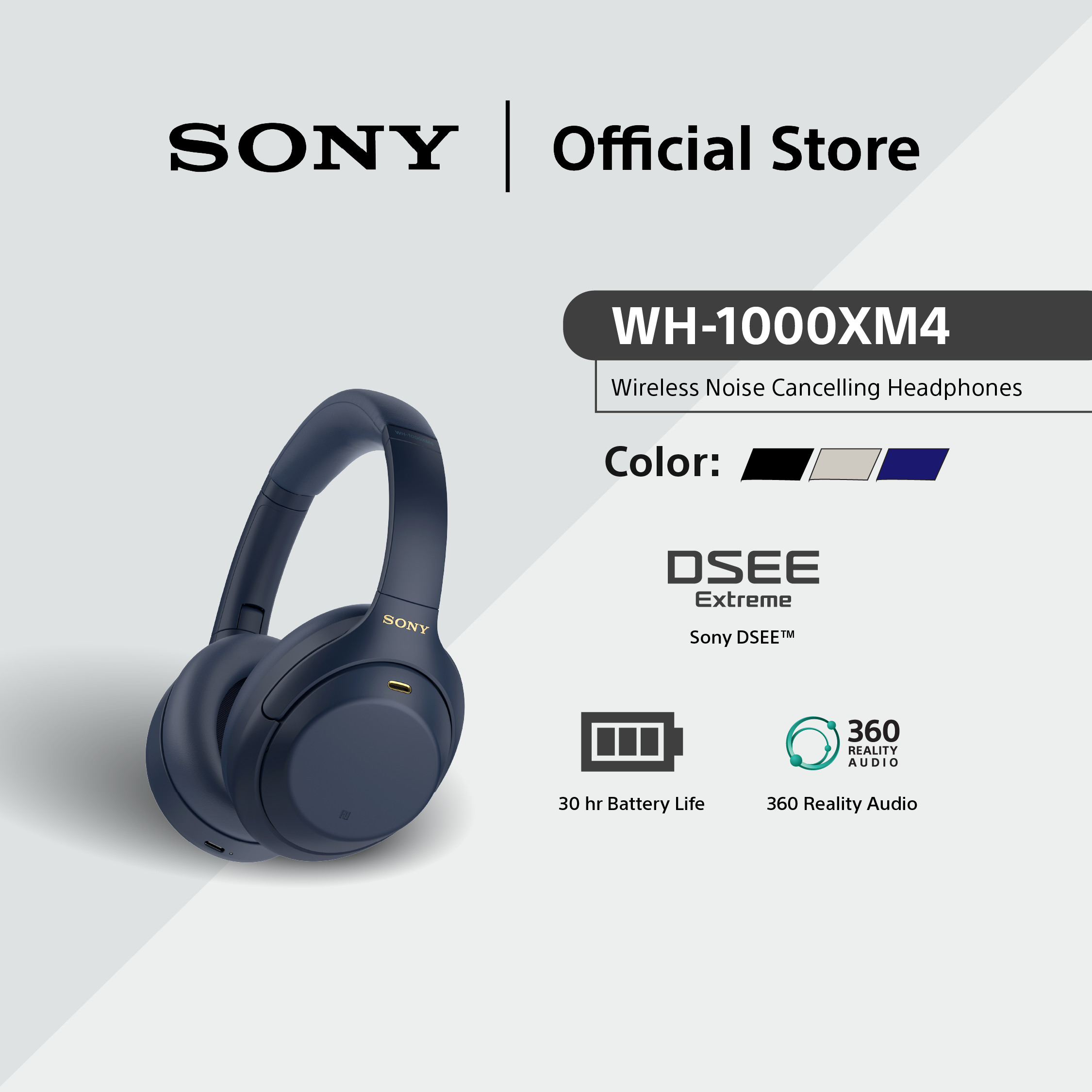
Settings and tips for best audio and noise canceling
A few settings make a big difference when you connect the WH-1000XM4 to an iPhone. These steps help you get the best sound and ANC performance.
- Use the Sony Headphones Connect app
- Install the app on your iPhone to access EQ, adaptive sound control, and firmware updates. The app improves the experience when you connect sony wh 1000xm4 headphones to iphone.
- Codec and audio quality
- iPhone supports AAC and SBC. WH-1000XM4 also supports LDAC, but LDAC is not available on iPhone. Expect excellent AAC playback but not LDAC-level bitrates.
- Noise canceling tuning
- Use the app’s noise-canceling presets or Adaptive Sound Control. Try different levels in real places like the subway or a cafe.
- Call quality tips
- Use a stable Bluetooth connection and keep the phone in your pocket or bag. If call quality drops, move closer to your iPhone and reduce background noise.
I once left ANC on the highest setting for a flight and missed an announcement. My tip: use quick attention mode or ambient pass-through when you need short awareness. Practiced use of these settings will help you master how to connect sony wh 1000xm4 headphones to iphone and make them fit your daily life.

Advanced features and controls
The WH-1000XM4 include smart features that pair well with an iPhone. Here’s how to use them after you connect.
- Multipoint Bluetooth
- WH-1000XM4 can connect to two Bluetooth sources simultaneously. To use multipoint with an iPhone and another device, pair both devices and switch audio on the active device. Multipoint can be finicky between iOS and other OS, so test your setup.
- Custom buttons and gestures
- Use the touch panel for play/pause, skip, volume, and quick attention. You can change some settings in the Sony app once you connect sony wh 1000xm4 headphones to iphone.
- Voice assistant integration
- Press and hold the custom button to trigger Siri. Confirm Siri functions in iPhone Settings if you want hands-free control.
- Firmware updates and safety
- Keep firmware current via the app for bug fixes and improved compatibility. Firmware updates often improve pairing and multipoint behavior.
I use multipoint to switch between my laptop and iPhone. It works well for calls and music, though sometimes one device takes priority. Knowing how to connect sony wh 1000xm4 headphones to iphone and manage multipoint saves time in daily use.

Frequently Asked Questions of how to connect sony wh 1000xm4 headphones to iphone
How long does pairing take with an iPhone?
Pairing usually takes under one minute. If it’s slow, put the headphones back into pairing mode and retry.
Can the WH-1000XM4 use LDAC with an iPhone?
No, iPhone does not support LDAC. You’ll get AAC or SBC audio when you connect sony wh 1000xm4 headphones to iphone.
How do I reset the WH-1000XM4 if pairing fails?
To reset, press and hold the power and NC/AMBIENT buttons for about 7 seconds until the indicator blinks. Then pair again with your iPhone.
Will firmware updates work from my iPhone?
Yes, use the Sony Headphones Connect app on your iPhone to update firmware when available. Updates can fix bugs and improve compatibility.
Can I use Siri with the WH-1000XM4?
Yes. Press and hold the custom button or set up the touch control to summon Siri on your iPhone. Ensure Siri is enabled in iPhone Settings.
Conclusion
You now have a clear, practical path for how to connect sony wh 1000xm4 headphones to iphone, along with tips for sound, ANC, and common fixes. Try the steps, use the Sony app, and update firmware to keep things smooth. If you liked this guide, try pairing now, leave a comment with your experience, or subscribe for more clear, hands-on tech tips.