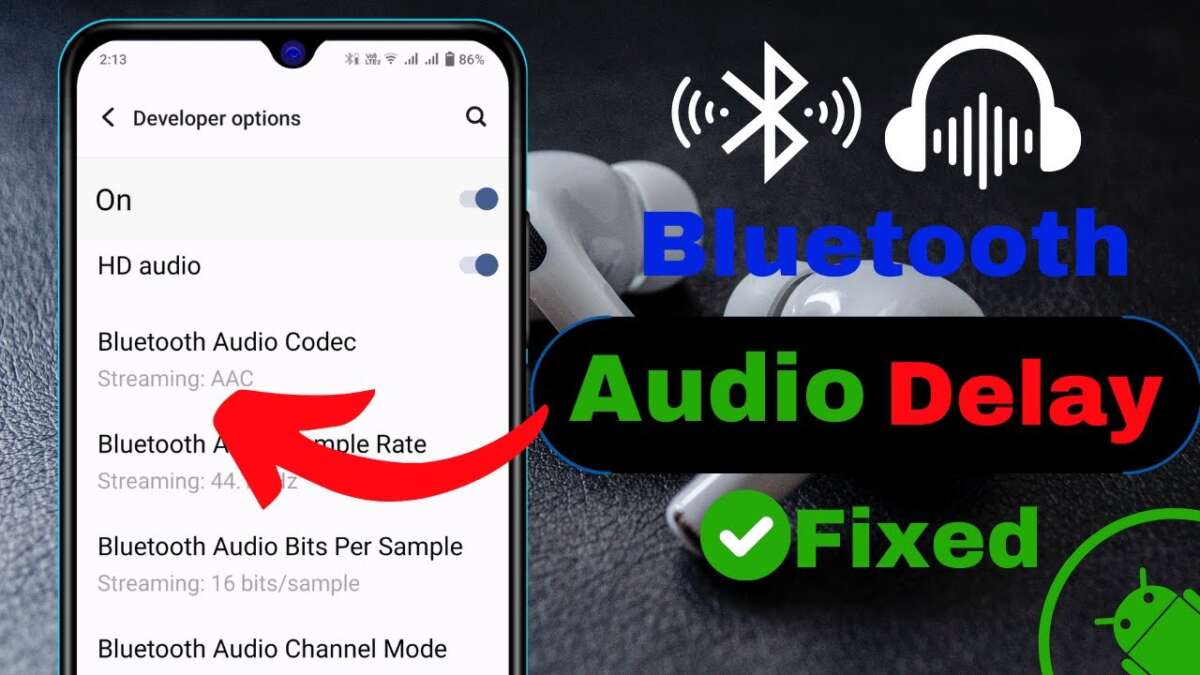
How To Fix Audio Delay On Bluetooth Headphones: Quick Fixes
Use low-latency codecs, update firmware, reduce interference, and reset or re-pair devices to fix audio delay.
I have spent years fixing audio problems for friends, clients, and my own gear. I know how frustrating it is when a video, game, or call is off by a fraction of a second. This guide on how to fix audio delay on bluetooth headphones walks you through simple checks, step-by-step fixes for phones and computers, advanced hardware options, and preventive tips. Read on and you’ll learn practical actions you can take right now to reduce or remove Bluetooth audio lag.

Why Bluetooth audio delay happens
Bluetooth audio delay means sound arrives late. The delay can come from the phone, computer, headphones, or wireless interference. Each device captures, encodes, transmits, decodes, and plays audio. Each step adds milliseconds of latency.
Common technical causes include codec mismatches, buffering for stability, audio profile selection, and long processing inside cheap Bluetooth chips. Older Bluetooth versions and profiles add more lag than modern ones. Apps and streaming services can also add processing delay on the sending device.
Real-world causes include low battery, distance, blocked signal, many Wi‑Fi networks nearby, or other active Bluetooth devices. These everyday factors often make the delay worse. Understanding these causes helps you choose the fastest fix for how to fix audio delay on bluetooth headphones.

Quick user questions (PAA-style)
What is a codec and why it matters?
A codec is the method that compresses and decompresses audio. Some codecs are faster (lower latency) and some prioritize sound quality, so choose low-latency codecs to reduce delay.
Does Bluetooth version affect lag?
Yes. Newer Bluetooth versions and profiles often support faster codecs and better throughput, which lowers the audio delay.
Quick checks before deep troubleshooting
Start with these fast checks. They fix many common problems in minutes.
- Check battery levels on both devices. Low battery can cause added processing and lag.
- Move devices closer. Keep the source and headphones within a few meters and clear of walls or pockets.
- Turn off other Bluetooth devices and pause heavy Wi‑Fi traffic nearby to reduce interference.
- Reboot both the audio source and the headphones. A reset clears buffering and temporary glitches.
- Try a different app or video. If only one app lags, the app may be the issue, not the headphones.
These simple steps often solve the problem. If not, move to the deeper fixes below for Android, iPhone, Windows, and macOS.

Step-by-step fixes for Android and iPhone
Android and iPhone handle Bluetooth differently. Use these platform-specific steps to reduce audio delay on bluetooth headphones.
Android
- Update Android and headphone firmware. New firmware can add support for faster codecs like aptX Low Latency.
- Enable Developer Options, then set the Bluetooth codec to a low-latency option if available (aptX LL, aptX, AAC, or SBC by preference). Not all phones show codec choices.
- Clear app caches and close background apps that might add processing. Reboot the phone and re-pair the headphones.
- Turn off “absolute volume” in Developer Options if you see volume or profile switching issues. This can help stability for some devices.
- Use apps that offer audio sync settings (many video apps let you adjust lip sync) when watching videos.
iPhone
- Update iOS and headphone firmware. iPhones support AAC and SBC; they don’t expose codec settings.
- Re-pair the headphones: forget the device, restart Bluetooth, and connect again.
- Test on AirPlay or wired options if available. When low-latency is crucial, use a wired connection or a dedicated low-latency transmitter.
- For calls, use the headphone’s dedicated call/mode settings if available to switch away from hands‑free profiles that add big latency.
Trying a different phone or headset can help isolate the source quickly. When you test, change one thing at a time so you know what fixed the delay.

Fixes for Windows and macOS
Desktop systems have extra layers: drivers, audio settings, and more profiles. Use these steps to reduce delay on a PC or Mac.
Windows
- Update Bluetooth drivers and Windows updates. Driver updates often improve audio profiles and latency.
- Go to Sound settings and select the correct audio profile. Avoid the Hands-Free Telephony profile for music; use the Stereo profile.
- If you see multiple Bluetooth services for the same headset, remove and re-pair the device to reset profiles.
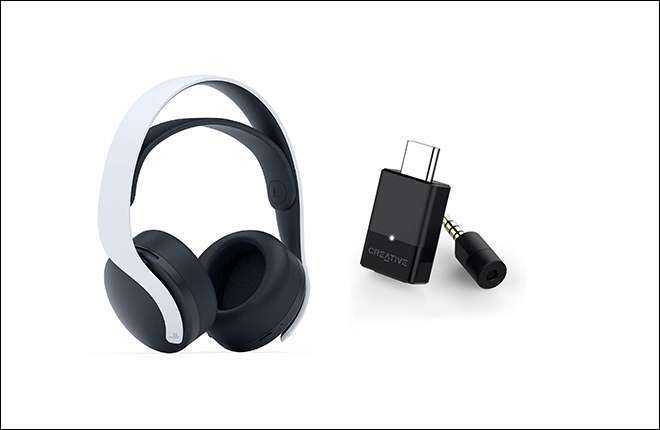
- Try a USB Bluetooth dongle that supports aptX Low Latency or newer Bluetooth standards if your built-in adapter is old.
- For games, use the game’s audio settings to set lower buffer sizes or enable “game mode” if present.
macOS
- Reset the Bluetooth module: option-click the Bluetooth icon and choose “Reset the Bluetooth module” (or follow Apple’s support steps). Then re-pair.
- Update macOS and headphone firmware. Apple devices favor AAC; some headsets perform better with AAC than SBC.
- If audio stutters in calls, check microphone profiles. Using the headset mic can force a high-latency hands‑free mode.
- Use a wired connection or a dedicated external transmitter when low latency is crucial, like for live music or competitive gaming.
If you need very low lag on desktop, a wired solution or a low-latency USB transmitter is often the fastest and most reliable method.
Advanced hardware and software solutions
When basic fixes don’t help, consider hardware or deeper software options to remove the last bit of lag.
- Purchase headphones with built-in low-latency support like aptX Low Latency or proprietary game modes. These can cut latency under 40 ms.
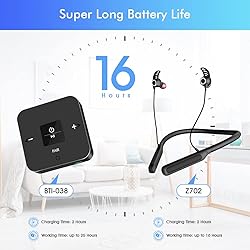
- Use a low-latency Bluetooth transmitter that plugs into your TV, amp, or PC. These often support aptX LL and can remove sync issues for video.
- Use a wired adapter or USB DAC. This removes wireless delay entirely and gives the most reliable sync.
- Try audio routing software to change buffer or sample sizes on a computer. Lower buffers reduce latency but may increase CPU load.
- For streaming video, enable any device or app option labeled “lip sync” or “audio sync” to manually align sound and picture.
Be aware of limitations: aptX Low Latency must be supported by both the transmitter and headphones. If one side lacks the codec, you’ll fall back to a slower codec.

Preventive tips and best practices
Keep audio delay low by following these habits. They prevent future problems and keep your setup smooth.
- Keep firmware and OS updated. Small updates often fix latency and compatibility issues.
- Buy gear with explicit low-latency support if you watch a lot of video or play games.
- Avoid toggling many Bluetooth connections. Pair only the devices you use regularly.
- Maintain charge on headphones and source. Low battery can trigger power-saving that increases latency.
- Place routers and busy devices off to the side when watching or gaming to lower interference.
These small choices add up to a better experience and fewer moments of annoying lip-sync problems.

Frequently Asked Questions of how to fix audio delay on bluetooth headphones
How do I know if the delay is from my phone or the headphones?
Test the headphones with another phone or computer. If the delay persists across multiple sources, the headphones are likely the cause.
Can firmware updates really fix audio delay?
Yes. Firmware updates can add support for faster codecs and optimize buffer handling, which reduces latency.
Will a wired connection eliminate Bluetooth audio delay?
Yes. A wired connection removes wireless transmission and its latency, giving the fastest and most stable audio sync.
Are low-latency codecs like aptX LL the only solution?
They help a lot, but both the source and headphones must support the codec. Other factors like interference and processing still matter.
Does Bluetooth version (e.g., 4.2 vs 5.0) change latency?
Newer Bluetooth versions often provide better throughput and features, which can lower real-world latency. But codec support and hardware quality are more decisive.
Can I fix delay without buying new hardware?
Often yes. Updating firmware, changing codec settings, reducing interference, and re-pairing devices can fix delay in most cases.
Conclusion
You can reduce or eliminate audio delay on bluetooth headphones with a clear, step-by-step approach: check basic settings, update firmware, choose low-latency codecs when possible, and consider wired or low-latency transmitters for the strictest needs. Start with the simple fixes and move to hardware solutions only if needed.
Try the steps now: update, re-pair, and test on another device. If you found this useful, share your results, subscribe for more guides, or leave a comment about your gear so others can learn from your experience.