How To Connect Bose Headphones To Pc: Easy Bluetooth Guide
Pair your Bose via Bluetooth or plug a 3.5mm/USB cable—then set it as your PC's audio device.
I’ve guided hundreds of people through how to connect bose headphones to pc, and this guide gives clear, tested steps you can follow now. I’ll show Bluetooth pairing, wired connections, common fixes, and tips that save time. Expect short steps, real troubleshooting from experience, and settings you can tweak for the best sound on Windows PCs.
Why connect Bose headphones to PC
Connecting Bose headphones to a PC lets you enjoy private, high-quality audio. You can use them for music, calls, gaming, and streaming. Bose models often have active noise canceling and strong wireless range, which make them ideal for work and play.
Benefits include clear audio, low latency options (with good adapters), and built-in microphones for calls. Knowing how to connect bose headphones to pc will keep audio stable and the battery alive. I’ll help you pick the right method for your setup.

Which Bose headphones work with a PC
Most modern Bose headphones work with PCs. That includes:
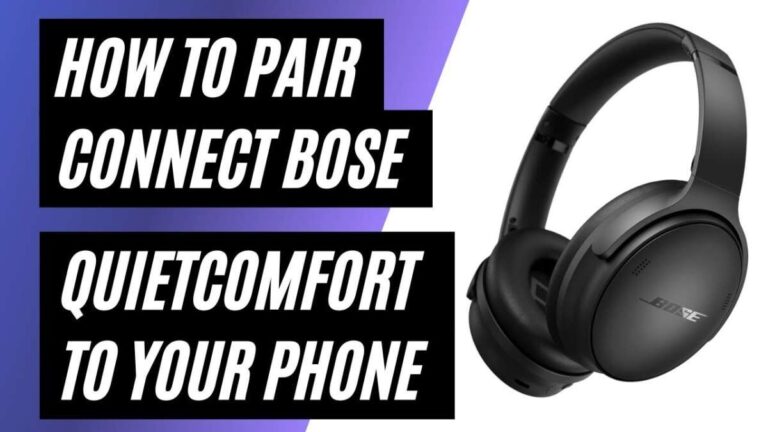
- Bose QuietComfort series
- Bose Noise Cancelling Headphones 700
- Bose SoundLink and newer Bluetooth models
- Older models with 3.5mm jacks and USB options
Some Bose models support USB audio or offer a wired 3.5mm cable. Others use Bluetooth only. Learn how to connect bose headphones to pc for both wired and wireless options so you can use any model with your computer.
Method 1: Connect via Bluetooth (recommended)
Bluetooth is the easiest wireless option. Here are step-by-step instructions for Windows 10 and 11.
Steps:
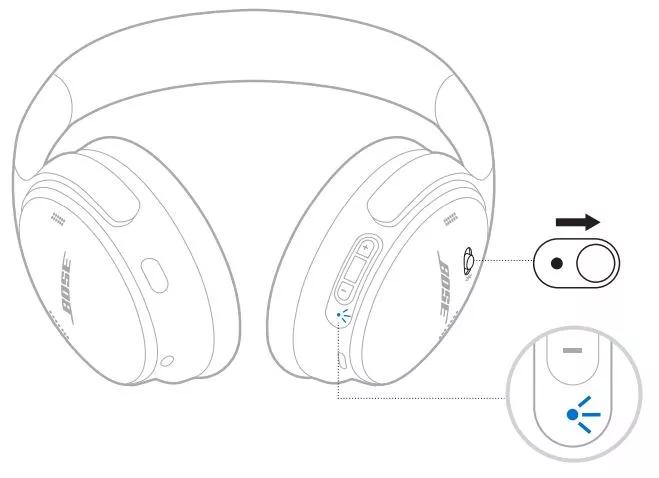
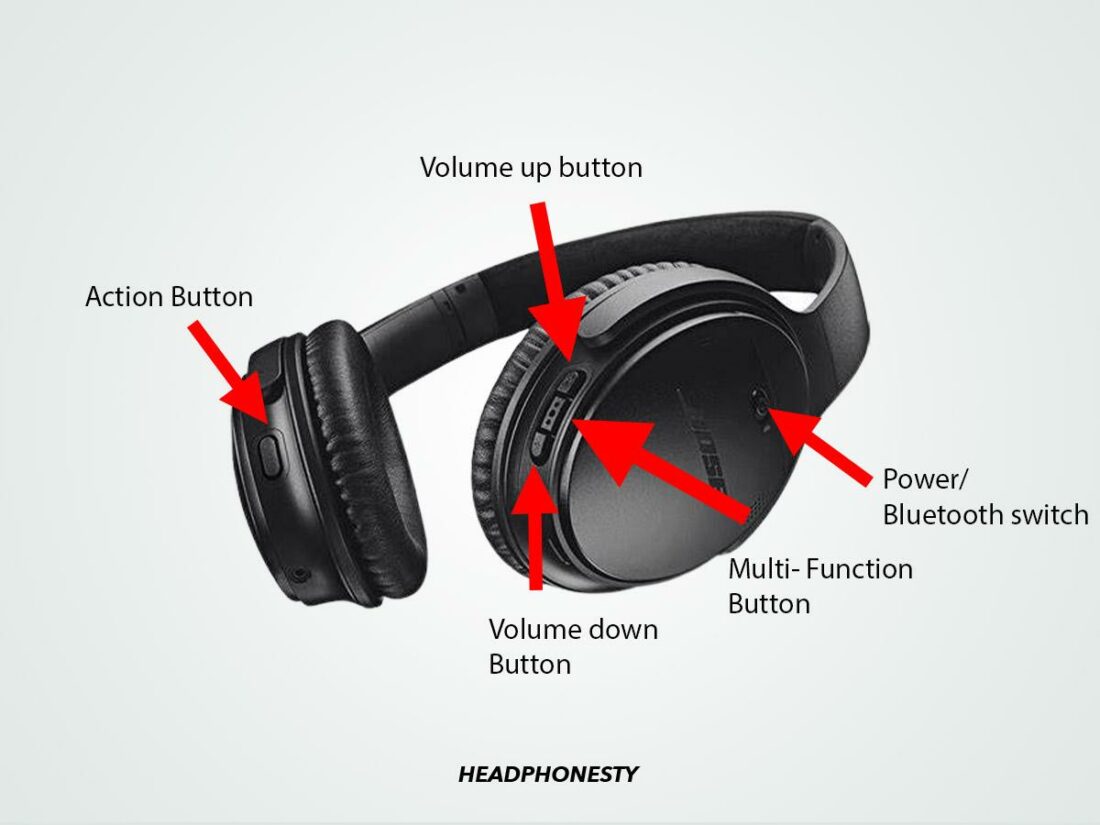
- Turn on your Bose headphones and put them in pairing mode. Usually hold the power or Bluetooth button until the light blinks or you hear “Ready to pair.”
- Open Windows Settings > Bluetooth & devices. Turn Bluetooth on.
- Click Add device > Bluetooth. Wait for your Bose name to appear.
- Select your Bose headphones and click Connect. Windows will install drivers automatically.
- After pairing, open Sound settings and set your Bose as the default output device.
Tips from experience:
- If Windows doesn’t see the device, toggle Bluetooth off and on and retry pairing.
- Keep headphones within 10 feet during pairing.
- If allowed, update headphone firmware through the Bose app before pairing.
How to connect bose headphones to pc over Bluetooth works well for everyday use. For calls, ensure Windows selects the “Hands-Free” profile when you need a mic. For better audio quality, pick the A2DP output in sound settings.
Method 2: Connect with a wired cable
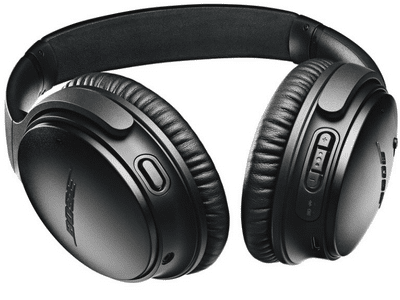
Wired is simple and reliable. Use a 3.5mm cable or a USB cable if your Bose supports USB audio.
Steps for 3.5mm:
- Plug one end into your headphone jack or the headphones’ aux port.
- Plug the other end into your PC’s headphone or line-in jack.
- Set your PC audio output to the wired device in Sound settings.
Steps for USB:
- Plug the USB cable into the headphone and PC.
- Windows should detect a new audio device. If not, check Device Manager.
- Select the USB device as default playback and recording device.
Wired connection avoids Bluetooth dropout and battery drain. I often use a 3.5mm cable when editing audio. It gives consistent sound and no pairing hassles.
Troubleshooting common problems
No audio after pairing:
- Check Sound settings and set Bose as the default device.
- Make sure volume is up on both PC and headphones.
Microphone not working:
- Choose the “Hands-Free” device in Sound > Input.
- If quality is poor, switch to the headset mic only for calls; use the headphone A2DP for music.
Pairing fails:
- Remove the device from Bluetooth list and re-pair.
- Restart Bluetooth service: type services.msc, find Bluetooth Support Service, restart it.
Static, stuttering, or lag:
- Move closer to the PC.
- Remove USB 3.0 devices or other wireless interference.
- Use a Bluetooth USB adapter that supports modern codecs.
Driver or firmware issues:
- Update Windows drivers via Device Manager.
- Update headphone firmware using the Bose updater app.
If all else fails, test with a phone to isolate whether problem is PC or headset. Practically, I’ve fixed many dropouts by updating the PC’s Bluetooth driver or using a dongle.
Tips, settings, and best practices
Optimize sound and connection:
- Keep firmware current for both PC Bluetooth adapter and Bose headphones.
- Use the correct Windows audio profile for the activity (A2DP for music).
- Disable Bluetooth power saving on your PC to reduce disconnects.
- Use a USB Bluetooth adapter that supports newer Bluetooth versions for best range.
Battery and maintenance:
- Charge fully before long sessions.
- Turn off when not in use to save battery.
- Clean ear pads gently to maintain comfort.
Practical setup tips:
- Label your Bose device in Windows so you select it easily.
- If you switch often between devices, remove pairing entries you don’t use.
- For gaming, low-latency wired or a dedicated gaming headset may be better.
People Also Ask
Can I connect Bose headphones to a PC without Bluetooth?
Yes. You can use a 3.5mm audio cable or USB cable if your Bose model supports USB audio, giving a stable wired connection.
How do I fix low mic volume on Bose when connected to PC?
Set the microphone input level in Sound settings and in the app you use for calls. If that fails, use the headset hands-free profile or a separate microphone.
Do I need special drivers to connect Bose to a PC?
Windows usually installs required drivers automatically. If not, update drivers in Device Manager or install drivers from your Bluetooth adapter’s manufacturer.

Frequently Asked Questions of how to connect bose headphones to pc
How do I pair Bose headphones to Windows 11?
Turn on pairing mode on the headphones, open Settings > Bluetooth & devices, click Add device, choose Bluetooth, then select your Bose model to pair.
My PC doesn’t find my Bose headphones. What next?
Restart Bluetooth on both devices, remove old pairings, and try again. If it still won’t appear, restart your PC and headphones and check for driver updates.
Why is audio playing in low quality after pairing?
Windows may be using the headset hands-free profile. Switch to the A2DP stereo profile in Sound settings for better quality when not using the mic.
Can I use Bose headphones for Zoom calls on PC?
Yes. Pair the headphones and choose them as both input and output in Zoom audio settings. For best quality, test mic and speaker before the call.
How do I update Bose headphone firmware from a PC?
Download and run the Bose updater or use the Bose app on a supported device. Follow the on-screen instructions to keep firmware current.
Conclusion
You now have clear, practical steps for how to connect bose headphones to pc using Bluetooth or wired methods, plus fixes and tips from real use. Try the method that suits your workflow, keep drivers and firmware updated, and test mic and audio profiles before important calls. If you found this useful, try the steps now and share your setup or questions in the comments — I’ll help troubleshoot.