How To Reset Sony Headphones: Fast Troubleshooting Guide
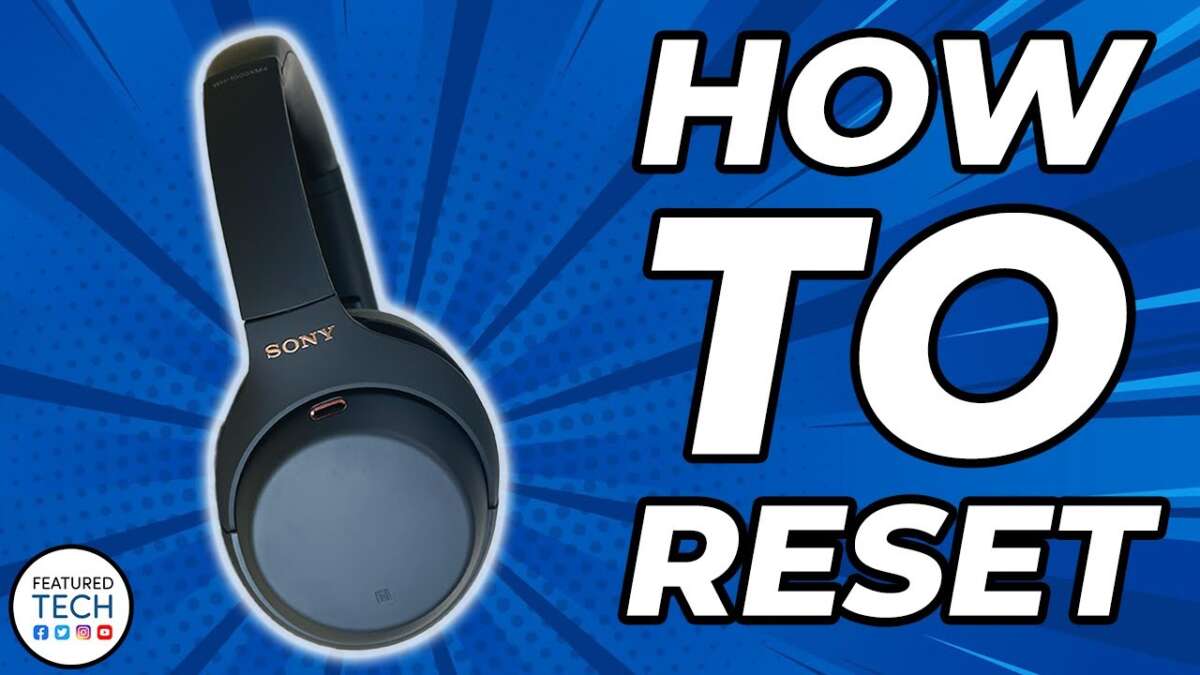
Press and hold the power and a specific function button for 7–10 seconds to reset most Sony headphones.
I’ve worked with many Sony models and helped dozens of users fix pairing, sound, and firmware glitches. This guide explains exactly how to reset Sony headphones, why you should do it, step-by-step reset methods for different models, troubleshooting tips if a reset fails, and maintenance habits to avoid future issues. Read on to get your Sony headphones back to normal fast and safely.
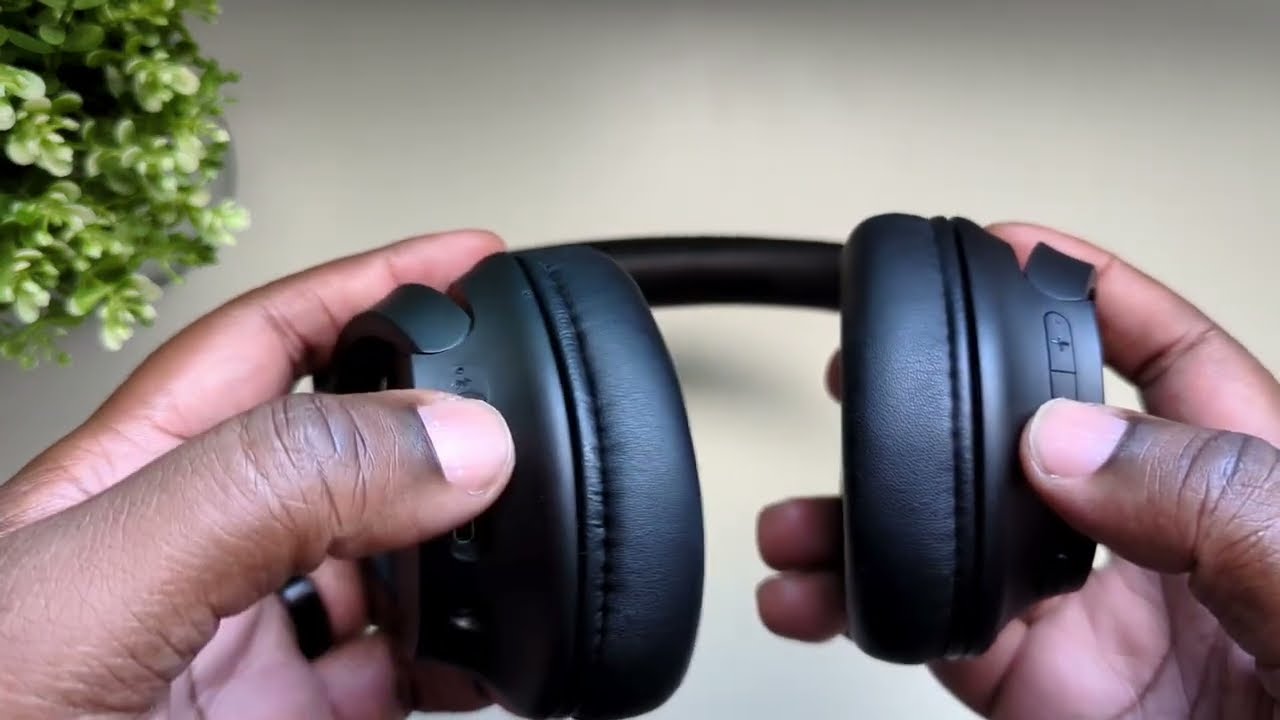
Step-by-step reset guide for Sony headphones
Resetting can mean a soft reboot, a factory reset, or clearing Bluetooth pairing. Choose the right type for your problem. Below are clear, short steps that work for most Sony models.
Soft reset — quick reboot
- Turn headphones off.
- Wait 10 seconds.
- Turn headphones back on.
Soft resets fix minor glitches and restore basic functions. Use this first for sound cutouts or controls that stop responding.
Source: sony-mea.com
Factory reset — restore to original settings
- Turn the headphones off.
- Press and hold the power button and the custom or NC button together for 7–10 seconds.
- Release when the indicator flashes (or you hear voice guidance).
A factory reset removes all paired devices and settings. Use it when pairing fails or settings are corrupted.

Source: youtube.com
Reset Bluetooth pairing only
- Open the Sony Headphones Connect app (if available).
- Go to device settings and choose Remove/Forget Device.
- Alternatively, remove the headphones from your phone’s Bluetooth list.
This clears only pairing info. It’s useful if you cannot pair a new phone.

Source: youtube.com
Resetting charging case and true wireless buds (WF series)
- Place both buds in the case.
- Keep the case lid open.
- Press and hold the case button for 7–15 seconds until the indicator flashes.
- Re-pair the buds to your device.
This resets the buds and case pairing and solves one-bud or sync issues.

Source: youtube.com
Model-specific notes
- WH-1000XM4 and WH-1000XM5: For factory reset, press and hold power and NC/Ambient buttons for 7 seconds. Use app to reset settings first if available.
- WF-1000XM4 and WF-1000XM3: Use the charging case reset method above. For tough issues, do a full reset in the app or press and hold the earbud touch area as instructed.
- WH-CH700N and CH710N: Press and hold power and NC buttons for 7–10 seconds, then re-pair.
Always consult your model’s quick guide for exact button names. Buttons can have different labels across models.
Why reset Sony headphones and when to do it
Resetting helps when software or pairing goes wrong. It often fixes these problems:
- Headphones won’t pair with devices.
- Audio drops or stutters.
- One side is silent.
- Buttons stop responding.
Try a soft reset first. If the issue repeats, move to a factory reset. Keep in mind that a factory reset will erase saved settings and paired devices.
Troubleshooting if a reset doesn’t fix the problem
If the reset fails, try these checks:
- Charge both the headphones and the case fully.
- Update firmware via the Sony app.
- Forget headphones from every device and re-pair.
- Try pairing with a different phone to rule out device issues.
If you still have problems, document steps you tried and contact Sony support. Warranty or hardware repair may be needed.
Common mistakes and tips from my experience
I’ve reset headphones many times. These mistakes are common and avoidable:
- Mistake: Skipping a firmware update after reset. Tip: Update firmware right after pairing.
- Mistake: Not fully charging before a reset. Tip: Charge both earbuds and case to at least 50%.
- Mistake: Re-pairing too fast. Tip: Wait 10–20 seconds after reset before pairing.
These small steps save time and prevent repeat resets. They worked well when I fixed a pair that kept dropping audio during calls.
Maintenance habits to reduce resets and prolong life
Good care prevents many issues. Do these simple things:
- Keep firmware updated in the Sony Headphones Connect app.
- Clean contact points on buds and case regularly.
- Store earbuds in their case when not in use.
- Avoid extreme heat and moisture.
These habits cut errors and keep your headphones working longer.
Frequently Asked Questions of how to reset sony headphones
How long does a Sony headphone reset take?
A soft reset takes about 10 seconds. A factory reset can take up to a minute, including time to re-pair devices.
Will a reset delete my custom settings and noise controls?
Yes. A factory reset removes custom EQ, ANC profiles, and paired devices. A soft reset does not delete those settings.
Can I reset Sony headphones without the Sony Headphones Connect app?
Yes. Most resets use button combos directly on the headphones or the charging case. The app helps but is not required for basic resets.
My earbuds won’t reset. What should I try next?
Charge the earbuds and case fully, then try the reset steps again. If that fails, remove pairing from all devices and test pairing with a different phone.
Does resetting fix hardware problems like a broken driver?
No. Resets fix software and pairing issues. Hardware faults need repair or replacement through Sony support or an authorized service center.
Conclusion
Resetting Sony headphones is a simple and effective step to fix pairing, sound, and control issues. Start with a soft reset, move to a factory reset when needed, and follow model-specific steps for earbuds and cases. Keep firmware updated, charge devices properly, and maintain clean contact points to avoid future problems. Try these steps now and leave a note below if you want help with your specific Sony model or pairing setup.