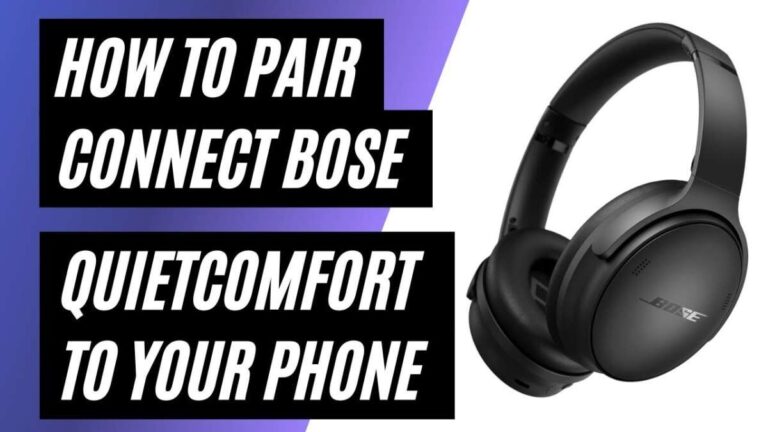
How To Pair Bose QuietComfort Headphones: Quick Setup Guide
Put the headphones in pairing mode, find "Bose QuietComfort" in your device Bluetooth list, and connect.
I’ve paired and tested multiple Bose QuietComfort models for years, so I know the small steps that make pairing fast and painless. This guide breaks down how to pair Bose QuietComfort headphones with phones, tablets, and computers, covers common problems, and gives pro tips from real use so you can get reliable audio quickly.

How Bluetooth pairing works and why it matters
Bluetooth pairing creates a secure link between your device and the headphones. Pairing shares identification data so the devices recognize each other automatically later.
Good pairing prevents audio drops, avoids accidental connections, and unlocks features like multipoint and voice prompts. Knowing the pairing flow helps you troubleshoot when things go wrong.

Prepare your devices before pairing
Follow these quick checks before trying to pair Bose QuietComfort headphones.
- Charge both devices enough to avoid interruptions. Low battery sometimes blocks pairing.
- Turn off other nearby Bluetooth devices to reduce interference.
- Update your phone or computer OS to the latest version for better Bluetooth compatibility.
- Make sure Bluetooth is enabled on your phone, tablet, or computer.
- If you have older Bose headphones, check whether they support multipoint or NFC.
Doing simple prep saves time and avoids common pairing hiccups.
How to pair Bose QuietComfort headphones — step-by-step
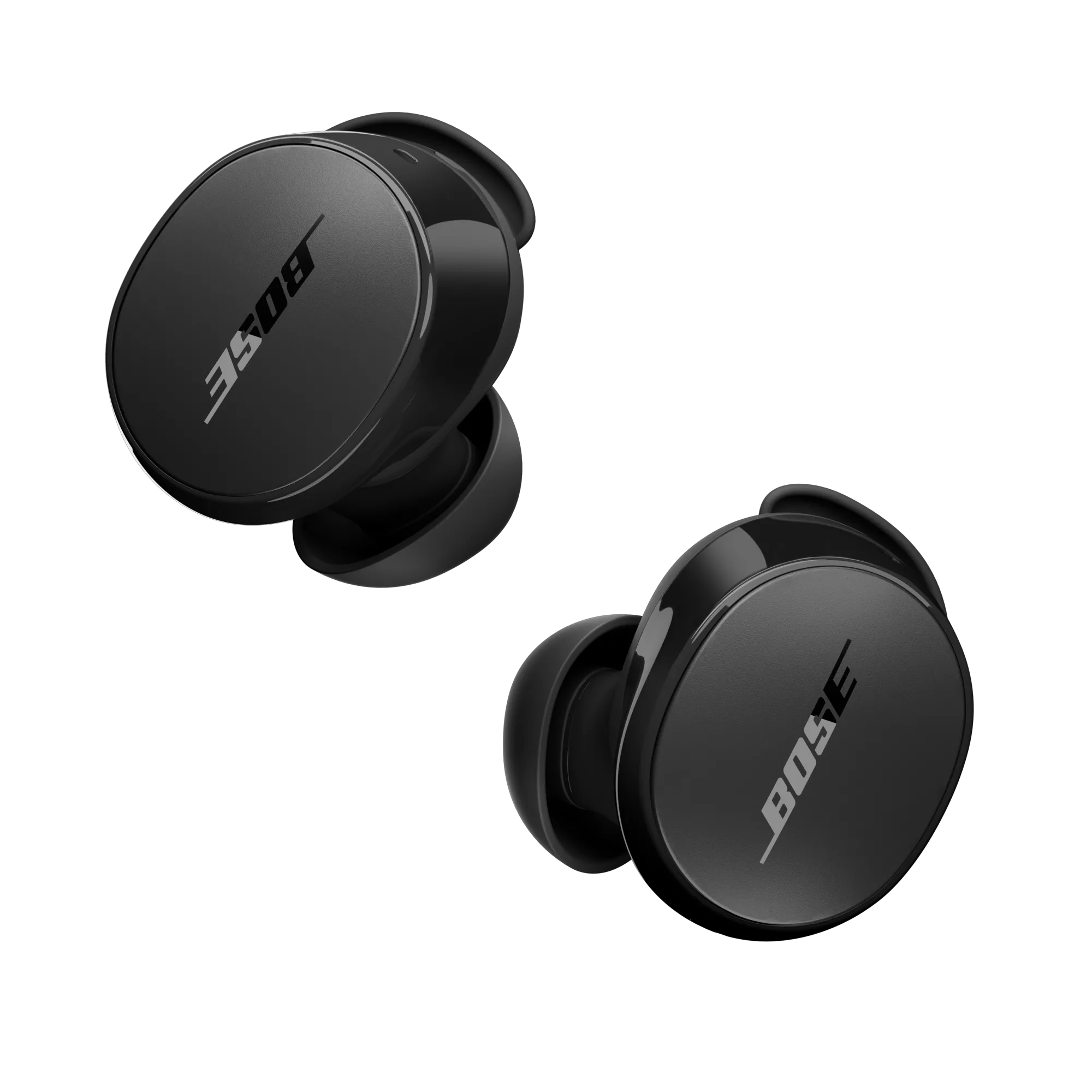
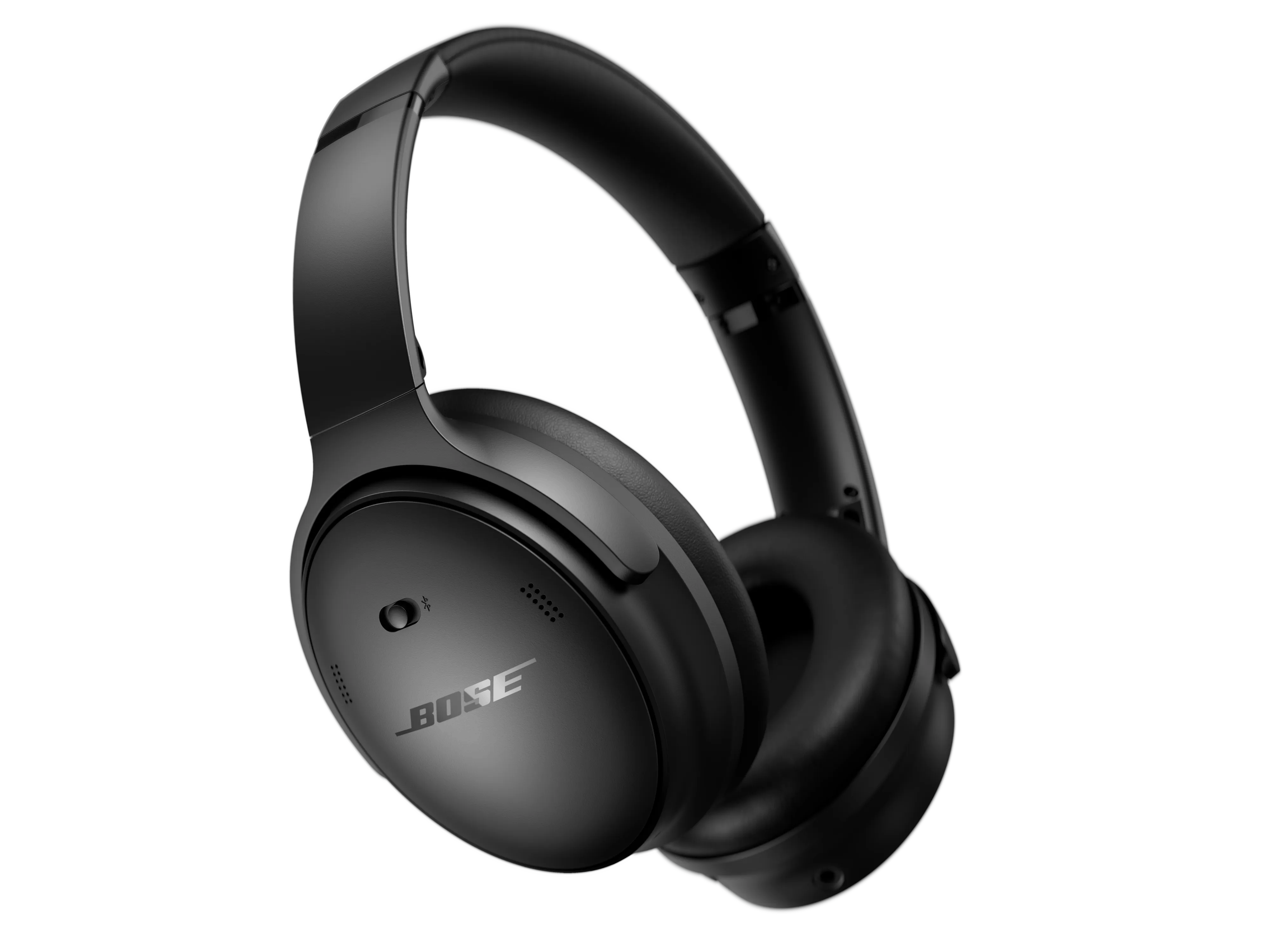
These steps cover most QuietComfort models (QC35, QC45, QuietComfort Earbuds). If you are asking how to pair bose quietcomfort headphones, follow the steps below.
- Power on the headphones.
- QC35 / QC35 II: Slide the power switch to the Bluetooth icon and hold until you hear "Ready to pair" or see a blinking blue light.
- QC45: Press and hold the power/Bluetooth button for 2–3 seconds until the light flashes blue and you hear "Ready to pair."
- QuietComfort Earbuds: Open the case or press the pairing button (model-specific) until the earbuds flash blue.
- Open Bluetooth settings on your device.
- On iPhone/iPad: Settings > Bluetooth and wait for the Bose device to appear.
- On Android: Settings > Connections > Bluetooth, then scan for devices.
- On Mac: System Settings > Bluetooth, or click the Bluetooth icon in the menu bar.
- On Windows: Settings > Bluetooth & devices > Add device.
- Select the Bose device.
- Look for "Bose QuietComfort 35", "Bose QC45", or "Bose QuietComfort Earbuds" in the available devices list.
- Tap or click to pair. You might see a confirmation message—accept it.
- Confirm the connection.
- You’ll hear a voice prompt like "Connected to [device]" or see "Connected" in the Bluetooth menu.
- Test audio by playing a short clip.
- Reconnect later.
- After initial pairing, the headphones should auto-connect when powered on and within range. If not, manually select the device once.
If you’re unsure which model you have, the printed model name appears on the headset box or the inside of the headband. This helps when you search model-specific pairing instructions.

Pairing tips for specific devices and scenarios
These tips help when you pair Bose QuietComfort headphones with specific platforms.
-
iPhone and iPad
- Use Settings > Bluetooth, and allow a moment for the Bose device to appear. If you have multiple Bose devices, rename them in Bluetooth settings for clarity.
-
Android phones
- Turn on location services if scanning fails. Some Android versions need location to discover Bluetooth devices.
-
Mac and Windows PCs
- Remove old pairings if the computer shows a ghost device. On Windows, choose Add device and select Bluetooth.
-
Multiple device pairing (multipoint)
- Some Bose models support multipoint to connect to two devices at once. Pair to one device first, then enable pairing on the second and select the headphones.
-
NFC (if available)
- On NFC-capable QC models, tap your phone to the NFC spot on the right earcup for instant pairing.
These small adjustments often resolve platform-specific quirks when you try to pair bose quietcomfort headphones.

Troubleshooting common issues when pairing
If pairing fails, try these fixes. Each fix is short and practical.
-
Headphones don’t appear in Bluetooth list
- Make sure they are in pairing mode and close to your device. Restart the headphones and your device and try again.
-
Device says “Paired” but no sound
- Check audio output settings and volume. On computers, select the Bose device as the audio output.
-
Headphones keep connecting to the wrong device
- Remove the headphones from the unwanted device’s Bluetooth list or turn off Bluetooth on that device.
-
Frequent disconnects
- Move closer to the paired device and remove obstacles. Update firmware if available.
-
Still stuck? Reset the headphones
- Power off, wait 30 seconds, power on and repeat the pairing steps. Some models have a specific reset sequence—check your manual if simple reset fails.
People also ask (quick answers)
How long does it take to pair Bose QuietComfort headphones?
Pairing usually takes 10–30 seconds once the headphones are in pairing mode and your device is scanning.
Can I pair Bose QuietComfort headphones with two devices?
Yes. Many QuietComfort models support multipoint pairing to connect to two devices simultaneously.
Do I need an app to pair Bose headphones?
No. The basic Bluetooth pairing does not require an app, though the Bose app adds firmware updates and extra controls.
Advanced tips and maintenance
These pro tips improve reliability and keep your connection smooth.
-
Keep firmware current
- Install Bose firmware updates via the Bose app or desktop tool for bug fixes and better Bluetooth performance.
-
Use a clean pairing list
- Periodically remove older pairings on your phone or laptop to avoid conflicts.
-
Choose the right codec
- Some headphones and devices negotiate different codecs. On Android, developer options can show codec selection for better audio quality.
-
Store safely and reset before selling
- Unpair and reset before transferring the headphones to someone else.
Applied regularly, these tips help avoid common pitfalls when you pair bose quietcomfort headphones.

Personal experience: common mistakes I’ve seen and lessons learned
I once tried to pair a QC45 at a crowded coffee shop and kept connecting to a coworker’s laptop. The fix was simple—disable Bluetooth on nearby devices, which cut interference immediately.
Another time I forgot to update the firmware and had constant drops; updating fixed it. My routine now: charge, update, disable other Bluetooth, then pair. This avoids most headaches and saves time.
Frequently Asked Questions of how to pair bose quietcomfort headphones
How do I put my Bose QuietComfort headphones into pairing mode?
Hold the power/Bluetooth button until the LED flashes blue and the voice prompt says "Ready to pair." Then search for the device on your phone or computer.
Why won’t my phone see my Bose headphones?
They may not be in pairing mode, or Bluetooth scanning may be off. Restart both devices, ensure headphones are discoverable, and try again.
Can I pair Bose QuietComfort headphones with multiple devices?
Yes, many QuietComfort models support multipoint so you can connect to two devices at once, like a phone and a laptop.
What if my Bose headphones connect but have low audio quality?
Check the audio source and codec support. On some devices, switching to a higher-quality codec or enabling the correct audio profile can improve sound.
How do I reset Bose QuietComfort headphones?
A simple reset is power off, wait 30 seconds, then power on and reattempt pairing. For model-specific reset sequences, consult the manual, as steps vary by model.
Is the Bose app required for pairing?
No. Pairing works via your device’s Bluetooth settings, but the Bose app helps with firmware updates and device management.
Conclusion
Pairing Bose QuietComfort headphones is straightforward once you know the right steps: set the headphones into pairing mode, open your device’s Bluetooth menu, and select the Bose device. Use the prepping and troubleshooting tips here to fix common issues fast.
Try the recommended sequence the next time you connect: charge, update firmware, clear other Bluetooth devices, and pair. If this guide helped, subscribe for more practical audio tips or leave a comment sharing your pairing experience.