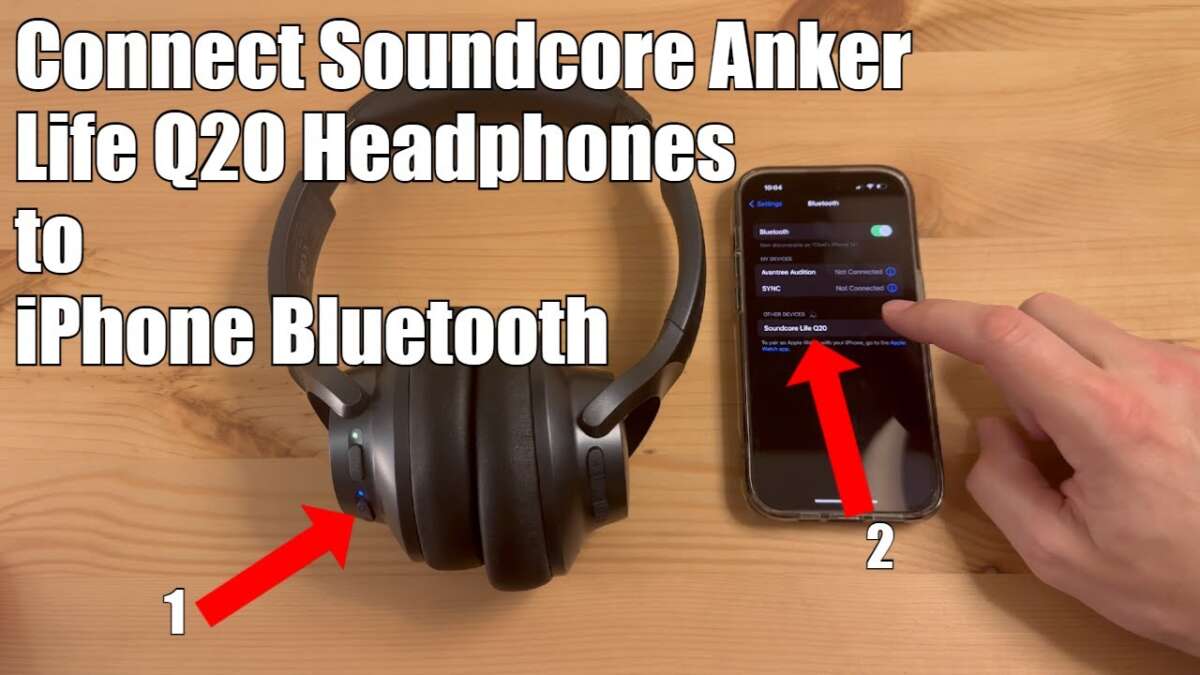
How To Connect Soundcore Headphones: Quick Bluetooth Setup
Put your Soundcore headphones in pairing mode, open Bluetooth on your device, and select the Soundcore name.
I’ve paired dozens of headphones for work and personal use, and connecting Soundcore headphones is usually quick and reliable when you follow a clear process. This guide gives expert, step-by-step instructions for how to connect Soundcore headphones to Android, iPhone, Windows, and Mac. You’ll also get real troubleshooting tips, app and firmware advice, and practical habits that keep your connection stable and battery healthy. Read on to pair your Soundcore headphones with confidence and solve the common hiccups fast.

Why connect Soundcore headphones?
Connecting Soundcore headphones unlocks wireless audio for calls, music, games, and travel. These headphones offer features like active noise cancellation (ANC), long battery life, and stable Bluetooth links. When you know how to connect Soundcore headphones, you get better audio, lower latency, and access to firmware and EQ settings in the Soundcore app. Good pairing also prevents dropouts and lets you use multiple devices smoothly.

What you need before pairing
Prepare these items and checks before you connect Soundcore headphones:
- A charged Soundcore headset or earbuds. Low battery can block pairing.
- Your phone, tablet, or computer with Bluetooth turned on.
- The Soundcore app (optional but useful for firmware and settings).
- A clear space away from heavy Wi-Fi interference or many Bluetooth devices.
- The headphone manual in case model-specific steps are required.
These simple checks save time and avoid most pairing frustrations. I learned this the hard way once while traveling—dead earbuds and a long queue at security make pairing impossible.
How to connect Soundcore headphones to Android
Follow these steps to connect Soundcore headphones to an Android phone:
- Charge your headphones and turn them off if they’re on.
- Enter pairing mode:
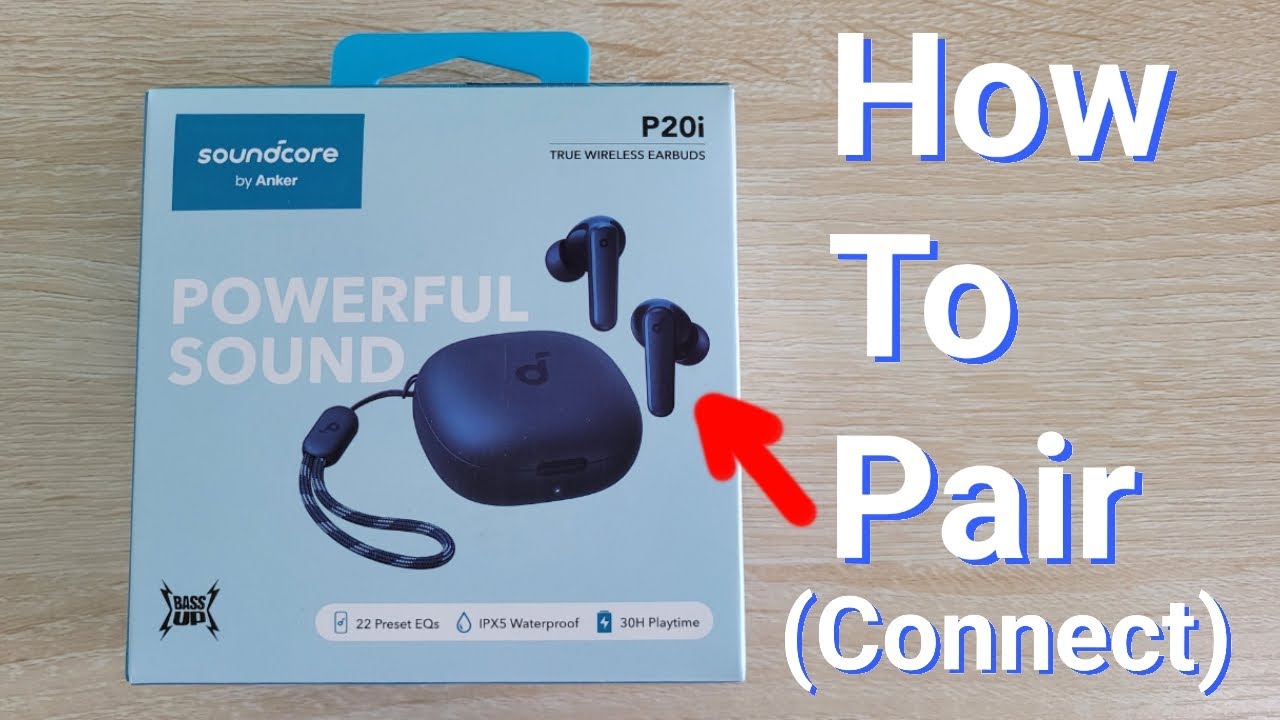
- For true wireless earbuds: remove them from the case or press and hold the multi-function button for 3–5 seconds until an LED flashes or you hear the voice prompt “pairing”.
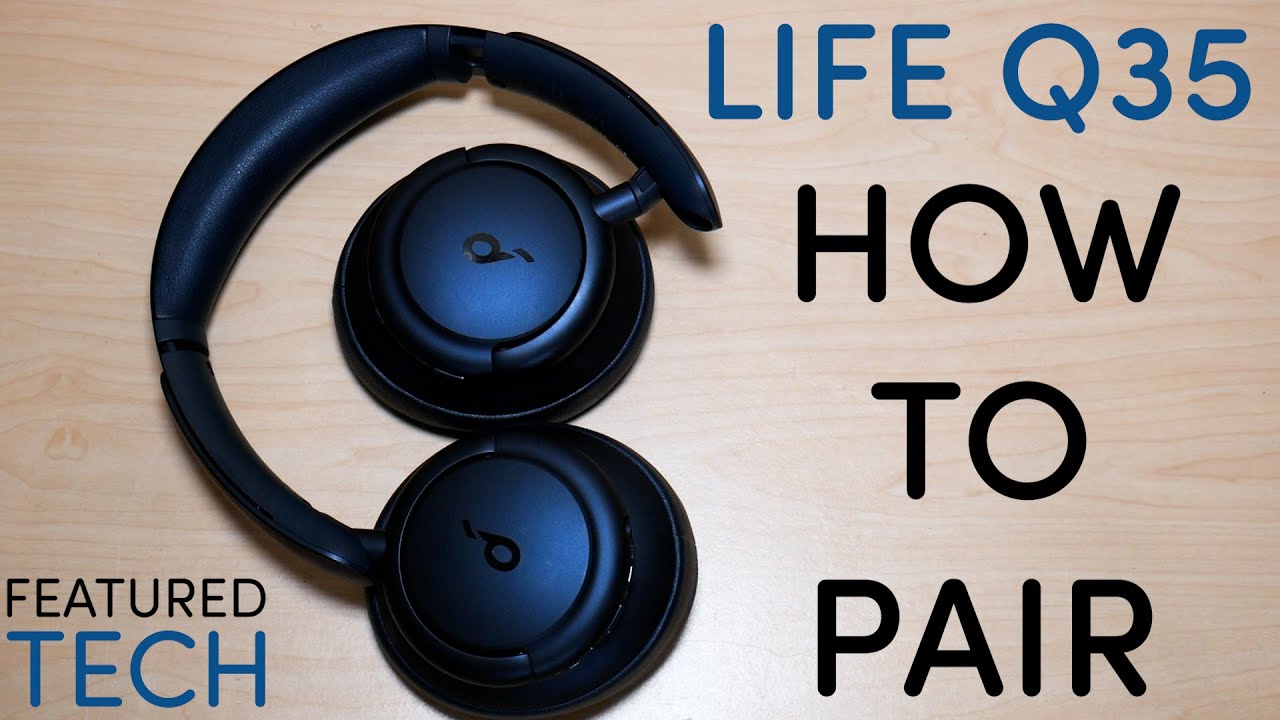
- For over-ear/on-ear models: press and hold the power or Bluetooth button until you see the flashing LED or hear “pairing mode”.
- On your Android device, open Settings > Bluetooth.
- Turn Bluetooth on and tap “Pair new device” or scan.
- Tap the Soundcore name that appears in the device list (it may include the model number).
- Confirm any pairing prompts and wait for the “connected” status.
If you’ve used the headphones before, you may need to remove the existing pairing from your phone’s Bluetooth list and re-run these steps. This fixed a ghost-connection issue I ran into when switching between work and personal phones.

How to connect Soundcore headphones to iPhone
Steps for iPhone users are similar and often faster:
- Charge the headphones and ensure they’re off.
- Activate pairing mode as described above (LED flash or voice prompt).
- On iPhone, open Settings > Bluetooth and make sure Bluetooth is on.
- Your Soundcore headphones should appear under “Other Devices.” Tap the name to connect.
- If prompted, accept any pairing confirmation.
For some Soundcore models with Apple’s AAC codec support, audio quality improves automatically after you connect. If Auto-Connect fails, toggle Bluetooth off and back on, then retry pairing.
How to connect Soundcore headphones to Windows and Mac
Pairing with laptops and desktops:
Windows 10/11
- Turn on pairing mode on your Soundcore headphones.
- On Windows, go to Settings > Bluetooth & devices > Add device > Bluetooth.
- Select the Soundcore device name and click Connect.
- If audio doesn’t route automatically, open Sound settings and choose the Soundcore device as the output.
Mac
- Turn on pairing mode on the headphones.
- On Mac, open System Settings or System Preferences > Bluetooth.
- Click Connect next to the Soundcore device.
- Use the Sound panel to select the headphones for audio input/output if needed.
For low latency when gaming, check if your Soundcore model supports low-latency modes or use a Bluetooth USB adapter that supports aptX Low Latency. I tested this setup for a multiplayer game and it noticeably reduced delay.

Using the Soundcore app and firmware updates
The Soundcore app adds control and improves reliability:
- Download the Soundcore app on Android or iOS.
- Open the app and follow on-screen prompts to add your headphones.
- Use the app to update firmware, change EQ, enable ANC modes, and customize touch controls.
Firmware updates often fix pairing bugs and improve battery management. I recommend checking the app after first pairing and whenever you notice glitches.

Troubleshooting common pairing problems
If pairing fails or audio drops, try these fixes:
- Reset the headphones:
- Common method: power off, then press and hold the power/Bluetooth button for 10–15 seconds until LED flashes differently.
- For earbuds: place them in the case and press the case button or use the app’s reset option.
- Clear the device’s Bluetooth memory:
- On phone/computer, choose “Forget” or “Remove” for the Soundcore device and pair again.
- Turn off other Bluetooth devices to avoid interference.
- Restart your phone or computer.
- Ensure firmware is current via the Soundcore app.
- Move closer to the device and remove obstacles.
If you still have problems, repeat pairing with another device to narrow whether the issue is the headphones or the primary device.

Tips and best practices
Keep your connection strong with these habits:
- Keep firmware updated. Updates improve stability and compatibility.
- Charge the case and headphones regularly to avoid connection failures.
- Use one device at a time when pairing; some models hold two pairings but can prefer one.
- Store earbuds in the case to automatically disconnect and save battery.
- Avoid crowded Bluetooth environments when possible.
A personal tip: I name my headphones in Bluetooth settings (where allowed) so the device is easy to spot in a long list. That small step saves time in busy cafés or airports.

Frequently Asked Questions of how to connect soundcore headphones
How do I put my Soundcore headphones in pairing mode?
Most models use a long-press on the power or Bluetooth button for 3–5 seconds until an LED flashes or you hear a voice prompt saying “pairing.” Refer to your model’s manual for exact steps.
Why won’t my device find my Soundcore headphones?
Make sure the headphones are in pairing mode, charged, and not already connected to another device. Turn Bluetooth off and back on, and remove old pairings if needed.
How do I reset my Soundcore headphones?
Typical reset involves turning them off, then pressing and holding the power/Bluetooth button for 10–15 seconds, or using the case-button method for earbuds. Check your model’s guide for specifics.
Can I connect Soundcore headphones to two devices at once?
Some Soundcore models support multipoint pairing with two devices, but behavior varies. Check the model specs and limit connected devices to two for best performance.
Why is audio cutting out on my Soundcore headphones?
Audio dropouts can be due to low battery, firmware issues, too much Bluetooth interference, or range. Charge, update firmware, and move closer to the source to reduce cuts.
Conclusion
Learning how to connect Soundcore headphones is mostly about following a clear pairing routine, keeping firmware up to date, and troubleshooting simply when things go wrong. With the steps above, you can pair with Android, iPhone, Windows, and Mac and maintain a stable connection for calls, music, and games. Try these steps now: put the headphones in pairing mode, open Bluetooth on your device, and select the Soundcore name—then explore the app for extra features. If this guide helped, leave a comment, share your model and pairing experience, or subscribe for more practical audio tips.