How To Connect Sony Wireless Headphones: Quick Setup Guide
Hold the power button until the indicator flashes, then pair from your device’s Bluetooth settings.
I’ve helped dozens of friends and clients set up their gear, and I know how frustrating it can be when you just want sound that works. This guide explains how to connect Sony wireless headphones step by step, covering phones, computers, consoles, TVs, and common hiccups. I’ll share tested tips, real-world fixes, and clear steps you can follow right now to get stable audio and the best sound from your Sony headphones.
Why you might need this guide and what “connect” means
Connecting means pairing via Bluetooth or a wireless dongle so audio flows from your device to your Sony headphones. Many models behave the same. A few models have special steps. This guide covers general pairing, model notes, and troubleshooting so you can connect quickly and reliably. I have used Sony over-ear and true wireless models, and I’ll share what worked best in practice.
Quick setup: how to connect Sony wireless headphones to a phone (iPhone/Android)
Follow these simple steps to pair most Sony Bluetooth headphones with a phone.
- Make sure the headphones are charged.
- Turn off Bluetooth on other nearby devices to avoid confusion.
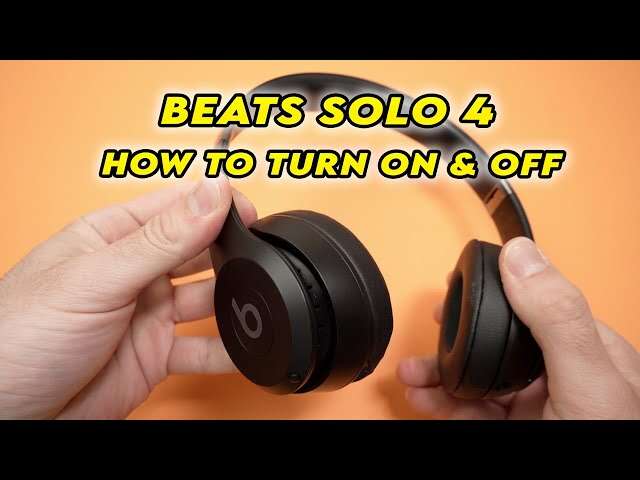
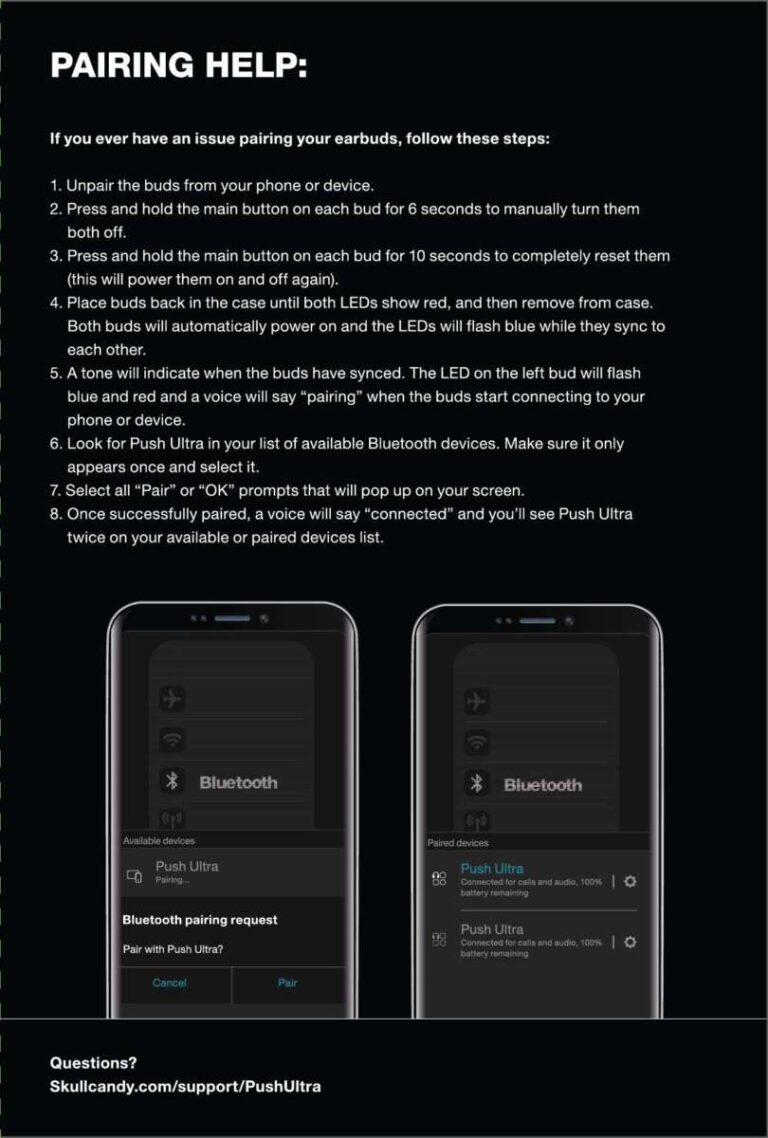
- Power on the headphones. For many Sony models, press and hold the power button for 2–7 seconds until the indicator flashes or you hear “Bluetooth pairing.”
- Open your phone’s Settings > Bluetooth.
- Look for the headphone name (example: WH-1000XM5 or WF-1000XM4) and tap to pair.
- If asked, confirm a passkey (usually 0000).
Model notes and tips:
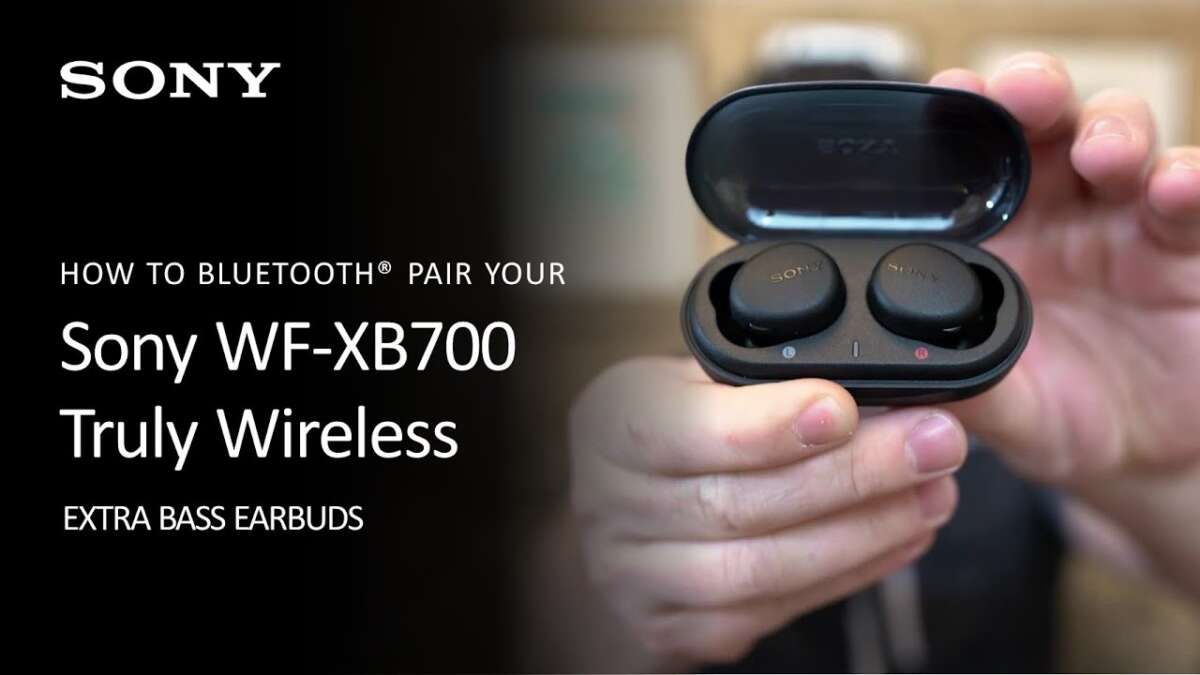
- Some Sony true wireless models enter pairing automatically when removed from the charging case. Others require touching and holding the earbuds’ touch area.
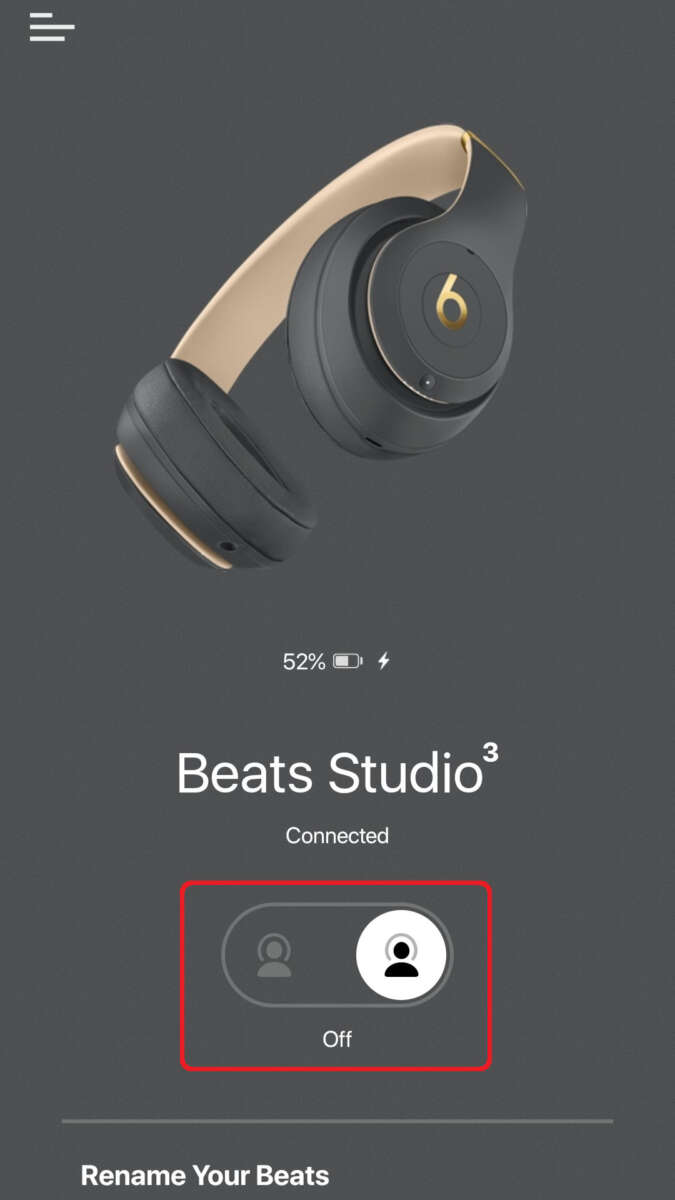
- Use the Sony Headphones Connect app to complete firmware updates and enable multipoint or special settings.
I’ve found that turning off Wi-Fi on the phone briefly can help if the phone struggles to find the headset. With the app, firmware updates fixed a few pairing bugs I ran into.

How to connect Sony wireless headphones to Windows and Mac
Windows PC:
- Open Settings > Bluetooth & devices > Add device.
- Choose Bluetooth and select your Sony headphones from the list.
- If audio doesn’t route correctly, open Sound settings and set the headphones as the output device.
Mac:
- Open System Preferences > Bluetooth.
- Turn Bluetooth on and click Connect next to your Sony headphones.
- If you don’t see the device, hold the headset in pairing mode and refresh the list.
Pro tips:
- Remove old pairings if you hit problems. On Windows, remove the device then re-add it.
- For work laptops, check privacy or manager policies that may block Bluetooth.
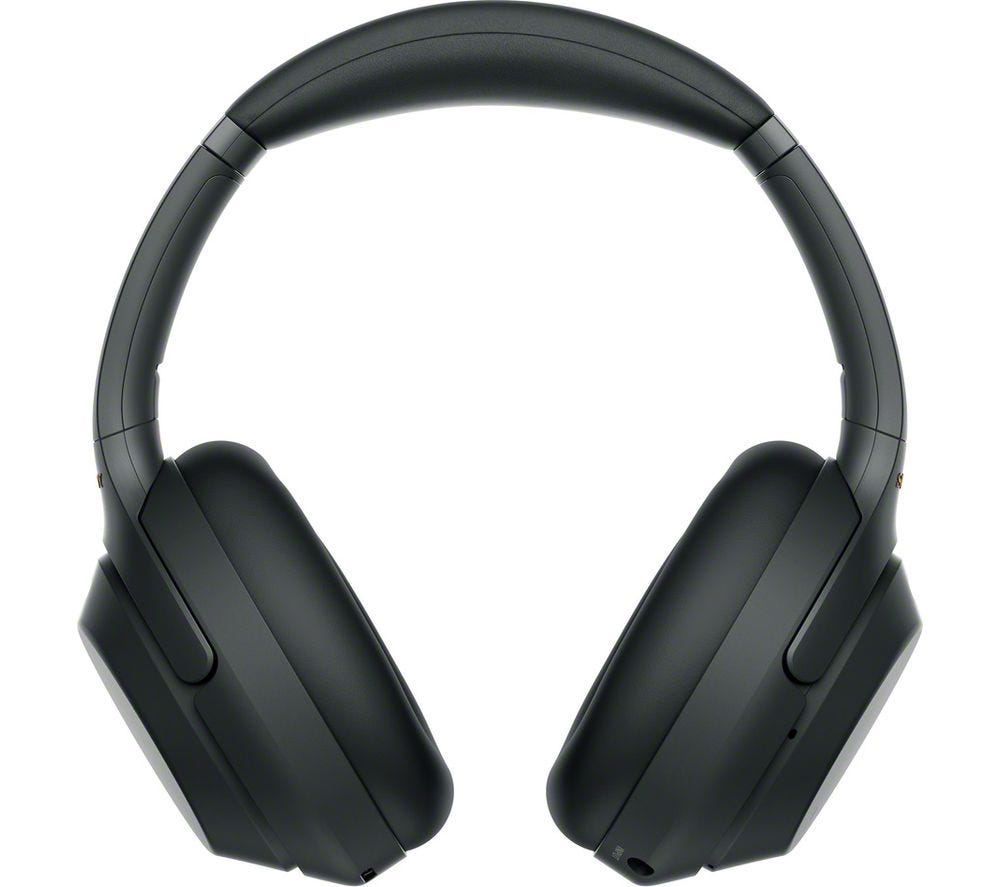
How to connect Sony wireless headphones to game consoles and TVs
Consoles:
- PlayStation and Xbox often block generic Bluetooth audio. Most built-in Bluetooth is for controllers only.
- Use an official USB audio dongle if your Sony headphone supports USB wireless. Some Sony models include a dongle for PC/console use.
- Alternatively, connect via wired AUX cable if supported by your headset and console controller.
TVs:
- Check TV Bluetooth settings and choose the headset name.
- If your TV doesn’t support the codec or Bluetooth profile, use an external Bluetooth transmitter or the TV’s optical/USB output with a compatible adapter.
I once tried pairing a Sony headset directly to an older smart TV and got lag. Switching to a low-latency transmitter fixed lip-sync issues instantly.

Troubleshooting: common pairing and connection issues
If pairing fails or sound drops, try these fixes.
- Restart both the headphones and the device and try pairing again.
- Forget the headset on your device and re-pair.
- Charge the headphones fully; low battery can stop pairing.
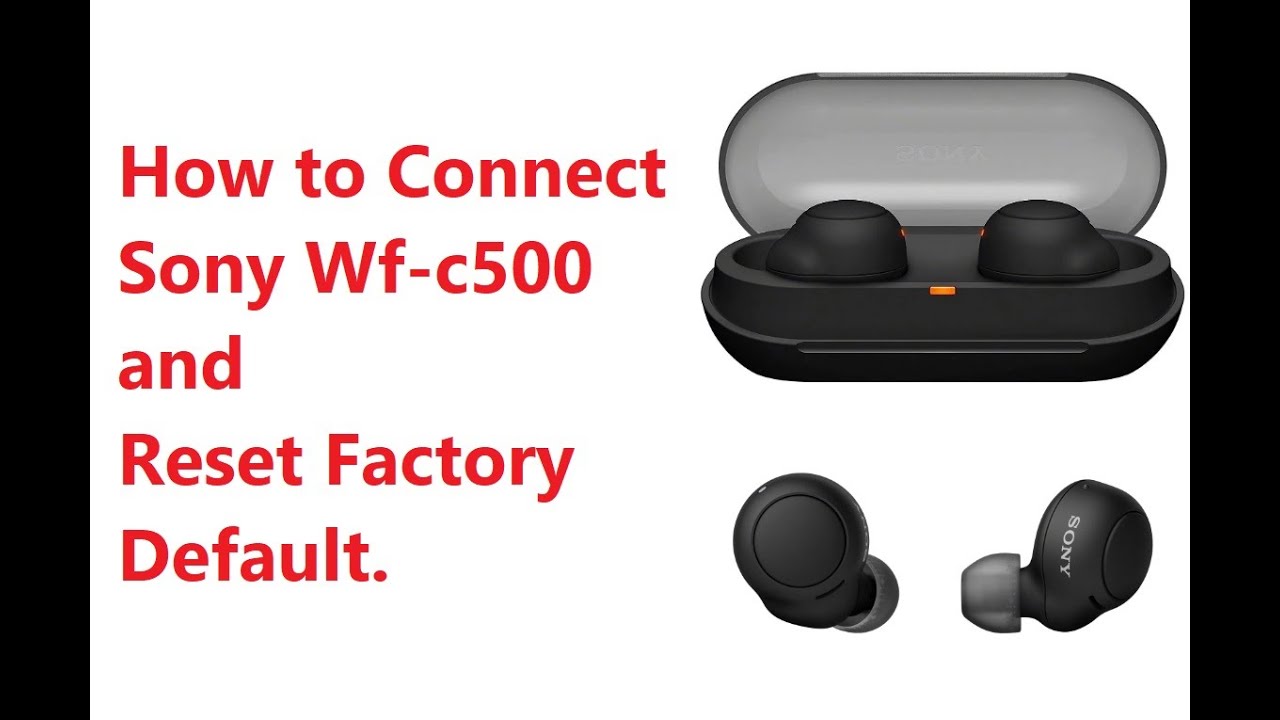
- Reset or factory-reset the headphones. The reset method differs by model; check the app or manual.
- Update firmware with Sony Headphones Connect. Updates often fix Bluetooth stability.
- Move away from USB 3.0 ports and crowded 2.4 GHz networks. Interference can cause dropouts.
- If using multipoint, ensure your model supports it. Some do not. Turn multipoint off and test single-device pairing.
PAA-style questions (short, direct answers)
Why won’t my Sony headphones enter pairing mode?
Hold the power button longer than a simple power-on. If that fails, fully power off, then press and hold until you see flashing lights or hear the pairing prompt.
Why is audio cutting out on my Sony wireless headphones?
Interference, low battery, or out-of-date firmware often causes dropouts. Move closer, charge, and update firmware to fix most cases.
Can I pair Sony wireless headphones with two devices at once?
Some Sony models support multipoint pairing. Check your model specs and enable multipoint using the Sony Headphones Connect app if available.
Advanced tips: sound quality, battery life, and settings
Boost performance with these practical tips.
- Use Sony Headphones Connect to switch codecs or enable DSEE and noise cancellation features.
- Choose AAC or aptX where supported for better sound than SBC.
- Lower ANC or switch to ambient mode to save battery when you don’t need full noise canceling.
- Turn off touch controls if you accidentally pause or skip tracks.
- Store your headphones in their case when not in use to preserve battery and pairing info.
From my testing, enabling the correct codec and keeping firmware updated gave the biggest sound and stability improvements.

Personal experience and lessons learned
I’ve paired Sony headphones with dozens of devices. Common patterns emerged. Firmware updates matter. A reset often fixes mysterious problems. Multipoint is convenient but can cause confusion if apps on two devices both try to stream audio. When traveling, I carry a short AUX cable and a small Bluetooth transmitter for older hotel TVs.
Mistakes to avoid:
- Don’t assume every Sony model supports features like multipoint or USB dongles.
- Don’t panic and press random buttons; follow the manual’s reset sequence.
- Don’t skip firmware updates—they often include bug fixes.
Frequently Asked Questions of how to connect sony wireless headphones
How do I put my Sony headphones into pairing mode?
Press and hold the power button until the indicator flashes or you hear “Bluetooth pairing.” For true wireless models, remove from the case or hold the touch area.
Why won’t my phone find my Sony headphones?
Make sure the headphones are in pairing mode, fully charged, and not already connected to another device. Turn Bluetooth off and on and restart your phone.
How do I update firmware on Sony headphones?
Install the Sony Headphones Connect app on your phone, connect the headset, and follow the in-app update instructions. Keep the headset charged during updates.
Can I use Sony wireless headphones with my TV?
Yes, if your TV supports Bluetooth audio. Otherwise use a low-latency Bluetooth transmitter or wired connection if your headset and TV support it.
What if audio lags when watching video?
Use a low-latency codec like aptX LL if supported, or connect via wired cable or a compatible transmitter to reduce delay.
Conclusion
You now have clear, practical steps for how to connect Sony wireless headphones to phones, computers, consoles, and TVs. Start with simple pairing steps, keep firmware updated, and use the Sony Headphones Connect app for best results. Take one step today: update your firmware and try a fresh pair. If this guide helped, leave a comment with your model and issue so I can share a tailored fix or follow-up tip.