How To Connect Bluetooth Headphones To PS4: Easy Fix
Use a compatible USB/Bluetooth adapter, the controller’s 3.5mm jack, or Remote Play to connect.
I’ve spent years troubleshooting consoles, headsets, and adapters, so I know the quirks of how to connect bluetooth headphones to ps4. This guide explains every practical method, the limits you’ll hit, and step-by-step instructions to get clean game audio and chat working. Read on to save time and avoid common mistakes when you try to connect bluetooth headphones to ps4.

Why PS4 won’t pair directly with most Bluetooth headphones
Sony restricts direct Bluetooth pairing on PS4 for security and latency reasons. The PS4 doesn’t accept generic Bluetooth headsets the same way phones do, so many out-of-the-box Bluetooth headphones won’t pair.
This limitation means you’ll need workarounds like a USB Bluetooth adapter, an optical/USB transmitter, or using the controller’s wired output to get audio. Knowing why this happens helps you pick the right solution and avoid wasted purchases when learning how to connect bluetooth headphones to ps4.
Official and supported options for connecting Bluetooth audio
Sony supports specific wireless headsets sold for PlayStation and USB headsets. Beyond those, common supported options include using the DualShock 4 3.5mm jack or a USB audio device that the PS4 recognizes.
You can also use a Bluetooth transmitter that connects via optical or USB output, or use PS4 Remote Play to route audio through a PC or mobile device that accepts Bluetooth headphones. Each option affects mic support and latency differently, so choose based on whether you need chat or competitive audio when learning how to connect bluetooth headphones to ps4.
:max_bytes(150000):strip_icc()/001_how-to-connect-bluetooth-headphones-ps4-4588084-b143304efc3a43828fa2d71f5f2dfa50-7cfaddd471c846e4af68b73f515ce342.jpg)
Method 1: Use a USB Bluetooth adapter (recommended for many users)
-
Choose the right adapter:
- Pick a USB adapter that advertises headset support or acts like a USB sound card.
- Look for low-latency or aptX support if your headphones and transmitter support it.
-
Pairing and setup:
- Plug the adapter into a PS4 USB port.
- Put the adapter into pairing mode (follow the adapter’s instructions).
- Put your headphones into Bluetooth pairing mode and wait for the adapter to connect.
- On PS4 go to Settings > Devices > Audio Devices. Set Input and Output to the USB device if listed.
- Set Output to Headphones: All Audio if you want both chat and game sound through headphones.
-
Notes and limits:
- Microphone support depends on the adapter. Many adapters only handle stereo audio, not mic chat.
- Latency can be noticeable for fast-paced games unless the adapter and headphones support low-latency codecs.
This method is often the fastest way to get wireless audio if your adapter is compatible with the PS4 and your headphones.

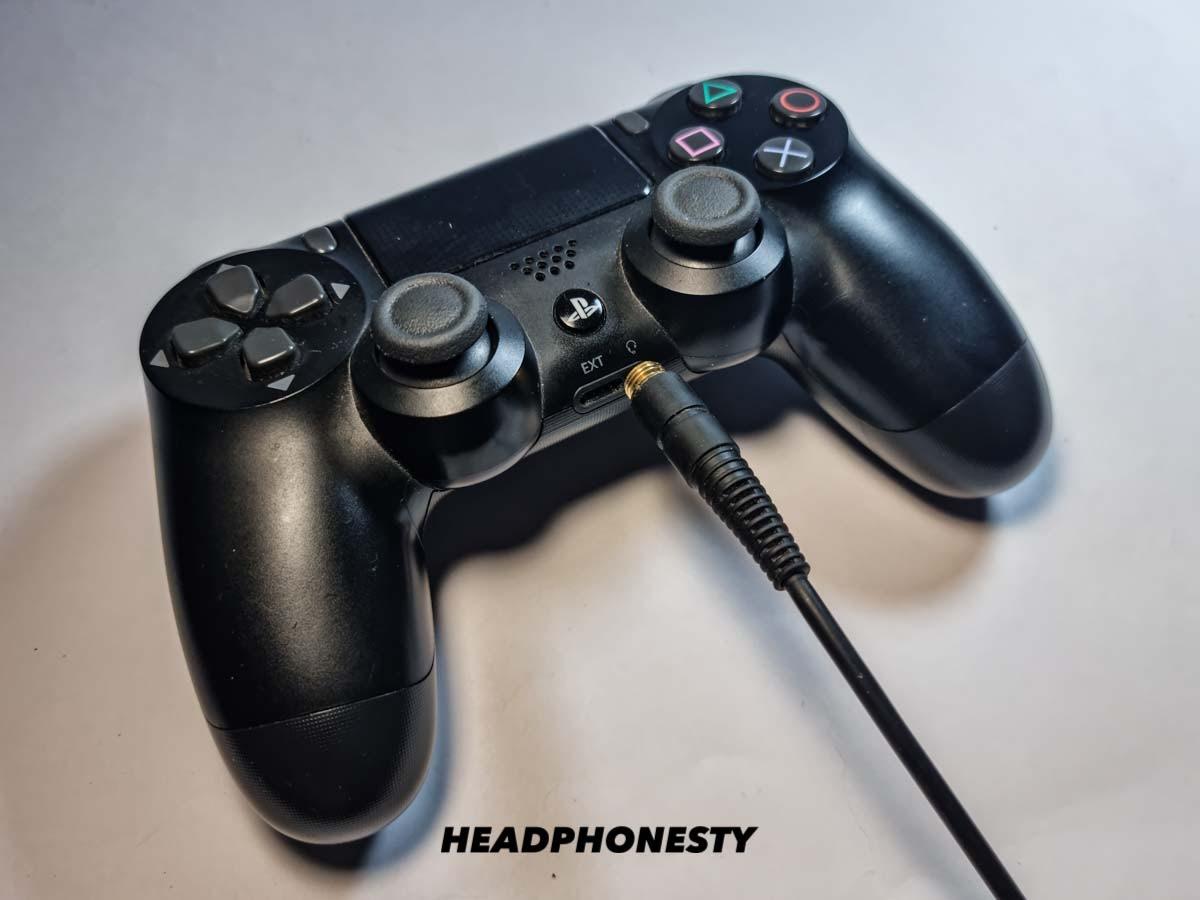
Method 2: Plug into the DualShock 4 3.5mm jack (simplest with wired option)
-
Use a cable or wired headset:
- Connect your headphones or headset to the DualShock 4 3.5mm jack.
- On PS4 go to Settings > Devices > Audio Devices.
- Set Input Device to Headset Connected to Controller.
- Set Output Device similarly and choose Output to Headphones: All Audio.
-
When to use this:
- Use this if your headphones have a cable or if you have a Bluetooth headset that also supports a wired connection.
- This keeps latency near zero and usually supports the microphone.
Wired via the controller is often the most reliable way to get both game audio and chat working without compatibility headaches about how to connect bluetooth headphones to ps4.
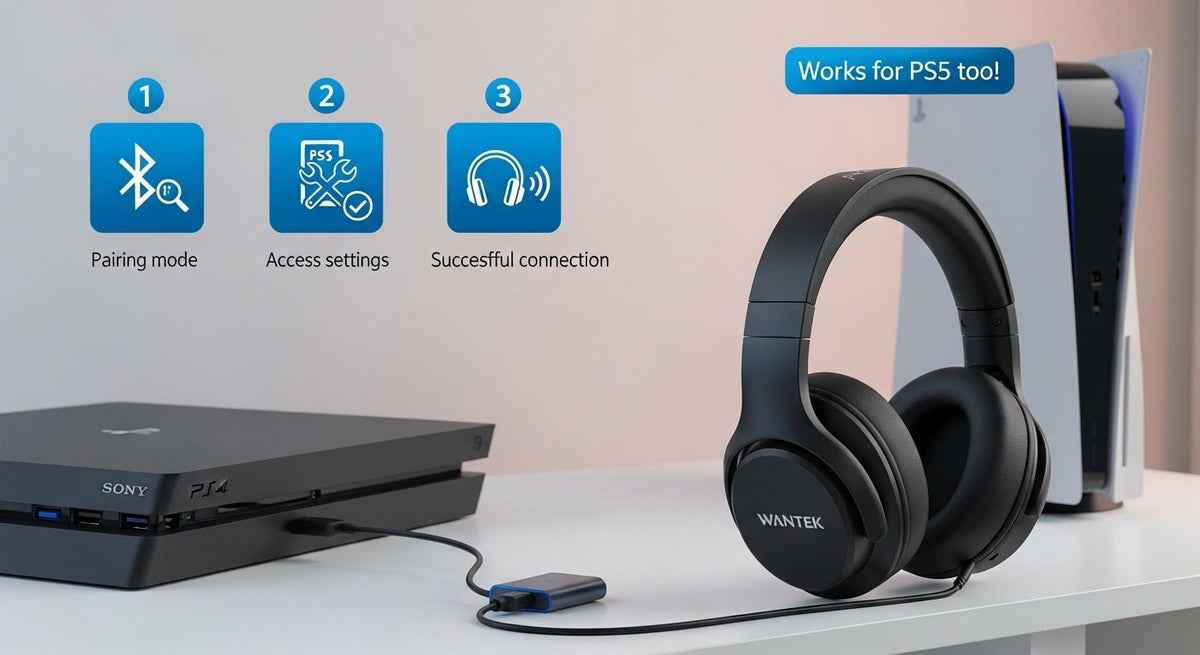
Method 3: Use a Bluetooth transmitter (USB or optical/Toslink)
-
Choose the right transmitter:
- Optical/Toslink transmitters connect to PS4 models with an optical out (original PS4).
- For PS4 Slim or if you lack optical out, use a USB transmitter designed for game consoles.
- Prefer transmitters with low-latency aptX LL if your headphones support it.
-
How to connect:
- Connect the transmitter to the PS4 optical out or USB port.
- Put the transmitter into pairing mode and pair your headphones.
- On PS4, go to Settings > Sound and Screen > Audio Output Settings. Choose Primary Output Port (Optical or HDMI) as needed.
-
What to expect:
- Optical transmitters often provide better, lower-latency game audio and may allow full audio without using the controller.
- Mic/chat support is usually not available through many transmitters unless they explicitly support two-way audio.
A transmitter is a strong choice if you want separate wireless game audio and have a compatible transmitter/headset combo in mind while learning how to connect bluetooth headphones to ps4.

Method 4: Remote Play on PC or mobile (workaround for full Bluetooth support)
-
Set up Remote Play:
- Install PS4 Remote Play on your PC, Mac, Android, or iPhone.
- Enable Remote Play on PS4: Settings > Remote Play Connection Settings.
- Connect your controller to the computer/phone and log into your PSN account.
-
Use Bluetooth headphones with the host device:
- Pair your Bluetooth headphones to the PC or phone.
- Run Remote Play; audio will stream through the host device to your headphones.
- Chat via the host device microphone if supported.
-
Caveats:
- This introduces network-related latency. Wired local networks reduce lag.
- Works well for casual play and when other methods fail to handle your Bluetooth headphones.
Remote Play is a practical workaround when you must use Bluetooth headphones for longer sessions of how to connect bluetooth headphones to ps4, though it isn’t ideal for competitive play.

Troubleshooting and practical tips
Common problems and fixes when trying to connect bluetooth headphones to ps4:
- No audio after pairing:
- Check Settings > Devices > Audio Devices and set the right output and volume.
- Mic not working:
- Most generic Bluetooth adapters don’t pass mic audio; use a wired solution or a PlayStation-certified headset.
- High latency:
- Use aptX LL transmitters or a wired connection for tight audio sync.
- PS4 doesn’t detect your adapter:
- Power cycle the console, try a different USB port, or update the adapter firmware if available.
Other practical tips:
- Always update your PS4 system software before major setup changes.
- Test your setup in a party chat or single-player session to check both game sound and chat.
- Keep vendor receipts and check return policies—some adapters aren’t compatible with PS4 audio profiles.
These steps will reduce frustration and help you successfully learn how to connect bluetooth headphones to ps4.

Choosing the right adapter or headset
Factors to consider when buying gear to connect Bluetooth headphones to PS4:
- Latency — low-latency aptX LL is best for gaming.
- Mic support — decide if you need a two-way microphone.
- Connection type — USB vs optical vs controller jack affects compatibility.
- Battery life and range — consider session length and play space.
- Brand reputation and return policy — buy from reliable vendors in case of issues.
Match your needs (chat, competitive play, couch gaming) to the adapter or headset type. This makes the process of how to connect bluetooth headphones to ps4 smooth and predictable.
Personal experience and mistakes to avoid
From testing headsets and adapters, here’s what I learned:
- I once bought a cheap USB dongle that only handled stereo output and no mic. That meant no party chat and a return. Lesson: verify mic support before buying.
- I tested an optical aptX LL transmitter with supported headphones and saw a big drop in perceived lag during shooters. Low-latency gear matters.
- For long sessions, wired to the controller gave the lowest stress and zero drops. I often fallback to wired for long competitive runs.
Avoid impulse buys. Read specs, check return windows, and test quickly so you can return incompatible gear. These real-world lessons make it easier for you to succeed learning how to connect bluetooth headphones to ps4.
People also ask (brief practical answers)
Can I pair any Bluetooth headphones directly to my PS4?
No. PS4 blocks generic Bluetooth pairing for most headsets. Use a USB adapter, transmitter, or Remote Play to connect Bluetooth headphones to PS4.
Will my Bluetooth mic work for party chat on PS4?
Often not. Many Bluetooth adapters and transmitters only carry stereo audio. Use PlayStation-certified headsets or the controller’s wired jack for reliable mic support.
Is there latency with Bluetooth audio on PS4?
Yes. Standard Bluetooth can introduce lag. Choose low-latency transmitters and headphones (aptX LL) or use wired audio to minimize latency.
Frequently Asked Questions of how to connect bluetooth headphones to ps4
Do PS4 systems support Bluetooth headphones natively?
No, PS4 systems generally do not support pairing most consumer Bluetooth headphones natively; the console accepts only specific PlayStation wireless devices and some USB audio devices.
Can I use a Bluetooth dongle to make my headphones work with PS4?
Yes, a compatible USB Bluetooth dongle or transmitter can bridge the connection and allow audio to play through your headphones, though mic support may vary.
Will optical transmitters work with every PS4 model?
Original PS4 models with an optical out can use Toslink transmitters. PS4 Slim lacks optical output, so you’ll need a USB transmitter for those systems.
How do I get chat working with Bluetooth headphones on PS4?
To get chat, use a PlayStation-certified wireless headset, plug a wired headset into the DualShock 4, or use an adapter that explicitly supports mic input.
Is Remote Play a reliable way to use Bluetooth headphones with PS4?
Remote Play works well for casual play and supports Bluetooth headphones paired to your PC or phone, but it can add network latency that is bad for competitive games.
Conclusion
You have several ways to get wireless audio when learning how to connect bluetooth headphones to ps4: use a compatible USB adapter, a Bluetooth transmitter, the DualShock 4 wired jack, or Remote Play. Each option trades off mic support, latency, and convenience. Start by deciding whether chat or low latency matters most, then pick the method that fits those priorities.
Try one method, test it quickly, and return any incompatible gear within the vendor’s return window. If you found this guide helpful, leave a comment with your setup or subscribe for more practical console audio tips.