How To Connect Wireless Headphones To Ps5: Quick Setup
Pair via a USB wireless dongle or use a compatible Bluetooth adapter; native PS5 Bluetooth is limited.
I’ve helped dozens of players set up audio on PlayStation consoles. This guide explains how to connect wireless headphones to PS5 with clear, tested steps. You’ll learn official and third-party options, step-by-step pairing, common pitfalls, and quick fixes. Read on to save time and get the best sound for games, chat, and media.
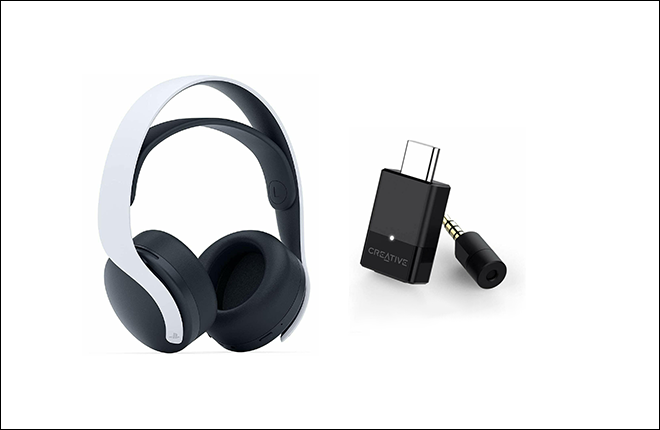
How to connect wireless headphones to PS5: methods and overview
Connecting wireless headphones to PS5 can mean different things. Some headsets use Sony’s USB wireless dongle. Some use standard Bluetooth. Others use a wired USB or 3.5mm fallback via the controller.
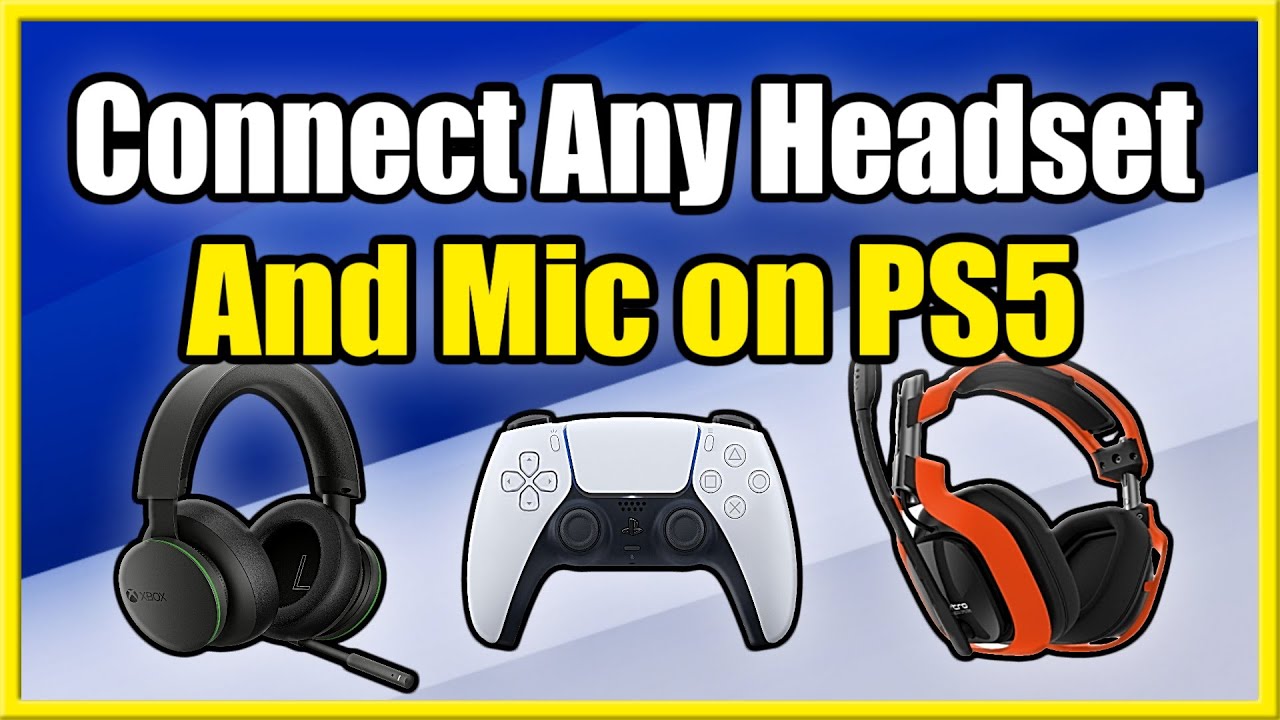
Here are the main methods you’ll use when you want to know how to connect wireless headphones to PS5:
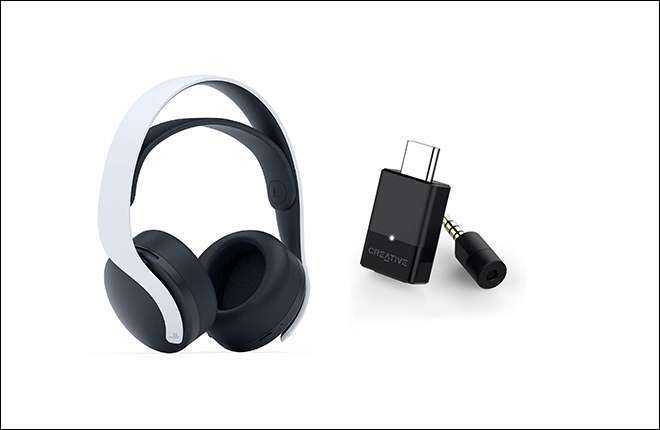
- USB wireless adapter included with the headset. Plug it into the PS5 USB port. The console recognizes many USB dongles instantly.
- Native Bluetooth. The PS5 blocks most Bluetooth audio to avoid lag and security issues. Only a few headsets can pair natively.
- Third-party 2.4GHz adapters. These act like the manufacturer’s dongles. They often provide low-latency audio.
- Wired through DualSense. Use a 3.5mm jack or USB cable for instant fallback audio with almost any headset.
Each method has pros and cons. USB dongles often give the best latency. Bluetooth is convenient but limited. Wired is most compatible. This section prepares you to pick the right route for your headset and use case.
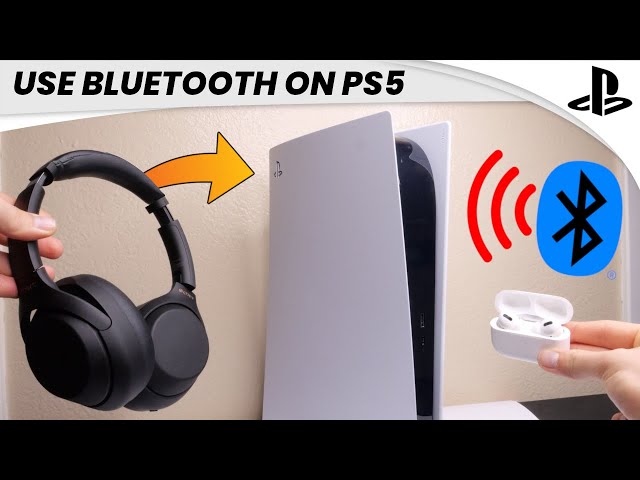
Step-by-step: how to connect wireless headphones to PS5 (USB dongle method)
If your wireless headphones came with a USB dongle, follow these steps. This is the easiest and most reliable way to connect wireless headphones to PS5.
- Turn off the headset.
- Plug the USB dongle into a front or rear PS5 USB port.
- Turn on the headset. Many headsets auto-pair when they detect the dongle.
- On PS5, go to Settings > Sound > Audio Output. Choose USB Headset or the headset name.
- Adjust volume and chat balance. Test audio in a game or media app.
Tips:
- Use the front USB port for faster access.
- Fully charge the headset before first use.
- If pairing fails, unplug the dongle, restart the PS5, then retry.

Step-by-step: how to connect wireless headphones to PS5 (Bluetooth and Bluetooth workarounds)
Direct Bluetooth pairing on PS5 is limited. Still, you can sometimes pair low-latency Bluetooth headsets or use a Bluetooth transmitter.
How to try native Bluetooth pairing:
- Put your Bluetooth headset in pairing mode.
- On PS5, go to Settings > Accessories > General > Bluetooth Accessories.
- Wait for the headset name to appear, then select it.
If the headset does not appear or audio won’t route, use a Bluetooth transmitter:
- Plug a low-latency (aptX Low Latency) transmitter into the PS5 USB or optical-to-USB adapter.
- Put both the transmitter and headset into pairing mode.
- Choose the transmitter as the audio output on PS5 if needed.
Notes:
- PS5 blocks many Bluetooth headsets by default to prevent voice chat issues and lag.
- A dedicated low-latency transmitter often improves performance versus native Bluetooth.
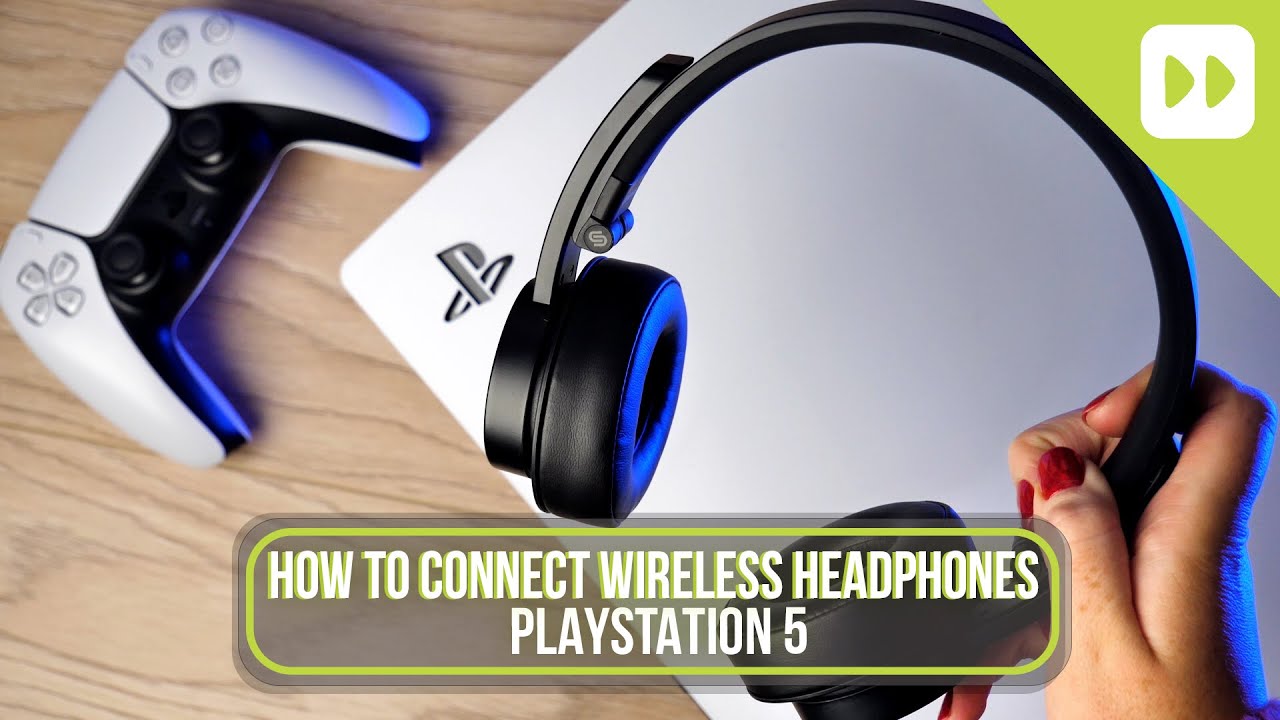
How to connect wireless headphones to PS5 using controller or wired fallback
If wireless fails or lag is a problem, wired is a good fallback. It’s also useful for chat.
Wired via DualSense:
- Plug a 3.5mm headset into the DualSense controller jack.
- Optionally use the controller’s USB-C to USB-A cable for headsets that support USB audio.
- On PS5, go to Settings > Sound > Audio Output and pick Controller Headset or USB Headset.
Why wired works:
- Zero wireless interference.
- Lower latency for competitive play.
- Guaranteed compatibility.
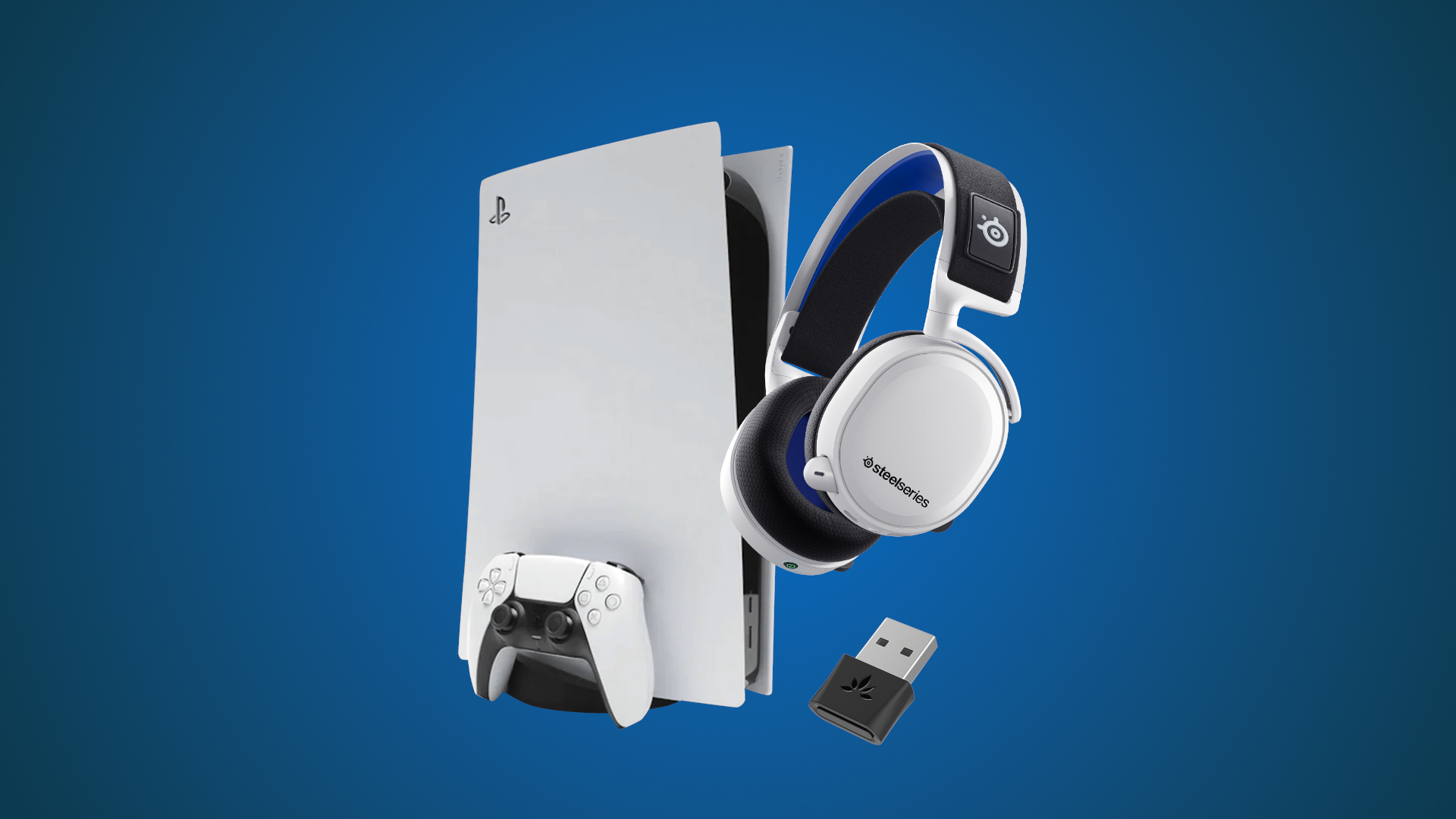
Troubleshooting common problems when trying to connect wireless headphones to PS5
If your headset won’t connect, try these fixes. I’ve used these steps while testing many headsets.
- No audio after pairing
- Check Settings > Sound > Audio Output. Select the correct device.
- Reboot the console and headset.
- Mic not working
- Confirm headset is set as both output and input in Settings.
- Check in-game voice settings and party chat privacy.
- Lag or poor audio quality
- Use the USB dongle or a low-latency transmitter.
- Move closer to the PS5 and remove signal blockers.
- Headset not appearing
- Reset the headset and the dongle per the manufacturer guide.
- Try a different USB port on the PS5.
I once saw a popular headset fail until I updated the headset firmware via the maker’s app. Firmware matters.
Compatibility, latency, and audio quality explained
Understanding limits helps you choose the right setup for how to connect wireless headphones to PS5.
Compatibility
- Sony Pulse 3D and other PS-certified headsets are plug-and-play via USB dongle.
- Many Bluetooth-only consumer headphones won’t pair natively for game audio and chat.
Latency
- USB dongles and 2.4GHz adapters usually give the lowest latency.
- Bluetooth often adds delay. For competitive games, low-latency hardware is best.
Audio quality
- Lossless or high-bit audio options are limited on PS5 for wireless.
- Use wired or premium USB headsets if you want richer audio fidelity.
Knowing these trade-offs helps you pick a headset for your priorities: convenience, chat quality, low latency, or the best audio fidelity.
Personal experience, mistakes to avoid, and practical tips
I’ve tested multiple headsets on PS5 over the past few years. Here are real lessons from that work.
What I learned
- The included USB dongle is often the simplest and best performer.
- Bluetooth transmitters can save you money but watch for driver or codec limits.
- Always test chat and game audio separately. One may work while the other fails.
Common mistakes
- Trying to pair standard Bluetooth headphones as a first step. Most won’t work for chat.
- Ignoring controller settings. The controller volume can mute mic or audio.
- Not checking headset firmware, which can prevent pairing.
Practical tips
- Label USB dongles so you don’t lose the tiny adapter.
- Keep a wired cable for emergencies.
- Update PS5 system software and headset firmware frequently.

People also ask (PAA-style questions)
What is the easiest way to connect wireless headphones to PS5?
The easiest way is to plug the headset’s USB wireless dongle into the PS5 and power on the headset. The PS5 usually recognizes the adapter immediately.
Can I connect any Bluetooth headphones to my PS5?
No. The PS5 restricts many Bluetooth headsets. You may need a dedicated USB dongle or external Bluetooth transmitter to use most Bluetooth headphones.
Will using a wireless headset cause audio lag on PS5?
Some wireless solutions add delay. USB dongles and 2.4GHz adapters tend to have minimal lag. Standard Bluetooth can produce noticeable lag in fast games.
Is chat supported over wireless headsets on PS5?
Yes, if the headset or its dongle supports voice. Check Settings > Sound to ensure the headset is set as both input and output.
Do I need to change PS5 audio settings after pairing wireless headphones?
Yes. Go to Settings > Sound > Audio Output to select the headset and adjust volume, chat mix, and mic level.

Frequently Asked Questions of how to connect wireless headphones to ps5
How do I pair Bluetooth headphones directly to PS5?
Go to Settings > Accessories > General > Bluetooth Accessories, put your headphones into pairing mode, and select them. Keep in mind many Bluetooth headsets are not supported for full game and chat audio.
Can I use the PS5 Pulse 3D wireless headset with any PS5?
Yes. The Pulse 3D works with PS5 via its USB dongle and is plug-and-play for game audio and chat.
Why won’t my wireless headset show up on PS5?
The PS5 may block standard Bluetooth audio. Also check that the headset is in pairing mode, the dongle is plugged in, and firmware is up to date.
Will a USB Bluetooth adapter work for game sound on PS5?
Some USB Bluetooth adapters work, especially low-latency ones. However, many generic adapters are not recognized by PS5 for voice or game audio.
How do I fix low mic volume with wireless headphones on PS5?
Go to Settings > Sound > Microphone and select the headset mic. Increase mic level and test in a party to confirm. If still low, check headset firmware or try a wired connection.
Can I use wireless headphones for party chat and game audio at the same time?
Yes, if the headset or dongle supports both. Confirm both input and output are set to the headset in Settings > Sound.
Conclusion
You can connect wireless headphones to PS5 in several ways: USB dongle, Bluetooth workarounds, third-party adapters, or wired via the controller. USB dongles usually offer the best mix of low latency and reliable voice chat. If you hit snags, check PS5 audio settings, headset firmware, and try a wired fallback.
Now try one connection method and test it in a game. If you liked this guide, subscribe for more tips or leave a comment about your headset and setup.