How To Sync Bose Headphones: Quick Setup & Fixes
Put your Bose headphones into pairing mode, then open Bluetooth on your device and select the headphones.
I’ve paired every major Bose model for years, from QuietComfort to Sport Earbuds. This guide explains how to sync Bose headphones step by step, fixes I’ve used in the field, and clear tips so you can connect reliably every time. Read on to learn exact actions, troubleshooting methods, and best practices for Bluetooth and multi-device setups.

Which Bose models this guide covers
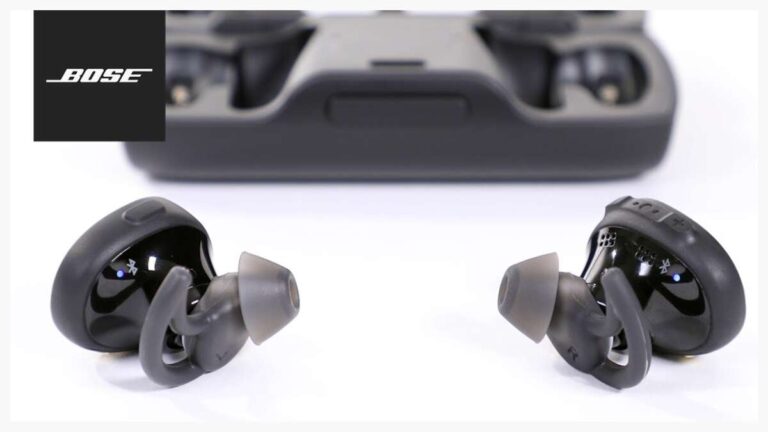
This article covers common Bose models such as QuietComfort, Noise Cancelling Headphones, SoundSport, and Bose QuietComfort Earbuds. The pairing steps are nearly the same across models, with small button differences noted in each section. If you own an older or rare model, the core pairing concept still applies: enter pairing mode and connect from your device.

Step-by-step: How to sync Bose headphones with phones and tablets
Follow these clear steps to pair most Bose headphones with an iPhone or Android device. Keep sentences short and follow the order.
- Turn on the headphones. Wait for the power light or voice prompt.
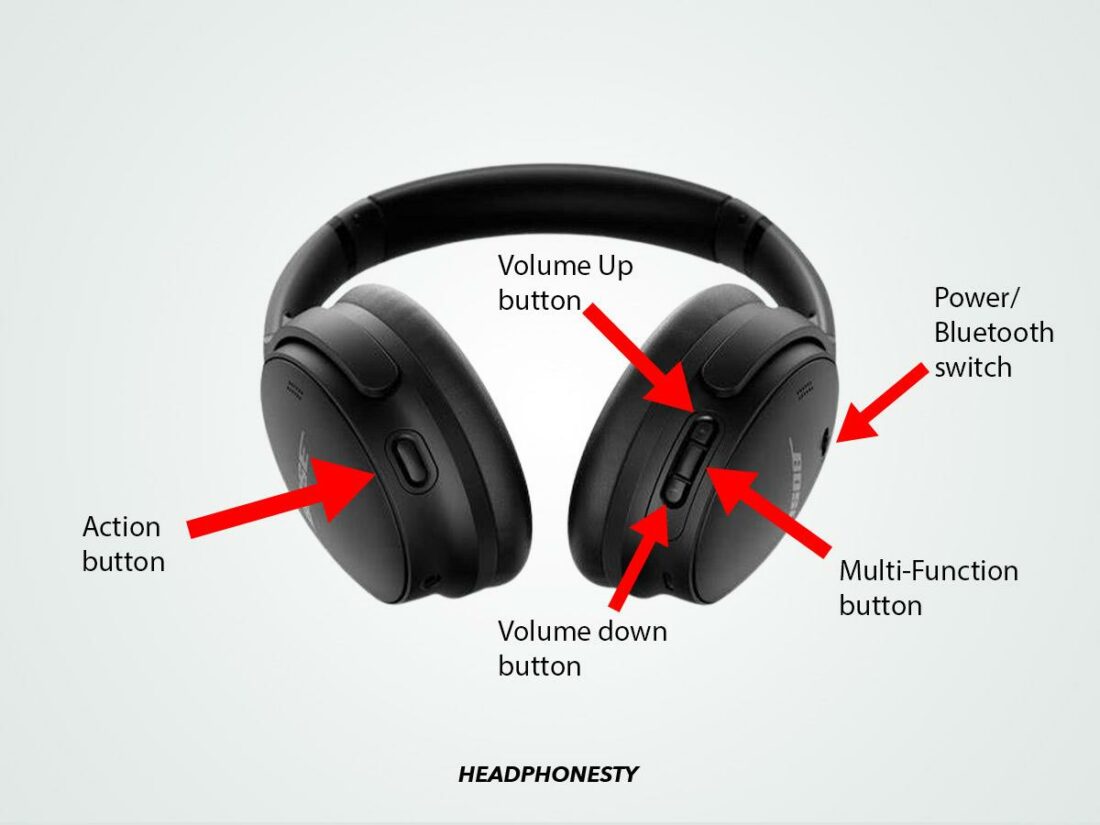
- Enter pairing mode. Press and hold the power button or Bluetooth button until you hear "ready to pair" or see a flashing light.
- Open Bluetooth on your phone or tablet. Make sure Bluetooth is on and scanning.
- Select the Bose device name when it appears. Tap to connect and accept any prompts.
- Confirm audio. Play a short track or video to test sound and microphone if needed.
Tips for iOS and Android differences:
- iPhone: Settings > Bluetooth, then tap the Bose name.
- Android: Settings > Connections or Bluetooth, then tap the Bose name and allow permissions.
I once paired a QC35 with a stressed-out presenter in under a minute by following these steps and keeping spare charging time handy. If the headphones don’t appear, move to the troubleshooting section below. This is the easiest way to learn how to sync Bose headphones and get back to listening fast.
Pairing with Windows and Mac computers
Pairing how to sync Bose headphones with a laptop follows the same idea but the interface changes.
- Windows 10/11: Settings > Bluetooth & devices > Add device > Bluetooth. Choose the Bose name.
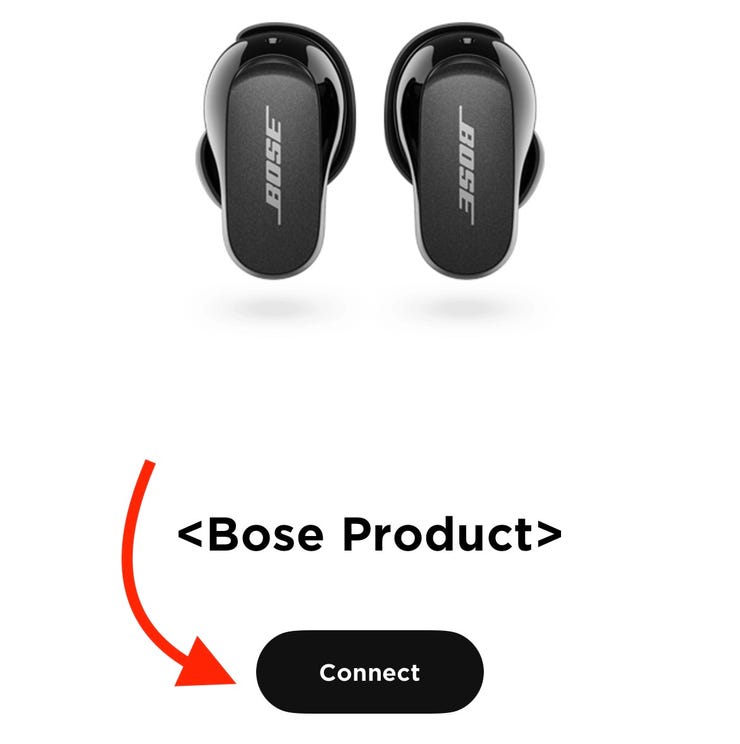
- macOS: System Settings or System Preferences > Bluetooth. Click Connect next to the Bose name.
If audio does not route to the headphones, check sound output settings and select the Bose device. For calls, choose the headset input output in your app or OS sound preferences. I’ve seen Windows keep the old device selected; swapping the output fixes it quickly.

Pairing with multiple devices and using Bose features
Many people want to know how to sync Bose headphones to two or more devices. Most Bose models support multi-point or fast switching.
- Multi-point pairing lets headphones connect to two devices at once, like a phone and laptop.
- SimpleSync or proprietary features allow link-ups with Bose gear like speakers on supported models.
To pair multiple devices, put the headphones in pairing mode each time and connect from each device. Then test switching by pausing audio on one device and playing from the other. Note that not all Bose models have seamless multi-point; check your manual or settings for model-specific behavior.
Troubleshooting common connection problems
If you struggle to learn how to sync Bose headphones, try these quick fixes. Each step is short and practical.
- Restart both the headphones and the device. This clears temporary glitches.
- Forget the device in your phone or computer Bluetooth list, then pair again.
- Charge the headphones. Low battery can block pairing mode.
- Move away from other Bluetooth or Wi-Fi interference. Try pairing in another room.
- Update firmware via the Bose app. Firmware fixes many bugs.
One real-world fix: a colleague’s QC Earbuds would not pair until we removed stale Bluetooth entries on their laptop. Forgetting and retrying fixed it. If nothing works, a factory reset often restores original pairing behavior—check your model’s reset steps in the manual.
Tips, best practices, and maintenance
Use these tips to make future attempts to sync Bose headphones smoother and more reliable.
- Keep firmware updated. Updates fix pairing and audio issues.
- Use the official Bose app for guided pairing and diagnostics.
- Avoid storing many saved Bluetooth devices on your phone to reduce conflicts.
- Reset the headphones only when other fixes fail.
- Label your headphones in device lists if multiple Bose items appear.
From experience, pairing goes fastest when headphones are fully charged and close to the device. A small habit: pause any other audio apps before pairing to avoid auto-switch confusion. These practices make how to sync Bose headphones simple and repeatable.

Frequently Asked Questions of how to sync bose headphones
How do I put my Bose headphones into pairing mode?
Press and hold the power or Bluetooth button until you hear "ready to pair" or see a blinking light. Some models use a separate Bluetooth button—check your quick start guide if unsure.
Why won’t my device find my Bose headphones?
Interference, low battery, or previously paired device conflicts often block discovery. Try charging the headphones, moving closer, and forgetting the device on your phone before retrying.
Can I connect Bose headphones to two devices at once?
Many Bose models support multi-point pairing to two devices. Check your model specs and pair both devices, then test switching audio between them.
Do I need the Bose app to sync headphones?
No, basic pairing works through your device’s Bluetooth settings. The Bose app helps update firmware, diagnose issues, and guide pairing for some models.
How do I reset my Bose headphones to pair again?
Reset steps vary by model but usually involve holding power plus another button for several seconds. If unsure, use manufacturer guidance or the app to find the exact reset procedure.
Conclusion
You now have clear, practical steps for how to sync Bose headphones with phones, tablets, and computers, plus focused troubleshooting and best practices. Try the step-by-step pairing flow, keep firmware current, and use forgetting/re-pairing as your go-to fix. Put these tips into action now: update firmware, charge your headphones, and make one test pairing today. If this guide helped, leave a comment about your model or subscribe for more hands-on guides.