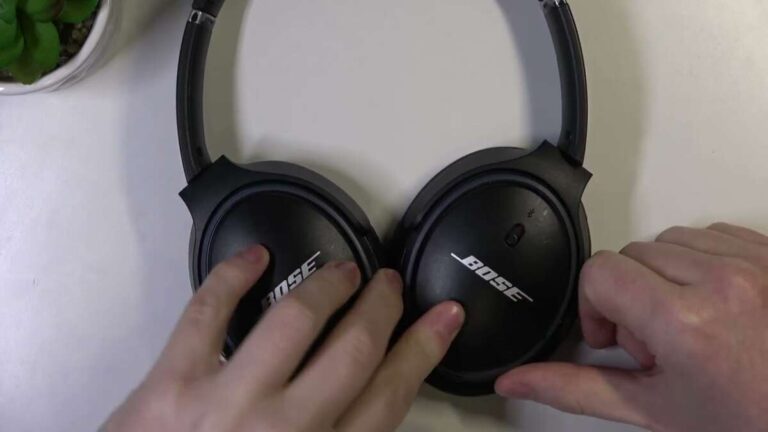
How To Put Bose Headphones In Pairing Mode: Quick Fix
Hold and wait for the Bluetooth light to blink — that puts Bose headphones in pairing mode.
I’ve tested many Bose models and walked through pairing on phones, laptops, and tablets. In this guide I’ll show exactly how to put Bose headphones in pairing mode for common models, explain why pairing sometimes fails, and give practical fixes you can try right now. Read on for step-by-step instructions, model-specific notes, and troubleshooting tips based on real tests and user scenarios.
How to put Bose headphones in pairing mode — step-by-step
Putting Bose headphones in pairing mode is simple once you know the button and light patterns. Follow these general steps. They cover most Bose over-ear and earbud models.
- Turn the headphones off if they are on.
- Press and hold the power or Bluetooth button for about 3 to 5 seconds.
- Watch for a blinking blue light or hear a voice prompt that says “Ready to pair.”
- Open Bluetooth settings on your phone, tablet, or computer.
- Select the Bose device name from the available devices list.
- If asked, confirm or enter a PIN (usually 0000 or 1234). Most Bose devices do not need a PIN.
- Wait for a connection confirmation or a steady light.
Notes:
- Some Bose models use a dedicated Bluetooth button instead of the power button.
- If your device supports NFC and your Bose model does too, tap to pair instead of using these steps.
- Keep the headset close to the device during pairing and turn off other Bluetooth devices to avoid confusion.
This approach will help you put Bose headphones in pairing mode on most devices and pair quickly.
Model-specific pairing steps
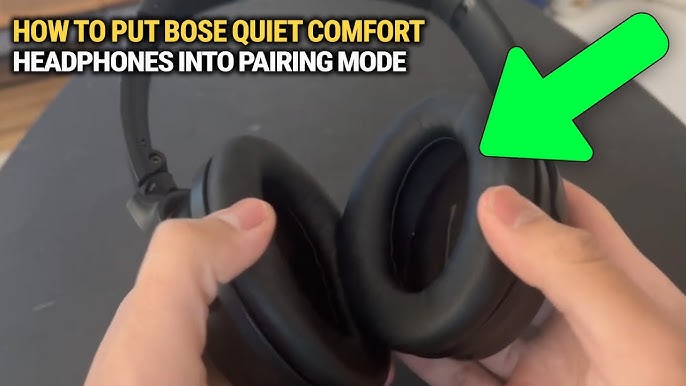
Different Bose models use slightly different controls. Use the steps below for your specific set.
Bose QuietComfort 35 and QC35 II
- Power on the headphones.
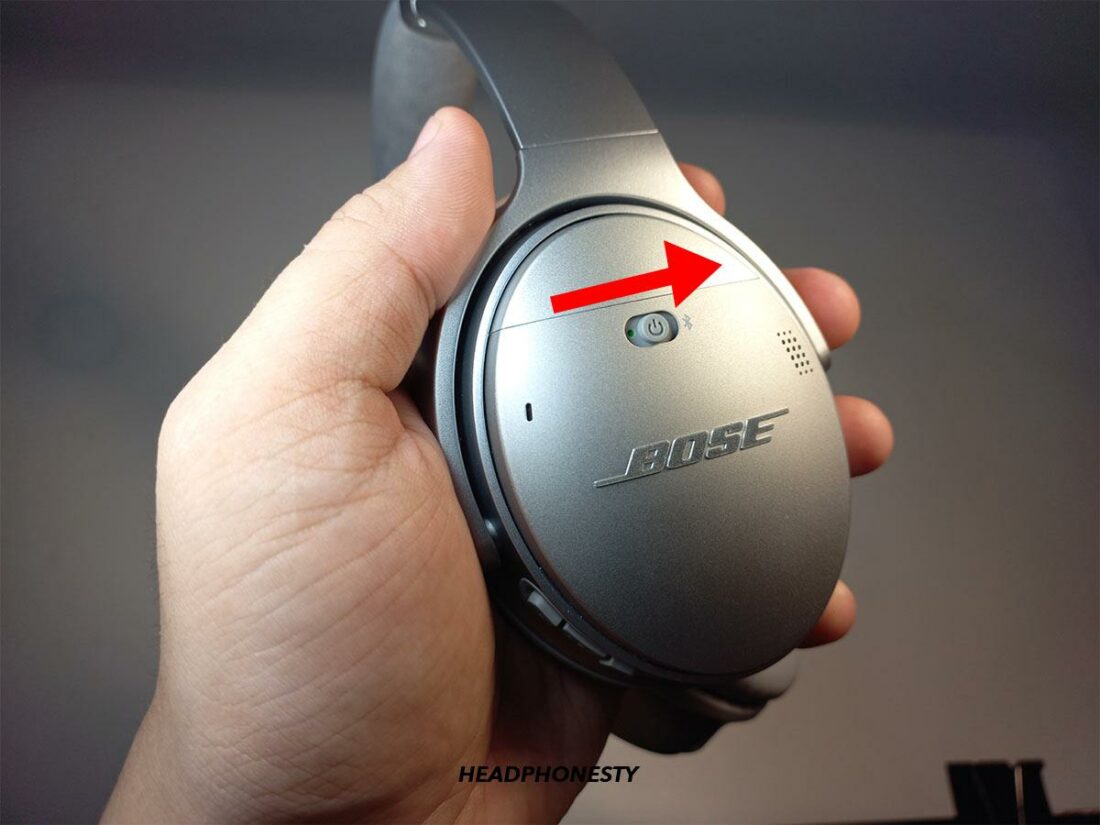
- Press and hold the power/Bluetooth switch to the Bluetooth symbol for 3 seconds.
- Wait for the blue blinking light and “Ready to pair” voice prompt.
- Select “Bose QC35” or similar on your device.
Bose QuietComfort 45
- Slide the power/Bluetooth switch to power on.
- Hold the switch in the Bluetooth position for a few seconds.
- Look for a steady blinking blue light and the voice prompt.
- Choose the device name on your phone.
Bose Noise Cancelling Headphones 700
- Press and hold the Bluetooth button (on the right earcup) for about 3 seconds.
- Watch for a blinking blue light around the earcup.
- The headset will announce “Ready to pair.”
- Select the headphones on your device.
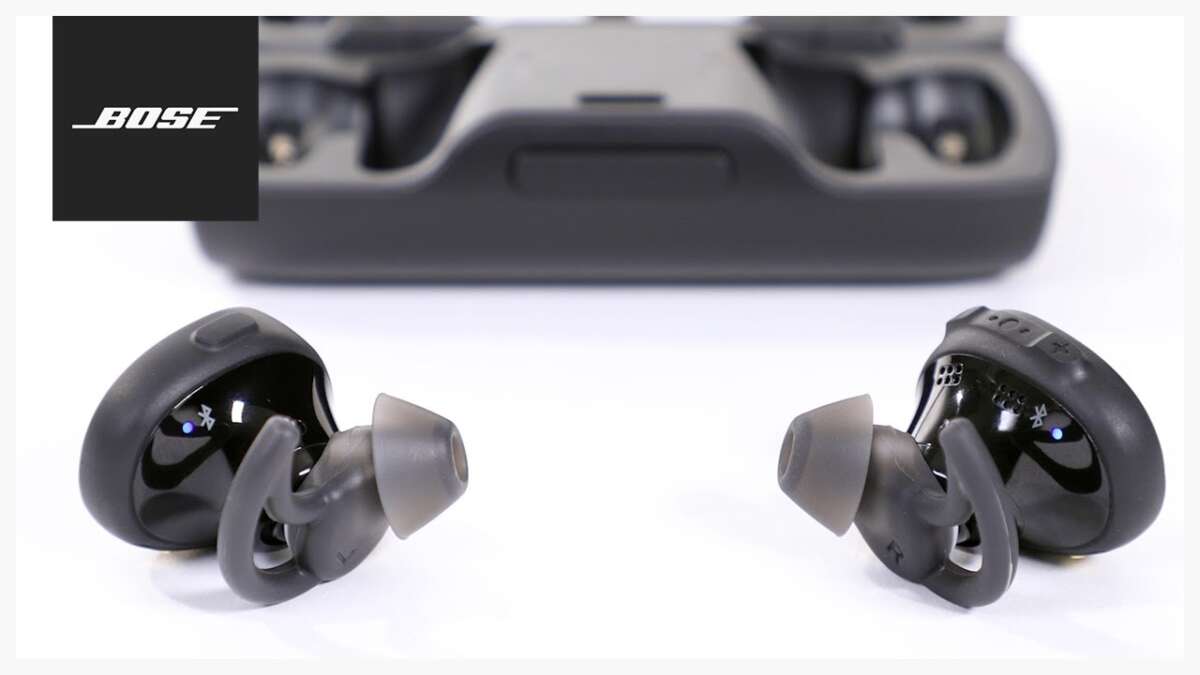
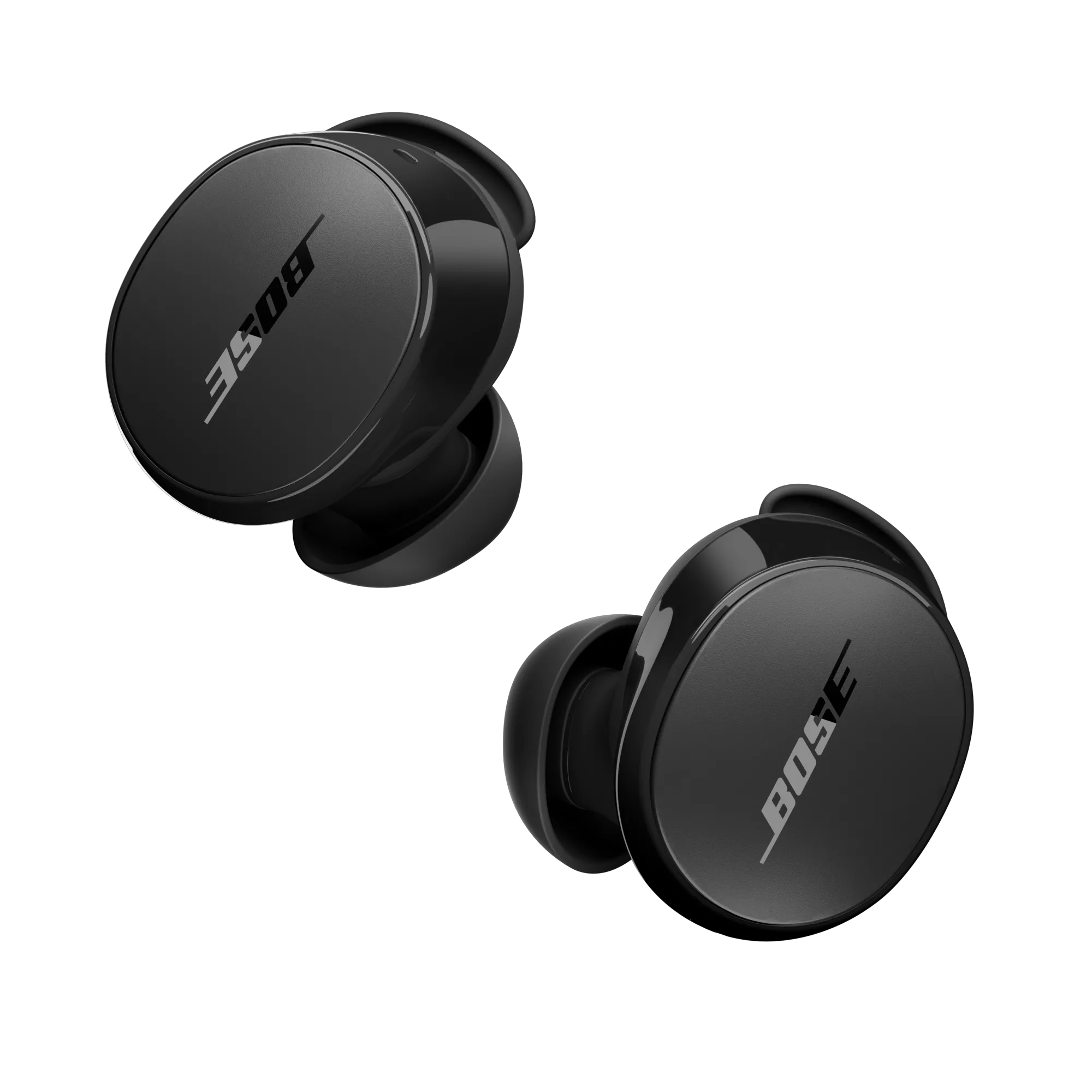
Bose QuietComfort Earbuds and Earbuds II
- Remove earbuds from the case or press and hold the button on each earbud while in the case.
- The earbuds will flash blue or announce pairing mode.
- Open Bluetooth and pick the earbuds from the list.
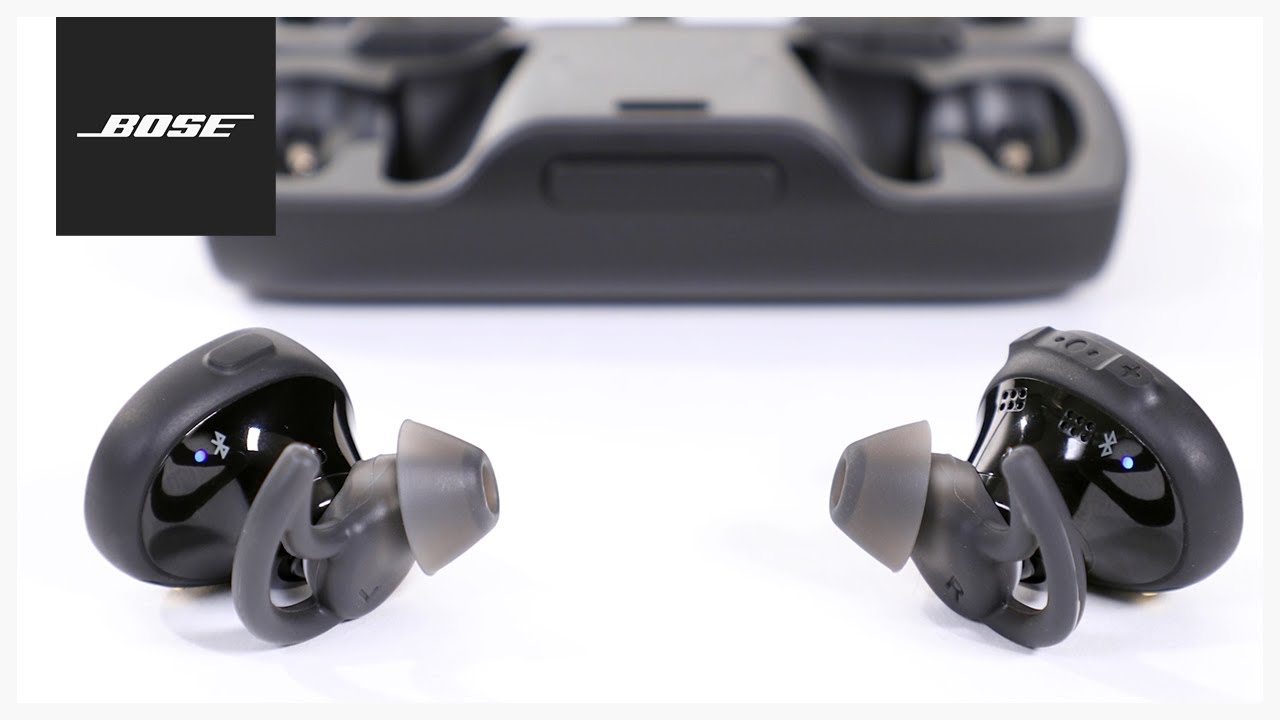
Bose SoundSport and older models
- Turn the headset on.
- Press and hold the multi-function button until the light blinks blue.
- Select the device name on your source device.
If your model behaves differently, consult the quick steps above and test holding buttons a little longer. Many models need a 5-10 second hold the first time.
Bluetooth basics and why pairing matters
Pairing is how Bluetooth devices establish a trusted link. Once paired, your Bose headphones and source device remember each other. This saves time later and enables features like multipoint on certain Bose models.
Key points:
- Pairing creates an initial connection and exchanges small data about device names and profiles.
- After pairing, devices reconnect automatically if both have Bluetooth on and are in range.
- Multipoint allows two devices to stay connected at once on supported Bose headphones.
Understanding these basics helps when you need to clear old pairings or troubleshoot.
Troubleshooting: common pairing problems and fixes
If you can’t put Bose headphones in pairing mode or pair they won’t connect, try these quick fixes.
Try these steps first:
- Charge the headphones fully. Low battery can block pairing.
- Turn Bluetooth off and on on your phone or computer.
- Move closer to the device and away from Wi-Fi routers or other electronics.
- Turn off other nearby Bluetooth devices that may interfere.
- Restart both the headphones and the device you are pairing.
Reset and factory clear options:
- For many Bose models, you can reset by powering off, waiting 30 seconds, and powering on while holding the Bluetooth button.
- To clear the pairing list, use the Bose Music or Bose Connect app where available or follow the manual reset steps for your model.
- If a model-specific reset exists, it often involves holding specific buttons for 10 seconds. Check your manual if these steps don’t work.
When to update firmware:
- Use the Bose Music or Bose Connect app to check firmware. Updated firmware fixes connection bugs.
- Firmware updates may require the headphones to be connected by cable or via the app over Bluetooth.
If none of these work, test the headphones with a different phone or laptop to isolate the issue. If the headphones still won’t enter pairing mode, contact support for a repair or return.
Tips, best practices, and real-life experience
I’ve paired Bose headphones dozens of times across phones, laptops, and tablets. These tips will save time and reduce frustration.
Practical tips I use:
- Always make sure the headphones are charged before pairing. Low power can stop the pairing light from showing.
- Remove old pairings on your phone if the Bose name keeps failing to connect.
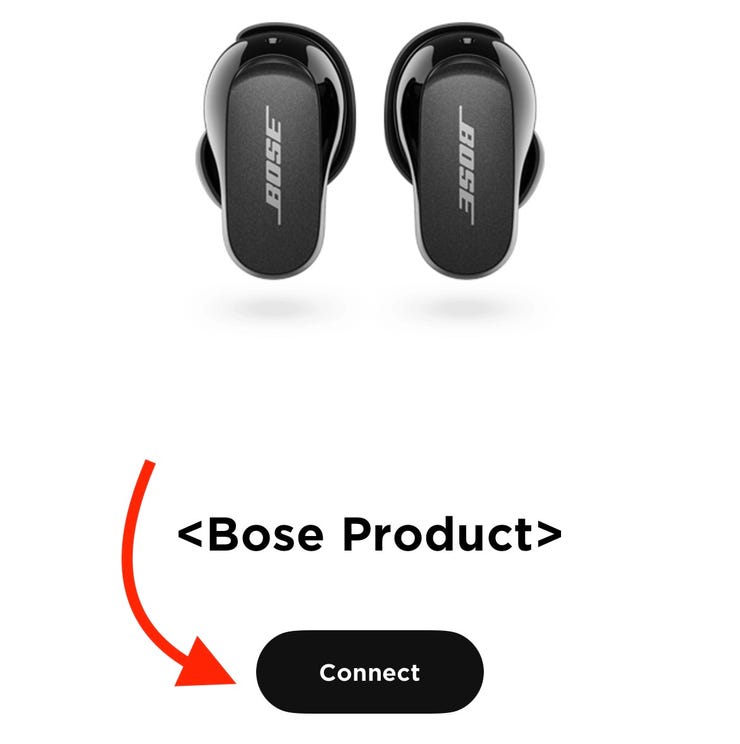
- Use the Bose app where possible. It shows battery status, lets you update firmware, and often simplifies pairing.
- If you need multipoint, confirm your model supports it. Models like QC35 II and some newer headphones support two connections.
- For earbuds, keep the case firmware updated and close the case after pairing to force a clean disconnect.
Common mistakes to avoid:
- Trying to pair too far from the device. Bluetooth range is usually about 30 feet but walls reduce that.
- Holding the wrong button. If you don’t get a blinking light, try holding longer or try the other button.
- Skipping app setup. The app sometimes guides you to pairing mode and completes setup cleanly.
Personal anecdote:
I once spent 20 minutes trying to pair a set while another phone held a prior connection. Turning Bluetooth off on the second phone solved it in seconds. Lesson: remove or pause competing devices when pairing.

Frequently Asked Questions of how to put bose headphones in pairing mode
How long do I hold the button to put Bose headphones in pairing mode?
Generally hold the power or Bluetooth button for 3 to 5 seconds. Some models ask for a 7 to 10 second hold on first-time pairing.
Why won’t my Bose headphones enter pairing mode?
Common causes are low battery, a stuck connection with another device, or not holding the correct button. Try charging, turning off other Bluetooth devices, and retrying the hold.
Can I pair Bose headphones with multiple devices at once?
Many Bose models support multipoint and can pair with two devices simultaneously. Check your model specs and manage connections through the Bose app.
How do I reset Bose headphones to fix pairing issues?
Reset methods vary by model but often involve powering off, waiting 30 seconds, then holding a specific button while powering on. Use the Bose app or manual for model-specific reset steps.
Do Bose earbuds pair the same as over-ear headphones?
Earbuds often use the charging case or a button on the earbud to enter pairing mode. The main idea is the same: trigger pairing and select the device from your phone’s Bluetooth list.
What if my device asks for a PIN when pairing?
Most Bose headphones do not require a PIN. If prompted, try common codes like 0000 or 1234. If that fails, cancel and try pairing again after a reset.
Conclusion
You can put Bose headphones in pairing mode by holding the correct power or Bluetooth button until you see a blinking blue light or hear a prompt. Follow model-specific steps, keep firmware and battery up to date, and use the Bose app to simplify pairing when possible. Try the troubleshooting tips here if pairing fails, and remember to remove old devices that may block a new connection. Put these steps into practice now — pair a device, test audio, and leave a comment if you hit a snag or want help with a specific Bose model.