How To Connect Bluetooth Headphones To PC: Quick Guide
Enable Bluetooth on your PC, put headphones in pairing mode, then add the device in Windows Bluetooth settings.
I’ve helped dozens of people and fixed my own audio setup, so I know the common snags and quick wins. This guide explains how to connect Bluetooth headphones to PC step by step, covers Windows 10 and 11, older systems, troubleshooting, and audio tips. Read on for clear instructions, practical examples, and trustworthy advice so you can get reliable wireless sound fast.
Why use Bluetooth headphones with your PC
Bluetooth headphones free you from cables. They make meetings, gaming, and media easier. Connecting Bluetooth headphones to PC removes desk clutter and gives mobility.
Benefits include:
- Wireless convenience for moving around during calls.
- Built-in mic on many models for voice chat.
- Fewer tripping hazards and cleaner setup.
Limitations:
- Slight audio delay compared with wired connections.
- Battery life can limit long sessions.
- Some apps may require extra setup to work with Bluetooth audio.
:max_bytes(150000):strip_icc()/BluetoothHeadsetAnnotations01-cfe27d8fe5fb4068a4a76334ecffec70.jpg)
What you need before you start
Check these items before you try to connect Bluetooth headphones to PC.
- A PC with Bluetooth hardware or a Bluetooth USB adapter.
- Headphones with pairing mode and charged battery.
- Updated Bluetooth drivers and Windows updates.
- A quiet environment for initial pairing to avoid interference.
Quick checks:
- Verify your PC shows Bluetooth as available in Settings.
- Plug in and update any Bluetooth USB dongle drivers before pairing.

How to connect Bluetooth headphones to PC — Windows 10 and Windows 11
Follow these simple steps to pair and use Bluetooth headphones on most modern Windows PCs.
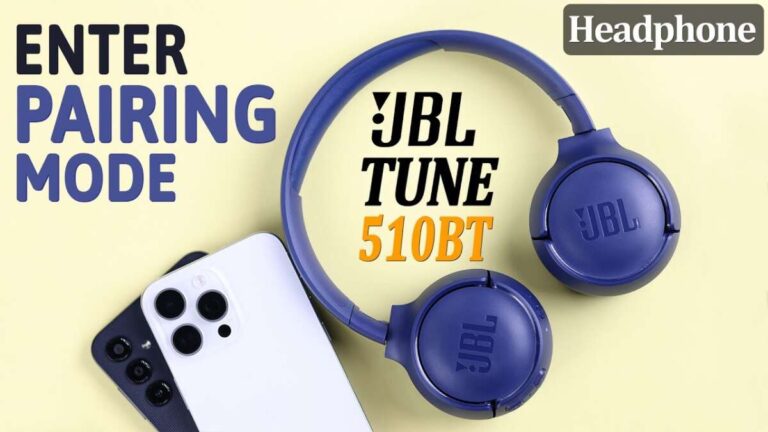
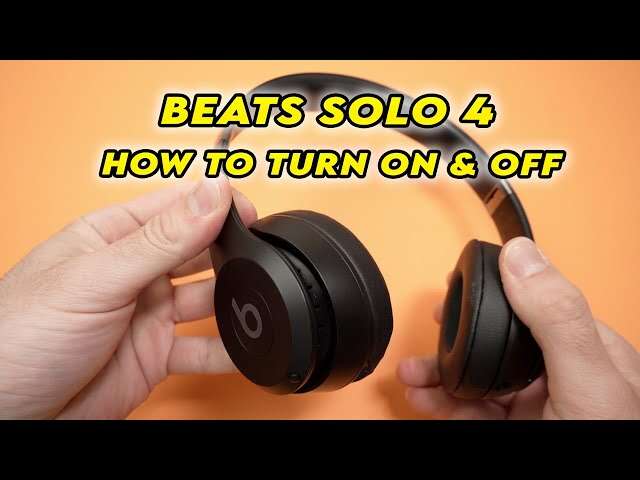
- Turn on your headphones and enable pairing mode. Most models blink an LED or announce “pairing.”
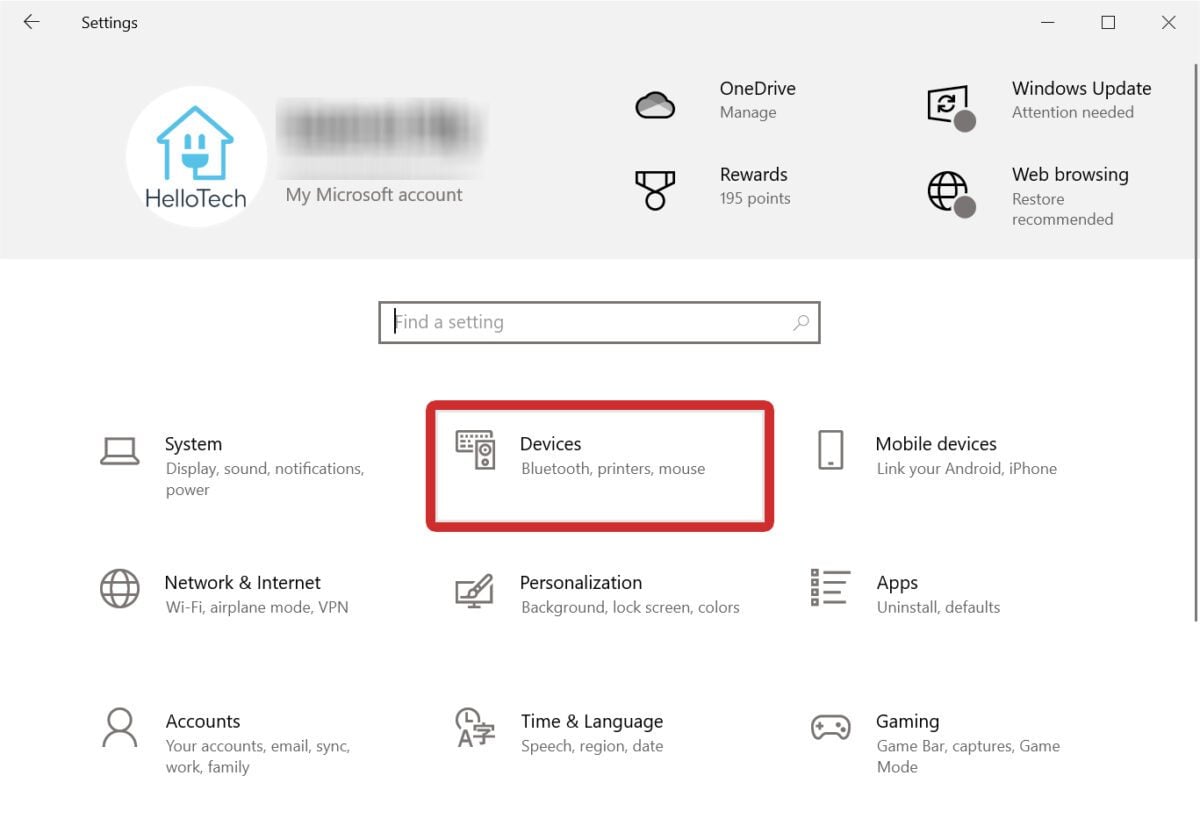
- On your PC, open Settings. Go to Devices (Windows 10) or Bluetooth & devices (Windows 11).
- Turn Bluetooth on if it’s off.
- Click Add Bluetooth or other device. Choose Bluetooth.
- Select your headphones from the device list. Confirm pairing if prompted.
- Set the headphones as the audio output: open Sound settings and pick your headphone device for output and input.
Tips while pairing:
- Keep the headphones close to the PC during pairing.
- Turn off other nearby Bluetooth devices to avoid conflicts.
- Restart Bluetooth on the PC if the device doesn’t appear.

How to connect Bluetooth headphones to PC — older Windows and adapters
If you run Windows 7 or an older PC without Bluetooth, you can still connect Bluetooth headphones to PC using a USB adapter.
Steps with an adapter:
- Buy a Bluetooth USB dongle that supports audio (A2DP).
- Install any vendor drivers or let Windows auto-install them.
- Restart your PC and follow the pairing steps in your Bluetooth control panel.
- If the device uses a specific app, install it for advanced features.
Note on drivers:
- Older systems often need vendor drivers for full audio support.
- If sound is missing after pairing, update the Bluetooth stack or audio drivers.
Troubleshooting common issues when connecting Bluetooth headphones to PC
If pairing fails or audio is poor, try these fixes to connect Bluetooth headphones to PC successfully.
Problem: PC can’t find headphones
- Make sure headphones are in pairing mode and visible.
- Turn off and back on Bluetooth on both devices.
- Remove old pairings from the headphones if too many devices are stored.
Problem: Paired but no sound
- Set the headphones as the default playback device in Sound settings.
- Restart the audio service or the PC.
- Check for multiple audio profiles (Headset vs. Stereo) and select the high-quality stereo profile.
Problem: Dropouts or low volume
- Move closer to the PC and reduce obstacles.
- Disable other Bluetooth devices.
- Update Bluetooth and audio drivers to fix compatibility issues.
Problem: Microphone not working
- Choose the headset input in app settings (Zoom, Teams).
- Some headphones use a lower-quality mic profile; enable the correct device in Sound settings.

Improve audio quality and reduce latency
To get better audio when you connect Bluetooth headphones to PC, focus on codecs and settings.
Codec and latency basics:
- A2DP is the standard high-quality stereo profile.
- SBC is common but less efficient than AAC, aptX, or LDAC.
- Windows often defaults to SBC unless drivers or vendor apps enable advanced codecs.
Practical steps:
- Install the headphone maker’s app or driver to enable better codecs.
- Use USB Bluetooth adapters that list aptX Low Latency if gaming.
- Close background apps that use audio to reduce processing delays.
Adjust Windows sound settings:
- Right-click the speaker icon, open Sounds, and configure playback properties.
- Disable enhancements if they cause issues.
- Set sample rates and bit depth appropriately for your headphones.
Security, privacy, and battery tips
When you connect Bluetooth headphones to PC, keep these safety and battery practices in mind.
Security and privacy:
- Pair in a private area to avoid accidental connections.
- Remove saved pairings on shared PCs.
- Keep firmware and drivers updated to patch vulnerabilities.
Battery care:
- Charge headphones regularly and avoid deep discharge.
- Turn off headphones when not in use to save power.
- Use power-saving modes if supported during long calls.
Personal experience and practical tips
I once spent an hour troubleshooting stable audio for a webinar. The solution was updating the Bluetooth driver and switching the PC to the headphones’ stereo profile. Small things matter.
Lessons I learned:
- Always update drivers before blaming hardware.
- Keep a cheap Bluetooth dongle in your bag for travel.
- Label devices in Windows so you know which headphones are which.
Practical tip:
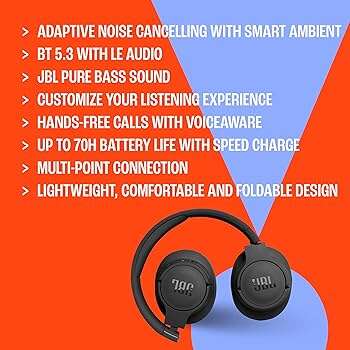
- If you frequently switch devices, use a headset that offers multi-point pairing for faster reconnection.
People also ask
How long does pairing take when you connect Bluetooth headphones to PC?
Pairing usually takes 10 to 30 seconds once both devices are in pairing mode. If it takes longer, restart Bluetooth and retry.
Do I need drivers to connect Bluetooth headphones to PC?
Most modern Windows PCs handle basic Bluetooth audio without extra drivers. For advanced codecs and features, install the manufacturer’s driver or app.
Can I connect two Bluetooth headphones to one PC at the same time?
Some PCs and apps can stream to two devices, but Windows doesn’t natively support dual audio to two headsets reliably. Use a dedicated adapter or app for simultaneous audio.
Frequently Asked Questions of how to connect bluetooth headphones to pc
How do I put my headphones in pairing mode?
Most headphones enter pairing mode by holding the power button for 5–10 seconds until an LED flashes or a voice prompt says “pairing.” Check your model’s manual for exact steps.
Why won’t my PC detect my Bluetooth headphones?
Common causes include Bluetooth disabled on the PC, headphones not in pairing mode, or driver issues. Turn Bluetooth off and on, restart both devices, and update drivers.
How can I fix low-quality audio after pairing?
Switch to the stereo audio profile in Sound settings and update drivers. Installing the headphone maker’s app often enables higher-quality codecs.
What if my microphone doesn’t work with Bluetooth headphones on PC?
Select the headset input under Sound settings and in the app you’re using. Some headphones use a separate headset profile with lower quality for mic use.
Can Bluetooth headphones introduce audio lag?
Yes, Bluetooth introduces some latency. Use aptX Low Latency or wired connections for critical real-time audio like competitive gaming.
Conclusion
You can connect Bluetooth headphones to PC quickly by enabling pairing mode on the headphones, turning on Bluetooth in Windows, and selecting the device in Settings. Keep drivers updated, pick the right codec for your needs, and use practical troubleshooting steps when things go wrong. Try these steps now—pair your headphones and enjoy clutter-free sound. Leave a comment with your model if you hit a snag or subscribe for more step-by-step tech guides.